
Calculate GPA is used to calculate Transcript GPAs and Class Ranks based on posted Academic History records. The Setup tab in Calculate GPA is the same Setup tab in Academic History and opens the same configuration tool and options.
Calculate GPA is located under the Marks menu in Q.
Access to this application is configured using permissions from the Permissions Editor.
- Marks: Calculate GPA [Application] - Access to the application
- Marks: Calculate GPA [SetupGPA] - Access to the Setup tab within the Calculate GPA application
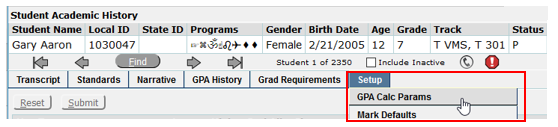
Calculate GPA Setup can also be accessed in the Student Academic History application if the user is given the following permission:
- Marks: Student Academic History [SetupGPA] - Gives access to the Setup > GPA Calc Params tab within Student Academic History
By default, the application opens the Calculate GPA tab first. Here, the Beginning Calculation Year, GPA Type (s) and Students are selected.
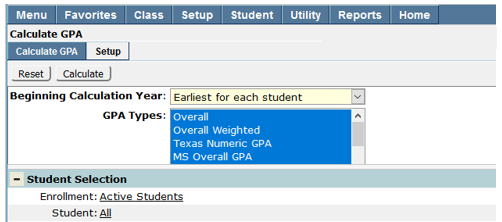
Calculate GPA is a calculation application that is dependent on the complete setup of Terms, GPA Types, Mark Values, and Mark Definitions. For details on configuring these items, see the Q Marks Configuration Guide or the QWiki Guide for Marks Setup.
The GPA Types that appear in the list and how they are calculated are determined in the Setup tab. The configuration of Calculate GPA can also be done in the Student Academic History Application | GPA Calc Params.
Click the Setup tab and select the School to be configured.

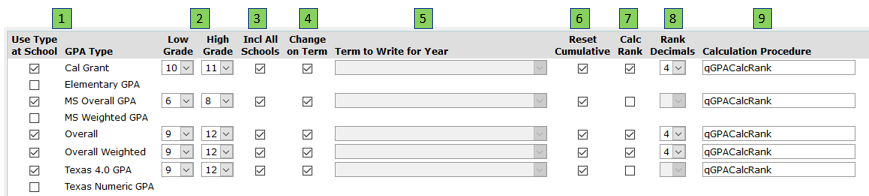
- Use Type at School - GPA Type
A GPA Calculation Setup MUST be performed for every school and for new schools when added. There is an independent set of records for each GPA Type. Performing calculations for one GPA Type has no effect on any records that exist for other GPA Types. The GPA Types linked to each Course are defined in the District Courses application. Only Marks that have been Posted to Academic History will be considered in calculating GPAs and Class Ranks. The calculations processed in Calculate GPA relate only to information on student Transcripts. This application does not calculate Current Term GPAs for Report Cards. That is done in Marks Processing. - Low Grade – High Grade
Select the grade range of each GPA Type calculation. Grade ranges can be setup for many purposes such as setting up GPA Types for state college admissions or college financial aid that would require the grade range to be set differently. Also, it may be desirable to keep transcripts from both high school and junior high and to include all those records in the calculations. - Inc All Schools
A student's transcript records could be from a different school within the district, especially if the district is keeping records from both high school and junior high school. Use the checkbox to Include All Schools. - Change on Term
When ‘Change on Term’ is checked, records are written for each Term. - Terms to Write for Year
When ‘Change on Term’ is not checked, use the ‘Term to Write for Year’ dropdown to select a term to associate with the records. Normally a term that implies an entire year, such as ‘Semester 1 and 2’, would be selected. - Reset Cumulative
When the ‘Reset Cumulative’ box is checked, the cumulative GPA and credit totals will be calculated for the grade range, schools, and terms selected. If this box is not checked, the GPA and credit totals being calculated will be added to the most recent record that exists prior to the grade range, schools, and terms selected. This unchecked option is not often used but can be for such things as setting cumulative GPAs for specific grade ranges. - Calc Rank
Use the checkbox to select whether to calculate the class rank. - Rank Decimals
Enter the number of decimal places to use when comparing GPAs for class ranking. Q can calculate to 6 decimals. - Calculation Procedure
Enter the name of the calculation procedure to use. Districts can create their own procedure to use when calculating different GPA types and define it in this field.

Once setup is complete, Calculate GPA is 4 simple steps:
- Select the Beginning Calculation Year
- Choose one or more GPA Types
- Filter Students
- Click Calculate
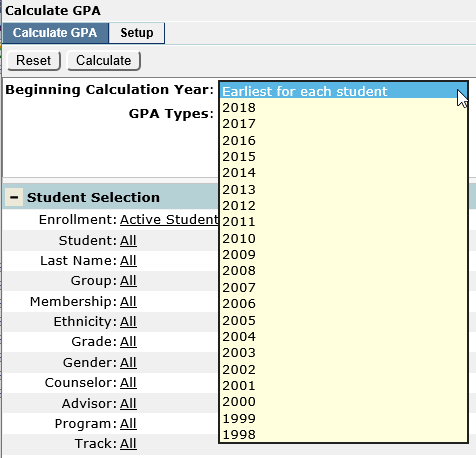
- Select the Beginning Calculation Year
By default, the calculation is set to “Earliest for each student” but can be manually set back as far as 10 years from the currently logged-in track.
- Choose One or More GPA Types
By default, all the GPA Types that have the Checkbox marked in Setup will be highlighted for calculation and Q can calculate multiple GPA Types at once.
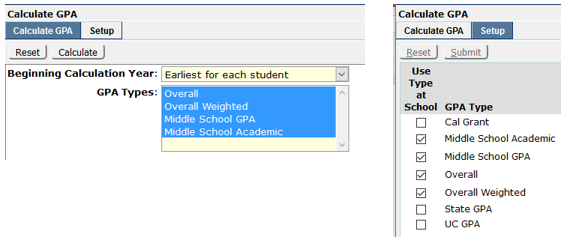
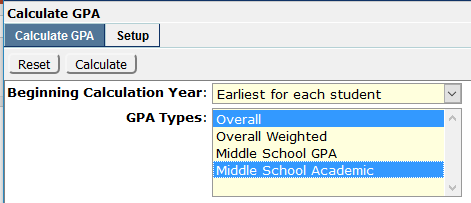
If all GPA Types are not desired, just click on the ones that are to be calculated. Use the CTRL or Shirt keys to select multiples.
- Filter Students
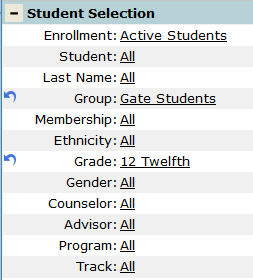
Use Student Selection to filter the student or group of students for which GPA calculations are to be made.
- Click Calculate
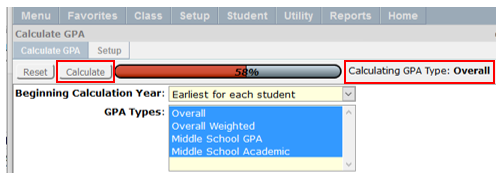
Once the Calculate button has been pressed, Q will show a progress bar for each calculated GPA Type using the selected settings.
NOTES:
- It is typical for districts to run GPA calculations automatically using ‘Jobs’ in the database manager.
- If Calculate GPA is run at the district level, by default, it will honor the site setup configuration.
