
Notifications may be used by the school district to notify users when an event, such as a new student enrollment, occurs. Notifications are permission-driven, with the ability to create notification types and recipient lists limited to a handful of users. When a notification is received, it may be viewed and responded to from the Q Home Page, and a new manual notification may be created and sent as well.
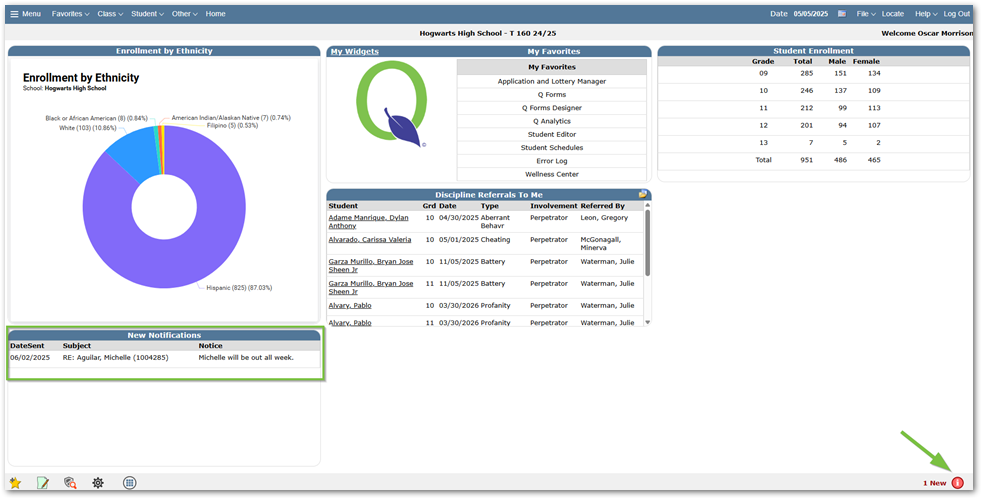
- Notifications are displayed on the bottom right corner of Q Home Page.
- The notification icon is green if there are no unread notifications.
- The notification icon is red and will include the number of new notifications if there are unread notifications.
- A notification widget is available and may be added to the user’s Home Page to display new notifications.
Notification Listings
Notifications received by the user may be accessed by clicking on the notification indicator on the Home Page. When the notification listing displays, clicking on the icons allows you to review, respond and delete received notifications.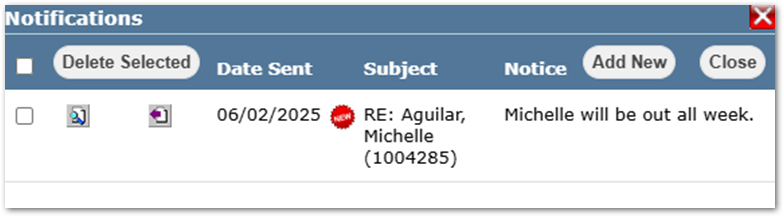
 Review: To review a notification, click on the magnifying glass icon. The review screen displays more information than is contained in the summary.
- The user may keep the notification as new by checking the Force As New checkbox.
- The message will be kept “as new” until the user unchecks the box.
- The notification may also be printed by clicking the printer icon.
 Respond: To respond to a notification, click the Respond icon. Enter your response in the Body portion. Your response will be sent to all recipients of the original notification.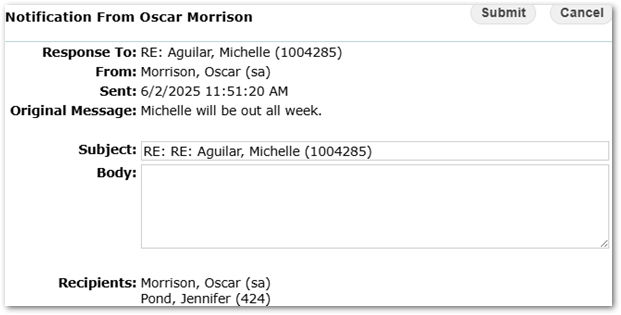
- Date Sent: The date the notification was sent to the user
- Subject: The subject line of the notification
- Notice: The Body of the notification.
- Delete Selected: Check individual notifications to delete individually or click the box at the top of the list to select all notifications. Click Delete Selected to remove the notifications.
- Add New: Opens the Add New Notification window. See Add a New Notification section below.
- Close: Closes the Notification window.
Add a New Notification
- Click Add New to open the Add New Notification window.
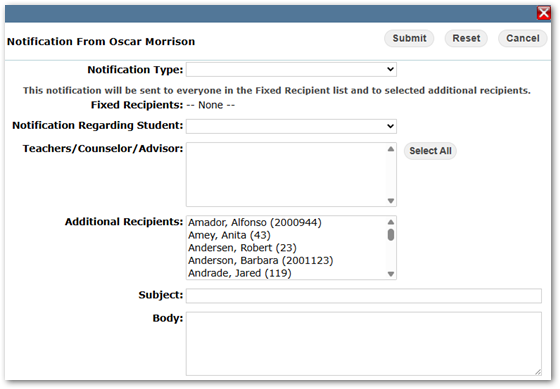
- Notification Type: The type of Notification.
- Fixed Recipients: A list of recipients who will automatically receive a copy of the notification. This can be adjusted by administrators in Notification Editor.
- Notification Regarding Student: The student this notification pertains to
- Teacher/Counselor/Advisor: A list of teachers/counselors/advisors the chosen student is assigned to. Users can click one of these individuals to receive the notification, or users can send it to multiple. To send it to multiple, users can Ctrl+Click each individual, or click Select All if everyone in the list should be notified.
- Additional Recipients: A list of additional individuals whom users can send the notification. To send it to multiple, users can Ctrl+Click each individual.
- Subject: The subject line of the notification.
- Body: The details that warranted the notification.
- Users can Submit, Reset, or Cancel this form.
Quick Reference Guides
