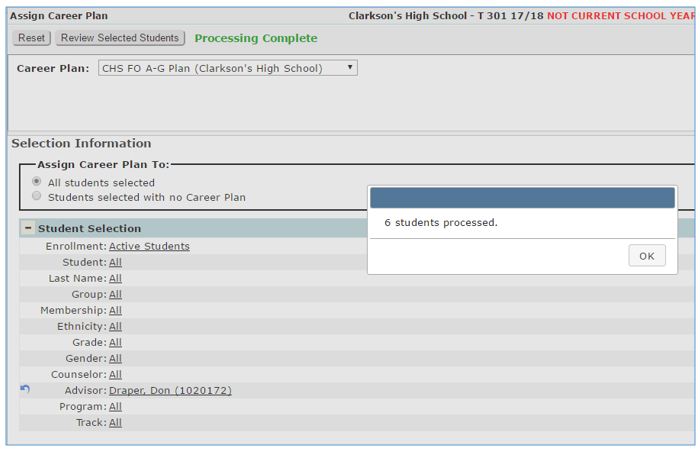
When using Career Plans to enter course requests, after Career Plans have been created using the Career Plan Setup application, the Career Plan must be assigned to students.
Career Plans may be assigned to individual students using the Student Editor or Student Schedules. The Assign Career Plan application allows the user to select a Career Plan and batch assign it to selected students using the student selection filters.
Assign Career Plan is located under the Schedule menu in Q.
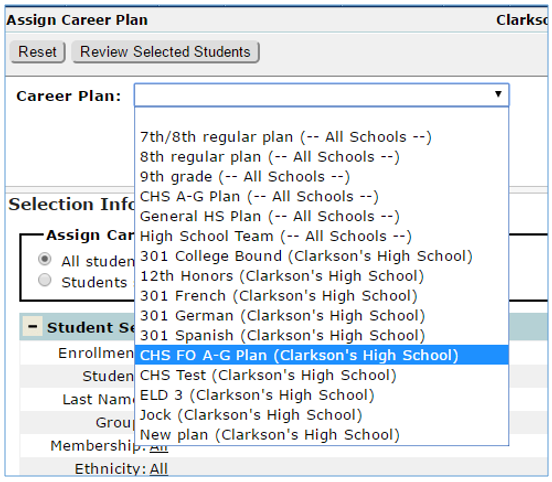
When logged in to a school track the Assign Career Plans application displays all available career plans for the logged in track, this includes plans created for All Schools as well as Plans created for the Logged-in school. The batch assignment of career plans will overwrite any previous Career Plan assignments, unless the Students selected with no Career Plan option is selected, in which case the selected career plan will only be assigned to students who do not currently have a Career Plan, skipping all other students.
To assign career plan:
- Select desired Career Plan from drop down list
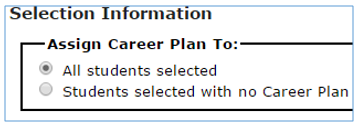
- Select Assign Career Plan To:
- All students selected—Select this option to assign the Plan to all students matching the criteria in the Student Selection filter
- Students selected with no Career Plan—Check this option if you want the mass assignment process to ignore students who already have a Career Plan assigned to them
- Select students using the Student Selection filter options
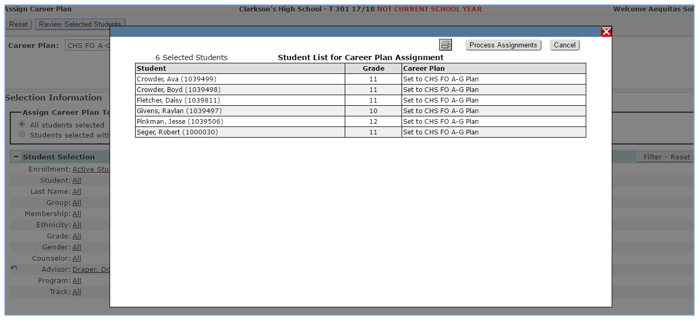
- Once selections have been made, click Review Selected Students
- A pop up list displays names of all selected students and may be printed by clicking the printer icon
- To make the changes, click Process Assignments
- Click Cancel to make no changes
- After the assignments have been processed a pop up displays the number of students processed