
The Class Behavior application allows teachers to enter and view behavior information for students enrolled in courses they have been assigned to teach in the Master Schedule.
Class Behavior is located under the Behavior menu in Q.
Note: For more detailed information on configuring and searching for courses using the Class Banner, please refer to the Class Banner documentation.
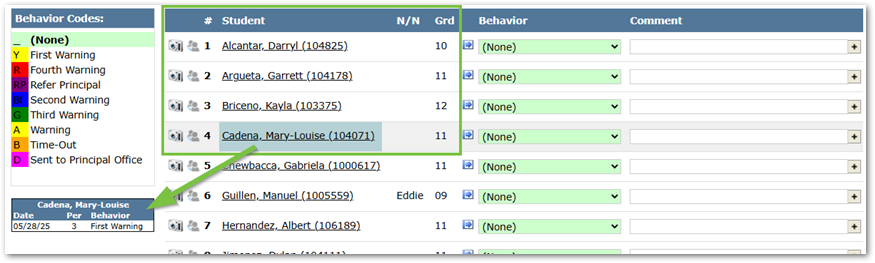
- Student Information: A roster of students, enrolled as of the system date, will appear once a course is selected. Students will be listed in alphabetical order by their last name. Additional Student information can be gained from the highlighted section below.
- Camera Icon
 : If an image of the student has been uploaded into the system, it can be displayed by clicking on the camera icon.
- Users will see a “Picture Not Available” image if no picture is available for display.
- Referral Icon
 : Allows a user to submit a referral through the Class Behavior application, if permission has been granted.
- See the Student Discipline documentation for further information on entering Referrals.
- #: The student’s roster number
- Student: The student’s last name, first name, and Student ID.
- Clicking the Student’s Name will display the selected Student’s Profile.
- Clicking the box that contains the Student’s Name will display a box that shows the student’s prior behavior entries for the past seven days.
- This box will show the Date of the Behavior, the Period it occurred, and the associated Behavior Code.
- If the student has a red dot beside their name, this indicates that the student received a behavior entry in another period, during the current day.

- N/N: The student’s nickname.
- Grd: The student’s grade level.
- Camera Icon
- Behavior Codes: There are two options within the Class Behavior roster, for selecting Behavior Codes.
- Option 1: Using the Drop-Down Menu
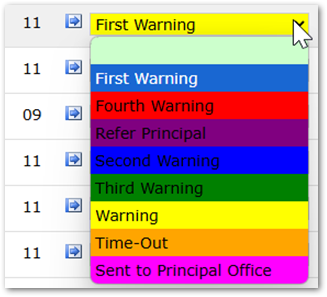
- Click the drop-down menu within the Behavior column and select the desired Behavior Code. These codes are customizable and will look different for a user’s unique school.
- Repeat as needed for each student.
- Click the drop-down menu within the Behavior column and select the desired Behavior Code. These codes are customizable and will look different for a user’s unique school.
- Option 2: Using the Behavior Codes Box
- The Behavior Codes box on the left-hand side of the application will display your school’s custom Behavior Codes.
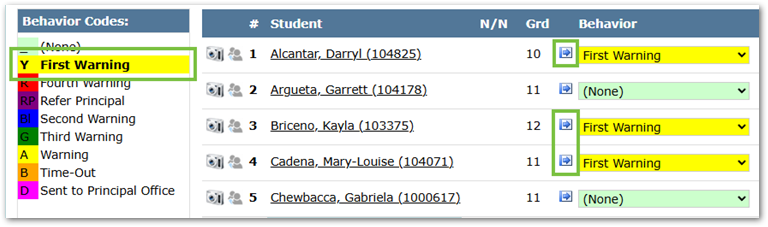
- To assign a Behavior Code to a student, click the desired code from the Behavior Codes box. Once selected, the code will be bolded.
- Then click the arrow icon
 , located between the Grd and Behavior columns. Clicking this icon, while a code is selected, will change the Behavior column to match for that student. This can be useful for changing multiple students to the same Behavior Code without needing to navigate the drop-down menu for each student.
Note
Clicking a bold code in the Behavior Code section will unselect it. If no codes are bolded, the arrow icon
 will change to an up-arrow icon
  . Repeatedly clicking this new icon will cycle through the available Behavior Codes.
- The Behavior Codes box on the left-hand side of the application will display your school’s custom Behavior Codes.
- Option 1: Using the Drop-Down Menu
- Comments: Notes and Comments may be entered to document the reason a student received a Behavior Code.
- Custom Comment: Click in the Comment field and type your desired comment. Click Submit when finished.
- Defined Comments: Click the Plus sign, beside the Comment box to display the Select Comment box. This is a list of comments predefined by your school. After selecting a comment, you can click:
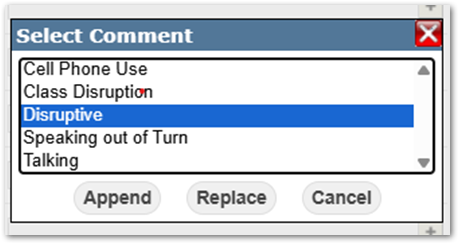
- Append: Adds the selected predefined comment to the custom comment you have already entered.
- Replace: Replaces any comments already set within the comment field
- Cancel: Cancels the action and returns to the prior screen.
- Submit/Reset: To Submit a completed Class Behavior roster, or Reset, click the corresponding button in the top left-hand corner of the application.
When a seating chart has been created for a class, a ‘Seating Chart’ link will appear in Class Behavior application.
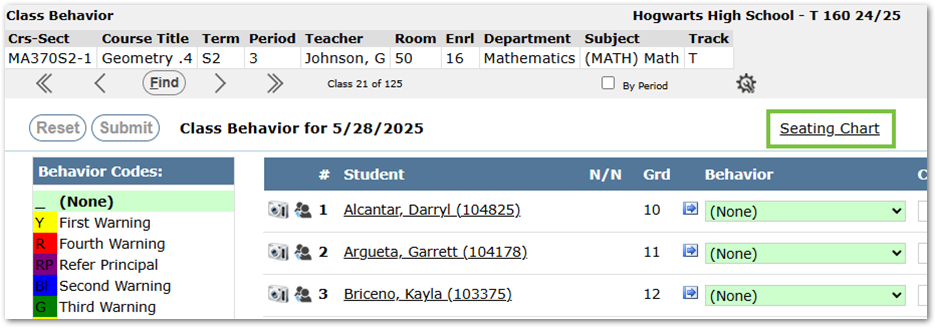
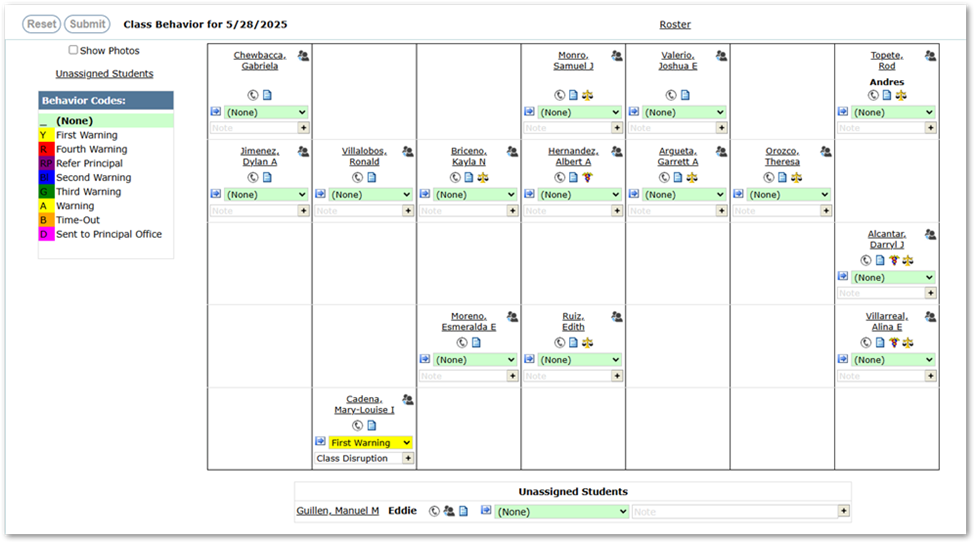
To view the class as a seating chart instead of a roster, click the ‘Seating Chart’ link. The application will display a seating chart, similar to the image below.
Note
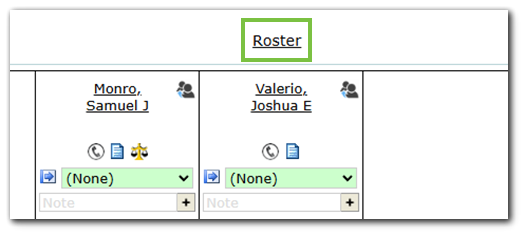
The Seating Chart link will change to Roster. Users can then click Roster if they wish to revert to the Class Behavior roster.
- Seating Chart Information: A class seating chart, of students enrolled as of the system date, will appear. Students will be displayed based on the seating chart setup.
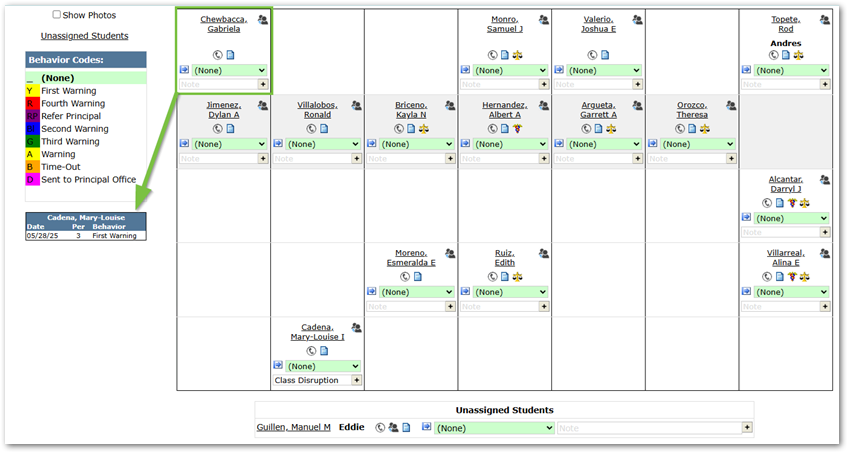
- Student Name: The student’s name, beginning with the last name, is visible in each box.
- Clicking the Student’s Name will display the selected Student’s Profile.
- Clicking the box that contains the Student’s Name will display a box that shows the student’s prior behavior entries for the past seven days.
- This box will show the Date of the Behavior, the Period it occurred, and the associated Behavior Code.
- Student Name: The student’s name, beginning with the last name, is visible in each box.
- Referral Icon
 : Allows a user to submit a referral through the Class Behavior application, if permission has been granted. See Student Discipline documentation for further information on entering Referrals.
 - Phone Icon
 : Displays the student’s contact information.
 - Attendance Icon
 : Displays the student’s attendance information.
 - Legal Alerts Icon
 : Displays the student’s legal bindings alerts.
 - Health Alerts Icon
 : Displays the student’s health alerts.
 - Behavior Codes:There are two options within the Class Behavior seating chart, for selecting Behavior Codes.
- Option 1: Using the Drop-Down Menu
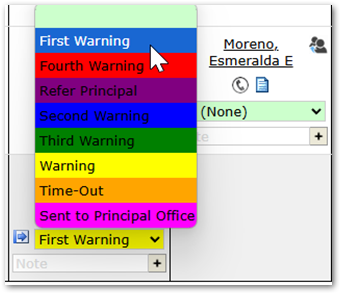
- Click the drop-down menu within the Behavior section and select the desired Behavior Code. These codes are customizable and will look different for a user’s unique school.
- Repeat as needed for each student.
- Click the drop-down menu within the Behavior section and select the desired Behavior Code. These codes are customizable and will look different for a user’s unique school.
- Option 2: Using the Behavior Codes Box
- The Behavior Codes box on the left-hand side of the application will display your school’s custom Behavior Codes.
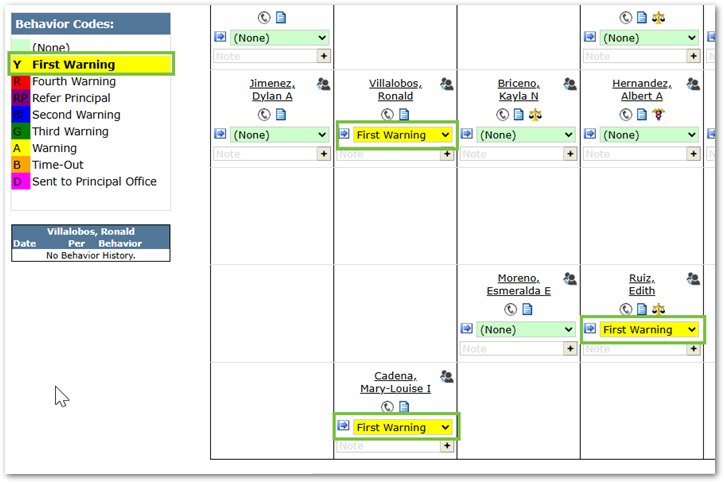
To assign a Behavior Code to a student, click the desired code from the box. Once selected, the code will be bolded.
Then click the arrow icon
 located between the Grd and Behavior columns. Clicking this icon, while a code is selected, will change the Behavior column to match for that student. This can be useful for changing multiple students to the same Behavior Code without needing to navigate the drop-down menu for each student.
Note
Clicking a bold code in the Behavior Code box will unselect it. If no codes are bolded, the arrow icon
 will change to an up-arrow icon
 . Repeatedly clicking this new icon will cycle through the available Behavior Codes.
- The Behavior Codes box on the left-hand side of the application will display your school’s custom Behavior Codes.
- Option 1: Using the Drop-Down Menu
- Note: Notes (interchangeable with comments) may be entered to document the reason a student received a Behavior Code.
- Custom Note: Click in the Note field and type your desired note. Click Submit when finished.
- Defined Notes: Click the Plus sign, beside the Note box, to display the Select Comment box. This is a list of predefined comments as defined by your school. After selecting a comment, users can click:
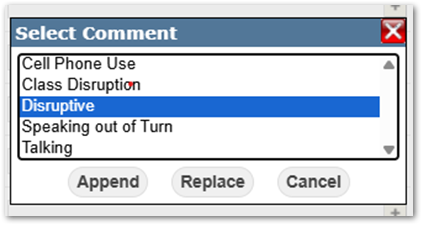
- Append: Adds the selected predefined comment to the custom comment you have already entered.
- Replace: Replaces any comments already set within the Note field
- Cancel: Cancels the action and returns to the prior screen.
- Submit/Reset: To Submit a completed Class Behavior roster, or Reset, click the corresponding button in the top left-hand corner of the application.
- Additional options
- Show Photos: Clicking the show photos checkbox in the top left-hand corner of the Seating Chart screen will display an image of the student, if one has been uploaded into the system.
- If no picture is available for display, you will see a “Picture Not Available” image.
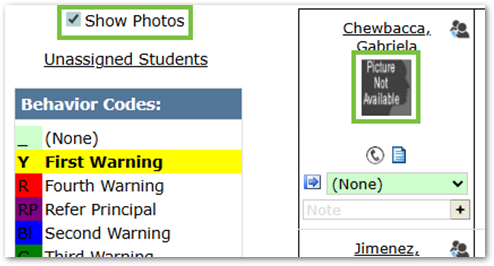
- If no picture is available for display, you will see a “Picture Not Available” image.
- Unassigned Students: Clicking the unassigned Students link will take users to the unassigned Students section. This displays students who are in the assigned course but are not assigned a seat. The Class Behavior Seating Chart functions are also available for these students within this section.
- Top: Clicking the Top link will return users to the top of the Class Behavior Seating Chart screen.

- Show Photos: Clicking the show photos checkbox in the top left-hand corner of the Seating Chart screen will display an image of the student, if one has been uploaded into the system.
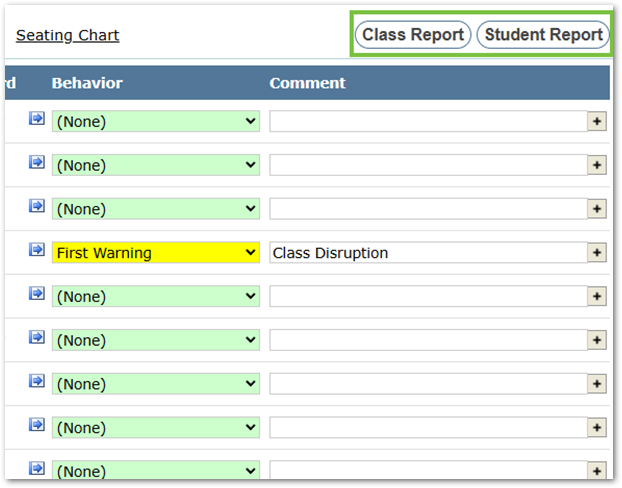
- Class Report
- Users will be taken to the Generate Class Behavior Report screen when they click the Class Report button.
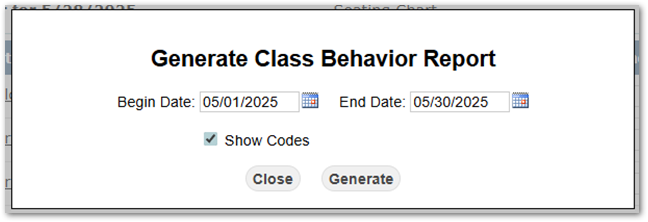
- Begin Date: Adjusts the first date that the report generates.
- End Date: Adjusts the last date that the report generates.
- Show Codes: This checkbox determines if the Behavior Codes are displayed in the report for each student. The checkbox will be filled by default.
- Close: Closes the popup and returns to the prior screen.
- Generate: Creates the desired report.
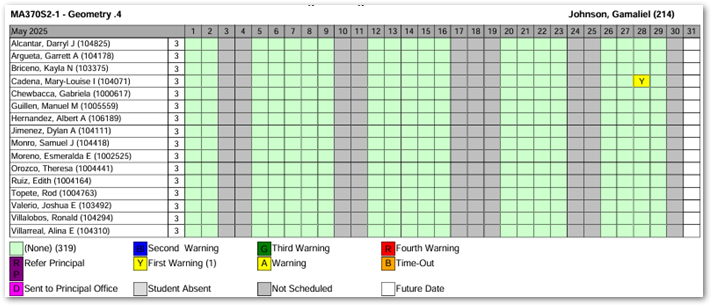
- Users will be taken to the Generate Class Behavior Report screen when they click the Class Report button.
- Student Report
- Users will be taken to the Generate Student Behavior Report screen when they click the Student Report button.
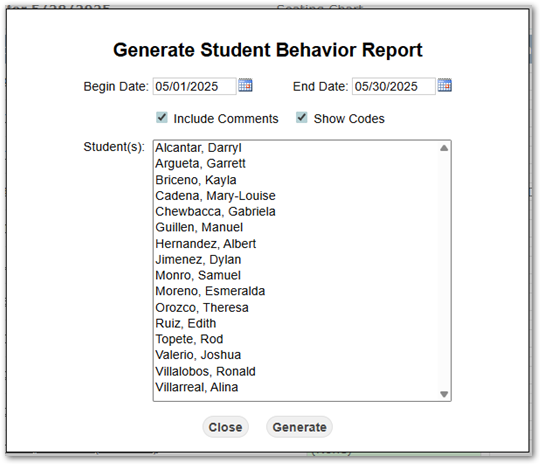
- Begin Date: Adjusts the first date that the report generates.
- End Date: Adjusts the last date that the report generates.
- Include Comments: This checkbox determines if information entered into the Comments/Notes section of the Class Behavior screen is displayed in the generated report.
- Show Codes: This checkbox determines if the Behavior Codes are displayed in the report for each student. The checkbox will be filled by default.
- Students: A clickable list of students in the course. If a user wishes to generate reports for more than one student, they may Ctrl+Click multiple students. When generating multiple student reports, each student will display on a separate page.
- Close: Closes the popup and returns to the prior screen.
- Generate: Creates the desired report.
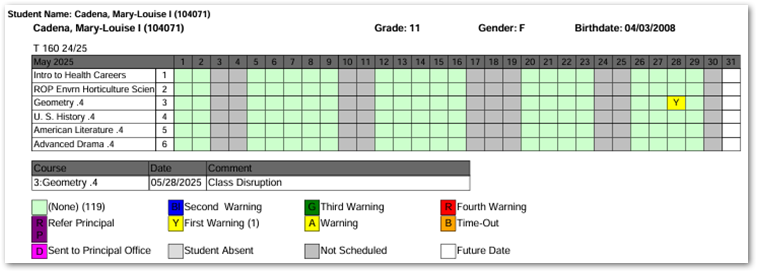
- Users will be taken to the Generate Student Behavior Report screen when they click the Student Report button.
