
Q 4.2.0 introduced a Dashboard area to the student profiles in Q, ParentConnection, and StudentConnection. The Dashboard consists of widgets that display data such as attendance, marks, school news, and more.
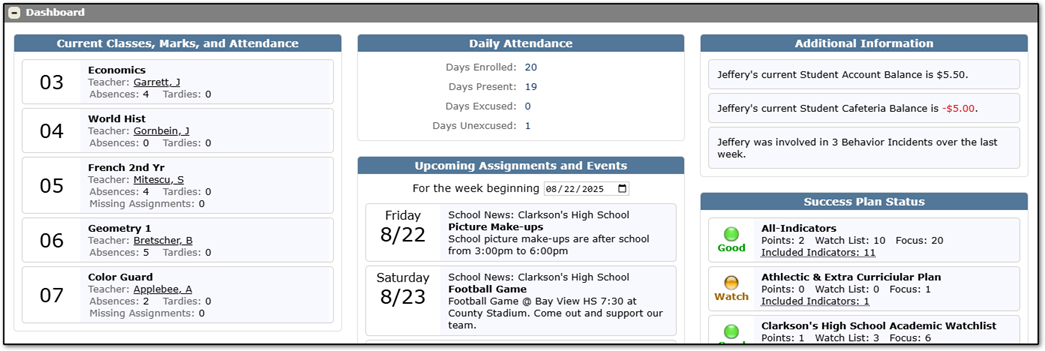
Widgets are assigned by track and application, and not every track or application needs the same group of widgets. For example, users in a track where attendance isn’t taken do not need to see the attendance widgets. Districts may also have created their own widgets that only make sense to share in some tracks and applications.
To help manage the widget track assignments there is a new tab called Widget Track Assignment in Student Profile Manager, ParentConnect Manager, and StudentConnect Manager. Q Student Profile widgets are set in Student Profile Manager and the widgets for the portals are set in their respective manager apps. The widget definitions are in Student Profile Manager > Widget Definitions.
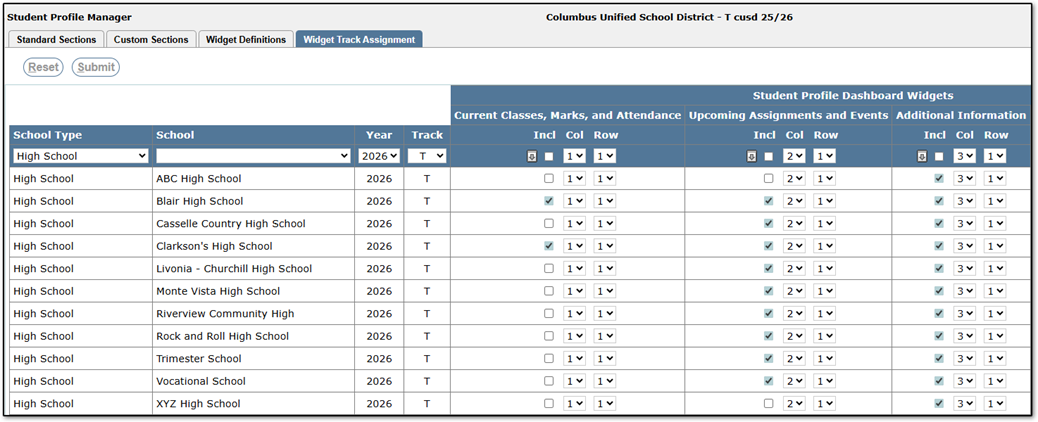
The filters on the left allow users to narrow the track selection by School Type, School, Year, and Track Code. Available widgets are displayed as columns on the right. Checking the Incl box adds the widget to a track and the Col and Row numbers set the widget location in the Dashboard area. Clicking the fill arrow will copy the Incl, Col, and Row values for the widget to every selected track.