
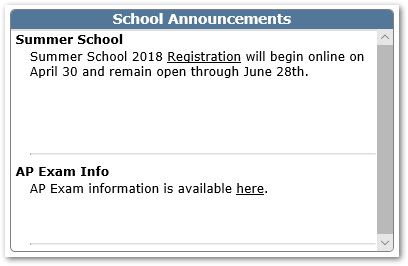
The School Announcements application provides the ability for districts to post announcements for Q users to see in a new School Announcement Widget that appears on the Q Main Page.
Announcements may be shown in a specified date range, for all tracks or selected tracks, and may be shown to all users or categories of users such as Teachers, Counselors, etc.
School Announcements is located under the School menu in Q.
Users may create announcement for tracks associated with the logged in school or all tracks for the district if logged into the district track.
The upper portion of the screen allows users to create announcements and in the lower portion of the screen users may edit or delete existing announcements.
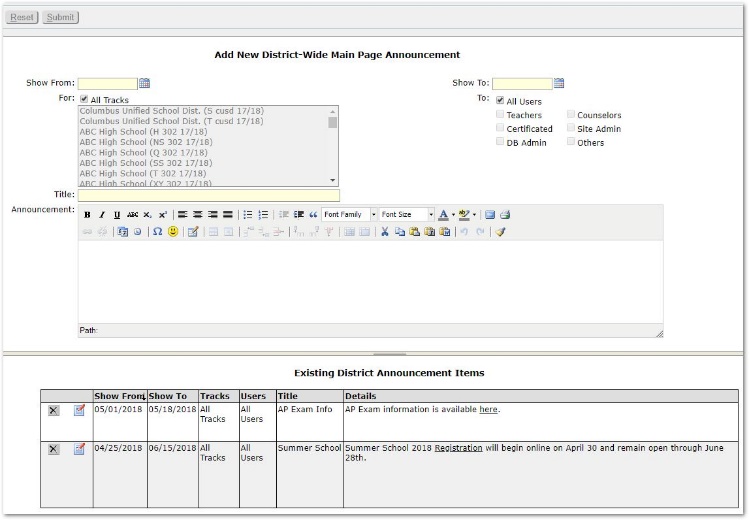
Complete entry of the fields in the upper portion of the screen, including:
- Show From & Show To – These dates define the date range for displaying the Announcement in the School Announcement Widget on selected users’ Home or Main Page.
- For (Tracks)– All Tracks associated with the logged in school are selected as the default. To select specific tracks, uncheck ‘All’ and select the specific tracks using SHIFT or CNTL keys to select multiple tracks. If logged into the district track, the default ‘All tracks’ refers to all tracks in the district. Note also the heading will indicate whether this is a District-Wide or School Announcement.
- To – Announcements default to being shown for All users. If you wish, you may uncheck All and check instead a specific type of user, e.g. Teachers, Counselors, Certificated, DB Admin, Site Admin or Others. Note: all these flags refer to possible flags that may be set in each staff person’s status record for the track. Other indicates any user who is not checked as one of the other five flags.

- Title – Enter the title of the announcement. The title will appear in the School Announcement Widget when it is displayed.
- Announcement – Enter the text of the announcement. The task bars at the top of the text box allow users to change font styles, sizes etc. if you are unsure what one of the icons will do, mouse over it and a tool tip will appear providing a short explanation.
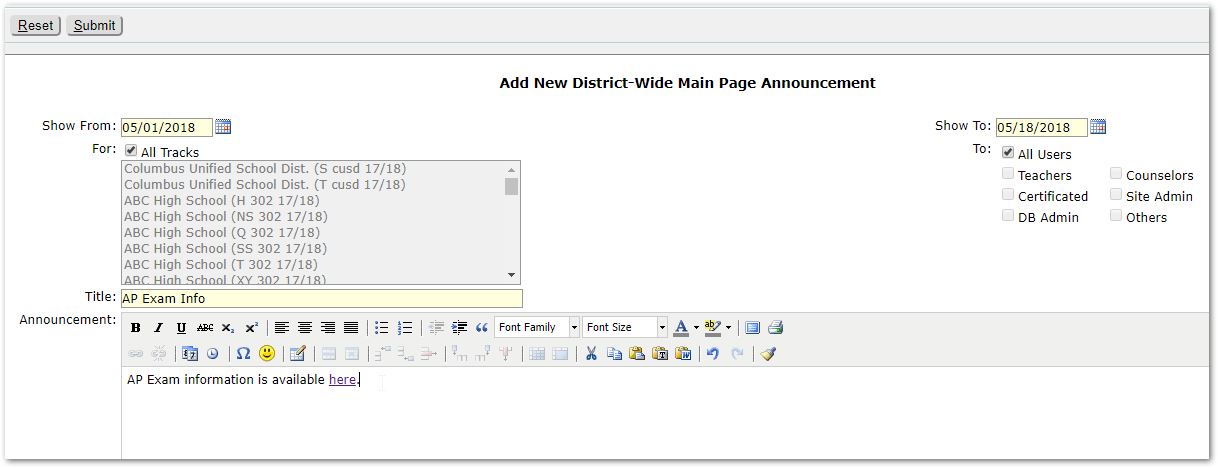
Links to URLs
Links to URLs may be included in the announcement but need to be configured to ensure the link will open in a new window or page.
To create a link:
- Enter the text as you wish to appear in the announcement. Highlight the portion of the text that you wish to link. When you highlight text, the link icons will become active at left.
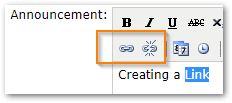
- When the link icons are active, click on the Insert/Edit link button at far left.
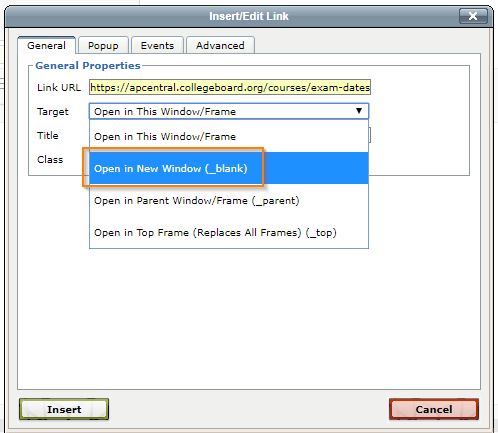
- The Insert/Edit Link dialog will open.
- Input or paste the URL into the Link URL field at the top.
- Open the Target drop-list and select ‘Open in New Window’.
- Click Insert button at bottom left.
Note: Even if you paste the URL into the Announcement you will need to highlight it, edit the link and select ‘Open in New Window’ for the target.
- When you have completed entering the announcement and related fields, click Submit to save the announcement.
Once you have saved the announcement, it will appear in the set of announcements in the lower portion of the screen.
- Click the Home button to return to the Q main page.
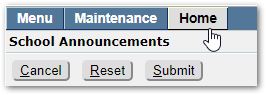
Note: You will need to ensure that your system date falls in the date window for the announcement as you defined it in ‘Show From’ and ‘Show To’ fields.
Example announcements in the School Announcement widget, as shown:
From within the School Announcement application, you may sort existing announcements shown in the lower portion of the screen by clicking on any of the column headers to change the sort order.
- Select the announcement you wish to edit.
- Click the ‘Edit Announcement’ icon at left.

- The announcement will open. Make any desired changes, as discussed in the section on adding announcements above.
- Click Submit to save the changes.
- Select the announcement you wish to edit.
- Click the small X icon at left.
- A message will appear asking you to confirm you want to delete the selected record:
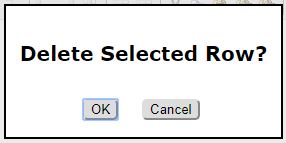
- If you do, click OK. Otherwise, click Cancel.
