
The Q Caseload Manager application may be used to review and adjust provider caseloads for students enrolled in any program that uses placements. Caseloads may be filtered by type, placement or service, by program, by service location, provider, type of service and numbers of students. In addition, students assigned to a provider’s caseload may be transferred from one caseload to another. Services may also be added or dropped.
Individual student program records with their associated placement records may be accessed in either Student Special Education application, for students enrolled in a Special Education program, or in the Student Program History application for students enrolled in all other programs. See the documentation for more information about these applications.
Caseload Manager is located under the Programs menu in Q.
Caseload Manager will open to the Manage by Roster tab.
From this tab, clicking on any column will sort the caseloads by that column. Click again on the column to toggle the sort order of the column from ascending or descending or back. An arrow shows the current sort. The filter fields at the top may be used to narrow the set of caseloads. 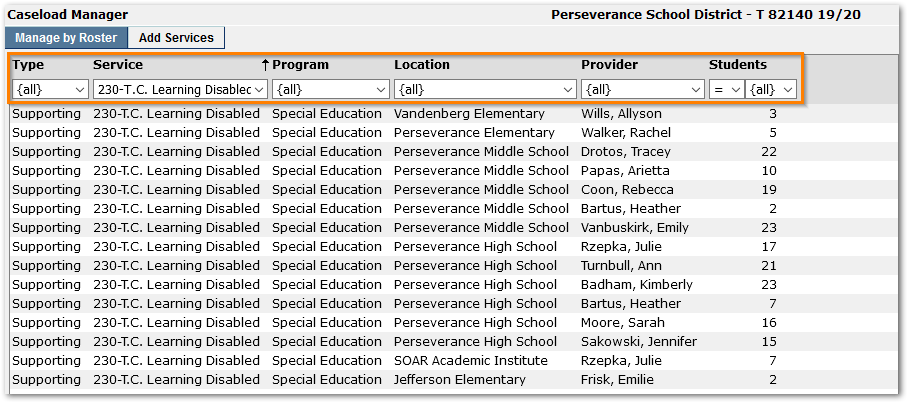
Fields available for filtering include:
Type – Select to narrow results to type of placement such as Primary, Strategy Tools, 504, etc.
Service – Select to work with specific services, such as ‘230 - Learning Disabled’.
Program – Any program with placements will be shown in the filter list. It will default to ‘All’, select one to filter for a specific program.
Location – This field will be set to the logged in school, unless logged into the district office from which you may select any service location.
Provider – Select desired provider. This can be a useful way of finding caseloads that have an ‘Unassigned’ provider, or a placeholder provider.
Students – Using the operand selection of =, <, > combined with a specific number of students, you may locate caseloads with less than 10 students, or more than a threshold number.
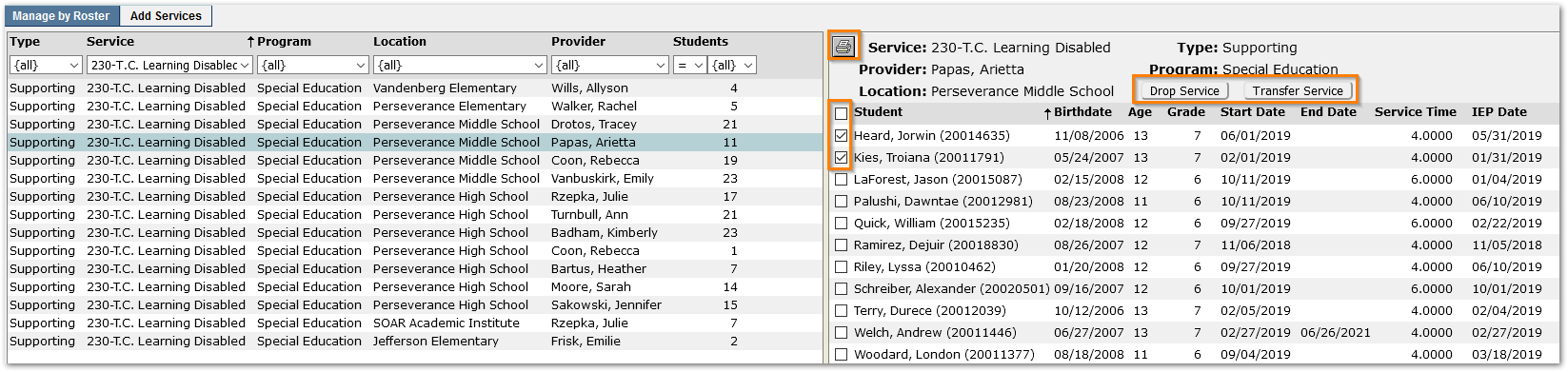
When you click on or select a caseload at left, it becomes highlighted and the roster of students in that caseload will appear in the detail pane on the right. The roster may be sorted by clicking on any of the column headers. In the example shown the list is sorted in ascending order by Student as indicated by the small arrow pointing upward to the right of ‘Student’. Clicking the Student column again would change the sort to be descending order.
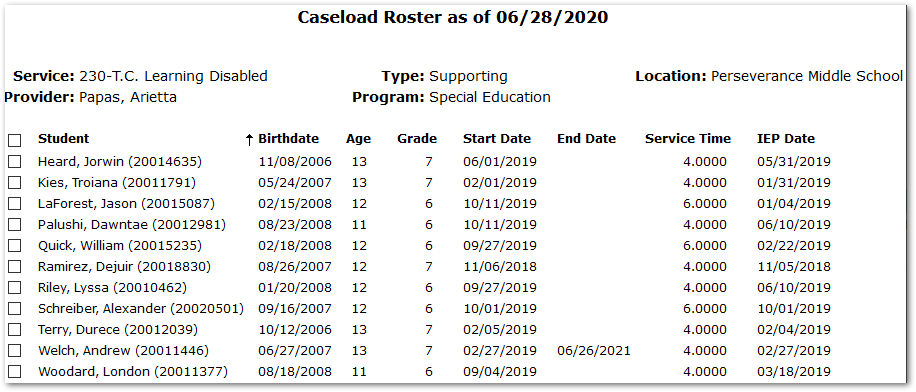
You may print the Caseload Roster by clicking the Printer icon. The Caseload Roster will appear, as shown.
From the Caseload, you may select individual students by clicking in the checkbox adjacent to their name or select all students by clicking the checkbox at the top of the list (to the left of the column header ‘Student’).
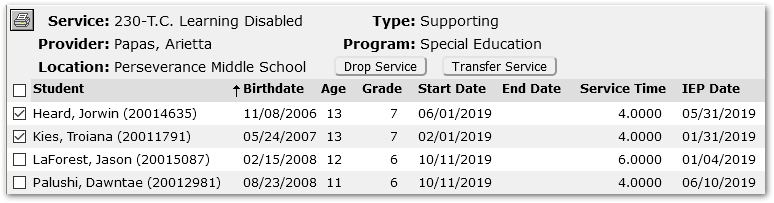
When students are selected, the Drop Service and Transfer Service buttons become activated.
- Select the students to transfer, as discussed above.
- Click the Transfer Service
- A Transfer Service pop-up dialog will open.
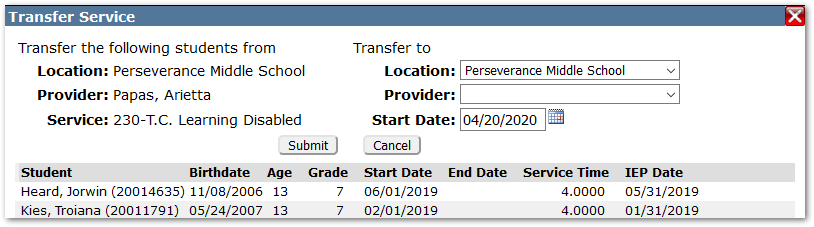
Information about the current location, provider and service will appear at right with the students selected listed below. To transfer the students listed from their current service, select:
- Location – you may select any service location, whether logged into a school or district. Select the location the student will receive the service.
- Provider – select the new provider. Note: The providers listed will be based on their active status in the location selected, and per district’s configuration, be certified to provide the selected service. The number in parenthesis next to the provider’s name indicates the number of students the provider currently has on their caseload for this service.
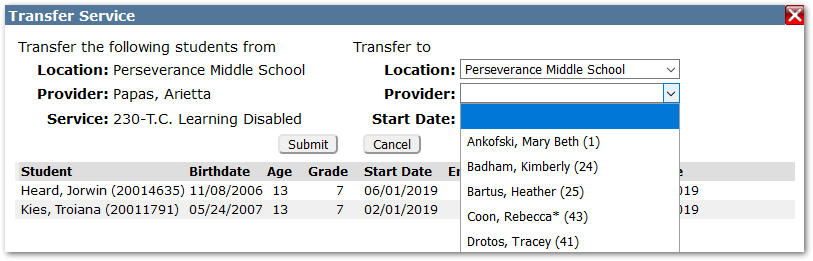
- Start Date – the currently open service will automatically be closed effective one day prior to the start date set.
When complete, click Submit to save the changes and transfer the service.
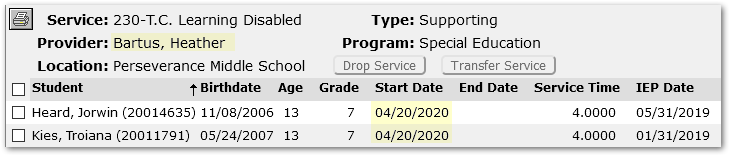
The students will now appear on the new caseload. In our example, the students’ services were moved from provider Papas, Arietta to Bartus, Heather with a start date of 4/20/2020.
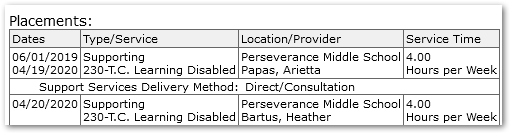
Alternatively, to review an individual student’s services, you may wish to use the either the Student Special Education application for Special Education programs or the Student Program History application for all other programs. In the appropriate application, find the student and review the detail for the appropriate program record to see or edit the associated placement records. In the example shown below from the student’s Special Education record, you can see the closing of the 06/01/2019 Service record for 230-TC Learning Disabled as of the previous date, 4/19/2020 with Papas followed by the new record for the same service starting 4/20/2020 with Bartus.
When dropping a service or closing a placement record:
- Select the students, as discussed above.
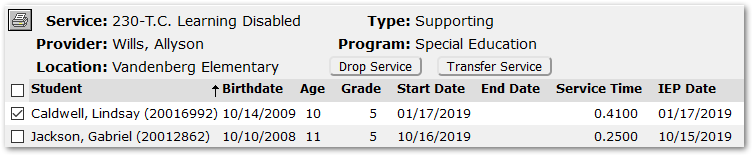
- Click the Drop Service
- A Drop Service pop-up dialog will open.
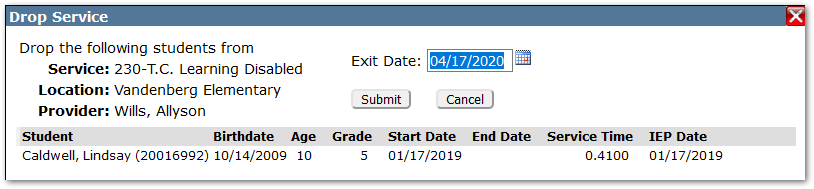
- Set the Exit Date to the appropriate date. It will default to Today’s date, but this may not be the appropriate date for closing the placement or service record.
- Click Submit to save the changes.
Once complete, the record will show with the End Date set. (If the exit date was backdated, you will need to set your system date back to that day, or prior to it to see it.)
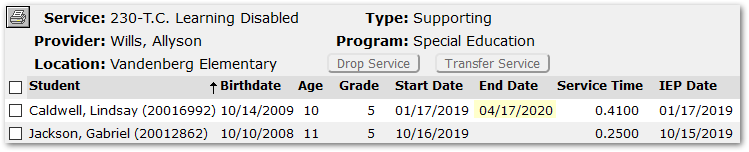
If you need to review or edit the individual student’s record further, in the event of an error setting the date as example, use either the Student Special Education application or the Student Program History application for students in all other programs, find the student, and select and edit the appropriate record, editing the associated placement records.
From the Add Services Tab:
- Location Filter – This will default to All Locations. If you want to narrow your search, you may select a specific location.
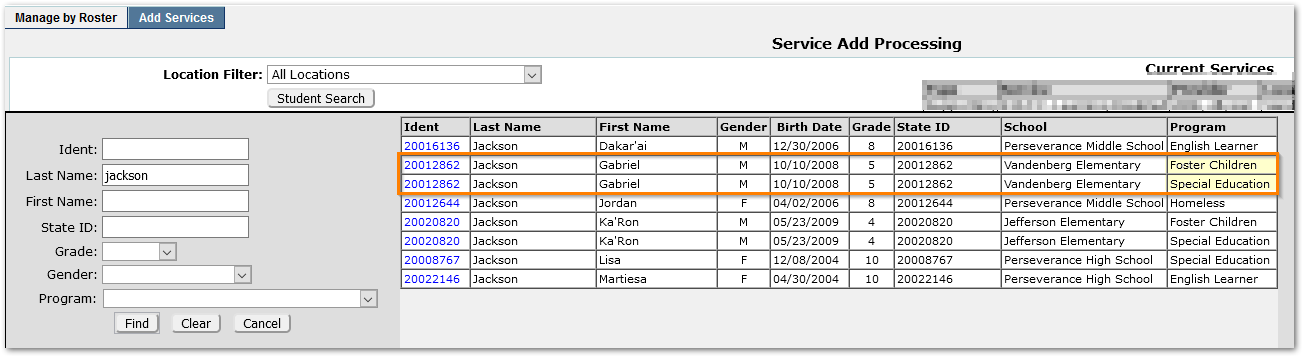
- Student Search – Click Student Search and use the filter criteria to find the student needing services added.
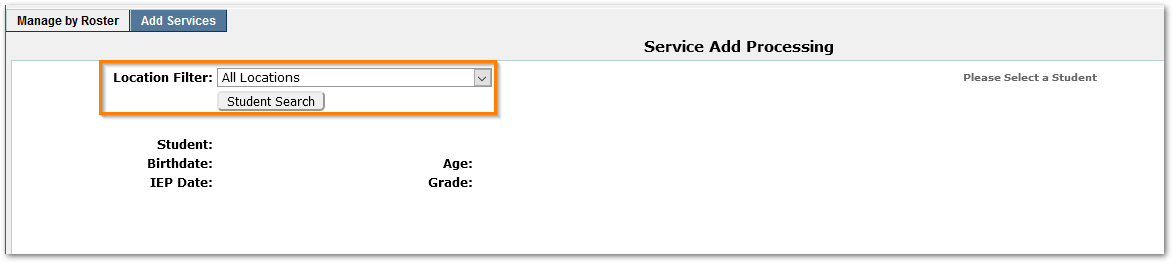
Note:
When searching for a student, it is possible to see the student multiple times in the search: once for each program with placements, unless ‘Program’ was selected as a filter criterion. The service types available are those associated with the program. It is important to select the correct program for a student when adding services.
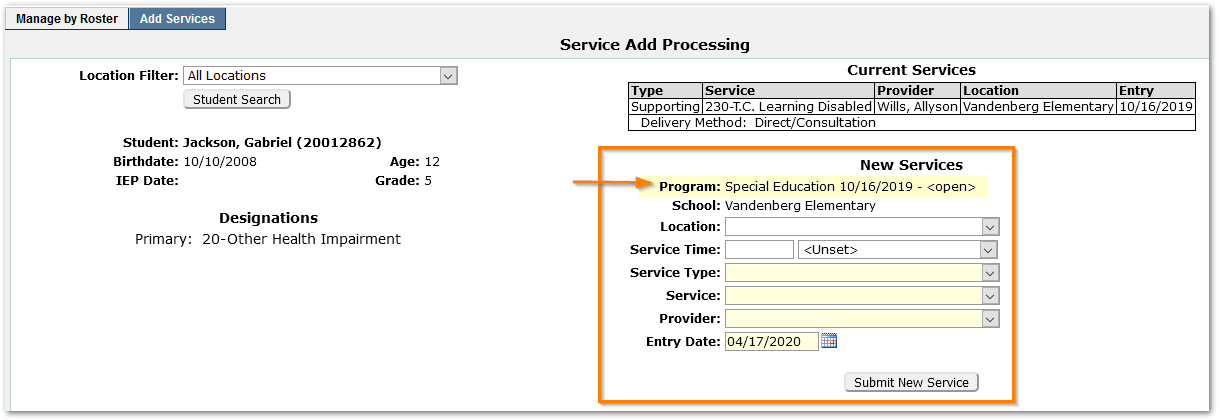
- When the student is selected, general information about the student appears at left with the set of current services or placements at top right.
Note:
The ‘Delivery Method’ field in the Current Services display is an extension field and may not appear in all databases or states.
- Enter data for New Services:
- Program – Will display at the top. Ensure it is the correct program record for the student. When a student is in multiple programs, he or she will appear multiple times in the search results. Select the record for the desired program.
- School – The student’s school of enrollment is displayed.
- Location – Select the location where the student will receive services.
- Service Time – The amount of time the student will receive the service in the selected time unit.
- Service Type– Select the type of service the student will be receiving.
Note:
Note: The Services Types available are those associated with the Program. The services shown in the Services drop-list will be those associated with the Service Type.
- Provider – The list of providers will be filtered based upon the service and service types selected. Providers are linked to only those services which they are authorized to provide. The number in parenthesis next to the provider’s name indicates the number of students the provider currently has on their caseload.
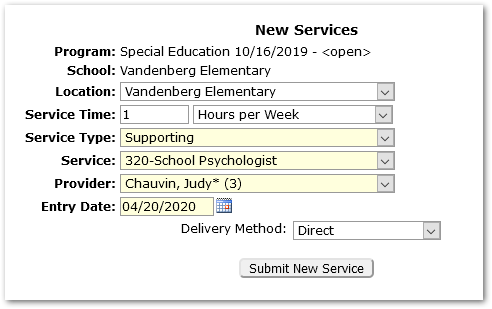
- Entry Date – Enter the date the student will begin receiving services. Dates can be entered in a MM/DD/YYYY format, or by clicking on the Calendar icon located to the right of the entry date field.
- Once service information has been entered and reviewed, click Submit New Service. The new service will then appear in the upper right display of Current Services.
Additionally, if you need to review or edit the individual student’s record further, in the event of an error as example, use Student Special Education application, find the student, and select and edit the appropriate Special Education record, editing the associated placement records.
