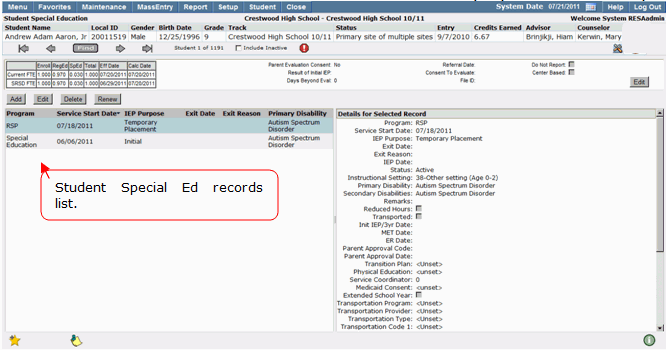
The Student Special Education application may be used to track and maintain Special Education records for students throughout their participation in defined special education programs. Information that users can track may include, but is not limited to special education events, IEPs, program begin and end dates, instructional settings, disabilities and placements.
Student Special Education is located under the Programs menu in Q.
The Student Special Education application is a Student Banner Application. For more detailed information regarding how to search for students using the Student Banner, please refer to the Student Banner documentation.
Once you have located the student for which you would like to add a special education event you may begin entering detail information.
1. Add: Single click the Add button to open a new event record.
2. Program: Select the appropriate program from the program drop down list.
3. Service Begin Date: The field will default to blank, enter a date in an MM/DD/YYYY format or click on the calendar icon to the right of the field and select the correct date. The service date field will enable you to view special education event records in the order in which they were entered. If you fail to enter a Service Begin Date you will receive the following error.

4. Begin Reason: This drop down field will be pre-populated by your district site and should include frequently used program entry reasons. If you fail to enter a Begin Reason you will receive the following error.

5. Optional / Exit Date: If you are entering an exit date for the special education event enter it in an MM/DD/YYYY format or click on the calendar icon.
6. Optional / Exit Reason: If an exit date has been entered an exit reason is required. If you fail to enter an exit reason you will receive the following error.

7. IEP Date: Enter the date the student's IEP is scheduled to begin.
Note:
A student should not have more than one current IEP record open at a time.
8. Status: Record the student’s special education status by selecting the appropriate item from the drop down list.
9. Optional / Instructional Setting: A student's Instructional Setting may be maintained in the Instructional Setting field. This field should be pre-populated with settings which are frequently used by special education instructional staff.
10. Primary Disability: The student's Primary Disability should be recorded. This field may be used in special education reports to group students based on disability for easier viewing.
11. Optional / Secondary Disability: If a student has multiple disabilities which should be documented, enter them using the Secondary Disability field. To do this, simply click Add and select the disability from the drop down list. If the student has more than two disabilities, continue adding them using the steps detailed above. If you have entered a disability in error, click the X to delete it. 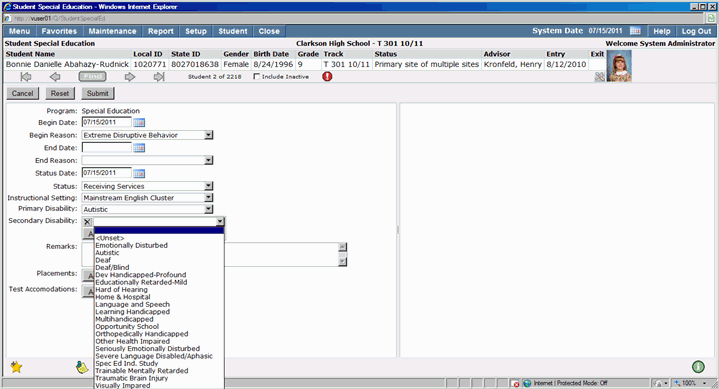
12. Optional / Remarks: If you would like to document notes which pertain to the special education event, enter them in the Remarks field. Entering notes may be useful in helping you recall what occurred during an IEP visit or a special education meeting with a student and / or parents.
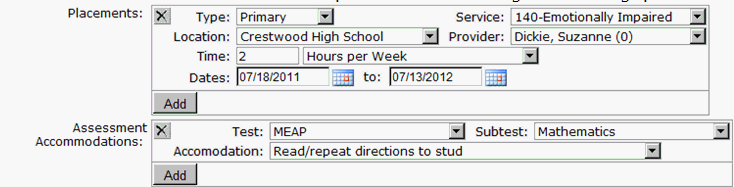
13. Optional / Placements: If students are receiving treatment from a service provider at any particular location, you can add a placement. Placements are defined by type and the type of service selected will filter the services available. Only the providers qualified to provide the selected service will be displayed in the list of available providers.
If the student will be receiving a service, users can document the placement location, the service the student will receive, the type of service, the service provider, the amount of time for which the student will receive the service, and the dates of the service. If the student is going to be receiving multiple services, click the Add button and repeat the steps listed above.
14. Optional / Test Accomodations: Students with special academic needs may sometimes receive accommodations for a test. To add test accommodations for students click Add, enter the test the student will be taking with accommodations. The subtests available will be based on the selection made in the test field. Enter any special accommodations the student will receive during the testing period.
Note:
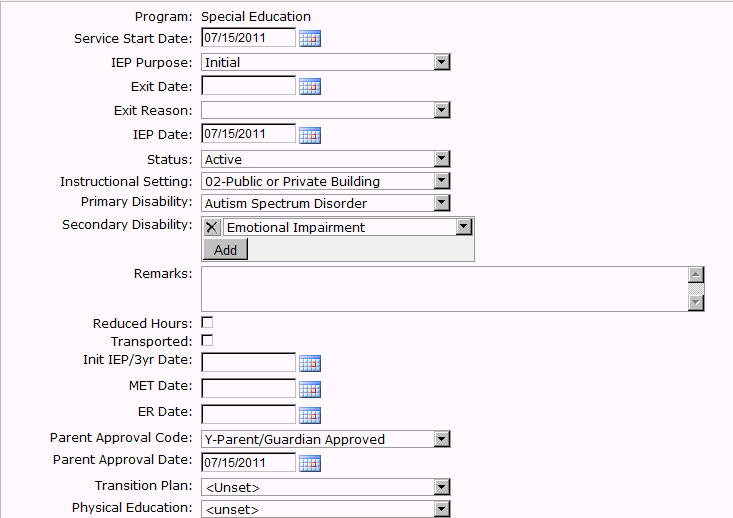
If the district has configured any extension data labels; the row label names may be different than what is displayed below.
Special Ed fields with extension data added and field names changed:
Once all the desired special education data has been entered and reviewed, save the event.
- Click Submit to save the data you have entered.
- If you would like to clear the data, click Reset.
- To cancel and clear all data entered since the last Submit, click Cancel.
Once an event has been added for a student and submitted in Student Special Education, you must edit the event to make any changes to data.
- Search for the student whose event needs modification.
- If the student has more than one event listed, find the event you would like to edit and click to highlight.
- Once the desired event has been highlighted, click the Edit button located at the top of the events list.
Make sure that the record you would like to edit is highlighted in the Special Education events list. 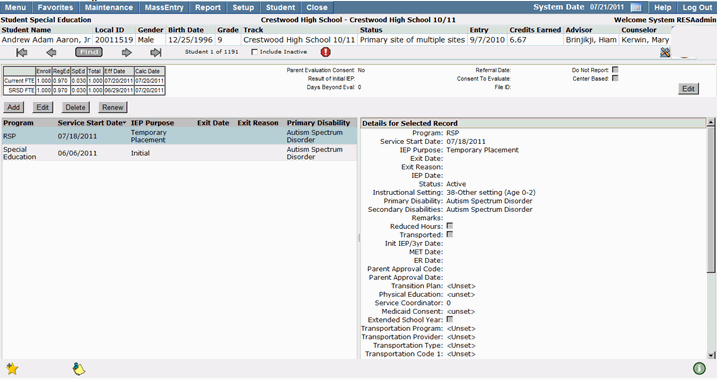
4. The selected special event record will open; make the appropriate changes and Submit to save.
Note:
The Program data field is not editable once saved. If you have entered the incorrect Program for a student you will have to delete the special education event and re-enter it using the correct data.
5. Click Submit to save your changes.
Special Education records for students with a program history are stored in a list format viewable by student.
To view details of a specific special education event:
- Highlight the event for which you would like to view details.
- The details for the selected record will appear on the right hand side of the screen. All data for the selected event will be displayed in a view only format.