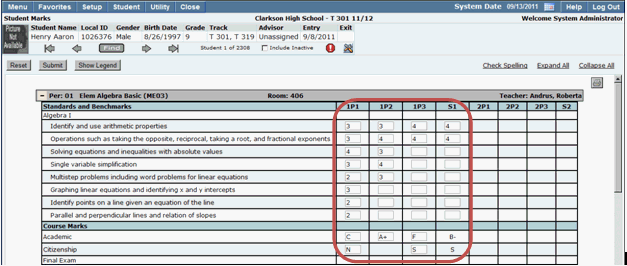
The Student Marks application allows you to enter marks for all of a student’s scheduled classes at one time. Comments and notes may also be entered.
Student Marks is a Student Banner application. For detailed information regarding how to search for students using the Student Banner, please refer to the Student Banner documentation.
Student Marks is located under the Marks menu in Q.
While in Student Marks, The marks legend may be accessed by clicking the Show Legend button.

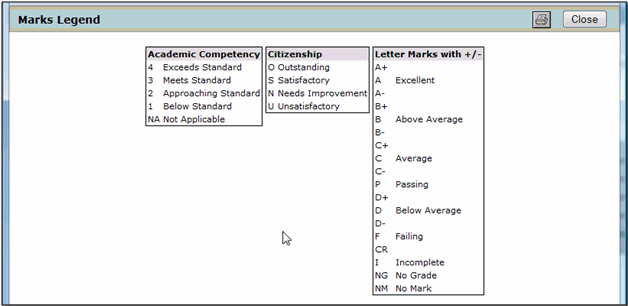
Once you have found the student it’s easy to enter student marks.
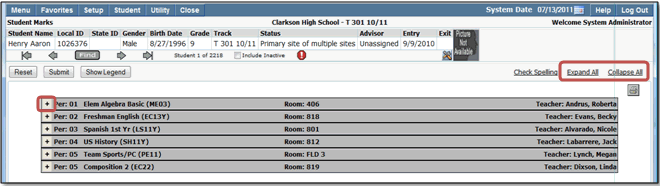
- Clicking the plus sign next to a course expands the selected course for mark entry
- Individual courses may be selected
- Click on Expand All to expand all courses in the student’s schedule at one time
- Collapse All closes all course mark entry screens
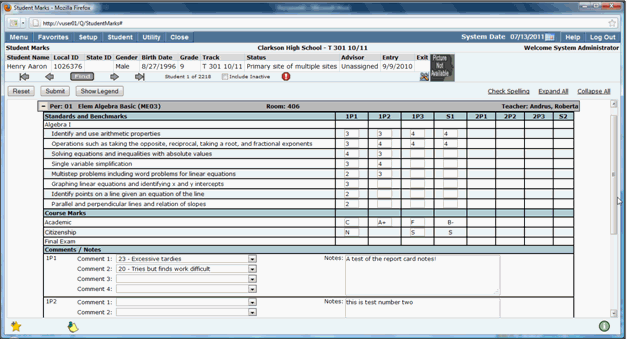
- When the course entry screen is expanded, users may enter a mark in the box
- The tab key may be used to navigate from box to box
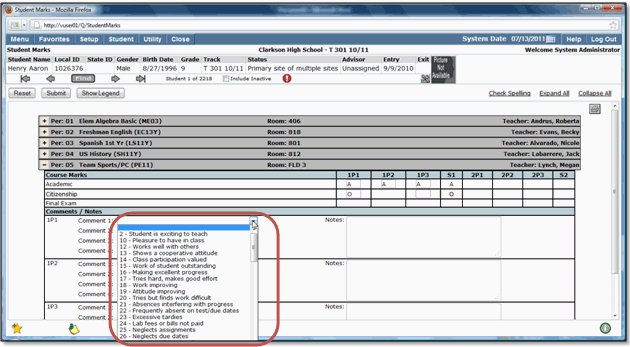
- Comments may be added by selecting a pre-defined comment from the drop down list
- Notes may also be added by typing text in the free form Notes field box
Note:
Spell Check is available in the notes field.
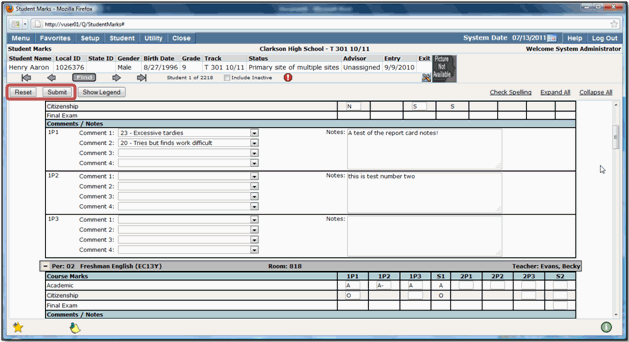
- To clear entered marks before submitting, click Reset.
- Click the Submit button to submit marks.
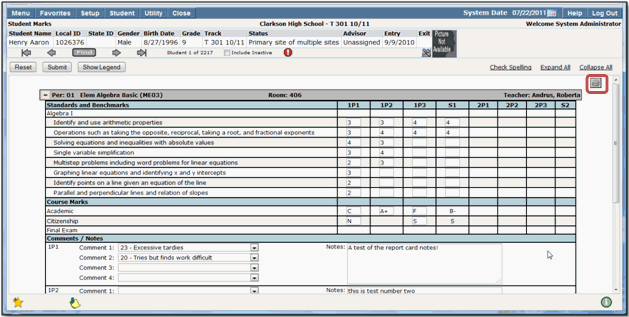
The Student Marks Screen may be printed by clicking the Printer icon in the upper right hand corner of the page.
When teachers use the Student Marks application they are only allowed to enter marks for students who are in the classes they teach. Marks entry is limited to the mark entry date range for the current reporting period.
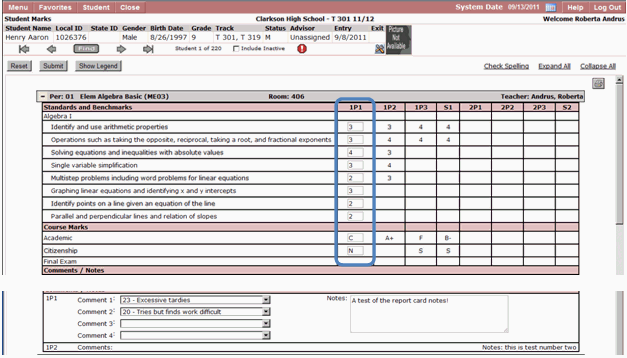
Marks may only be entered for the current Marking Period (1P1)
Additional permission sets are available for system Power Users.
- Date Override: Mark reporting periods are defined and entered into the Web Administrator application. Marks should typically be entered during a specified time frame set by your District. Date Override allows users with this specific permission to override the mark reporting time frame restrictions and enter marks for students regardless of the time of year and whether the mark reporting window is open or not.
- Q Student Marks Administrator: The Q Student Marks Administrator permission set allows users to enter marks for any student, regardless of whether or not they are a teacher or have the student assigned to them. This is beneficial when a student is withdrawn from a class before the teacher is able to enter an earned mark for the student. A Student Marks Administrator may also enter a student mark which is provided to them by the student’s teacher.
Note:
When adding/editing marks for a student, you must be logged into the school where the student received the marks.
Date Override allows users to enter Marks at any time during the school year regardless of Mark Reporting period or window. Student Marks Administrators have access to all students, regardless of whether or not the student is assigned to a course they teach in the Master Schedule.