
Lookup Code Editor – GPA Types
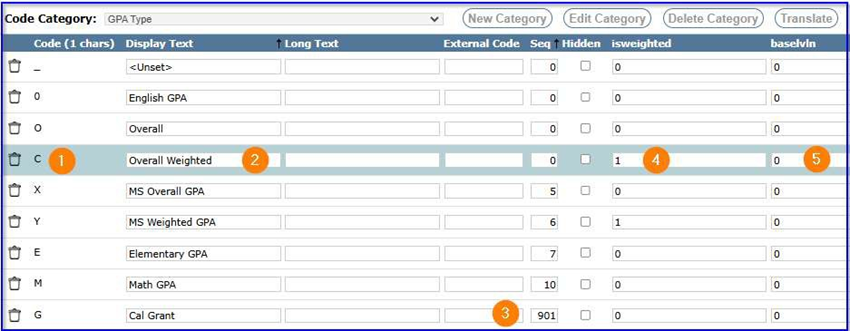
- GPA Code
- GPA Description
- Sequence/Sort of 900 or greater will suppress this GPA Type from being viewed by Parents and Students.
- Isweighted indicator defined by a ‘1’ which is Yes/True and ‘0’ for No/False
- Baselvln – This defines where the GPA values start for unweighted gpa’s, and if isweighted = 1, then system knows to move to the next GPA Val column in Mark Values based on the GPA level in District Courses (covered later in this document)
Mark Values
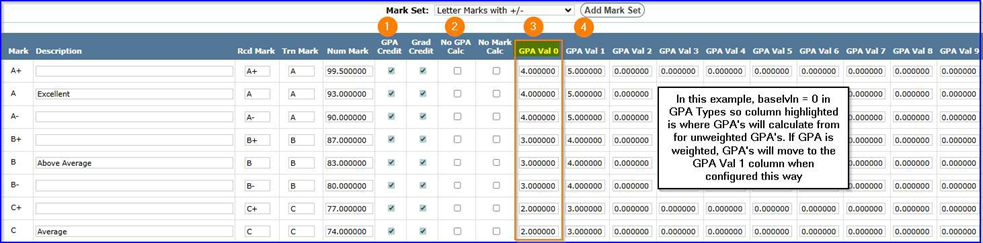
- Does the mark receive GPA Credit checked = Yes, unchecked = No for like P for Passing etc.
- No GPA Calc – Check this on for any values that should not be calculated in GPA’s like P for Passing, I for Incomplete etc.
- GPA Val 0 – This is usually the starting point for unweighted GPA values.
- GPA Val 1 – In this setup, we are using this column to represent the ‘weighted’ GPA values. NOTE: Districts that have more than one type of weighted (Honors vs AP), may need to use additional GPA Val columns and if interested, please submit helpdesk ticket for assistance.
District Courses
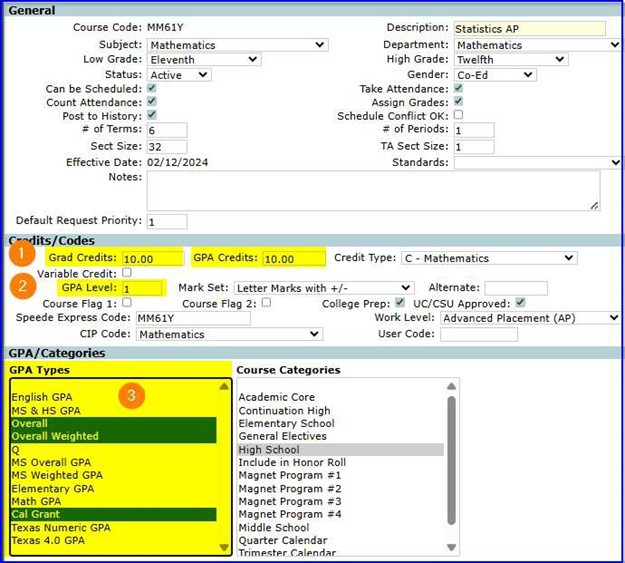
- Grad Credit & GPA Credit are usually set to the same amounts. Grad Credits is used towards Graduation Requirements, and GPA Credits are used for GPA calculations.
- GPA Level – For unweighted courses, this value usually will be set to 0, and if weighted like this example it is set to 1.
- GPA Types – Each course needs to be associated with each GPA that the course can be calculated in. NOTE: If you have an (unweighted) and (weighted) GPA like this example, any course that is counted in the unweighted, should also be associated with the weighted or vice versa. This is a common mistake as some users feel the course is not weighted, so don’t select Overall Weighted. This is incorrect, as every student especially if using Class Ranks, will want to have students calculated against both. (i.e. Student A takes unweighted classes and receives an ‘A’ in every class and Student B also receives an ‘A’ in every class, however all classes were weighted. Both students will receive 4.00 for the unweighted GPA, and Student A will still have
4.00 for weighted, but Student B will have 5.00 for weighted GPA.
Tip: When creating a new course in District Courses, if you find a “like” course first and then click Copy, you will ensure that the GPA’s Configuration from the “like” course will be setup for the new course being added. This cuts down on mistakes as users may forget to setup the key GPA data.
GPA Setup
There are two places that this can be setup. Calculate GPA / Setup Tab or in Student Academic History / Setup Tab. NOTE: These must be setup at each school and NOT the District.
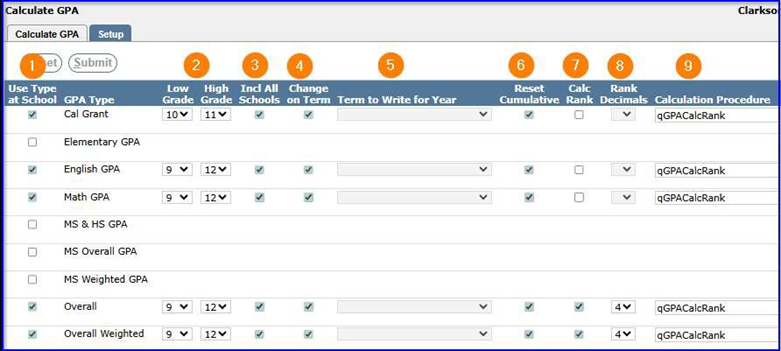
- Use Type at School - GPA Type - A GPA Calculation Setup MUST be performed for every school and for new schools when added. There is an independent set of records for each GPA Type. Performing calculations for one GPA Type has no effect on any records that exist for other GPA Types. The GPA Types linked to each Course are defined in the District Courses application. Only Marks that have been Posted to Academic History will be considered in calculating GPAs and Class Ranks. The calculations processed in Calculate GPA relate only to information on student Transcripts. This application does not calculate Current Term GPAs for Report Cards. That is done in Marks Processing.
- Low Grade – High Grade- Select the grade range of each GPA Type calculation. Grade ranges can be setup for many purposes such as setting up GPA Types for state college admissions or college financial aid that would require the grade range to be set differently. Also, it may be desirable to keep transcripts from both high school and junior high and to include all those records in the calculations.
- Inc All Schools -A student's transcript records could be from a different school within the district, especially if the district is keeping records from both high school and junior high school. Use the checkbox to Include All Schools.
- Change on Term When ‘Change on Term’ is checked, records are written for each Term.
- Terms to Write for Year - When ‘Change on Term’ is not checked, use the ‘Term to Write for Year’ dropdown to select a term to associate with the records. Normally a term that implies an entire year, such as ‘Semester 1 and 2’, would be selected.
- Reset Cumulative - When the ‘Reset Cumulative’ box is checked, the cumulative GPA and credit totals will be calculated for the grade range, schools, and terms selected. If this box is not checked, the GPA and credit totals being calculated will be added to the most recent record that exists prior to the grade range, schools, and terms selected. This unchecked option is not often used but can be for such things as setting cumulative GPAs for specific grade ranges.
- Calc Rank - Use the checkbox to select whether to calculate the class rank.
- Rank Decimals - Enter the number of decimal places to use when comparing GPAs for class ranking. Q can calculate to 6 decimals.
- Calculation Procedure - Enter the name of the calculation procedure to use. Districts can create their own procedure to use when calculating different GPA types and define it in this field. Aequitas has supplied a default qGPACalcRank procedure.