This document covers the following aspects of Behavior configuration:
- Application – key application(s) related to the area
- Customization – applications and processes may be customized in several ways through:
- Extension fields – additional fields, documents, etc. that a district chooses to implement to support their business processes;
- QLIPs – addition of data validation or processing hooks implemented before or after the saving of specific records to support local business processes
- Preferences
- Permissions
From Q School - Classroom Editor
- A school time of day code must be present for every school.
- Campus Locations need to be defined for each school.
Attendance Codes
- Determine and configure any attendance codes that need to be applied when specific penalties are assigned, such as for suspensions.
Behavior Letters
- Schools may create Behavior Letters using the Behavior Letters Report to notify parents and guardians of issues. Schools and districts may wish to establish the form letters as part of the setup and configuration process.
Class Behavior
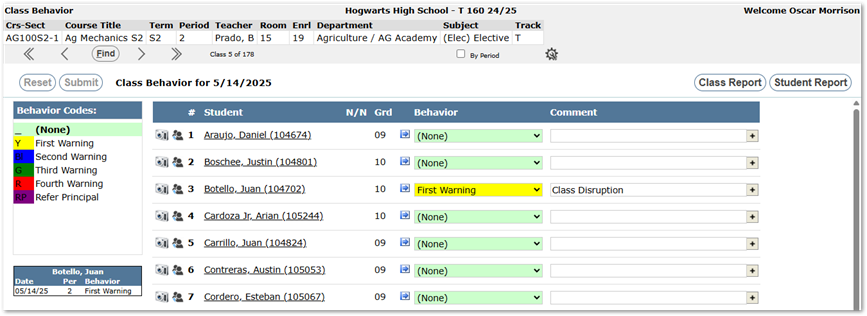
The Q Class Behavior application is a banner application that allows teachers to track student behavior, whether positive or negative, for their classes by entering behavior data for individuals in a class roster of students. A report may be generated by student or by class for items logged in a date range. Behavior recorded in Class Behavior is not directly connected to behavior records in the Student Discipline application. However, based on permissions, they may use the Referrals component of Student Discipline to make a Behavior Referral.
Student Discipline
Q Behavior enables Districts to define and track student conduct violations, student involvement in behavior incidents, record penalties for involvement in incidents, and to assign and process behavior referrals. Districts may report behavior incidents for a school, track, or district.
In the Q Behavior application, Student Discipline, a single incident may have multiple students associated with it. A student’s relationship to the incident is as an involvement such as Perpetrator, Witness, Victim. The types of involvements are defined through Lookup Codes.
Penalties and Policies may be associated or assigned to Incidents. Each penalty may have one associated attendance code. For example, an ‘Out of School Suspension’ penalty, may have a comparable ‘Suspension’ attendance code configured to it, causing that attendance code to be set for the days a student has an Out of School Suspension. Policies may be implemented and have associated default automatic penalties, if desired. This level of configuration is handled through Lookup Codes.
In addition, default policies may be configured for each behavior incident type and involvement code using the Behavior Setup application – Policy Defaults tab.
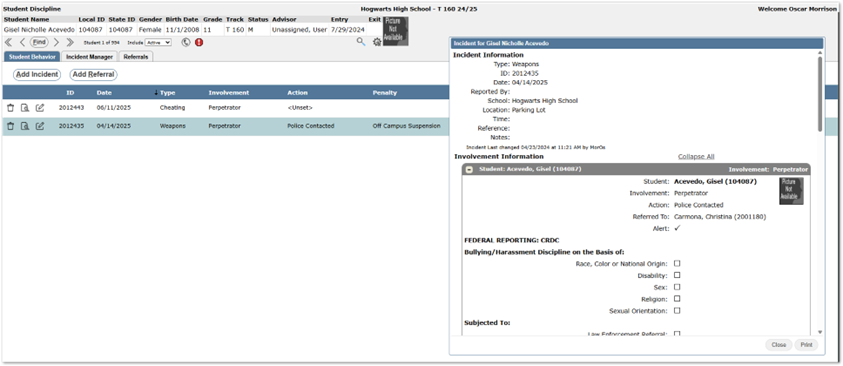
Tabs on the Student Discipline application may be managed through permissions and are used for:
Student Behavior – from an individual student perspective in a student banner, this tab is used to record behavior incidents, involvement, and penalties for one or more students
Incident Manager – from an incident perspective, this tab enables users to filter the set of incidents to edit them, create a new incident, and add students to it with their involvement, as well as add penalties and policy violations.
Referrals - used to provide a referral of the student to another faculty member.
Lookup Codes
Lookup Codes related to Behavior that need to be populated before using the Q Student Discipline application is used to create or edit records are:
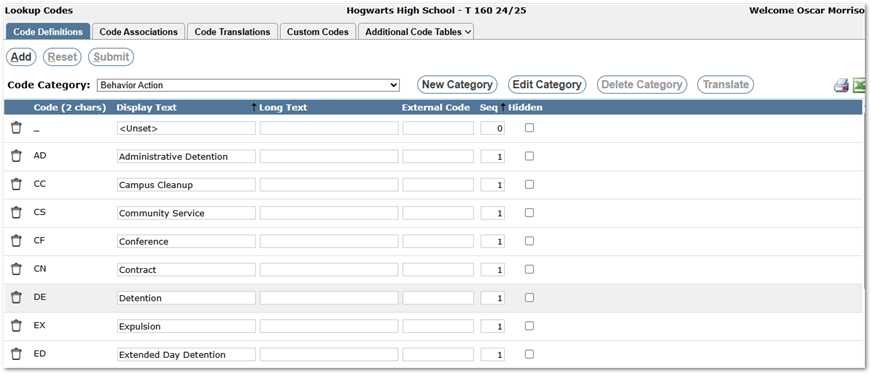
- Behavior Action (zbhvact) – Behavior Action codes are in the Action drop-down list when adding incident involvement information.
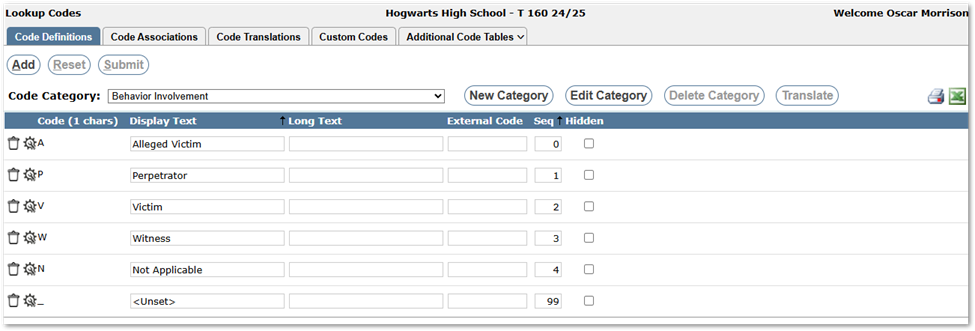
- Behavior Involvement (zinvolve) – New codes are added to the Involvement drop-down list when adding a student’s involvement.
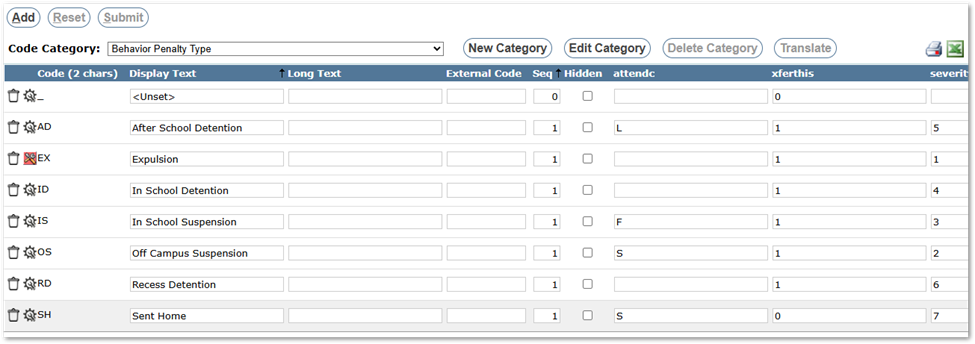
- Behavior Penalty Type (zpentype) – New codes are added to the Type drop-down list in the Penalties section of Involvement Information. The attendc field is the Attendance Code, which is used in the Set Attendance portion of the penalty. The Xferthis column indicates the behavior incident data is to be transferred with the student’s records when the student transfers schools.
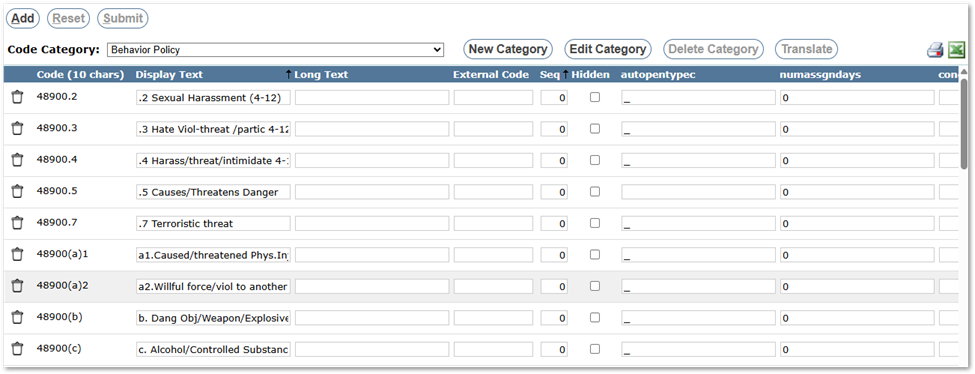
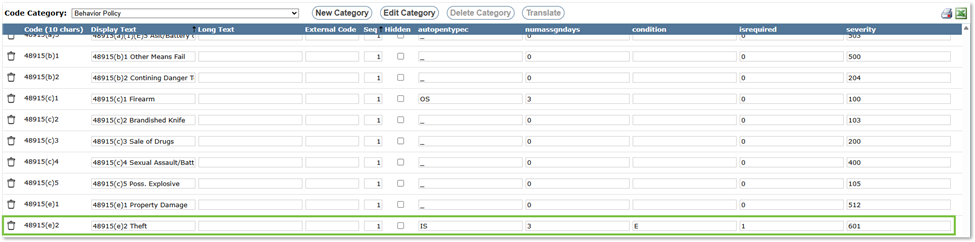
- Behavior Policy (zbhvpolicy) – New codes are added to Policy drop-down list. Any Policy code can have a default penalty type assigned to it by using the autopentypec field. The default number of assigned days for a default penalty can be set in the Numassgndays field. Once set, the default penalty is triggered when the policy is posted to the student’s record. If a rule is specified in the Condition column, the Assigned Days value submitted by the user in the Behavior Penalties area is compared to the default numassgndaysvalue. If the Assigned Days value is different, a rule violation will occur and the user will get a warning message. There are three possible rules listed below. An “is Required” value of 1 or 0 (checked on or off) dictates whether the condition is a hard rule or a soft rule as follows:
L – indicates the number of Assigned Days cannot/should not be more than the Numassgndays value.
E – indicates the number of Assigned days must be/should be equal to the Numassgndays value.
G – indicates the number of Assigned days cannot be/should not be less than the
Numassgndays value.
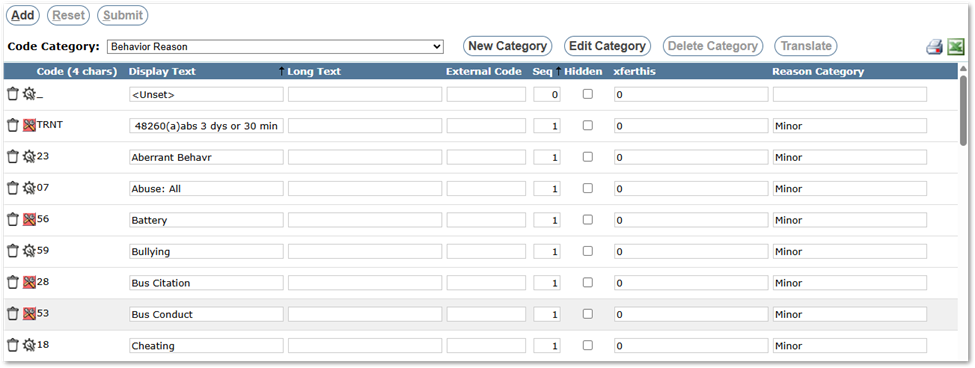
- Behavior Reason (zbehave)– New Behavior Reason codes are added to the Incident Type drop down list.
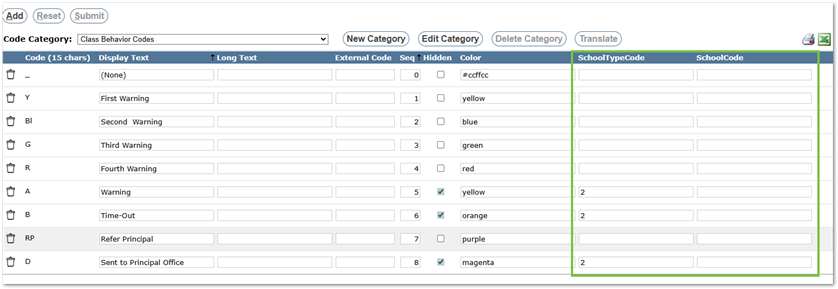
- Class Behavior Codes – These codes define the behaviors tracked at the classroom level. They may be limited to being associated with one school type or a specific school by entering a School Type Code in the column of that name, or a school code in the column named ‘SchoolCode’. When no codes are entered in the School Type or School code columns, the Class Behavior type is available in all schools; otherwise, they are filtered by the associated school type or specific school.
- Behavior Policy (zbhvpolicy) – New codes are added to Policy drop-down list. Any Policy code can have a default penalty type assigned to it by using the autopentypec field. The default number of assigned days for a default penalty can be set in the Numassgndays field. Once set, the default penalty is triggered when the policy is posted to the student’s record. If a rule is specified in the Condition column, the Assigned Days value submitted by the user in the Behavior Penalties area is compared to the default numassgndaysvalue. If the Assigned Days value is different, a rule violation will occur and the user will get a warning message. There are three possible rules listed below. An “is Required” value of 1 or 0 (checked on or off) dictates whether the condition is a hard rule or a soft rule as follows:
Linking Policy, Penalty, and Student Involvement in an Incident
The combination of a student’s involvement with a particular incident type can be configured to trigger one or more Policies. A Policy can, in turn, be configured to trigger one or more Penalties to be assigned to a student, as discussed above.
To configure default policies, use the Behavior Setup application. From the Policy Defaults tab, add desired Policy Defaults. The following is an example configuration:
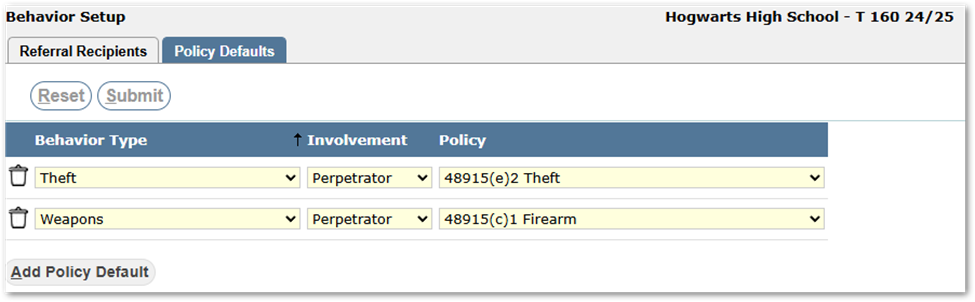
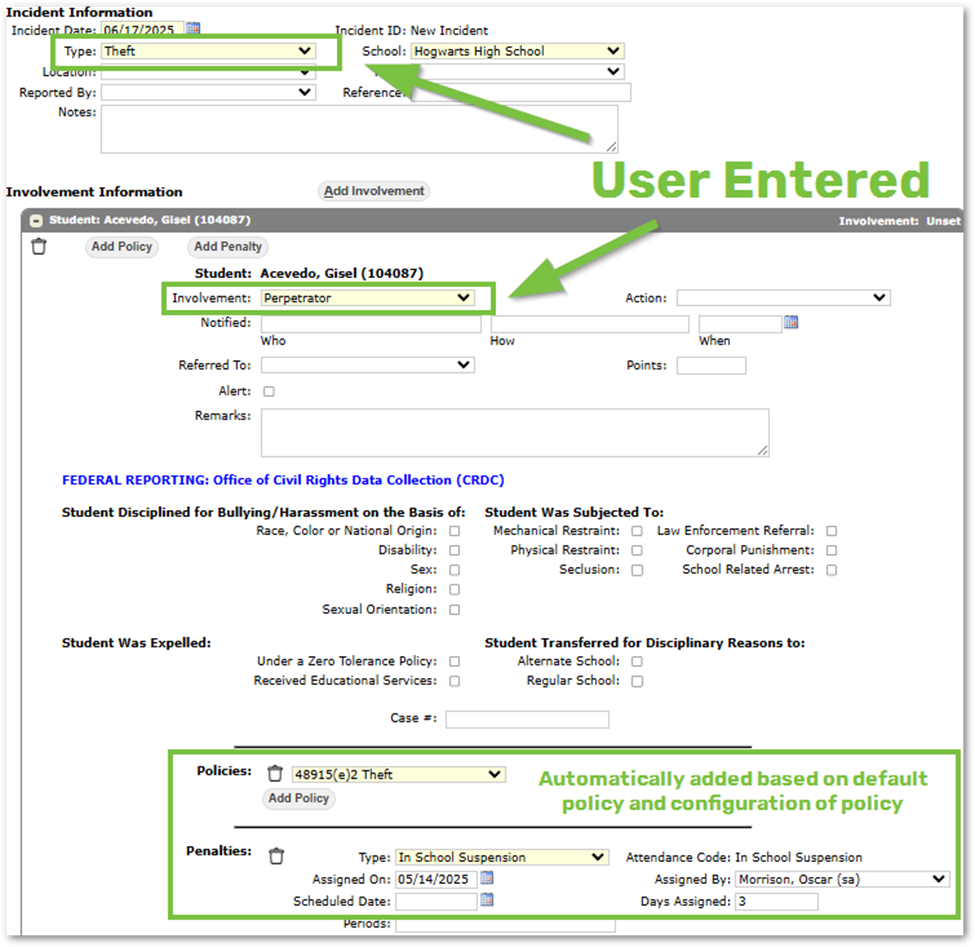
In support of this example configuration, the policy codes are defined as follows, with as example 48915(e)2 Theft having an automatic penalty of ‘IS’ – In-School Suspension with the number of assigned days ‘3’ and since a Condition of E is specified, then the number of Assigned days must be/should be equal to the Numassgndays value. (See Behavior Policy Lookup codes above.)
 As a result of the configuration defined in this example, when a discipline incident is entered with an incident type of ‘Theft’ and an involvement of ‘Perpetrator’ then the policy and penalty records are added immediately by the application and the user is able to modify or add further information, as shown below.
Extension Data
In addition to the standard data fields, extension data may be defined for the following areas:
- Incidents
- Involvements
- Penalties
- Referrals
Extension data may be configured using the Extension Editor under the System menu.
Examples of school extension data are fields such as:
- Procedural Safeguard Information:

- OCR reporting related fields:
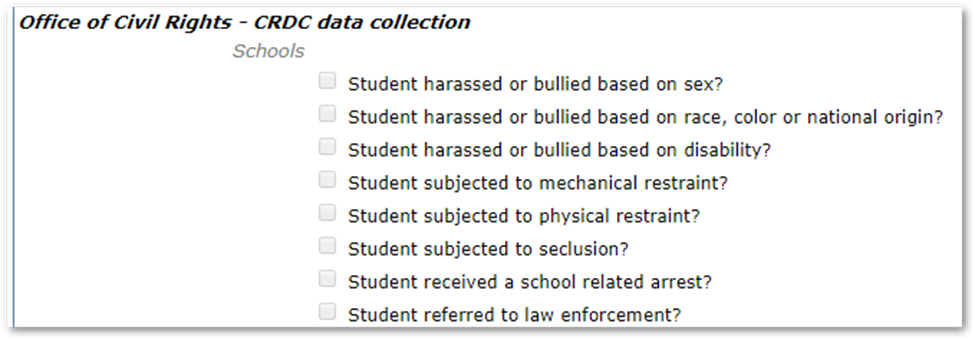
Extension data may have a ‘Context Filter’. Each extension area may be filtered as follows:
- Incidents – based on Behavior Reason code(s)
- Involvements – based on Behavior Involvement code(s)
- Penalties – based on Behavior Penalty code(s)
- Referral - based on Behavior Reason code(s)
- Referral Involvement - based on Behavior Involvement code(s)
QLIPs
It is possible to implement district-specific business rules before and after saving Behavior records. These business processes are stored procedures written by the District technical staff to their specifications and implemented using the QLIP Hook Editor under the System menu.
There are two types of QLIP’s: Validation and Processing. Validation processes are implemented before a Save in the application, and Processing QLIPs execute procedures after the Save in the application to update or create information.
- QLIPs may be implemented for Behavior data before (validation) and / or after (processing) any of the following:
- Class Behavior Application
- Class Behavior Data Saved
- Student Discipline Application
- Saving an Incident
- Saving Setting Attendance
- Referral Save Data
- After Referral Process – runs after a referral is processed and converted to a behavior incident.
- After Referral Dismissed – runs after a referral is dismissed.
- Class Behavior Application
For detailed information, please refer to QWiki Help on QLIP Hook Editor.
Preferences
There are no Q preferences for the Behavior applications.
The permission items for Behavior applications are shown below:
| Permission Item | Permission Description |
|---|---|
Behavior: Behavior Setup [Application] | Access to the application |
Behavior: Behavior Setup [Policy Defaults] | Access to the application and Policy Defaults Tab. |
Behavior: Class Behavior [Application] | Access to the application |
Behavior: Class Behavior [Incident Referral] | Access to the ‘Add Referral’ button below Class Behavior History to allow the user to add a Student Behavior Referral from Class Behavior. |
Behavior: Student Discipline [Application] | Access to the application |
Behavior: Student Discipline [Student Behavior] | Access to the Student Behavior tab in Student Discipline |
| Behavior: Student Discipline [Incident Manager] | Access to the Incident Manager tab in Student Discipline |
| Behavior: Student Discipline [Incident Referral] | Access to the Referrals tab in Student Discipline |
| Behavior: Student Discipline [Referral Administrator] | Gives user access to view all incident referrals for the logged-in track. Staff with edit rights to this permission will be able to process and dismiss referrals. |
As with all permission items, the ability to Add, Edit, or Delete may be controlled for any permission item within a role.
There are role data filters for Behavior Reasons and Behavior Involvements that may be applied.
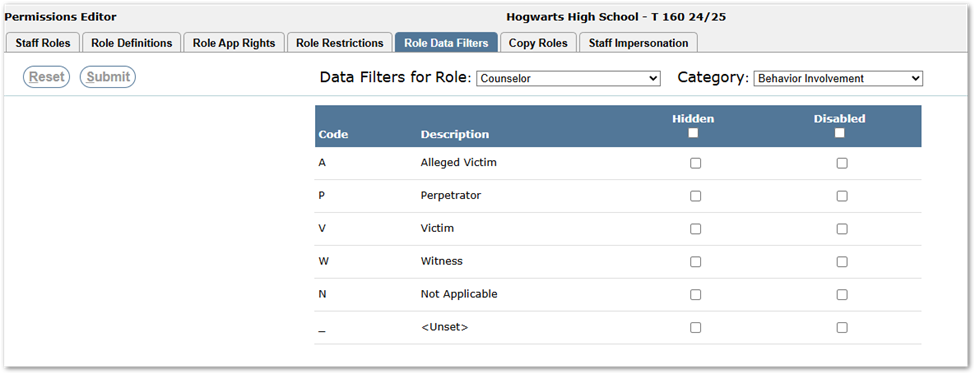
If you disable an Involvement Code, that user role will not be able to add or edit any incidents containing that code, regardless of other edit permissions in place.
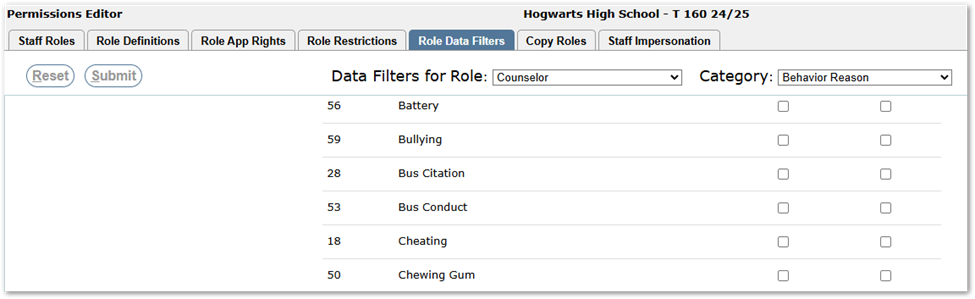
If you disable an incident type code, a user role will not be able to add, edit, or search for any of the restricted incident types. In the Incident Manager, the user can still view past incidents with the restricted code, but the Edit and Delete buttons are disabled.
For further information, please refer to QWiki Help for detailed information on Permissions.
To implement referrals for teachers using Class Behavior:
- Ensure Class Behavior Codes are defined.
- Provide permission to Class Behavior [Incident Referral] to teachers:

When the permission is given, the ‘Add Referral’ icon will appear in Class Behavior for the user.
- In Behavior Setup, for each school, on the Referral Recipients Tab, select the staff member(s) to whom the referral should go for that school; otherwise, the user will see a list of all staff members.
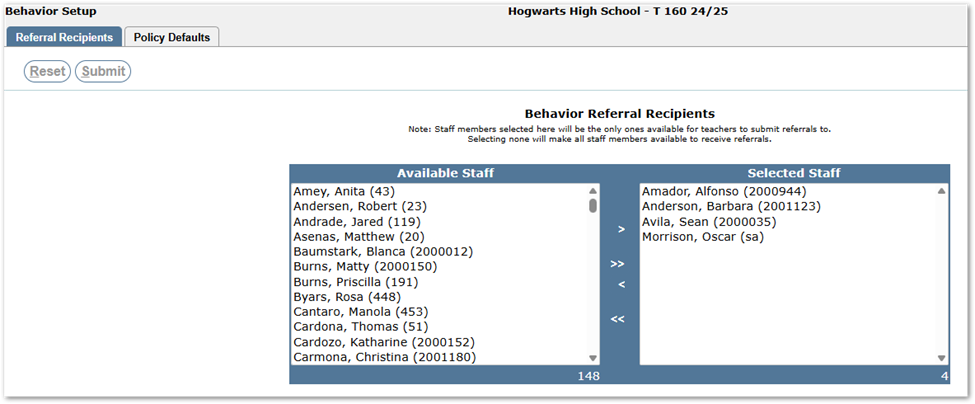 With Alfonso Amador, Barbara Anderson, Sean Avila, and Oscar Morrison selected, the result is only those selected staff appear in the ‘Reported To’ drop-list of the referral: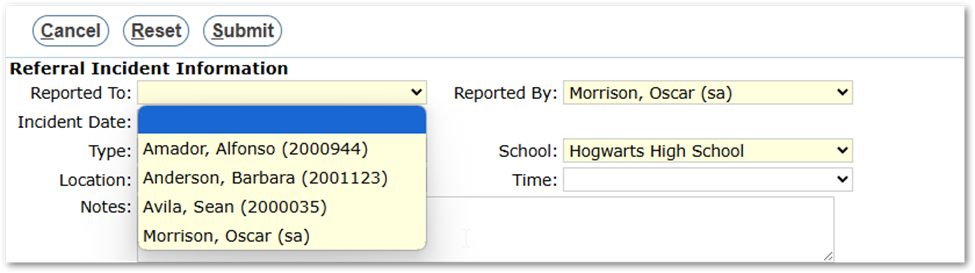
- Ensure the staff selected to receive and process referrals have permissions to do so, selecting ‘Behavior: Student Discipline [Incident Referral]’.
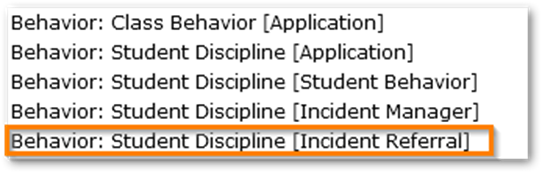 The ‘Behavior: Student Discipline [Referral Administrator]’ permission enables the user to access all incident referrals for the logged-in track.
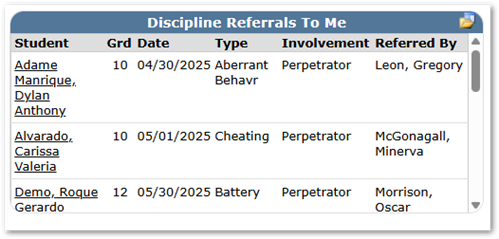
 - Ensure access to the ‘Discipline Referrals to Me’ and ‘...By Me’ widgets are provided to both Teachers making referrals and those receiving referrals.
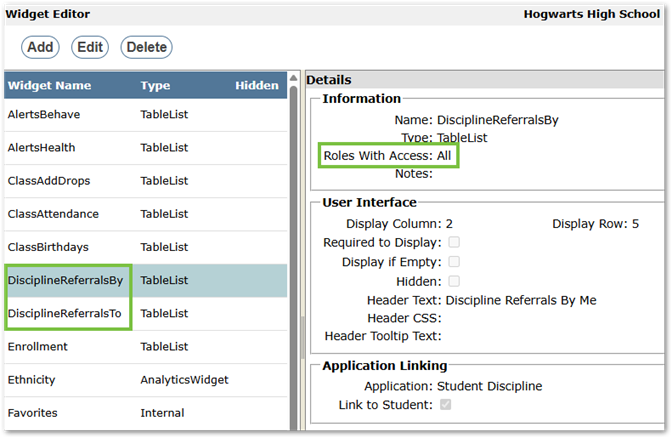
- Sample widget: