
The Chronic Absences Report is used to identify students with chronic absences. Users may set criteria to include Interval of Day or Period, and Attendance Code selection based on Attendance Flags or Attendance Codes. Only classes with the Count Attendance flag turned ON are considered when running this report.
While details specific to this report will follow, users can find general information about reports within the Reports documentation. Most reports also include selection filters, and users can learn more about them in the Selection Filters documentation.
Chronic Absences Report is located within Reports in the Attendance menu in Q.
The Chronic Absences Report offers the following options:
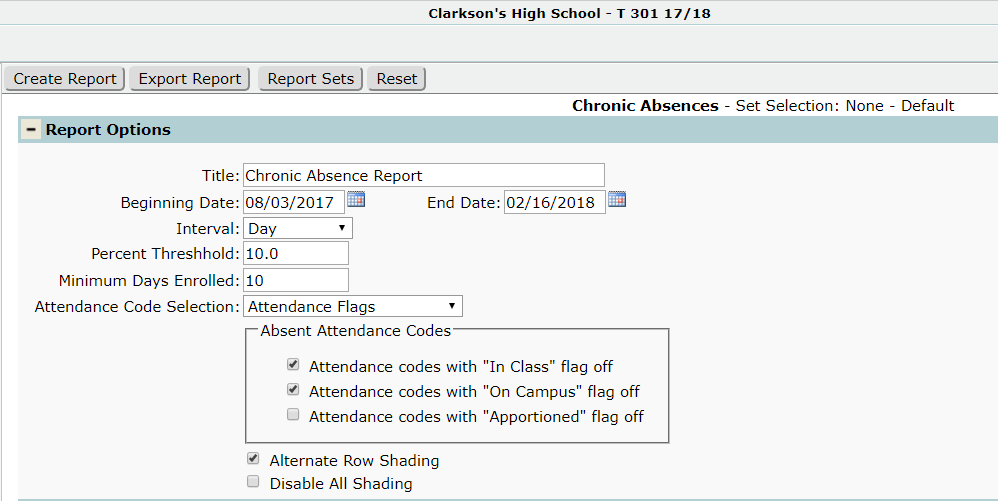
- Title – Defaults to Chronic Absence Report but may be changed by user.
- Beginning Date/End Date – Enter the date range of attendance used to determine which students are returned on the report.
- Interval – Select whether the report is based on Day or Period.
Note
When the Interval is set to Day, a student is considered present if they are marked present for a single period within that day.
- Percent Threshold – Set the percentage of days or periods a student must be absent to be returned on the report.
- Minimum Days Enrolled – Enter the minimum number of days a student must be enrolled to be returned on the report. This keeps students who have not been enrolled long enough from qualifying as chronically absent.
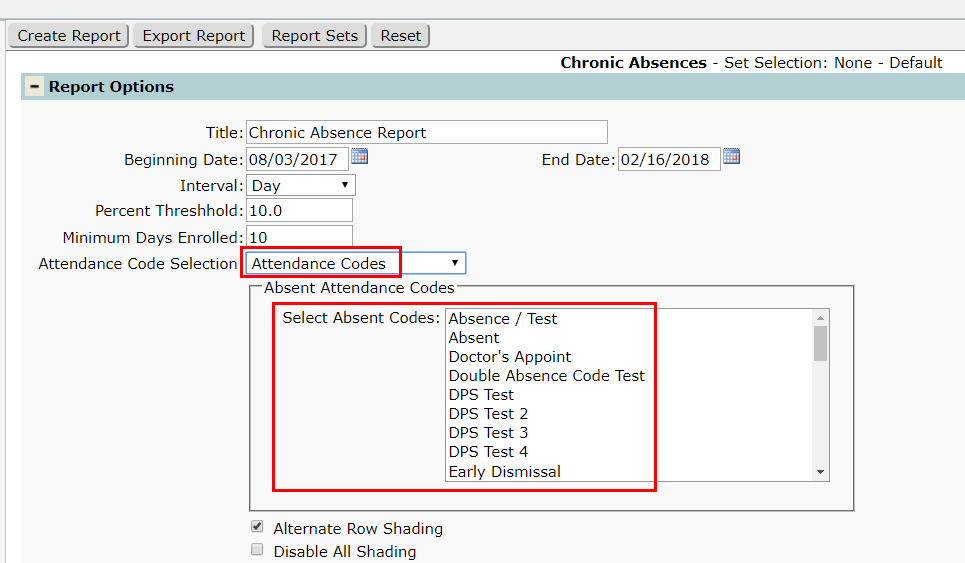
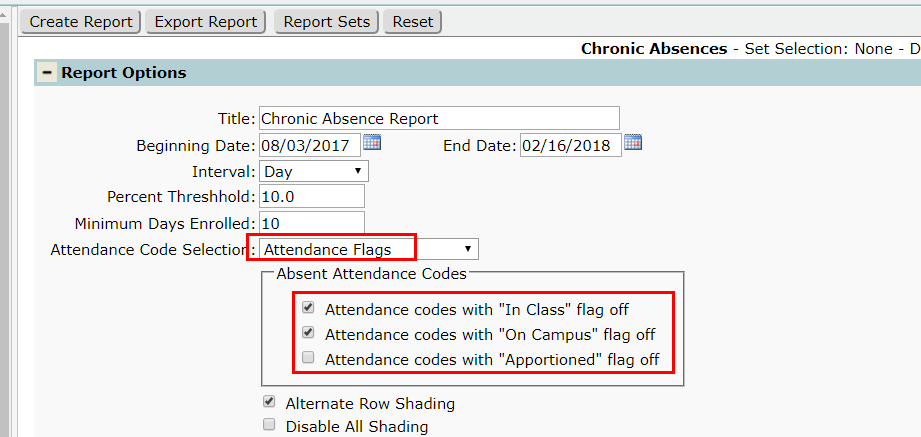
- Attendance Code Selection – Select one of two options from this dropdown:
- Attendance Codes – Select the absent codes to use when looking for qualifying attendance.
- Attendance Flags – Select which attendance code flags to use, as set in System > Lookup Codes > Additional Code Tables > Attendance Codes, rather than selecting specific attendance codes.
Report Options with Attendance Codes selected
Report Options with Attendance Flags selected
- Alternate Row Shading – Check this box for shading on alternate rows.
- Disable All Shading – Check this box to remove all shading from the report.
Note
For more detailed information regarding the Student Selection filter, as well as exporting the report and report sets, please refer to the Reports documentation.
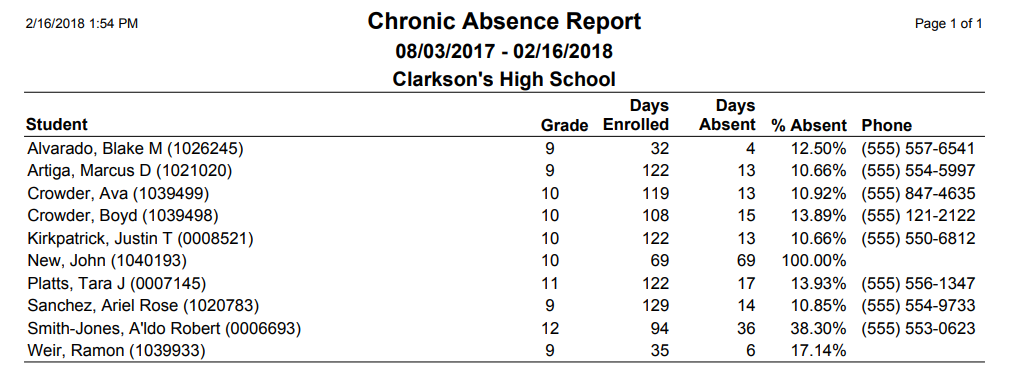
Sample report with Alternate Row Shading turned ON
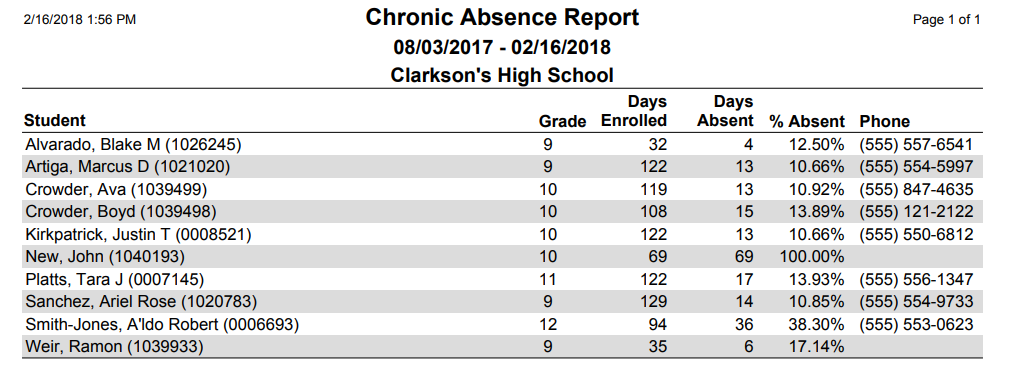
Sample report with Disable All Shading turned ON
Note
Reports may look different depending on options and selections chosen.