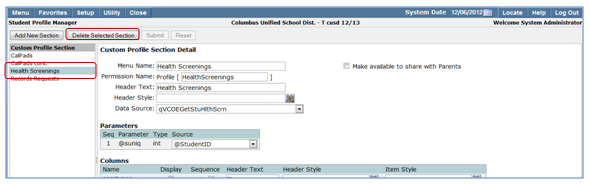
The Student Profile Manager application allows administrators to add additional custom data sections to those already included in the Q Student Profile. The custom sections can follow the standard look of existing profile sections or be customized.
Student Profile Manager is located under the System menu in Q.
Custom profile sections may be added to follow the standard look of existing sections or defined with specific styles.
To add a new section:
- Click Add New Section.
- Enter Menu Name (this is what will appear in the student profile).
- Define the Permission Name (the name of the permission item to add to the permission role of users who will have access to this section).

- Enter Header Text; most times this will be the same as the Menu Name.
- Define the Header style. If left blank the style will retain the default style of existing student profile sections.
- Place a check in Make available to share with Parents to make the item visible to parents when looking at the student profile for their students in ParentConnection.
- Select the Data Source from the drop down.
- Define parameters.
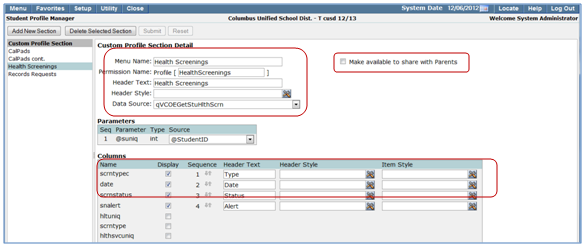
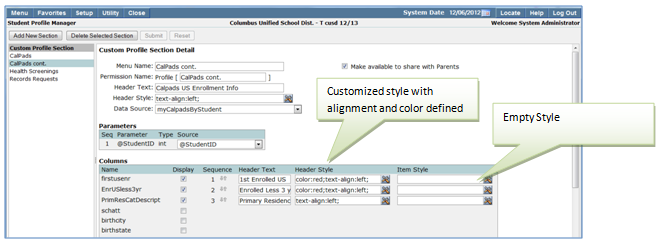
- Once parameters have been defined columns may be defined. Placing a check in the Display column opens the Header Text, Header Style and Item Style Menus.
- Define Sequence for item display.
- Enter Header Text.
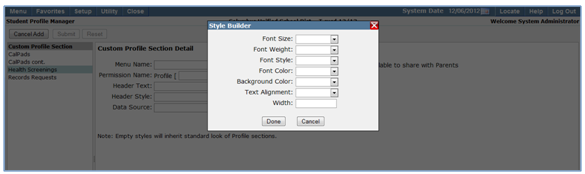
- Header and Item Style
- Leave blank to maintain standard look of Profile sections.
- Click icon to customize:

- Font Size, Weight, Style and Color.
- Background Color.
- Text Alignment.
- Width.
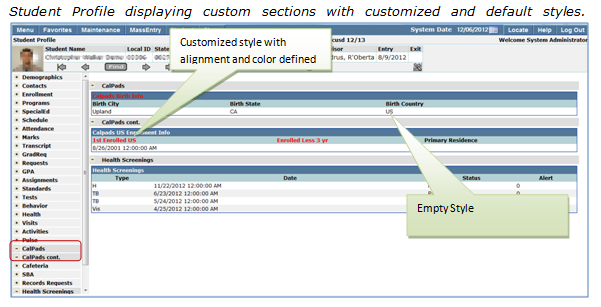
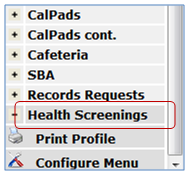
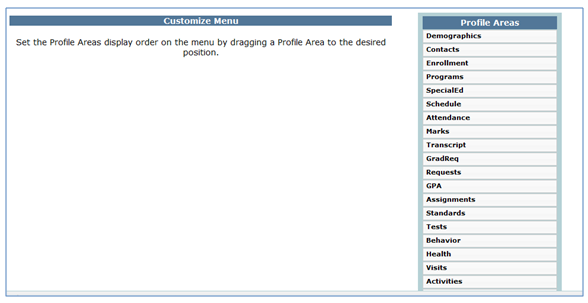
When custom items are added with the Student Profile Manager they are automatically added to the bottom of the list of the available Student Profile items. When users launch the Q Student Profile they have the option to customize the menu and viewing order of all items.
Custom Profile Sections may be removed from the Student Profile using Student Profile Manager.
To Delete a Section:
- Launch Student Profile Manager.
- Select desired section from list on the left hand side.
- Once Section name is highlighted, click Deleted Selected Section.