
Extra Curricular (EC) programs are used for tracking student participation in programs such as before and after school elementary day care in which the district charges and collects fees for student participation in the program. The Extra Curricular application is used to schedule students into EC program schedules and classes, establish account information for the adult financially responsible for the student account(s) and manage the billing and receiving of charges.
Prerequisites: Extra Curricular programs need to be established and configured using the Extra Curricular Setup application. Please see documentation for Extra Curricular Setup for detailed information.
Extra Curricular is located under the School menu in Q.
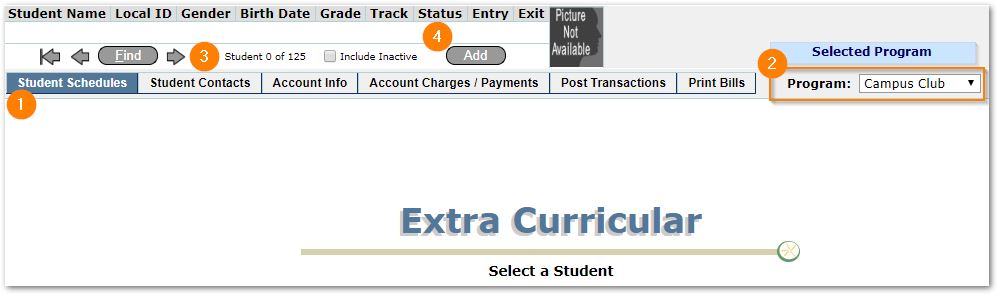
- The Extra Curricular application opens to the Student Schedules Tab which uses a Student Banner. To locate students currently enrolled in the program, use the Find dialog.
- The selected Program shown at right. Select a program by opening the drop-list and selecting a program. The application will remember the last selected program.
- The count of students shown are those enrolled in the selected program on the system date for the logged in school or for the district if logged into the district track.
- Add students to the program using the Add button and find the desired students using the Find dialog.
The full set of tabs available, shown above, may each be assigned individually through permissions and include:
- Student Schedules - Students are enrolled in one or more Extra Curricular Program classes.
- Student Contacts - A student contact is assigned as the ‘responsible person’ in an Account and is responsible for paying the fees.
- Account Info - Student enrollment in a class must be associated with an Account. Accounts are associated with Programs. For students enrolled in multiple programs, an account will be needed for each program.
- Account Charges/Payments – Used to manage individual account charges and payments.
- Post Transactions – Used to assess fees in batch such as recurring fees, one-time fees such as Late Pick-ups, or post a batch of payments.
- Print Bills – Used to print billing statements for selected accounts.
Students may be enrolled and scheduled into one or more classes using the Student Schedules tab.
- Select the desired EC program from the Program drop-down to the right of the tabs at the top of the page.
- Those students already enrolled in the selected EC program, on the system date, may be found using the standard FindSee documentation for Q – Student Banner for detailed helpif needed.
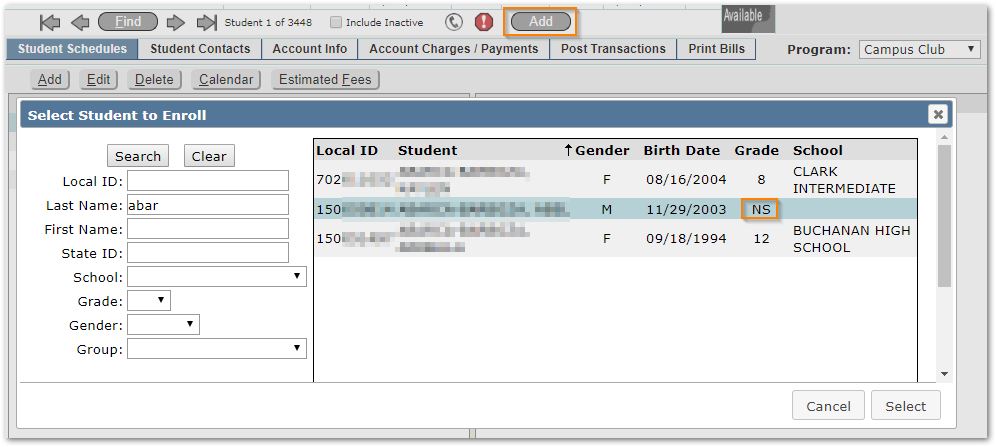
If the student is not found, use the Add button in the banner to find and add a student to the specified EC Program.
A Note on Non-Students: A student that does not attend school within the district but will be attending an EC program will need to be enrolled through the Student Editor as a ‘Non-Student’. (See documentation on Student Editor for assistance if needed.) The student may then be located through the Add process. A Non-Student example is shown in the results below with the code ‘NS’ in the Grade column.
3. Complete the Add Student Schedule page, by entering the data as follows:
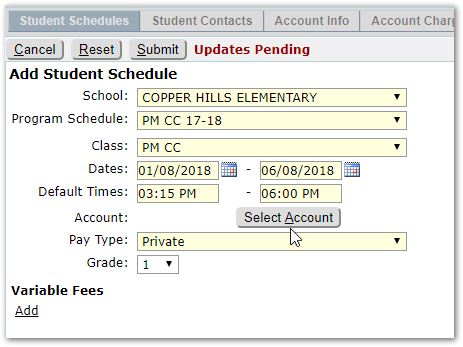
- School – This will default to the logged in school and only enable the selection of the logged in school, unless logged into the District. When at the District, school is not defaulted and must be selected.
- Program Schedule – Select the program schedule the student is to be enrolled in. Only program schedules associated with the selected school and program from the current year are available.
- Class – Select the class the student will attend. Only classes for the selected program schedule will be available for selection. (If there is only one class associated with the selected program schedule, then it will automatically populate.)
- Dates – The dates will default to a begin date of ‘Today’ and end date of the end of the track date. Make adjustments to these dates for the student if needed.
- Default Times – The default times will appear automatically for the selected program schedule. Make adjustments for the student as needed.
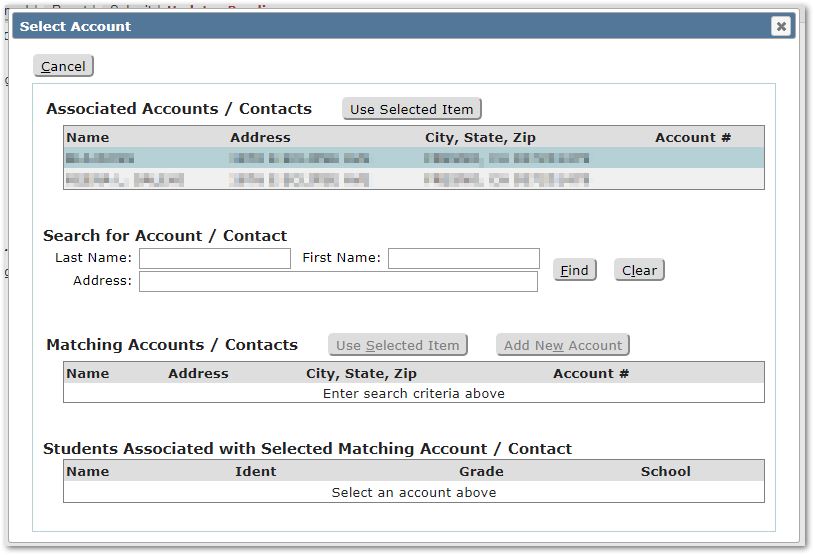
- Account – Use the ‘Select Account’ button and either select from one of the associated contacts, or use the search fields to search for another contact. If no matching contact is found, you may add a new account. One person besides the student needs to be associated with the account. This is required in order to save the student’s Program Schedule record. The account holder is the person who will be billed for services and who is responsible for payment for the program.
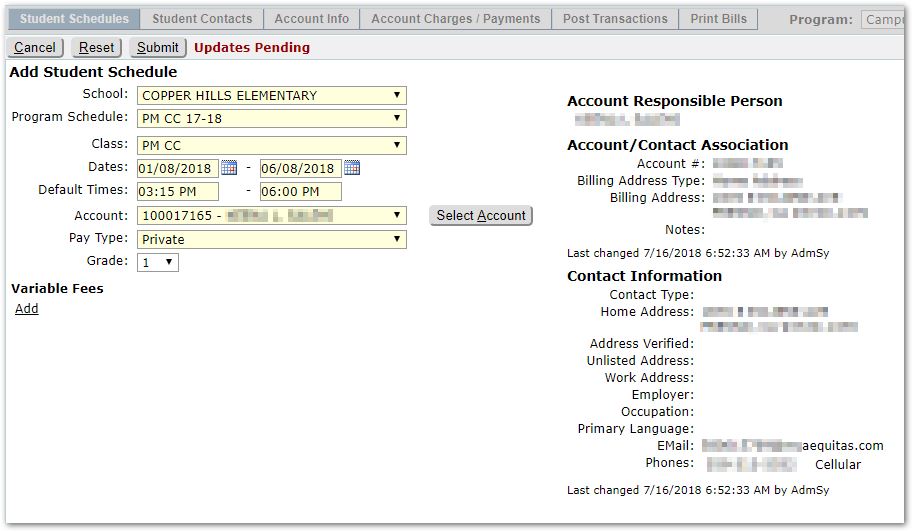
- Pay Type – Select the pay type for the account linked to this enrollment, i.e. Private.
- Grade – The grade will default to the student’s grade, but for a ‘Non-Student’, the grade will not be set by default and you may indicate it here.
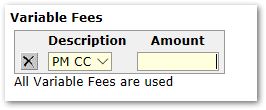
- Variable Fees – If any fees available to the current program were flagged as ‘Variable’ in EC Setup – Fee Template, you will have the option to adjust those fee amounts to amounts other than the default amounts for the current student only. To do this click the Add link and enter the amount. Remember the modified fee amount will be applied to the current student in the current schedule only. You may modify the fee by editing the record, or delete the fee by clicking the x at left.
- Submit changes when complete.
When the new student has been successfully added with their account, their program schedule record will appear in the grid at left, with details at right.
Students with valid program schedules will appear in the attendance rosters of Q Extra Curricular Attendance application for the calendar dates they are scheduled. To adjust the individual student’s calendar, follow the steps in the Calendar section below.
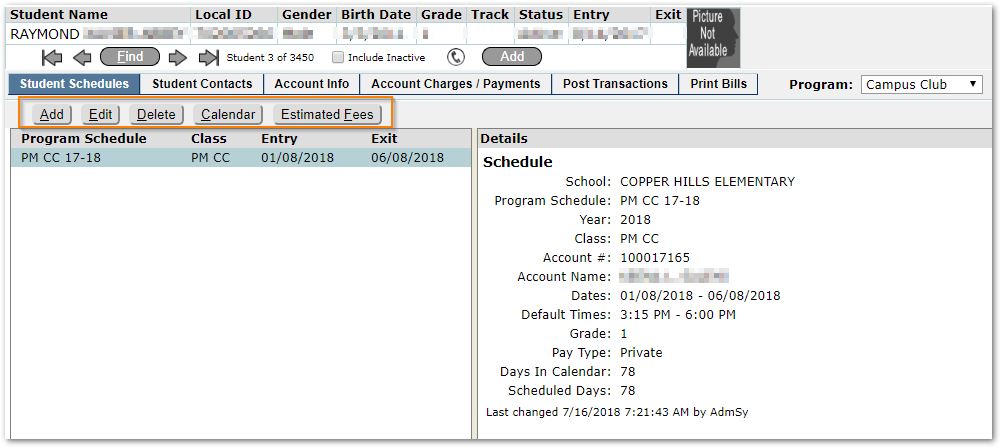
Add additional programs for the student, by clicking Add and repeating the steps as discussed.
Edit or Delete existing program schedules by selecting the desired program schedule and using the Edit and Delete buttons.
Calendar
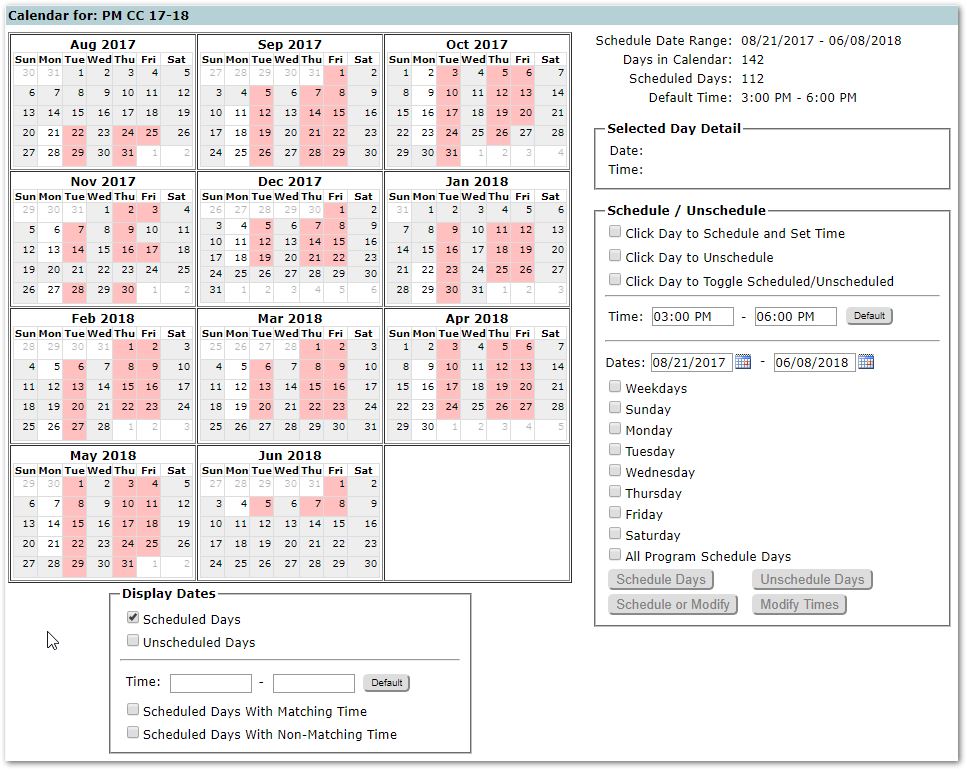
To view and adjust the student’s calendar, click the Calendar button. For a newly enrolled student, the default calendar will appear to which you may then make adjustments. Scheduled days appear in pink, with non-program scheduled days in grey. Days that have been removed appear white. The student’s particular schedule information appears at the upper right with the date range of their enrollment, number of scheduled days, etc.
You may remove days and add days, but you cannot add days to a student’s calendar if those days were not defined in the original program schedule.
- To add or remove individual dates: From the ‘Schedule / Unschedule’ options at right, check the option ‘Click Day to Toggle Schedule/Unscheduled’ and then click on the dates you wish to remove or add. In the example shown, Mondays have been unscheduled.
- To remove every instance of a day, i.e. Monday: Check ‘Click Day to Unschedule’ and then click the desired day, i.e. ‘Monday’ below it.
- To schedule a day, i.e. Monday after removing it: Check ‘Click Day to Schedule and Set Time’, then click ‘Monday’.
- To adjust the student’s times: change the time shown, and then use the toggle or schedule days options as discussed above.
- Click Submit to save changes.
For more detailed description of general Calendar functionality see documentation for Extra Curricular Setup – Calendars.
Estimated Fees
Click ‘Estimated Fees’ button to see a preview of the fees for this enrollment.
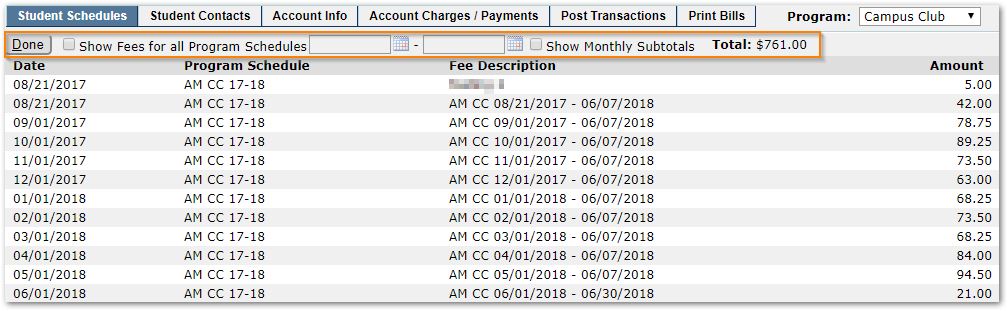
The default listing shows all estimated fee entries for the current Program Schedule only, in chronological order. As is standard in Q, you may click any column header to change the sort, and click it again to reverse the order.
You may view the estimated fees from all Program Schedules the student is enrolled in, in one combined list, by selecting the ‘Show Fees for All Program Schedules’ check box.
You may further filter the combined list by defining a date range in the From and To date fields (these are only enabled when the Show Fees for all option is selected). To see monthly subtotals in the list of fees, select the ‘Show Monthly Subtotals’ option.
On the Student Contacts tab, contacts for the student selected in the banner -for the selected Program- are shown. Similar to Accounts, Contacts for students enrolled in an Extra Curricular program may differ by program and need to be defined for each program in which the student participates. Contact information may be ‘imported’ from the student’s primary contact information, but additional Extra Curricular information also needs to be populated.
To add contacts:
- Click Add.
- Primary contacts for the student will be shown. To add one of these contacts, select the contact and click the ‘Import Selected Contact’ button.
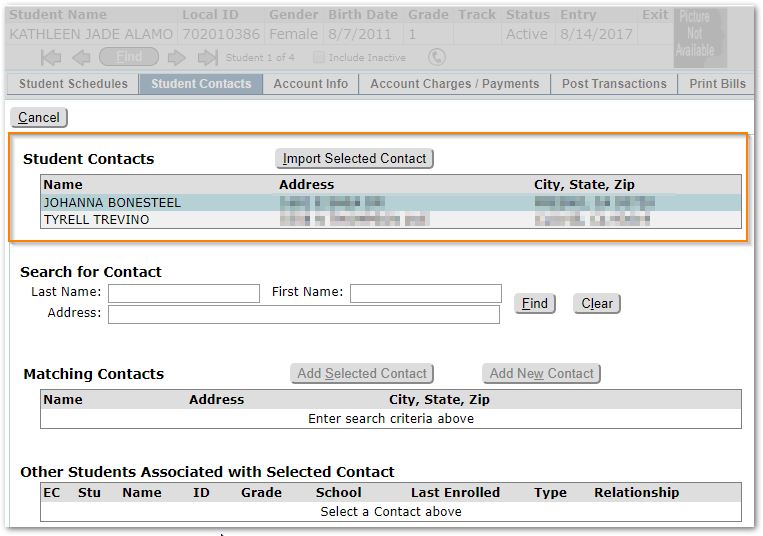
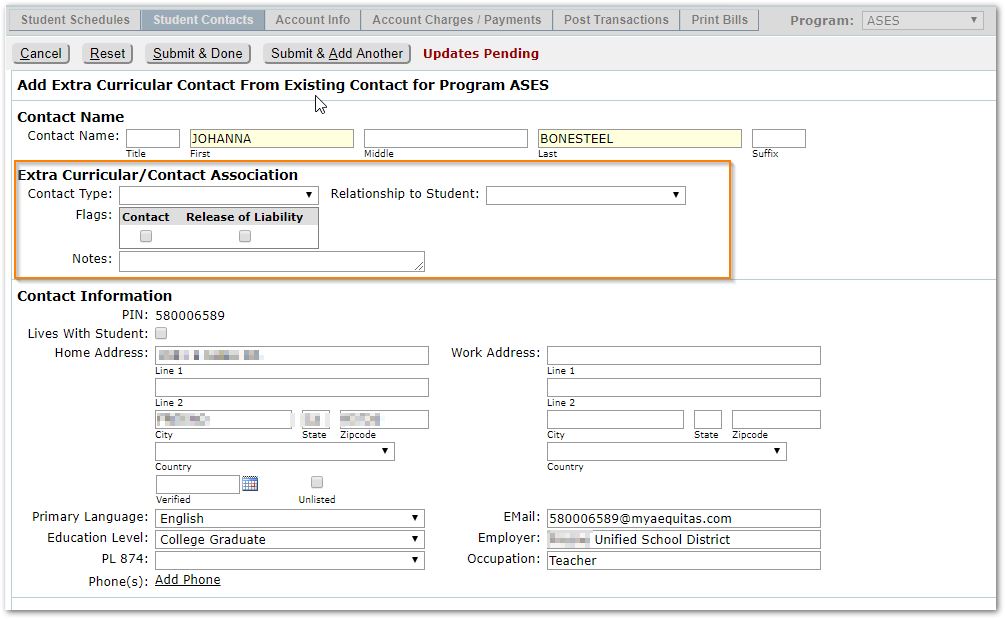
When importing the selected contact as an Extra Curricular Contact, the Add screen will show the contact with imported data including Address, Language, Email etc. as shown below. Changes made to the populated data will affect data in Contact Editor and Student Editor which all share the same stored Contact data information.
- Complete the Extra Curricular / Contact Association portion (highlighted below) including Contact Type and Relationship, Flags (defined during Setup) and any notes. This highlighted portion, including the Types and Relationships shown here only apply to the Extra Curricular application(s). Press either ‘Submit & Done’ or ‘Submit & Add Another’ when complete.
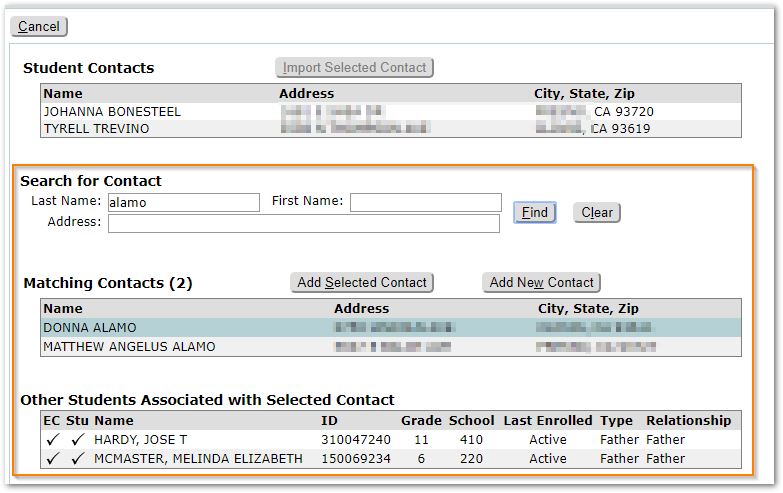
- To add additional contacts not shown as ‘Student Contacts’ you may use the Search for Contact area and enter one or more of the filter fields: Last Name, First Name, or Address and click Find. Contacts meeting your search criteria will be shown under Matching Contacts. Students associated with the selected contact will be displayed in the section at the bottom in Other Students Associated with Selected Contact. Click to select the appropriate contact.
- Complete the Add Extra Curricular Contact screen just like you would if you had imported a contact, shown above.
- If the correct contact is not located, you may add a contact by clicking the ‘Add New Contact’ button, and complete the Add Extra Curricular Contact screen this time adding all the information including names, address etc.
To view contacts:
- To see existing contacts for a student, from the Student Contacts tab, select either a specific Program or <All Programs> to see all contacts across all programs.
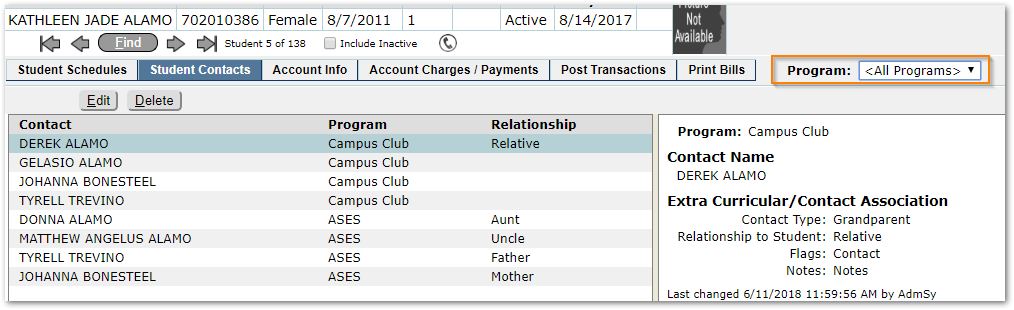
To Edit Contacts
- Select the desired contact and click Edit to access the contact information and make the desired changes remembering that the majority of the information is common to Contact Editor / Student Editor etc., with only the Extra Curricular Contact section applying only to the Extra Curricular area as discussed above.
To Delete Contacts
- Select the desired contact and click Delete to remove the contact.
When on the Account Info tab, the banner changes from a Student Banner to an Account Banner. The Find dialog changes to support searching for Accounts, as does the Add button which, when clicked, opens a Search for Account / Contact dialog.
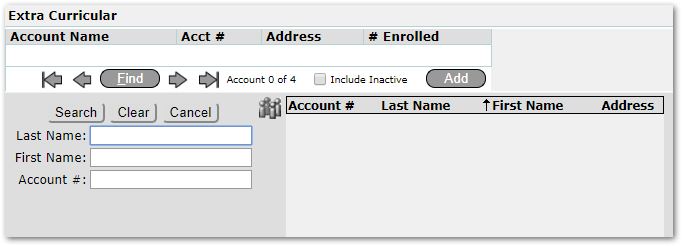 Account Find Dialog
When you have selected an account, click Edit to modify the information. Submit to save changes.
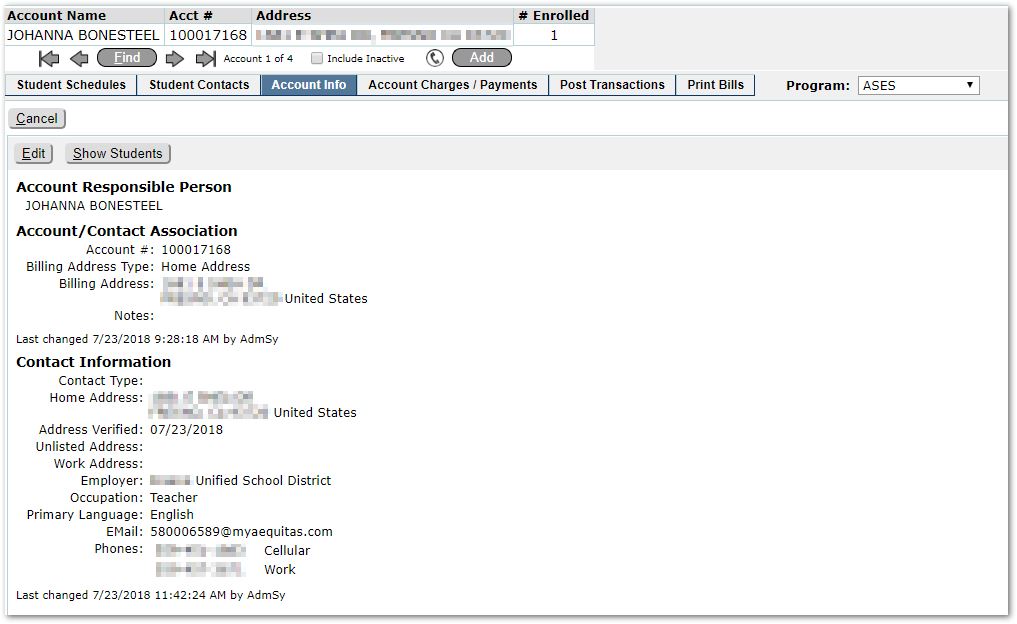
To see the students associated with the account, click Show Students button. Click Done to return to the Account information page.

To add a new Account holder for a program, select the Program and then click the Add button and search for the Contact/Account and select from existing matches, or add a new account just like you would for Contacts, discussed above.
Note: The Add button will only appear when a specific program is selected, since Account holders are associated with programs.
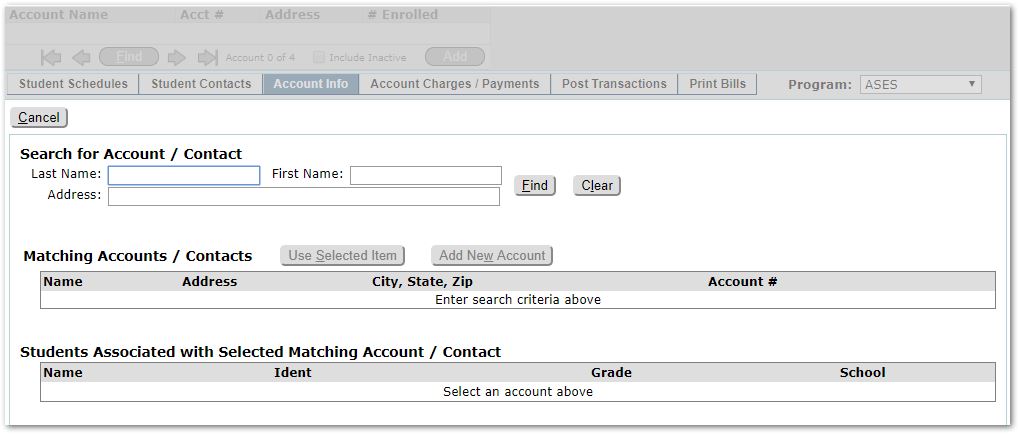
Add Account dialog
For the selected account, current balance, charges and payments are displayed for students associated with the account. The column sort may be changed by clicking on the column, and clicking on it again to change whether the sort of the column is ascending or descending.
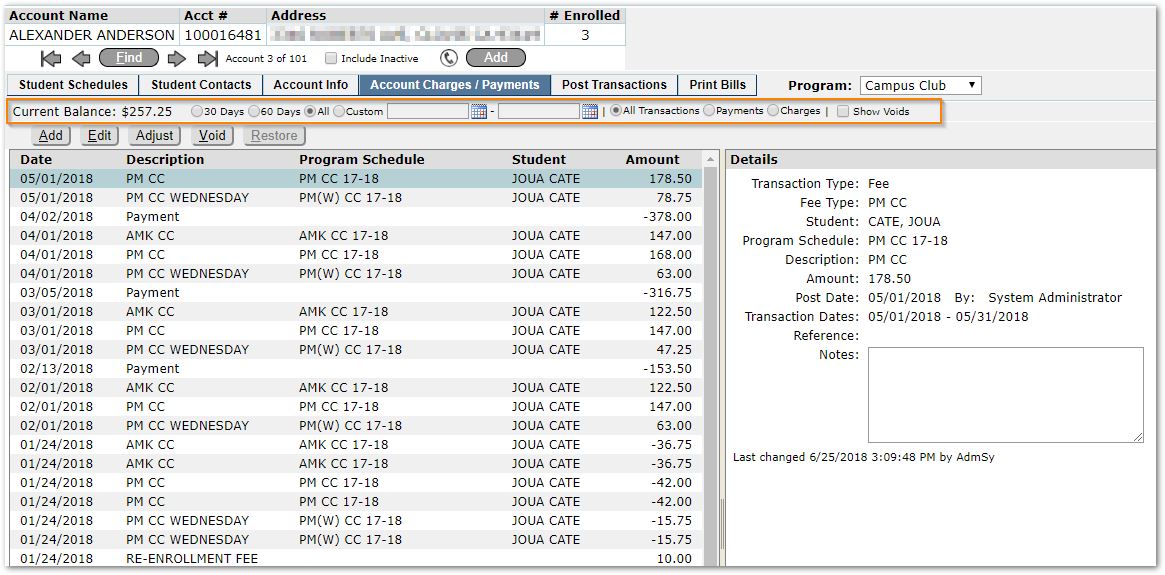
Selecting the Transactions to show:
- You may filter the display of transactions to show only payments, only charges or to include voided transactions by clicking the radio buttons highlighted top right. By default, all types of transactions are shown, except voids.
- In addition, by default, the display shows transactions posted within 30 days, but you may choose to see transactions posted within 60 days, All Transactions posted, or select a custom date range by selecting Custom and entering a date range.
Add a New Transaction:
- Click Add
- Select the Transaction Type:
- Fee
- Credit
- Payment
- Debit.
- Select the Fee Type (for Fees, Credits, or Debits).
- Select the Student if it is not defaulted.
- Select the applicable Program Schedule.
- The Description will be automatically populated based on the Fee Type, but it may be changed.
- Enter the Amount.
- The Post Date will default to Today’s date. Enter the official date for the transaction.
- Source applies to Payments and will only be enabled when the Transaction Type is a Payment. When entering a Payment, select the appropriate source, such as cash, check, money order.
- Enter internal Reference number, if desired.
- Enter any Notes for reference.
- Submit to save changes.
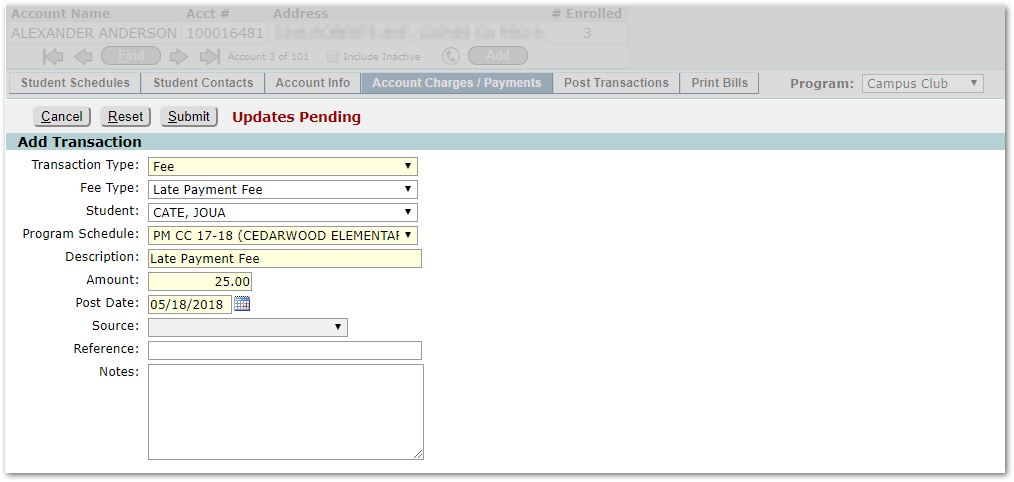
Edit a Transaction:
- Highlight to select a transaction to edit.
- Click Edit.
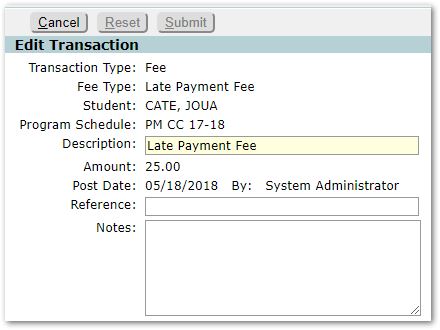
Note that only the Description, Reference and Notes fields are available to edit.
- Make any desired changes to the available fields and click Submit to save the changes.
Adjusting a Transaction Amount
Adjusting a transaction enables the user to deduct a specified amount from an existing transaction item. When this occurs, the adjustment amount will be posted as a separate item in the ledger with information referencing the original transaction being adjusted. The original item entry remains intact and is not changed.
To adjust a transaction amount, select the transaction to adjust:
- Click Adjust.
- Enter the Adjustment Amount to be deducted from the Transaction Amount. The Adjustment Amount must be less than or equal to the Transaction amount.
- Set the Adjustment Post Date if different from Today.
- Enter any Notes as explanation for the adjustment.
- Submit to save changes.
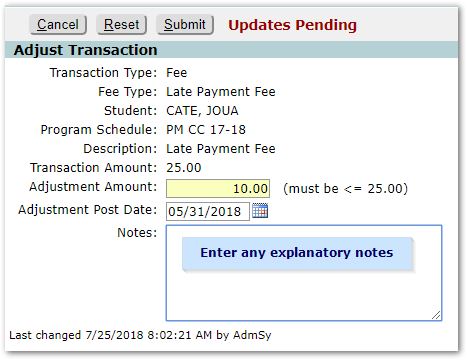
The Adjustment is shown in the set of transactions as -$10.00 with the original fee below $25.00, below.

Void a Transaction
When a transaction is voided it is removed from the balance calculations and hidden from view in the ledger, but it is not actually permanently deleted.
- Select the transaction.
- Click Void.
- Answer the confirmation question that appears:
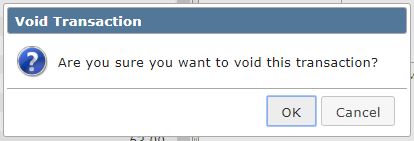
- When you click OK, the transaction will be hidden from the ledger.
- To view the voided transaction, click Show Voids and voided transactions will appear, with a Voided indicator checkmark.

Restore a Transaction
- When the Show Voids indicator is checked, the Restore button is enabled. To restore a voided transaction, select the transaction and click the Restore
- Answer the Restore Transaction confirmation question.
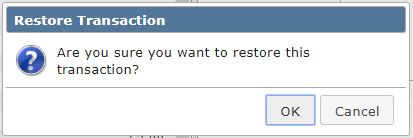
- The void indicator will be removed, and the transaction will be restored.
On this tab, you may batch post payments for multiple accounts, post recurring fees such as monthly tuition fees, and one-time fees such as ‘Late Pickup’ or ‘Unscheduled Attendance’. When posting fees, the posting applies to all applicable accounts. The results of the posting may be viewed for individual account holders on the Account Charges / Payments tab.
From the Post Transaction Tab, set the Program and then select Transaction Type:
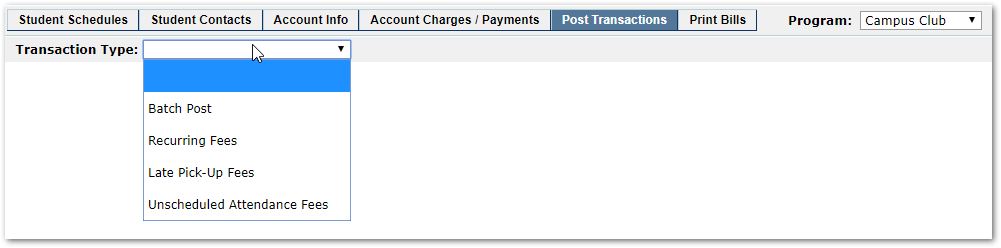
Post Recurring Fees
When Recurring Fees are selected, the Transaction Templates available for the selected program will be displayed on the left side with their Posting Period or Interval (Monthly, Weekly, Daily) and Next Due date for posting. The Transaction Templates may be filtered by the Interval, to see all Monthly fees etc. The Fee Templates available for the program are defined for the Program in Extra Curricular Setup – Fee Templates tab.
The Transaction History, for the selected template, is displayed at right with the Post Date, From / To date range and the number posted to accounts. You may prepare a new post or re-apply an existing post.
When posting a recurring fee, the total amount charged per item will depend on either the scheduled days in the student’s Program Schedule or the participating student’s Schedule Calendar for the Class as configured in the Fee Template in Setup.
Remember too that the default amount charge for a recurring fee may have been modified for an individual student if that fee was designated as ‘Variable’ in the Fee Template and a value set for the individual student in ‘Variable Fees’ on the Student Schedule tab as a result.
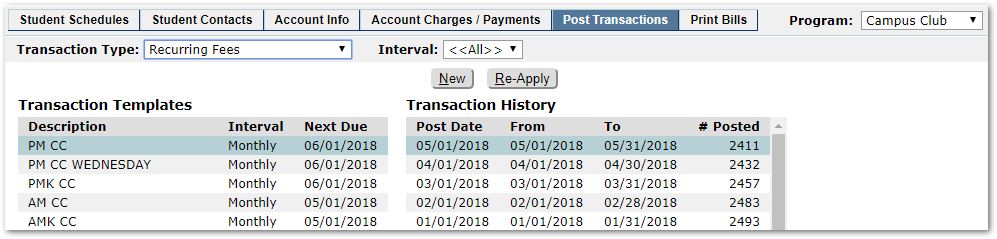
To process a recurring fee:
- Select Program.
- Select the Fee Template.
- Click New.
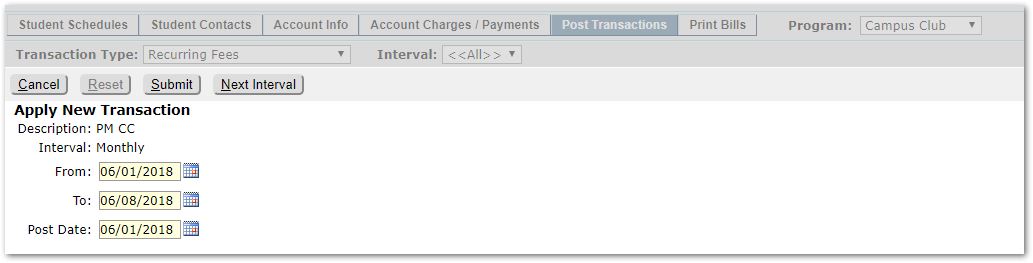
- Review and modify the Posting date range and Posting Date:
- From
- To
- Post Date.
The date range applies to the posting period of the fee as defined in EC Setup.
Note: Next Interval button may be used to generate a new default date range.
- Click Submit.
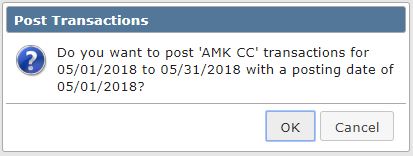
- You will receive a confirmation message, review the message and click OK or Cancel.
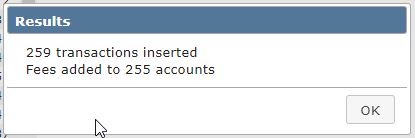
- When the posting is complete, a Results message will appear.
- Click OK.
- The screen will display the new posting in the Transaction History.
Re-Apply
When posting recurring fees, instead of applying a New posting, you could choose to Re-Apply.
A recurring transaction can be reposted in cases where there are students who enrolled late in a class to back-post fees to their accounts. The Re-Apply function will look at student program schedule records, calculate fees and post them to associated accounts. The process is like the steps outlined above for a new recurring fee transaction, but in this case:
- Select the Fee Template.
- Select the Transaction History record
- Click Re-Apply
- The date range is not editable.
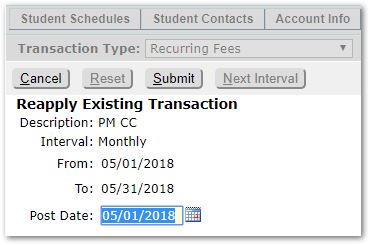
- Set the Post Date if it needs to be different from the default.
- Click Submit to Re-apply the item.
Post Late Pickup Fees
Programs may be setup to charge Late Pickup Fees in EC Setup. If this is the case, then you will need to run the process to assess Late Pickup Fees and post them for students in those programs. When this is run, the process will review student’s attendance in the EC Program comparing the student’s recorded ‘Time Out’ against the Program’s default End Time to calculate and post Late Pickup Fees. Late Pickup Fees use an Amount and a multiplier (as configured in EC Setup). The amount assessed could be a flat fee for any overtime logged or it could be multiplied by minutes late, hours late, etc. It is recommended that the EC Attendance data is up to date for the time period before running this process.
For the selected Program:
- Select the ‘Late Pick-up Fees’Transaction Type from the drop-down.
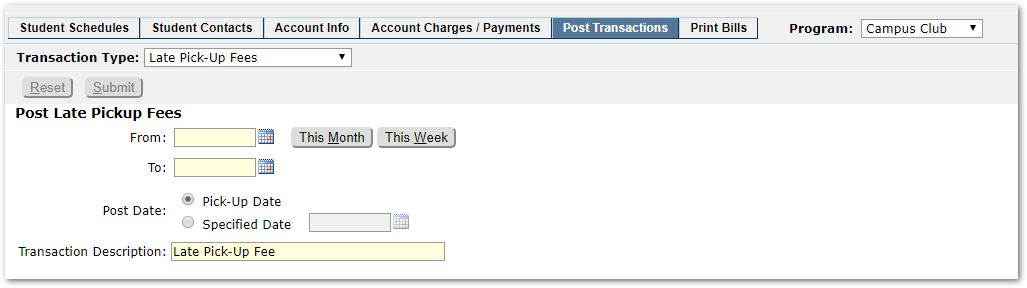
- Enter the date range, using ‘This Month’ or ‘This Week’ buttons to more easily set those dates. A separate billing record will be generated for each late pickup day.
- Choose ‘Pick Up Date’ as the Post Date if you want the record to match the date of the late pickup or, choose and set a ‘Specified Date’ if you want to enter a common posting date for all late pickup records generated in this session.
- You may modify the Transaction Description if desired.
- When ready, click Submit.
- A confirmation message will be presented indicating the number of transactions posted, or previously posted:
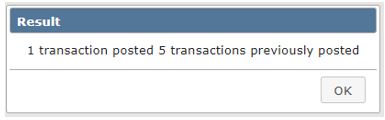
- Click OK to close the message.
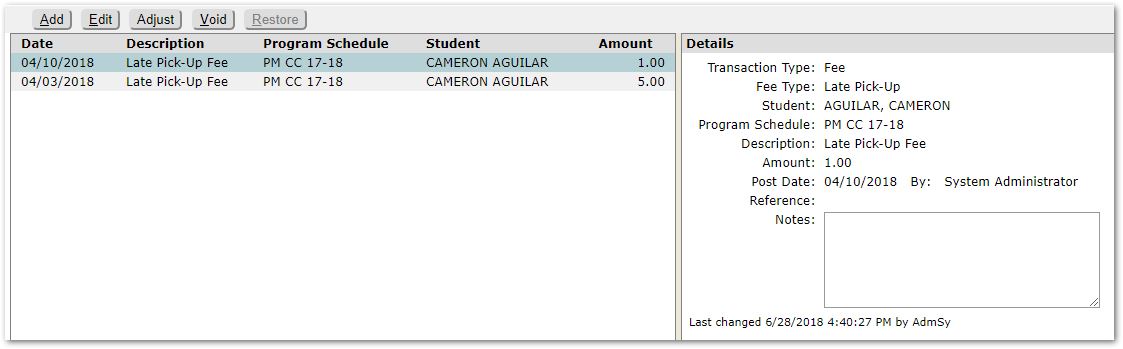
Unlike Recurring Fees, no Transaction History is shown for Late Pickup Fee Transactions. To see the result of the posting, review individual Account Charges / Payments for the time period posted. An example is shown in which the post date was the ‘Pickup Date’.
Post Unscheduled Attendance
Unscheduled attendance refers to instances where a student attends an EC class on a day that they were not scheduled to attend. Programs may be setup to charge Unscheduled Attendance Fees in the EC Setup application. If this is the case, then you will need to run the process to assess these fees and post them for students in those programs. When run, the process will review student’s attendance in the EC Program comparing the student’s actual attendance with the individual student’s program schedule. For any days the student attended that they were not scheduled to attend, the associated account will be billed for the unscheduled days of attendance.
Unscheduled Attendance Fees use an Amount and a multiplier (as configured in EC Setup). The amount assessed could be a flat fee for any overtime logged or it could be multiplied by minutes late, hours late, etc. It is recommended that the EC Attendance data is up to date for the time period before running this process.
For the selected Program:
- Select the ‘Unscheduled Attendance Fees’Transaction Type from the drop-down.
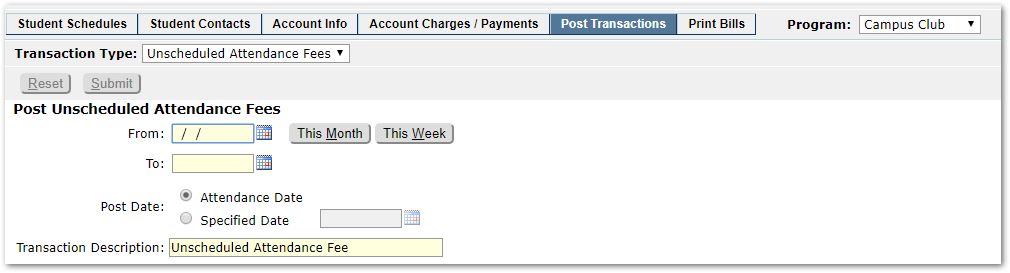
- Enter the date range, using ‘This Month’ or ‘This Week’ buttons to more easily set those dates. A separate billing record will be generated for each late pickup day.
- Choose ‘Attendance Date’ as the Post Date if you want the record to match the date of the unscheduled attendance or, choose and set a ‘Specified Date’ if you want to enter a common posting date for all unscheduled attendance records generated in this session.
- You may modify the Transaction Description if desired.
- When ready, click Submit.
- A confirmation message will be presented indicating the number of transactions posted, or previously posted. Click OK.
- Unlike Recurring Fees, no Transaction History is shown for Unscheduled Attendance Fee Transactions. To see the result of the posting, review individual Account Charges / Payments for the time period posted for accounts whose students had unscheduled attendance.
Batch Post Payments
The Account Charges / Payments tab may be used to post individual account payments. But the Batch Post process may be used to post a number of payments in one session for multiple accounts associated with the selected program. You may also print a deposit slip for the batch post.
For the selected Program:
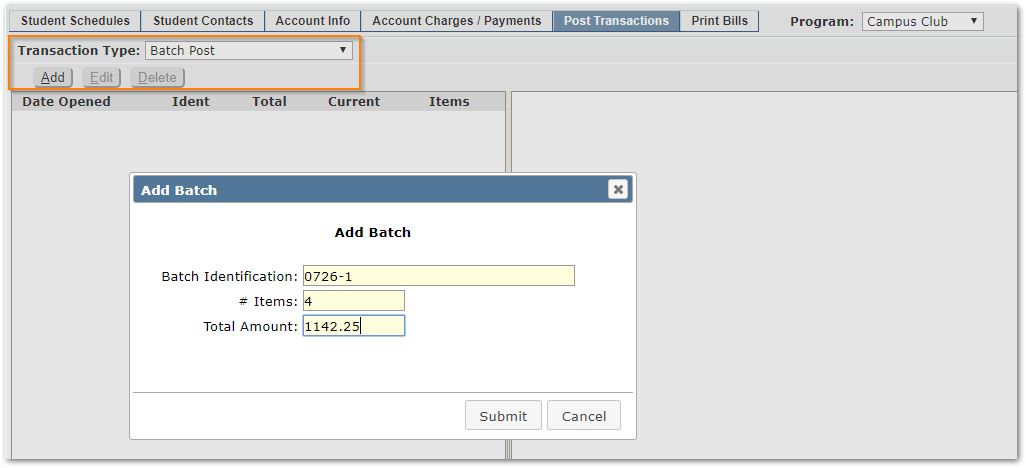
- Select the ‘Batch Post’ Transaction Type from the drop-down.
- Pending batches for the program will be displayed, if any. Batches that have already been posted will not be displayed in the list.
- You may:
- Create a new batch post by clicking Add.
- Work with a pending batch by clicking Edit.
- Remove a pending batch by clicking Delete.
Create a Batch Post
- Click Add.
- Complete the form, entering:
- Batch Identification – Enter an internal name for the batch.
- # Items – Enter the number of items to be posted.
- Total Amount – Enter the total amount of all items in the batch post.
- Click Submit when complete.
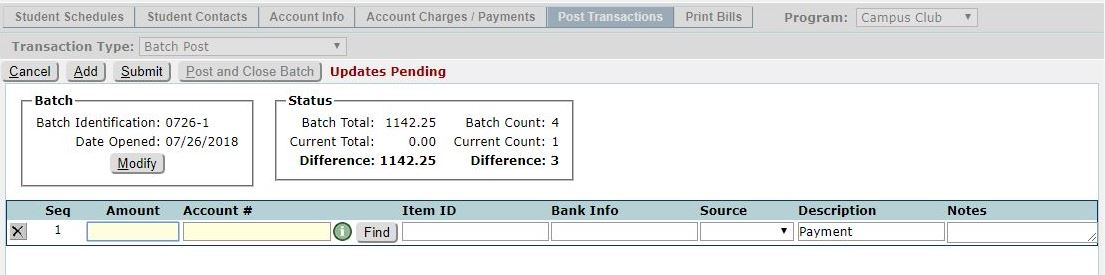
The screen will change to show the batch post work area with the current Batch at left, its Status at right and the data entry area for each payment in the grid below.
To enter the first payment, enter:
- Amount – Enter the dollar amount of the payment.
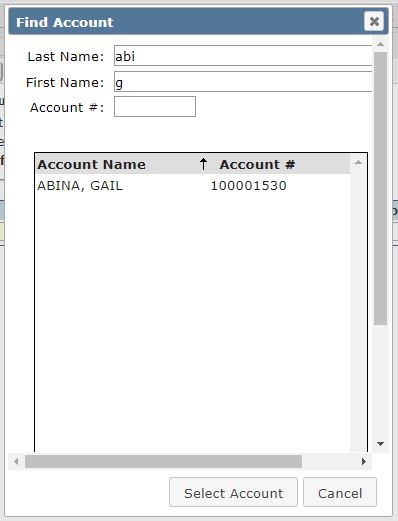
- Account # – If you know the account number, enter it here. If you do not, use the Find button to search for the account to which the payment applies. When the account holder is located, click Select Account.
- Item ID – Enter an identification number for the item, such as a check number, if applicable.
- Bank Info – Enter bank information for the item, if applicable.
- Source – Select the form of payment such as Check, Cash, etc.
- Description – Payment is the default description. This will appear as the description in the Account Charges/Payments Tab. It may be changed here if desired.
- Notes – Enter any notes or comments for this item if desired.
Click Add to add another payment.
As you add each payment, you will notice that the Status information at the top right will adjust and increment Current Total and Current Count. Differences between current and batch amount or counts are also shown.
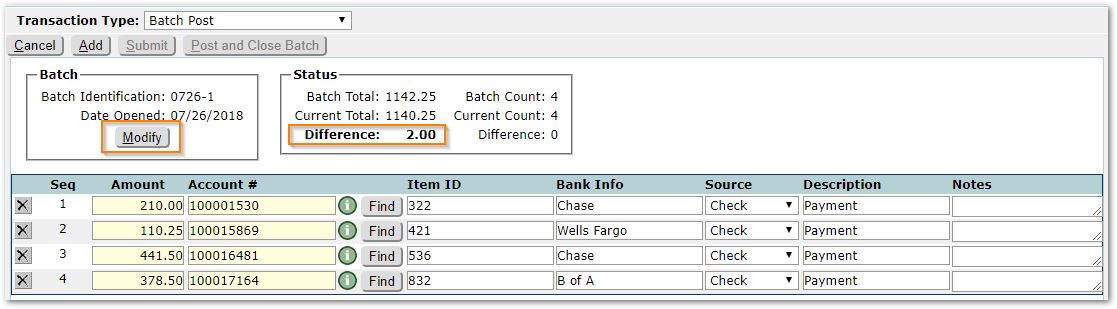
When you are finished entering all payments, reconcile your numbers with the Batch Count and Batch Total. All differences need to be resolved before posting the batch. If there is a discrepancy you may make adjustments to individual items or modify the original batch definition by clicking Modify in the Batch area at left.
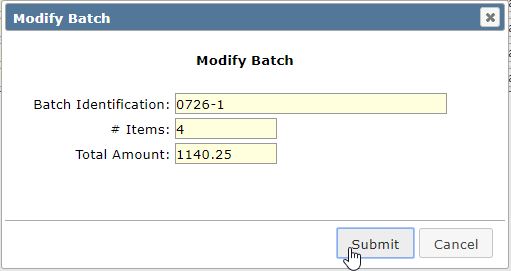
In this example, since all payment items were correct, but the original definition of the batch had an incorrect total, we modified the batch and corrected the total amount.
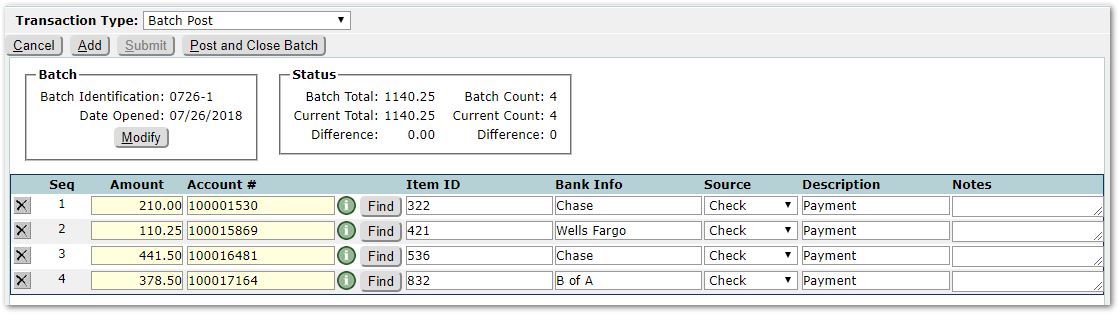
When the Batch Total matches the Current Total and Batch Count matches the Current Count, then the button ‘Post and Close Batch’ becomes available.
Click Post and Close Batch.

The payments will be shown with options to print a Deposit Slip and another to Post will appear.
Click Deposit Slip to produce a report like the sample shown:
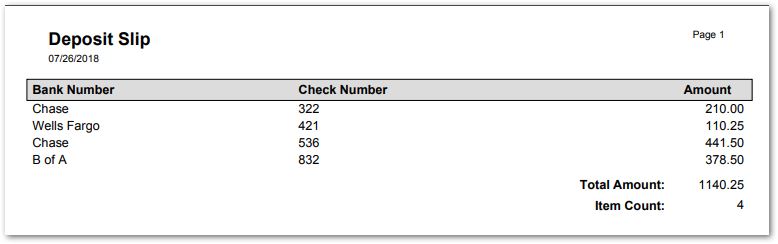
Click Post to process the posting of the payments.
A confirmation message will appear indicating the number of transactions posted. Click OK.
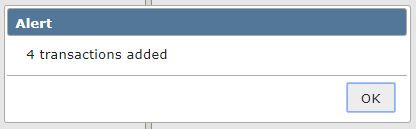
This completes the Batch Post process.
View individual results of the posting from the Account Charges / Payments tab for the individual accounts posted.
Pending Batches
Batches that have not yet been posted for the selected program will appear when you select ‘Batch Post’ from the Transaction Type drop list. These batches are pending. When there is a discrepancy between either the Batch and Current Total or Batch and Current Count, the Difference and its value are shown in bold font in the Batch Details area at right.
To continue working on a pending batch, select it from the list at left and click Edit.
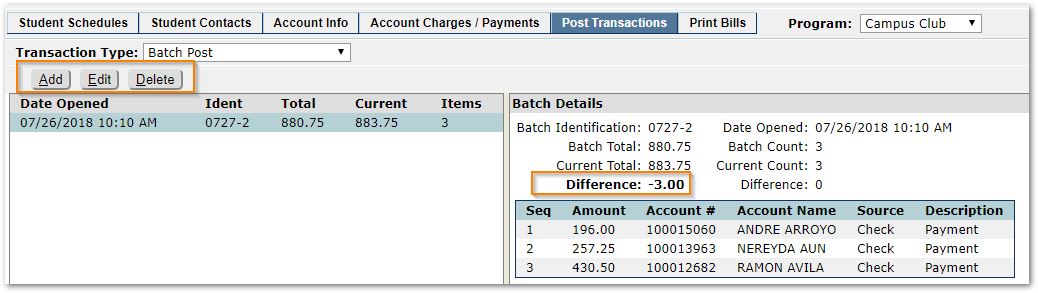
To remove a pending batch, click Delete.
Once you post and close a batch it will be removed from the list at left. You will not be able to reverse or undo the results of a batch post in Post Transactions. If you need to make corrections, you will need to go to the individual accounts using the Account Charges / Payments tab and work with each individual affected account making adjustments or voiding transactions.
The Print Bills tab is used to print billing statements by program for selected accounts. The billing statements are formatted for mailing.
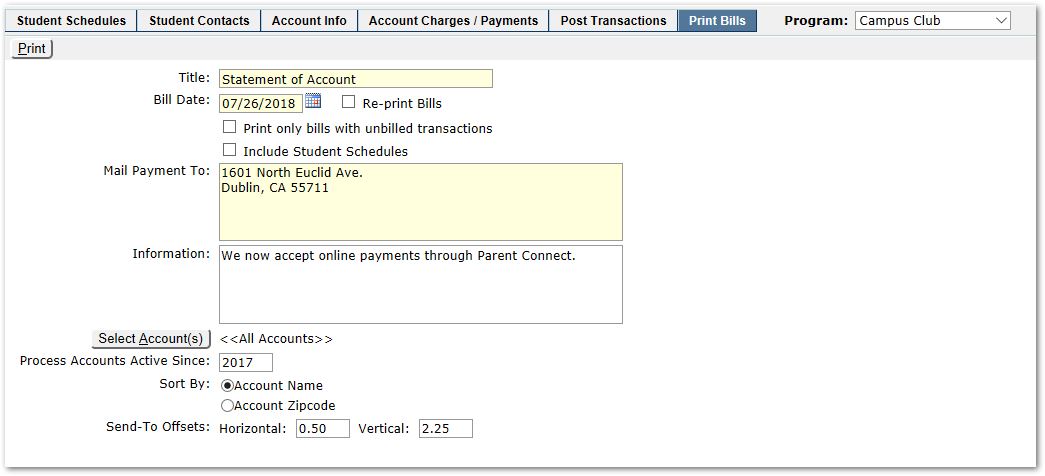
To produce billing statements, complete selections for the following:
- Title – The default title ‘Statement of Account’ may be edited.
- Bill Date – Select the effective date for billing. This date will default to Today’s date but may be changed. The Bill date will appear in the statement header.
- Re-print Bills – Check this box to reprint bills that were previously printed. Previously billed transactions will be denoted with a plus + sign to the right of the amount and this will be annotated in the Bill Statement footer.
- Print only bills with unbilled transactions – With this checked, each time the process is run for the period, only accounts with new activity will be printed. Bills printed with this option on will reflect both new and outstanding transactions, (i.e. transactions previously billed but not yet paid.) Previously billed transactions will be denoted with a plus + sign to the right of the amount and this will be annotated in the Bill Statement footer.
- Include Student Schedules – With this checked, names of students in an account and their Program Schedules will be printed.
- Mail Payment To – The default for this information comes from the EC Setup application. It may be modified here for the current Bill printing session. The information will appear in the Bill Statement header.
- Information – As with Mail Payment To field above, the default for this information comes from the EC Setup application. This is an optional field intended to be used by the district to communicate a message on the Statement. It will appear in the upper right corner of the Bill Statement header. If a default message was configured in the EC Setup application, it may be modified here for the current Bill printing session.
- Select Accounts – The report will default to generate a Billing Statement for all accounts for the selected program, but if you wish to filter by account, you may filter to specific accounts using the Select Account function and search by name or account number.
- Process Accounts Active Since – In order to prevent going back to aged accounts, you may use the option to process accounts active since a particular year and set a reasonable value such as the prior year.
- Sort By – The default sort order is Account Name. You may choose to sort by Account Zipcode instead as the sort order of the statement.
- Send-To Offsets – The values of the offsets are established in the EC Setup application on the Billing Tab but may be altered here for the current Bill printing session. The Send To Offset allows you to control where on the Statement the Account holder’s name and address information will appear.
When all prompts have been set as desired, click Print.
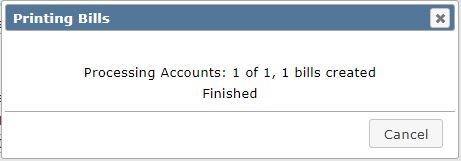
When the Billing Statements are being produced, a message will appear indicating the number of accounts processed and bills created. You may click Cancel to close the message.
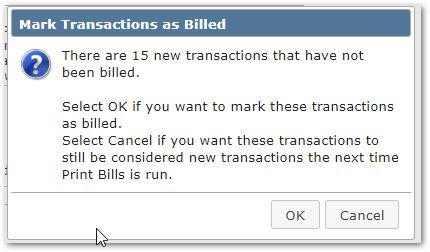
When printing bills with new transactions or previously unbilled charges, you will be prompted to mark the transactions as billed. If you are ready to do so, click OK. But if you want the transactions to be considered new the next time the process is run, then click Cancel.
A sample statement:
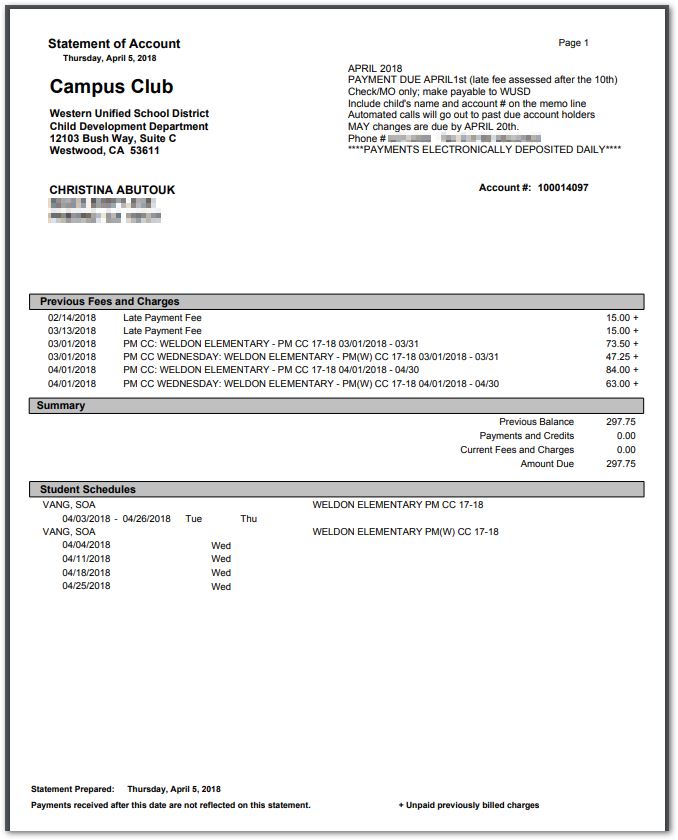
Sample of a Reprinted Billing Statement with Student Schedules. Each of the previously billed items is designated with a plus + sign to the right of the amount and this is annotated in the footer of the Billing Statement.
