
The Extra Curricular Attendance application is used to record time spent in Extra Curricular program classes for programs such as Before and After School Day Care, etc. The programs, their schedules, classes, and accounts need to be setup before attendance may be taken in an Extra Curricular (EC) class. The attendance itself is recorded as Time In and Time Out. The Extra Curricular system uses the recorded times to calculate attendance for billing student accounts. As example, a Time Out entry later than the student’s scheduled Time Out entry may be considered a Late Pickup for which extra fees are assessed, etc.
There are two tabs within Extra Curricular Attendance: Take Attendance and Attendance History. Access to the Attendance History tab may be assigned through permissions.
Extra Curricular Attendance is located under the School menu in Q.
Attendance may be recorded on the Take Attendance Tab as Time In and Time Out. Attendance entries may also be appended to already recorded entries.
From the Take Attendance Tab,
- Date – This date is the Effective Date for Attendance; it will default to the system date. Note: Attendance may not be recorded for future dates.
- Select an Extra CurricularProgram, if there is more than one.
- Select the Schedule/Class associated with the Program, if more than one.
A roster of students scheduled into the class (through Extra Curricular Configuration applications) will appear. 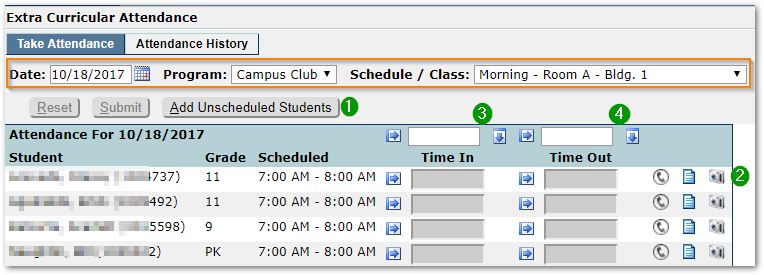
- If there are students enrolled in the class, but for whom the current date is unscheduled in their calendar, an ‘Add Unscheduled Students’ button will appear.
Adding Unscheduled Students:
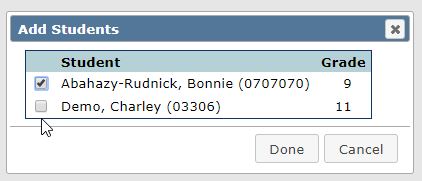
- Click the Add Unscheduled Students button.
- Select the desired students from the list.
- Click Done.
- To view additional student related information, click the links at right.

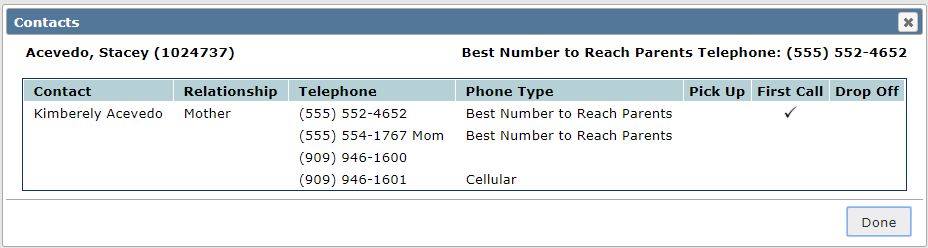
- Click the Phone icon to view Contact information.
- Click the Note icon to view Student Attendance History.
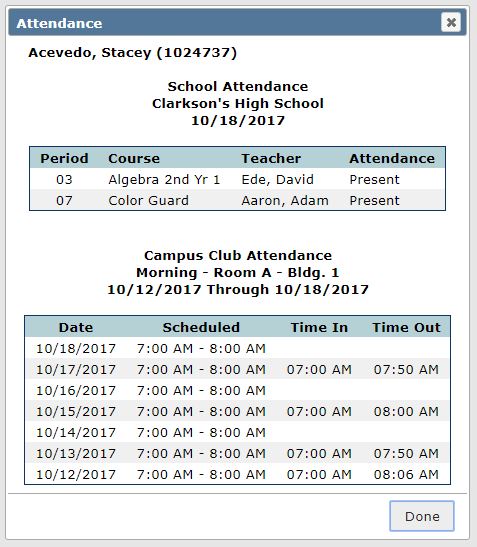
The Note icon will appear red if the student was not marked present in the EC class the previous day. The attendance shown includes the current day traditional school attendance and the previous week’s Extra Curricular attendance.
- Click the Camera icon to view the student’s photo, if available.
Recording Attendance:
To fill values for all students:
- Enter the Time In above the Time In Column header and click the fill button to the right.
- Enter the Time Out immediately to the right and click the fill button.
NOTES: Time Out may only be blank for Today’s date. For any dates prior to Today, a Time Out is required on submission of the Day’s attendance for the student. 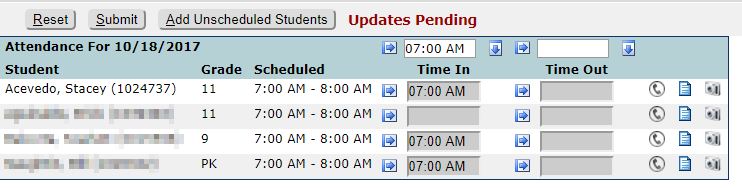
To clear a value, click the fill button to the left of the individual student’s Time value (as shown for second student).
To set with current time: clicking a fill button at left of a time slot when the field is empty, will cause the current time to be populated.
Use the fill buttons to set a value, but adjust values by clicking into the field and editing or deleting the value.
When complete, click Submit.
Appending Attendance
The times that were submitted previously are now displayed in read-only mode above their time fields.
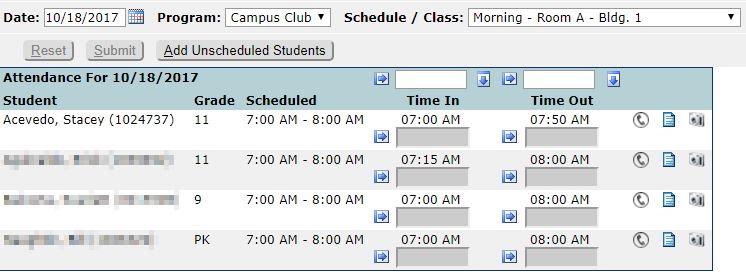
Additional time may be entered, just like before, to correct an error or make an adjustment if needed.
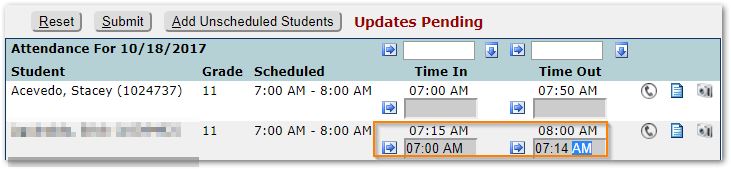
In this example, the student was recorded initially as entering at 7:15 and departing at 8 am. However, to correct an oversight, the corrected time of 7am to 7:14am is being entered to cover the gap of time.
Note: the application will not permit an overlap of time, but will accept one entry starting at the same time as another ends.
To edit attendance for an individual student, use the Attendance History Tab. Already recorded attendance may not be edited on the Roster / Take Attendance Tab.
Access to the Attendance History Tab is based on permission.
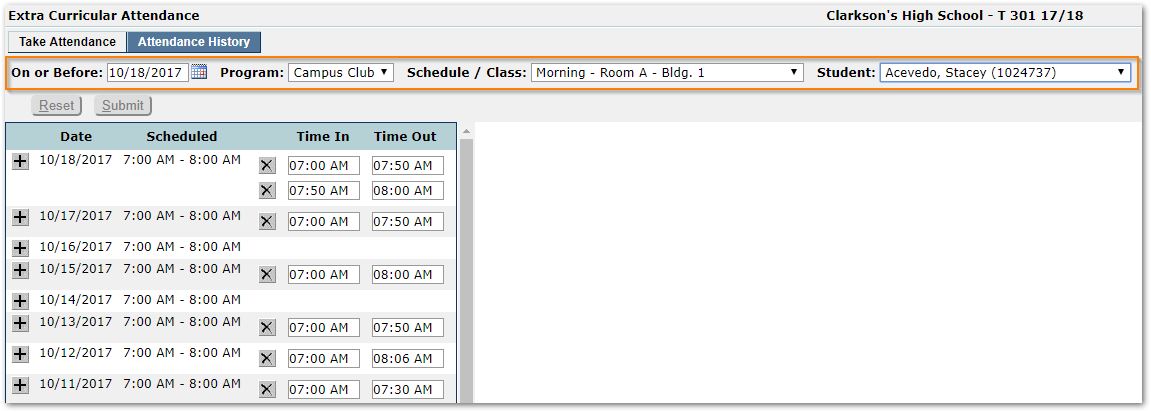
From the criteria highlighted at the top of the screen:
- Set the On or Before Date for Attendance. This will default to the system date.
- Select the EC
- Select the EC Schedule/Class.
- Select the
Edit Attendance:
- Use the PLUS sign (+) at far left to add an entry.
- Use the X sign adjacent to the Time In value to remove an entry.
- Edit the values for Time In or Time Out as needed.
- Click Submit.
