
The Q Requirements application may be used to define eligibility requirements for milestones like Honor Roll or Graduation. Districts may configure the application to define criteria such as the amount of credit a student must be awarded in selected courses, subjects, etc. to meet the eligibility requirements for graduation and then determine if a student has met those requirements. The Requirements application includes an Evaluation tab where users may run the evaluation process to determine student progress in meeting graduation requirements. Honor roll eligibility rules are used by the Marks Processing application – Calculate Current GPA/Eligibility process to determine Honor Roll eligibility.
Requirements is located under the Marks menu in Q.
The opening screen of the Requirements application has three tabs:
- Evaluate – Use to run a requirements evaluation process to determine whether students have met Graduation Requirements.
- Define Rules – Use to define eligibility rules based on the requirements configuration.
- Configure – Define the building blocks of requirements.
When Graduation Requirements have been configured and setup, you may run the Requirement Evaluation process for students to calculate students’ progress in meeting a Graduation Requirement Eligibility rule.
Before running the process, make sure that Academic History data is up-to-date. If a semester just ended, for example, make sure Marks have been posted to Academic History before running the process, or they will be excluded from the results.
A Note about Individual Student Graduation Requirement Settings:
Students may have a specific Graduation Requirement set in their record using the Student Editor – Edit Demographics area. It may also be set through Student Academic History under Graduation Requirements tab.  Student Editor – Demographics
 Student Academic History – Graduation Requirements
From the Evaluate tab
When evaluating students against the requirements defined in Eligibility rules, the application enables the user to select a rule, select how to apply the rule (mode), and select the set of students to evaluate in the Student Selection area in the lower portion of the screen.
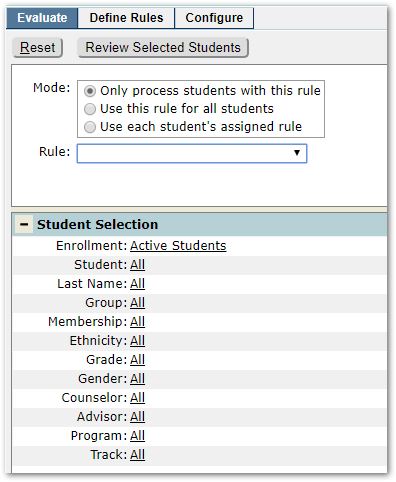
Select from Mode:
- Only process students with this rule – When selected, the process will only evaluate the students chosen in Student Selection that have the selected rule set as their Graduation Requirement.
- Use this rule for all students – When selected, the process will run the selected rule for all selected students, regardless of the Graduation Requirement rule set specifically in their Demographic record.
- Use each student’s assigned rule – When this mode is chosen the ‘Rule’ field will be disabled and each student selected will be evaluated using the rule set in their own Student Demographic record.
Select a Rule: When the Mode is either of the first two bullets, select the desired Rule.
Note: For a rule to appear in the list, it needs to be defined and associated with a Graduation Requirement (Configure Tab - Graduation Requirement area.)
Student Selection:
Use the student filter criteria to set the students you wish to evaluate, e.g. all 9 – 12 students, select by group, etc.
Review Selected Students
Click the Review Selected Students button to double-check the set of students selected.
You may de-select any listed students by unchecking the box to the left of their name.
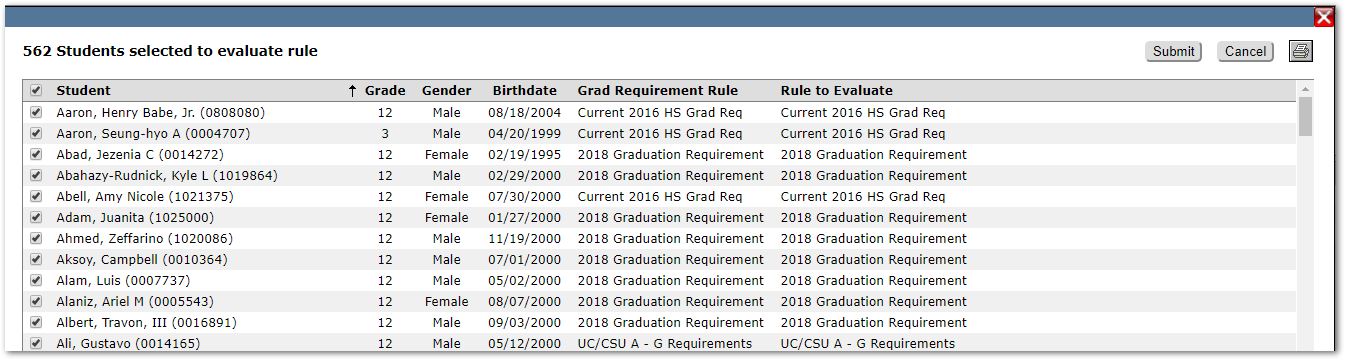
You may print the listing by clicking the Printer icon in the upper right corner.
When ready, click Submit to continue to run the Requirements Evaluation process.
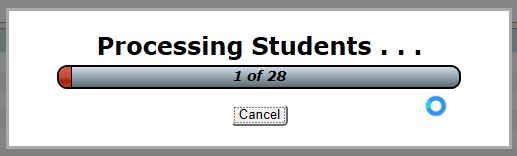
A processing dialog will appear showing progress.
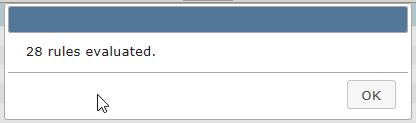
When complete, a message will appear indicating the number of students processed. Click OK.
To print Requirement Results reports, see Q Marks Reports: Graduation Requirement Results, or Graduation Requirements Allocations.
To view an individual student’s Graduation Requirements, you may use the Student Academic History application, Graduation Requirements Tab, shown below, or print an Academic Transcript including the Graduation Requirements information.

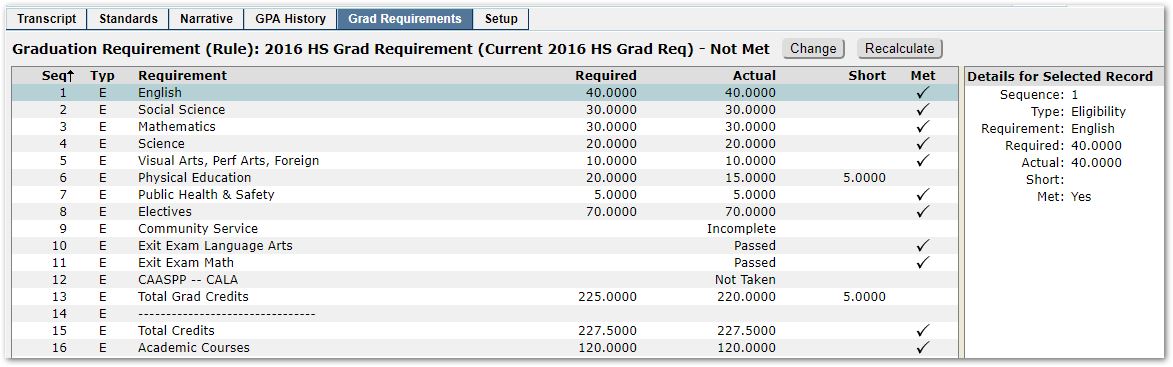
A print icon at far right will provide an ability to print the individual student’s Graduation Requirement report.
For detailed information, see Student Academic History documentation.
On this tab we will be defining the core elements of an Eligibility Requirement configuration.
Fields to Sum
Checking for eligibility through the Requirements application involves using summary calculations. The application checks to see that students meet a minimum set of requirements by summarizing the totals that they have earned in certain fields. This tab defines the fields used as the basis of the sum.
For Graduation Requirements, the field that you will want to sum is the field that stores the amount of credit that a student was awarded for the successful completion of their courses: the 'Graduation Credit Awarded' field in the Transcript table.
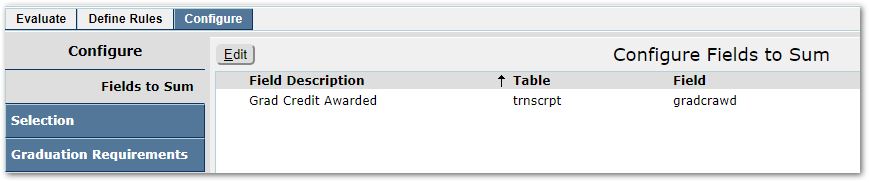
To modify:
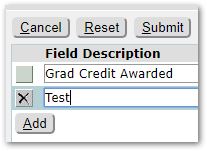
- Click Edit to modify the fields to sum.
- Click the Add button to add new fields to sum.
- Or, modify the existing fields as needed.
- Submit to save changes.

Note: For Graduation Requirements
Table: The transcript (trnscrpt) table is used for Graduation Requirements.
Field: The field within the above table that will actually be summed. The Graduation Credits Awarded (gradcrawd) field in the transcript (trnscrpt) table needs to be used for Graduation Requirements.
To delete a field to sum, select the record and click the small X at left.
Sum Selection
The Sum Selection configuration is used to define the sums available to you when define rules, under the Define Rules tab, Sums area, Record Selection Criteria, as shown below.
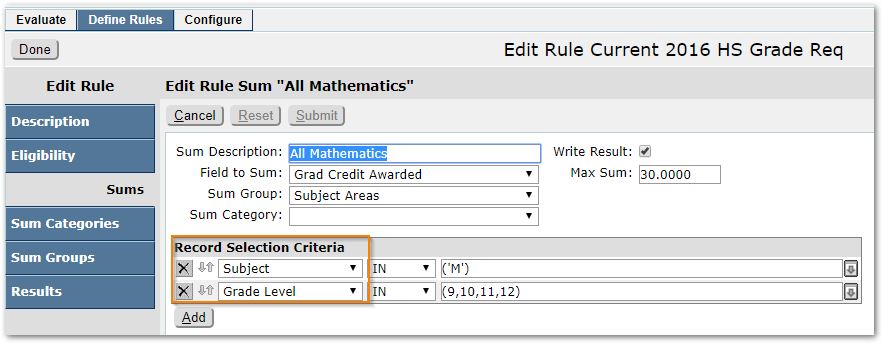
How Sum Selections are used, once they have been defined
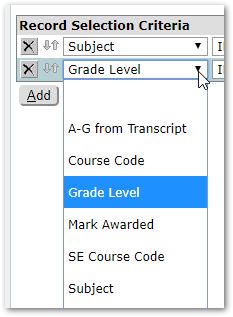
Sum Selections
The Configuration Tab - Selection area is used to define and configure the components for the query used in the Sum Selection.
To add a Sum Selection, click Add or to edit an existing Sum Selection, click Edit.
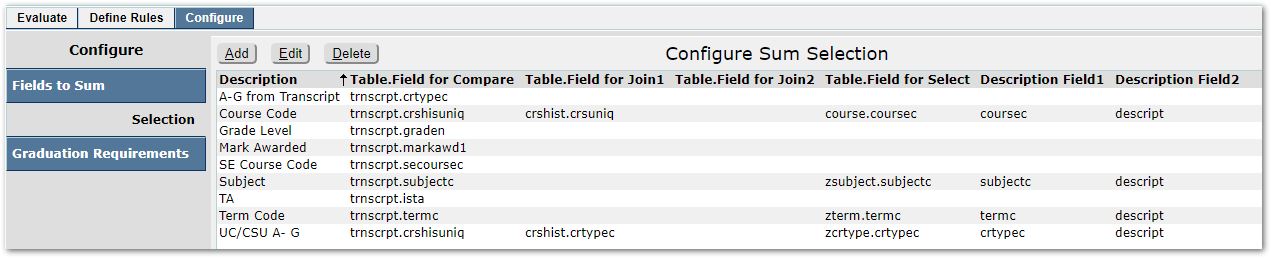
Editing Existing Sum Selection – Course Code example:
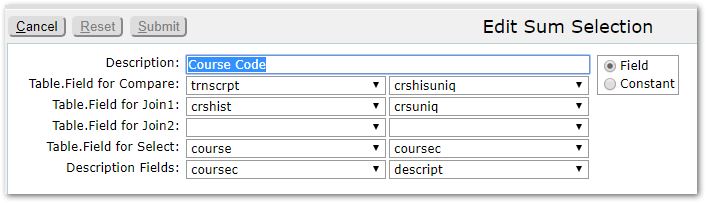
Description - The name that you give to the Sum Selection. This should be a name you will recognize easily when making your selections when defining rules.
Field or Constant – Choose based on the type of selection that this will be:
Field involves joining tables together. When Field is chosen you will be able to select courses or subjects, as example, from an available course or subject list and arrow them over to a selected course or subject list when defining the rule.
Constant does not involve joins; it means that you are selecting a field from a table itself. When Constant is chosen, you must specify the specific grade, course code, etc. when making your selections when defining the rule.
Table.Field for Compare – The table and field name used as the basis for comparison in the requirement.
Table.Field for Join1 - Used to tell the Requirements Editor which tables to join for this Sum Selection.
Table.Field for Join2 – If there will need to be a second table.field to join, define it here.
Table.Field for Select - This is the table and field that will be used in the select statement of the query.
Description fields - These are the fields that users will be able to see when making their selections during the definition of rules. The field choices here come from the table selected above, on the Table/Field for Select line.
Note: This part of the configuration will allow you to later choose selections when defining Sums. If this part of the configuration is not completed accurately, it is possible that you will not be able to select courses or subjects as needed when creating Sums under Defining Rules tab. It is also possible if this not set up properly that you will not be able to perform the processing to see which students have met the rule.
Sample configurations for sum selections
Course Codes
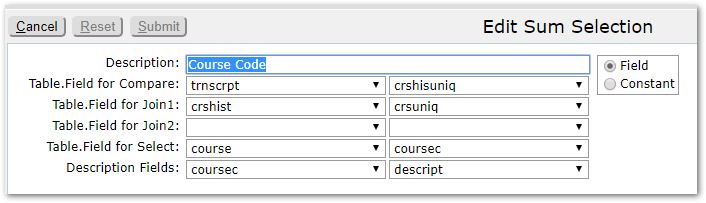
Course Code – The example above allows you to select from a list displaying the course codes and their corresponding descriptions. This must be accomplished through a join. Therefore, FIELD must be selected.
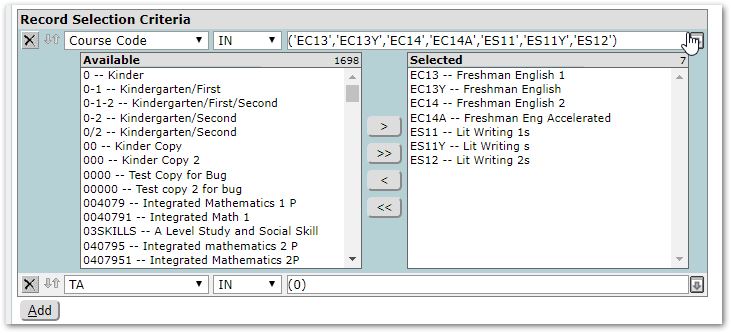
Here’s how it will look when using it to define the record selection criteria of a sum:
Subject Codes
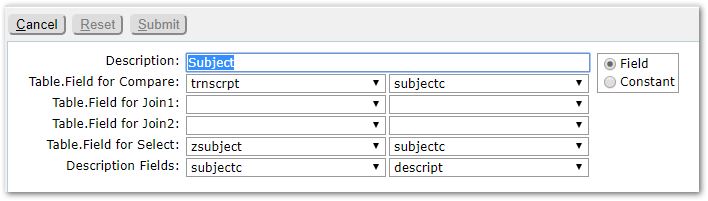
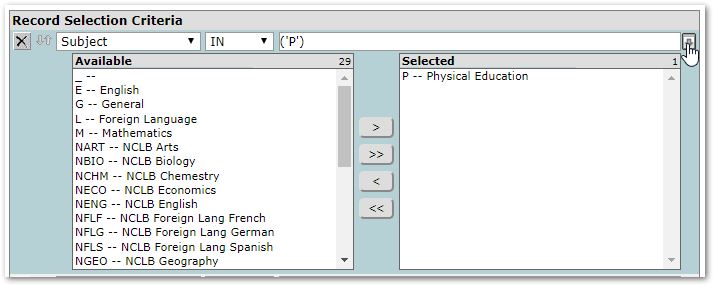
Subject – This example allows Subject areas to be selected by code and description as they are displayed in District Courses. This must be accomplished through a join. Therefore, FIELD must be selected.
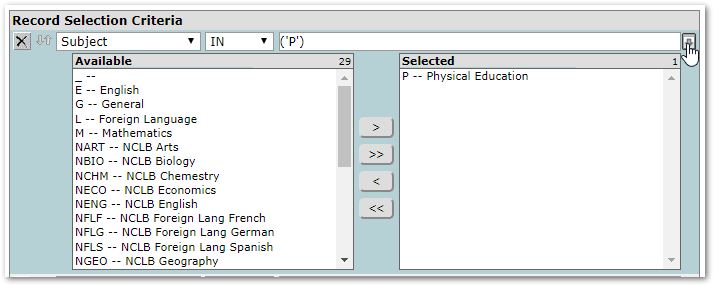
Here’s how it will look when using it to define the record selection criteria of a sum:
Grade
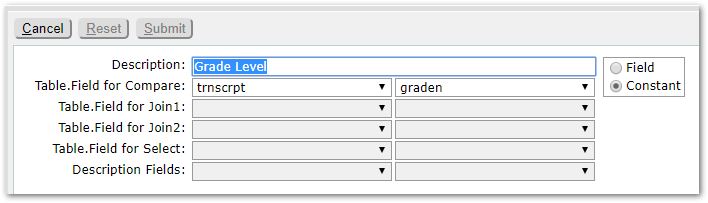
Grade – This setup allows you to use a field that is directly stored in the transcript record. In this example, a CONSTANT is chosen instead of FIELD. When you use a constant, you will not have a selection box when defining the Graduation Requirement rules. Instead, you will type in the Grade Number values associated with the courses that will be selected. Valid Grade Number values can be viewed in the Lookup Codes Editor – Additional Codes – Grade Codes.
Here’s how it will look when using it to define the record selection criteria of a sum:
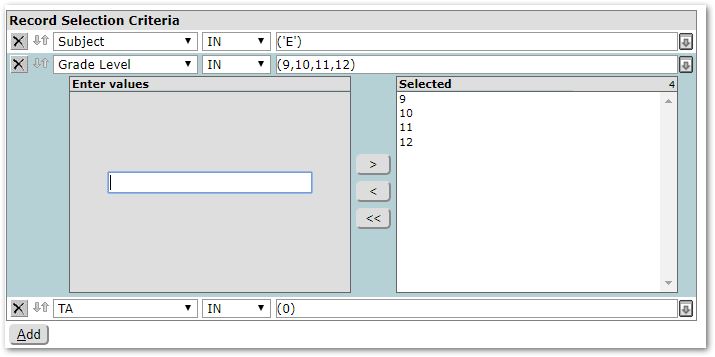
Note in this case, the values are not being selected from a list of valid values, but instead are being manually entered. It is important to ensure the values match values in the database: 09 and 9 are not the same number.
Graduation Requirements
Prerequisites: The Graduation Requirements listed are defined in the Lookup Codes – Graduation Requirements. In addition, the Eligibility Rule must first be defined under the ‘Define Rules’ tab.
When eligibility rules have been defined under ‘Define Rules’, then the rule may be associated with a Graduation Requirement in this area.
Return to this step after the eligibility rules have been defined.
To associate a rule with a Graduation Requirement:
- Click Edit.
- Select the Graduation Requirement.
- Click in the Eligibility Rule field and select the desired Rule to associate with the Graduation Requirement.
- Click Submit to save changes.
To clear selection:
- To clear the selection, click Edit and select the empty option at the top of the list. Click Submit to save the change.
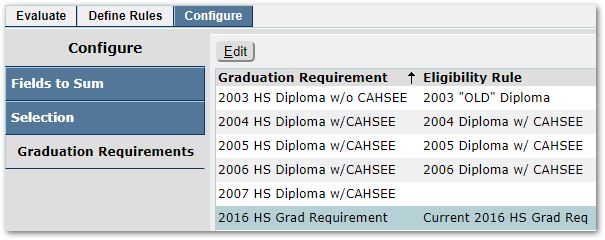
For any student with the selected ‘2016 HS Grad Requirement’ set as their Graduation Requirement, the associated Eligibility rule of ‘Current 2016 HS Grad Req’ must be met for that student to be eligible for graduation.
 Graduation Requirement set for individual student in Student Editor – Edit Demographics Area
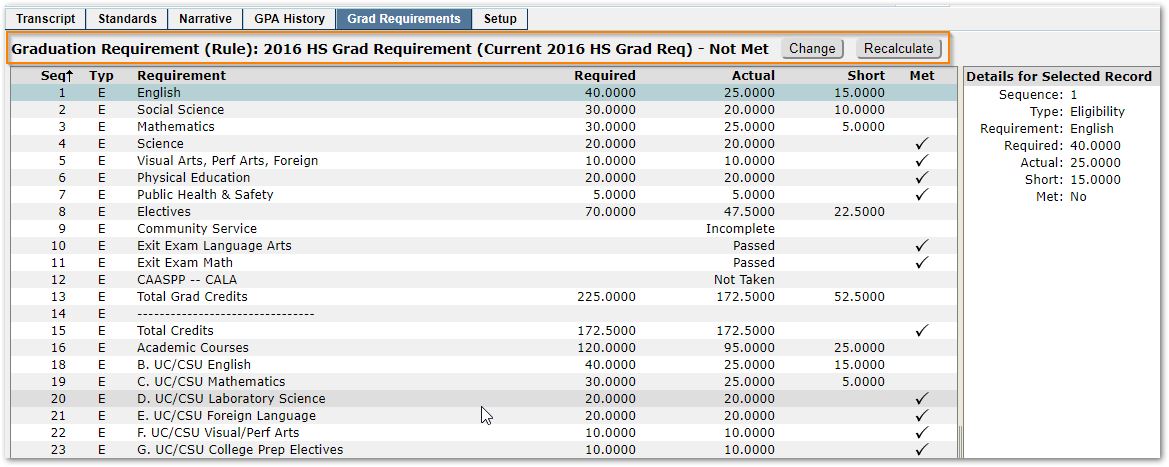
Graduation Requirement and Rule used for student displayed for individual student in Student Academic History – Grad Requirements Tab. The student’s Graduation Requirement may be changed and re-calculated here.
The eligibility checking process will use the Sums and Criteria Items etc. defined for the ‘Current 2016 HS Grad Req’ Eligibility Rule when checking for eligibility of students who have the Graduation Requirement ‘2016 HS Grad Requirement’ selected.
When the configuration steps above are complete, you may begin adding Graduation or Honor Roll eligibility rules.
If existing rules are in place, they will appear in the list and may be edited and revised as needed. Or, new rules may be added or copied from an existing rule.
Components of a Rule
An eligibility rule is composed of several parts:
Sums
For Graduation Requirements, related or similar courses are grouped together into Sums. As example, courses Algebra 1 and Honors Algebra 1 may be grouped into a sum named Algebra 1. Algebra 2, Honors Algebra 2 grouped into a Sum called Algebra 2. Geometry related math classes grouped into a Sum called Geometry. And, then a Sum may be created for all math classes called Other Mathematics.
Eligibilities
Those individual Sums are then grouped into Eligibilities (the Sums Algebra 1, Algebra 2, Geometry and Other Mathematics are grouped into an Eligibility called Mathematics).
The Eligibilities, then, compose the Graduation Requirement Eligibility Rule that you are creating which is made up of Eligibilities for ‘Mathematics’, ‘English’, ‘Science’, etc.).
When eligibility processing is run, the Sums are then grouped into Sum Groups. Sum Groups generally consist of several Sums (which consist of courses). As example, the Sums of Algebra 1, Algebra 2, Geometry and Other Mathematics are in the Sum Group Academic Courses.) The Grand Totals of any Sums that belong together should be in the same Sum Group. A credit earned can only be counted once per Sum Group.
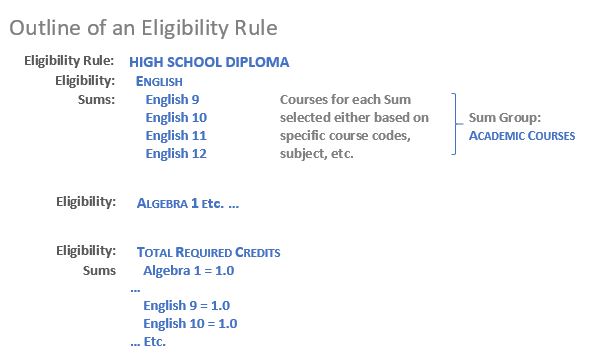
This way, when a Sum has reached its maximum allowable value, it is possible that another course that may also fit into the Sum that is ‘full’ can then be used in a different Sum (if a student has already fulfilled the requirements for the Sum Geometry by earning credit for Geometry 1 and they have received credit for Trigonometry which is also a course in the Geometry Sum, then Trigonometry will bump down to the Sum ‘Other Mathematics’). When a Sum is at its max, course credit will go into the next matching Sum in the Sum Group. Again, note that a credit can only be counted once in each Sum Group.
When you set up for Graduation Requirements, you will also likely have a Sum for ‘Required Credits Total’. That Sum should not be in a Sum Group. This is because you will want all of the credits from the other Sums to be totaled in this Sum. Leaving ‘Required Credits Total’ out of any Sum Group will ensure that all credits for all Sum Groups are also counted a second time in the ‘Required Credits Total’ Sum. ‘Required Credits Total’ acts as its own Sum Group because a specific Sum Group was not associated with it.
Using the same principle, you may create another Sum Group called ‘Vocational Courses’ if you have a set of Graduation Requirements where your elective or ‘Vocational’ courses can count for both a ‘Fine Arts’ Sum and a ‘Vocational’ Sum. The credit earned for a course that is associated with both of these Sums Groups will count twice, once under the ‘Academic Courses’ Sum Group and once under the ‘Vocational Courses’ Sum Group. But under the ‘Required Credits Total’ Sum Group it will only appear once because of the rule that a credit can only be counted once in each Sum Group.
Sum Categories
An optional, grouping definition is called 'Sum Categories'. Two or more Sums can be grouped into a Sum Category and the Sum Category rather than the component Sums is added to an Eligibility. The maximum credits for the Sum Category is less than the total of the maximum credits for the Sums that belong to it, allowing the Sum Category eligibility to be met with various combinations of the component Sums. The effect of this is to create an eligibility requirement that is more complex than a simple Sum.
Tests
A test may be used for an eligibility item. If a test is used, the results of the eligibility will be based on the Passed flag for the test in the student’s Test History records. The result will be “Passed” if a record exits for the test and the Passed flag is checked. The results will be “Not Passed” if a record exists for the test and the Passed flag is not checked. The results will be “Not Taken” if there is no record for the test.
Activities
An activity may be used for an eligibility item. If an activity is used, the results of the eligibility will be based on the Completed flag for the activity in the student’s Activities application. The result will be “Completed” if a record for the activity exists and the Completed flag is checked. The result will be “Not Completed” is no record for the activity exists or a record exists and the Completed flag is not checked.
Defining a Graduation Requirements Eligibility Rule
In defining a Graduation Requirements Eligibility Rule, you must set up the Sum Groups, Sums, and Eligibilities that must be met for a student to be eligible for graduation. Eligibility Rule set-up will be dictated by a school’s Graduation Requirements.
Before beginning to define the rule(s), you will need information such as documentation of the District’s Graduation Requirements and the Courses (including their codes and subject areas) that are considered by the district to fulfill requirements for specific areas.
In addition, if your district waivers credits for graduation, you will need to determine the Area to receive the waived credit. For example, if a student is waived for 0.5 credits of Health & Physical Education, the total credits for Electives will need to be increased by 0.5 so that the student earns the same number of credits as other students. A credit is considered waived if the Waiver flag is checked in Academic History.
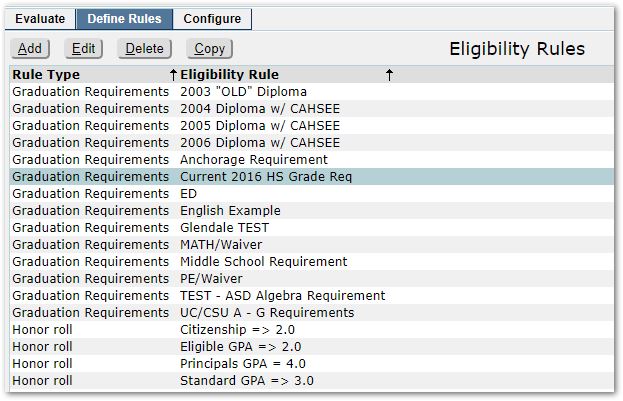
To Add a Rule:
- Click Add.
- Provide a description or name for the rule, e.g. ‘2020 HS Graduation Requirement.’
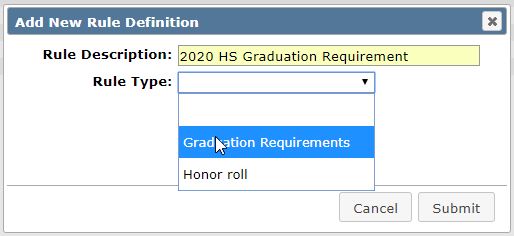
- Select a Rule Type, e.g. Graduation Requirement or Honor Roll.
- Click Submit to save changes.
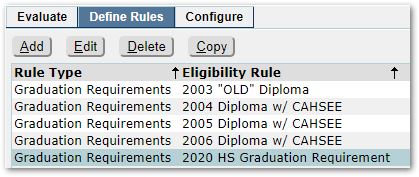
- The new rule will appear in the list of rules, and will be highlighted.
- To begin the process of defining the new rule, click Edit.
To Copy an Existing Rule:
If graduation requirements have changed, as example, you may need to define a variation of a graduation rule for a new graduating class to implement the change for the incoming freshmen, etc. It will simplify the process to copy the existing rule to a new one and make the necessary modifications.
- Select the rule you want to copy as the basis for the new rule.
- Click Copy.
- Enter a name for the new rule in ‘To New Rule’ field.
- Click Submit to execute the copy.
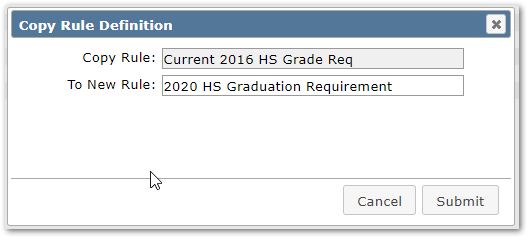
- When you click Submit, the application will display the result of the copy process, like that shown below. Click OK.
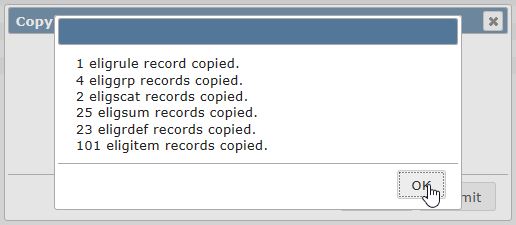
The new rule will appear in the list of Eligibility Rules.
Editing a Rule
- Select the newly added or copied rule to edit.
- Click the Edit button.
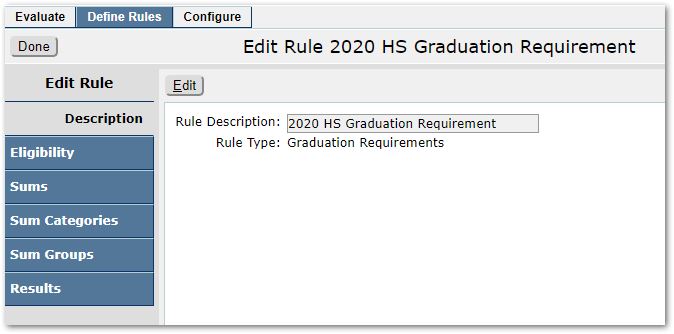
Description
Description is the name of the rule and its type, either Graduation Requirement or Honor Roll. You may modify the rule name by clicking Edit and changing the Rule Description. Click Submit to save any changes.
Eligibility
For Graduation Requirements, Eligibilities are the areas of study defined by the district policy that must each be met by students to successfully complete requirements for graduation. These are the requirement categories that will be checked by the requirements processing for eligibility and will be printed on reports as the individual requirement areas of Graduation Requirements.
If you are getting started defining rules, return to define Eligibilities when you have completed defining Sums, Sum Groups and Sum Categories below since there are references to these within an Eligibility.
Sample Eligibilities are shown below including how they appear in the Academic History application and on a student’s Transcript.
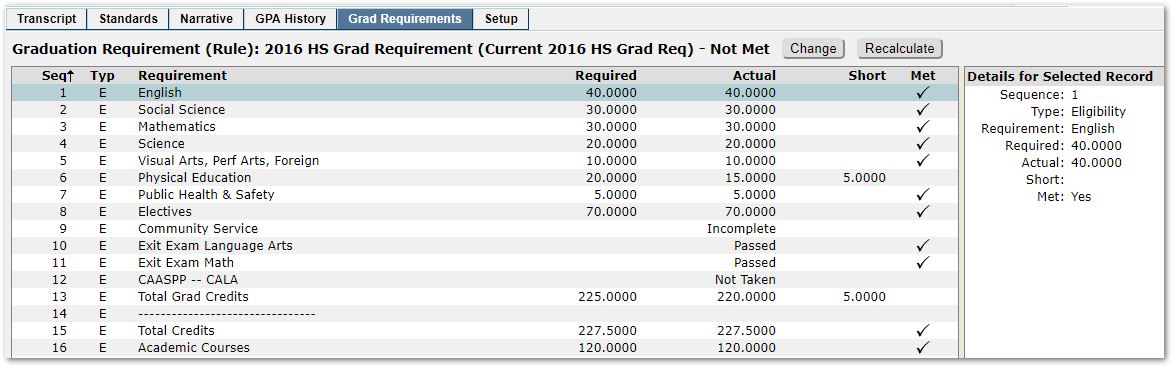
An example from the Academic History application – Graduation Requirements Tab
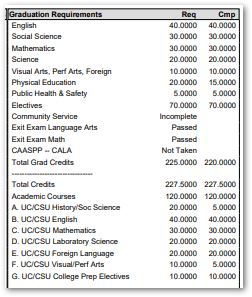
From the student’s Transcript report showing Graduation Requirements
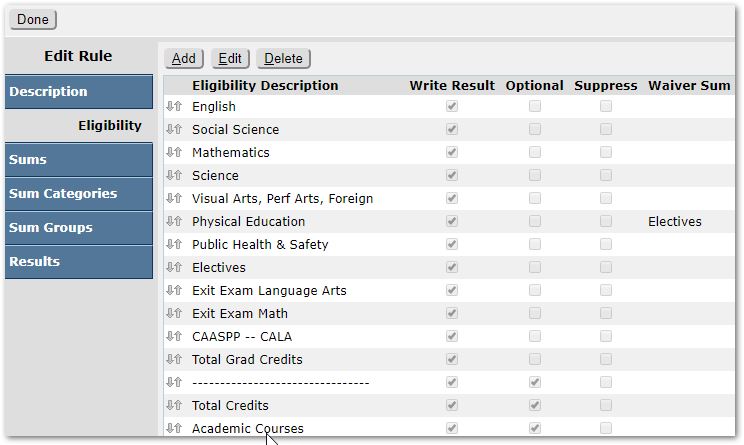
Eligibility Listing – Note that the list corresponds to the Requirements listed in the Academic History application or Transcript report.
Each Eligibility consists of a set of criteria used to define meeting or passing the requirement. Examples of passing criteria for an Eligibility are: Sums or Sum Categories (see below), Tests, Activities, and other Eligibilities.
Eligibility Sequence
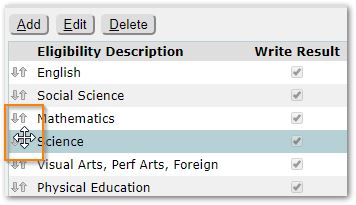
The Eligibilities are processed in the sequence in which they are listed.
To modify the sequence, select the Eligibility to move, hover over the mover arrows until the ‘Reorder’ symbol appears. Then, drag the selected eligibility up or down to the desired location. Repeat as needed until the Eligibilities are ordered in the desired sequence.
Add New Eligibilities
To add a new Eligibility, click Add.
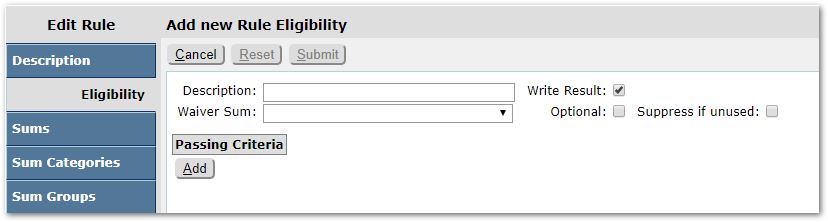
Define the Eligibility as follows:
Description – Enter the name you wish to give this Eligibility Item. These are generally the same as the Areas of Study defined on your school’s Graduation Requirements.
Waiver Sum - Select the sum to be increased by the number of credits waived, this is usually the Required Credits Total or Electives.
Write Result Flag – Indicate whether or not to write a ‘Meets this requirement’ or ‘Does not meet this requirement’ record for each student for this Item. For Graduation Requirements, you generally DO check this box at the Eligibility Item level. This tells the system that these Eligibility Items, which contain the combined Sums, are what must be met in order to fulfill Graduation Requirements.
Optional Flag - Check this box if this eligibility is optional. An optional requirement may be similar to a diploma endorsement. For example, if you award an “Honors” diploma, you could create an Honors eligibility based on the Credit Type.
Suppress if unused Flag - This box will be enabled if the Optional box is checked. Check this box to not print/display the eligibility unless the student has at least one Sum Item from the eligibility.
Next, you will need to add Passing Criteria Items to the Eligibility. These Items will be the Sums, Sum Categories, Tests, etc. that define what a student must have completed to meet the Eligibility.
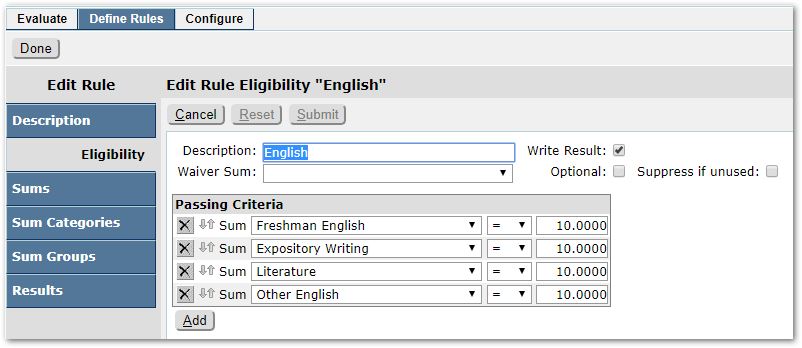
Sample ‘English’ Eligibility
To add passing criteria, click Add:
- Select the type of item to add:
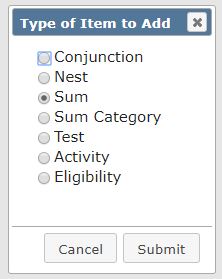
Using Conjunctions and Nesting
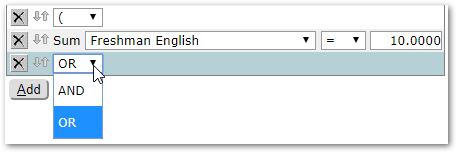
Criteria can be set up as strictly as a Sum of a set of courses. Or they can be set up as a set of courses OR another set of courses using a conjunction, such as ‘Algebra 1 OR Algebra 2’. Or, they can be more complex and set up to be a set of courses OR another set of courses AND a third set of courses using nesting such as ‘Algebra 1 OR (Pre-Algebra AND Consumer Math).
Conjunction - And / Or use when building nesting
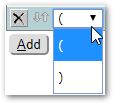
Nest – Parenthesis for defining a nesting statement.
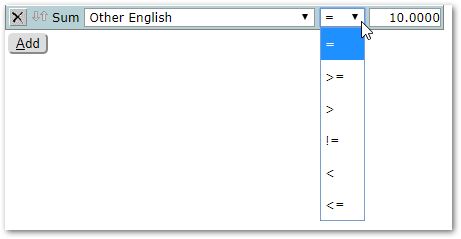
Sum – To make a sum be associated with this Eligibility items, click Sum. The sums available for selection are defined in the Sums area of Define Rules tab. As you choose a sum from the list, you will see additional fields as shown below ‘Freshman English’ sum Equals 10 credits which is the maximum value of the sum as it was defined. Note that the equals operator shown is one of a set of operators. Be sure to select the desired operator.

Operators:
Sum Category – To make a Sum Category be associated with this Eligibility item, click Sum Category. Sum Categories available are defined in the Sum Category area of Define Rules tab. The combined total of all Sums in a Sum Category will be limited by the maximum value defined in the category. Note: An ‘equals’ operator was chosen in this example. There are many possible operators as shown above. Be sure to select the correct one.
 Definition of the Sum Category

Adding Arts/Foreign Language Sum Category
Test – Test may be used for an Eligibility item. Satisfying the eligibility item is based on the Passed flag for the selected test in Student Test History.

Activity – An Activity may be selected and used for an Eligibility item. Satisfying the eligibility is based on the Completed flag for the selected activity in Student Activities.

Eligibility – Another Eligibility may also be used in this Eligibility item.

When the Eligibility item is defined as you wish, click Submit to save your changes.
Edit Eligibilities
- To Edit an existing Eligibility, select it and click Edit.
- You may modify the Eligibility, making changes as discussed above.
- Click Submit to save changes.
Delete Eligibilities
- Select the Eligibility you wish to delete.
- Click the Delete button.
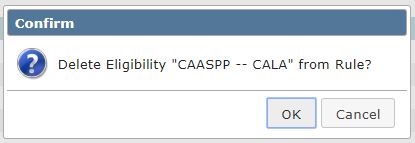
- You will receive a confirmation dialog like the one shown below. Press OK to confirm deletion, or Cancel to go back without deleting the Eligibility.
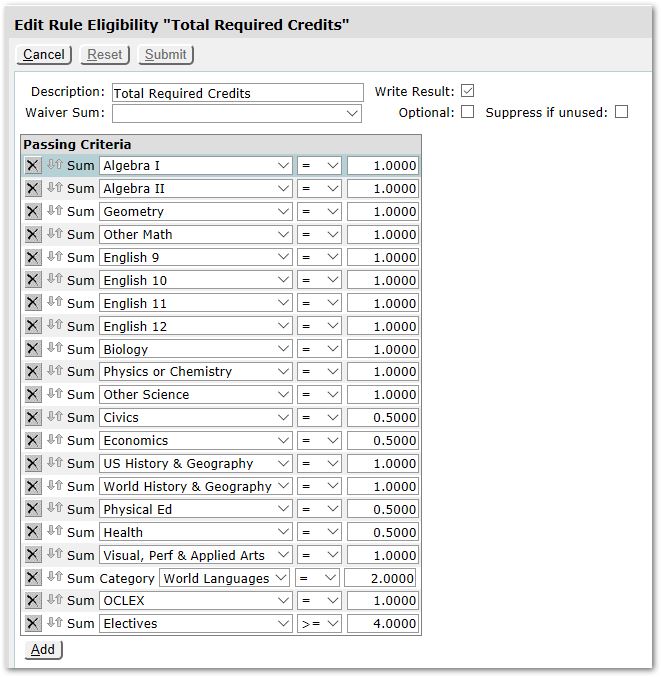
Sample Total Credits Eligibility:
The following example shows a method for requiring a total number of credits by sum for Total Credits:
Sums
Sums are used in the definition of Eligibilities discussed above. Sums enable districts to define, as example, the amount of credits required to be met for a specific set of courses to determine whether students met the Eligibility in the Eligibility Rule.
Each Sum will be associated with a Sum Group and will consist of the courses that may be counted towards meeting Graduation Requirements if a student has earned credit in those courses. Each Sum may optionally also be associated with a Sum Category.
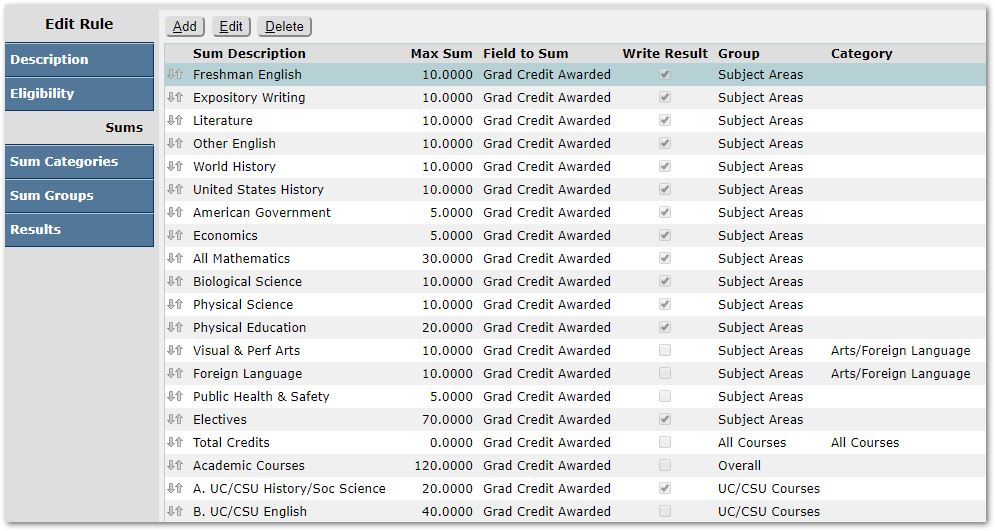
To add a new Sum, click Add.
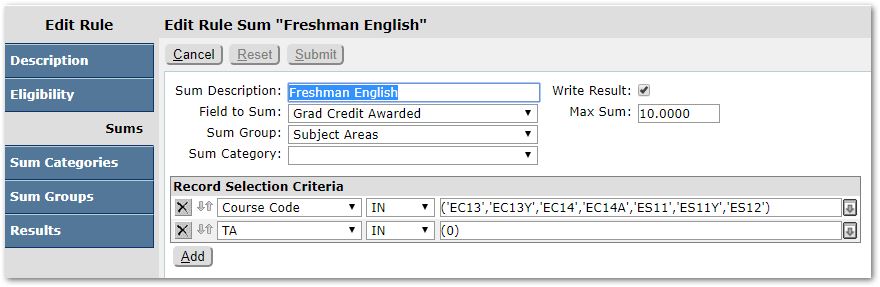
Define the Sum as follows:
Sum Description – Enter the name you wish to give the Sum. Sums are generally labeled the same way as the category of courses as defined in the District’s Graduation Requirements.
Write Result - Check this box for the sum to display in Graduation Status information displayed in applications such as Student Academic History, Student Schedules and print on the Academic Transcript or the Requirement Status Report when sums are selected. NOTE: For Graduation Requirements, you generally do not check this box at the Sum level. When adding Eligibilities, you will also have this option. For Graduation Requirements, that is where you would put a check in the ‘Write Result’ box.
Field to Sum - The database field that will be used to gather the data for this Sum. The choices from this drop-down box come from the Configuration Tab – Fields to Sum area. In the case of Graduation Requirements, the choice must be ‘Grad Credits Awarded’ to ensure that the field used is the credit awarded field from the students’ Academic History or Transcript records.
Max Sum - The maximum number of credits that are required for and allowed to be counted towards fulfilling this Sum. Once this maximum is reached, the checking process will try to bump courses that could fit here into the next Sum in the list that it can be associated with. That way, when the ‘Algebra 1’ Sum is full, ‘Algebra 2’ will get bumped down to the ‘Other Mathematics’ Sum, for example.
Sum Group - Select the Sum Group that this Sum will be associated with. Remember if you leave this field blank, you are in effect tying that Sum to its own, undefined Sum Group. That is how the Required Credits Total Sum works.
Sum Category - Select a Sum Category from the drop-down list, if applicable. The combined total of all Sums in a Sum Category will be limited by the maximum value defined for the Category.
Next, define the Record Selection Criteria:
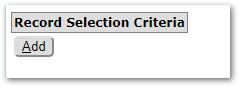
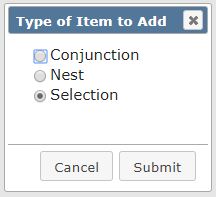
Record Selection Criteria can be set up as strictly as a Sum of a set of courses. Or they can be set up as a set of courses OR another set of courses using a conjunction, such as ‘Algebra 1 OR Algebra 2’. Or, they can be more complex and set up to be a set of courses OR another set of courses AND a third set of courses using nesting such as ‘Algebra 1 OR (Pre-Algebra AND Consumer Math).
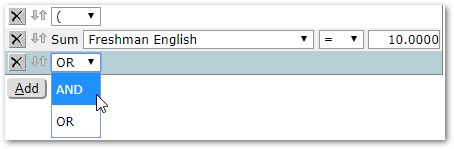
Conjunction - And / Or use when building nesting, e.g. Algebra 1 or Algebra 2.
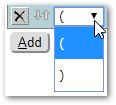
Nest – Parenthesis for defining a nesting statement, e.g. Algebra 1 OR (Pre-Algebra AND Consumer Math).
Selection – The choices in the Selection drop-list come from the Selection area of the Configure Tab.
- Set the Selection, i.e. Course Code, Subject etc.
- Select the operator: IN or NOT IN

- Either enter the appropriate values for the selection criterion chosen, i.e. 9, 10, etc. for Grade Level, or select the appropriate values from the list at left.
Note:
If the selection method you selected was set up as a FIELD selection, the screen will display a list of available choices on the left that you may select to move to the “Selected” set on the right.
If the selection method you selected was set up as a CONSTANT selection, the screen will display a field for you to enter in a course or subject code that you use to build the list of selected choices on the right.
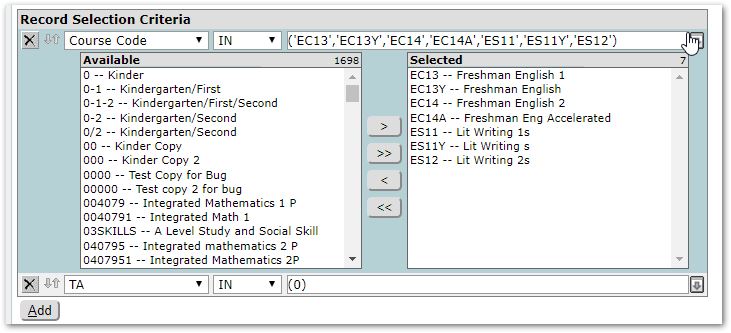 Sample of ‘Field’ configured selection enabling user to select from available course at left.
 Sample of ‘Constant’ configured Selection enabling user to input valid, accepted values.
- Add each Record Selection Criteria needed as appropriate for this Sum.
When complete click Submit to save the Sum.
Repeat for each necessary sum.
Sequence
In the same way that the Requirement checking process works from top to bottom on the Eligibilities area, it also works from top to bottom for Sums and for Criteria items within each Sum. Make sure the Sums are ordered in the desired sequence for processing, and make sure the Criteria items under each Sum are listed in the appropriate order to meet your Requirements guidelines.
- To modify the sequence, select the Sum or Criteria to move, hover over the mover arrows until the ‘Reorder’ symbol appears. Then, drag the selected Sum or Criteria Item up or down to the desired location. Repeat as needed until ordered in the desired sequence.
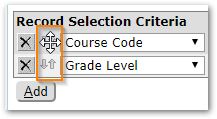
Required Credits Total
Several approaches can be taken with the Required Credits Total setup if your school has an additional requirement for the students taking a minimum amount of Credits in General. Keep in mind, especially when printing the results of the Requirement Checking Process, that Required Credits Total is not a straight addition of the other Sums. It is its own Sum that must be defined here and setup with the appropriate Items.
Define Specific Items
If you define specific Items for a Required Credits Total Sum, this works the same way as adding Items to any other Sum. Use the Select option and select all the Courses or Subjects that count towards the Required Credits Total tally. This will often be a case of repeating the selections made for the other Sums, but combining them together into one big Sum. Then, only Courses that are selected to the Sum will count towards the Required Credits Total tally. When using this method be sure to not leave out any Courses or Subjects accidentally. That will cause confusion when numbers don’t appear to add up properly on reports.
Do not Define Items
If your school simply requires that a certain number of Credits must be earned overall for its Required Credits Total tally, you can simply create a Sum called ‘Required Credits Total’ with NO ITEMS added to it. This way, every single Credit Awarded will be included in the Required Credits Total count.
Example of Total Credits for Grade Levels
Another Example of a Total Credits Sum where the credits awarded are awarded for transcript records in grades 9 through 12.
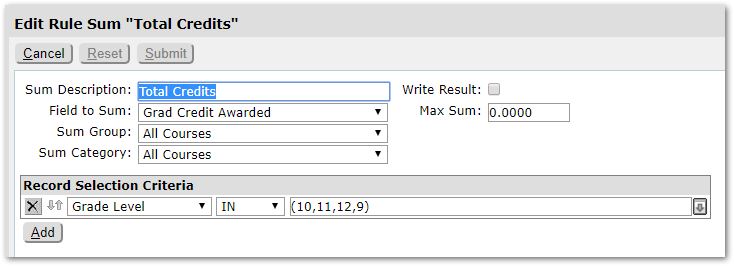 To define a Total Credits Sum for Credits awarded in grades 9 through 12.
Sum Categories
Sum Categories are an optional grouping definition is called 'Sum Categories'. Two or more Sums may be grouped into a Sum Category and the Sum Category, rather than the component Sums, is added to an Eligibility. The maximum credits for the Sum Category is less than the total of the maximum credits for the Sums that belong to it, allowing the Sum Category eligibility to be met with various combinations of the component Sums. The effect of this is to create an eligibility requirement that is more complex than a simple Sum.
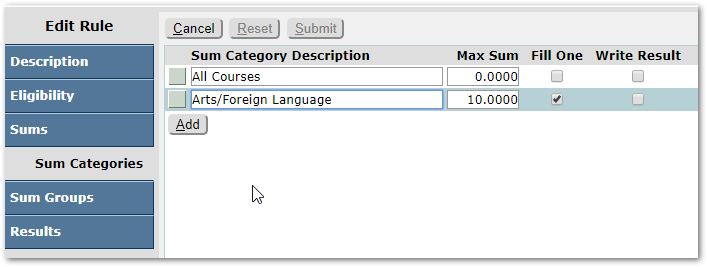
To define Sum Categories:
Click Edit
Click the Add button and enter a name for the Sum Category.
- Set the Max Sum – This is the maximum number of credits that are required for and allowed to be counted towards filling this Sum Category. When the maximum is reached, the process will try to bump courses that could fit here into the next eligibility in the list that it can be associated with.
- Check whether to Fill One sum or not:
When this option is set, the effect is to force one Sum in the Sum Category to be filled. For example, assume there is a Sum Category called 'Fine Arts/Foreign Lang' with a Max of 10, comprised of two Sums: 'Fine Arts' and 'Foreign Language' each of which has a Max of 10. When this flag is not set, the process will add transcript entries to the two Sums until the total of both reached 10. That could be with 10 credits of Fine Arts, 10 credits of Foreign Language or 5 credits of each.
When 'Fill One' is set, it forces one of the Sums in the Sum Category to be filled. When set, the Sum Category will be over-filled (transcript entries will be added even if the Max for the Sum Category is exceeded). After all transcript entries have been processed, any Sum Categories with 'Fill Sum' set are processed as follows: The Sums belonging to the Sum Category are processed in order. If one is found that is full, 'Fill Sum' is temporarily turned off and all transactions from all other Sums belonging to the Sum Category are removed and re-applied.
- Check whether or not to Write Result:
Check to indicate that a ‘Meets or Does Not Meet’ Requirement value is set for each student for this Sum Category when the requirement is evaluated and processed.
For Graduation Requirements districts do not normally check this box at the Sum Category level. When adding Eligibilities, you will also have this option. For Graduation Requirements, that is where you should put the check in the ‘Write Result’ box.
Repeat as needed to create all the desired Sum Categories.
You may modify the name of an existing Sum Category in edit mode by changing the description.
You may only delete a Sum Group if it has not yet been used. If it may be deleted, a small X will appear at left. Click the X to delete the Sum Group.
When complete, click Submit to save changes.
Sum Groups
When eligibility processing is run, the Sums are grouped into ‘Sum Groups’. Sum Groups generally consist of several Sums (which consist of courses). (i.e., the Sums of ‘Algebra 1 or Equivalent’ and ‘Other Mathematics’ are in the Sum Group ‘Academic Courses’.) The Grand Totals of any Sums that belong together should be in the same Sum Group. A credit earned can only be counted once per Sum Group.
That way, when a Sum has reached its maximum allowable value, it is possible that another course that may also fit into the Sum that is ‘full’ can then be used in a different Sum (if a student has already fulfilled the requirements for the Sum ‘Algebra 1 or Equivalent’ by earning credit for ‘Algebra 1’, ‘Algebra 2’ will then bump down to the Sum ‘Other Mathematics’). When a Sum is at its max, course credit will go into the next matching Sum in the Sum Group. Again, note that a credit can only be counted once in each Sum Group.
When you set up for Graduation Requirements, you will also likely have a Sum for ‘Required Credits Total’. That Sum should not be in a Sum Group. This is because you will want all of the credits from the other Sums to be totaled in this Sum. Leaving ‘Required Credits Total’ out of any Sum Group will ensure that all credits for all Sum Groups are also counted a second time in the ‘Required Credits Total’ Sum. ‘Required Credits Total’ acts as its own Sum Group because a specific Sum Group was not associated with it.
Using the same principle, you may create another Sum Group called ‘Vocational Courses’ if you have a set of Graduation Requirements where your elective or ‘Vocational’ courses can count for both a ‘Fine Arts’ Sum and a ‘Vocational’ Sum. The credit earned for a course that is associated with both of these Sums Groups will count twice, once under the ‘Academic Courses’ Sum Group and once under the ‘Vocational Courses’ Sum Group. But under the ‘Required Credits Total’ Sum Group it will only appear once because of the rule that a credit can only be counted once in each Sum Group.
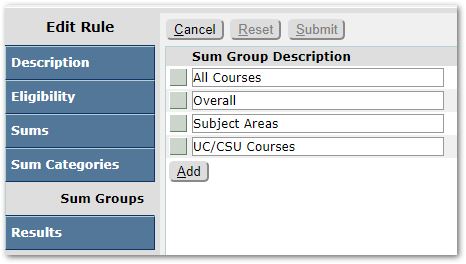
To define Sum Groups:
- Click Edit
- Click the Add button and enter a name for the Sum Group.
- Repeat as needed to create all the desired Sum Groups.
- You may modify the name of an existing Sum Group in edit mode by changing the description.
- You may only delete a Sum Group if it has not yet been used. If it may be deleted, a small X will appear at left. Click the X to delete the Sum Group.
- When complete, click Submit to save changes.
Results
A display of the result of the definition of the rule listing the Eligibilities, Sums, and Sum Categories and showing whether for each the result is written and the corresponding Result Description.
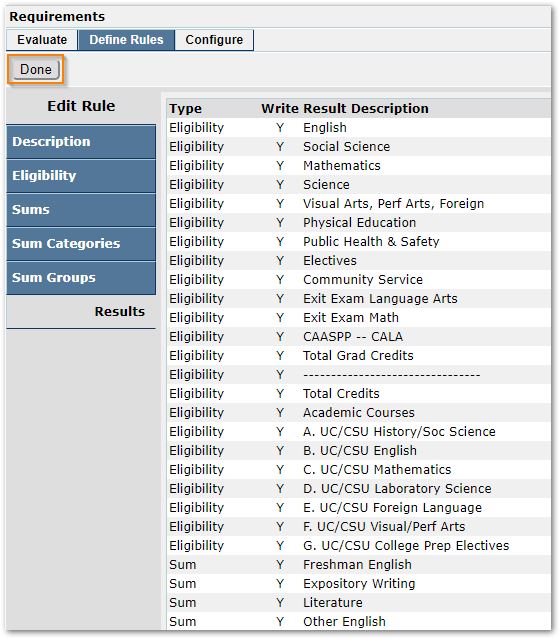
When finished defining the rule, click the Done button at top left to return to the list of rules.
Associate New Rule with Graduation Requirement
If you just completed adding a new rule for use as a Graduation Requirement, return to the Configure tab, click Graduation Requirements and associate the new rule with the desired Graduation Requirement.
From the Configure Tab, select Graduation Requirement area:
- Click Edit.
- Select the Graduation Requirement.
- Click in the Eligibility Rule field and select the desired Rule to associate with the Graduation Requirement.
- Click Submit to save changes.
