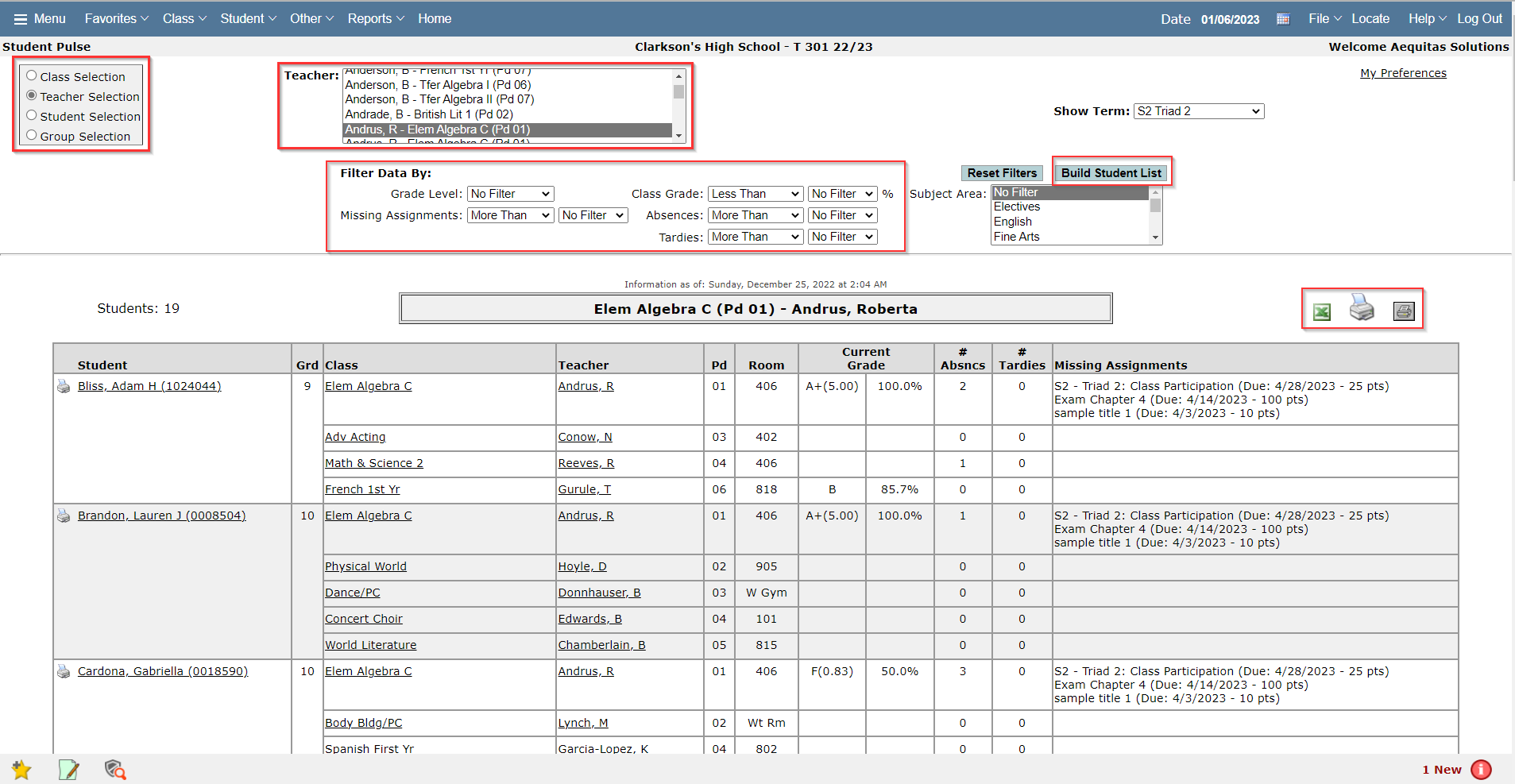
Pulse has been created to provide various users, such as administrators, counselors, department chairs, athletic coaches and teachers, the ability to access student marks' information through the web. Pulse enables users to view teachers' grade books and filter marks' information by class, student, teacher or group. Users can view completed assignments, missing assignments, current grade book percentages , number of absences, number of tardies, and student profile information based on the their permissions. This powerful tool provides a more in depth look into a student’s performance.
Student Pulse is located under the Analysis menu in Q.
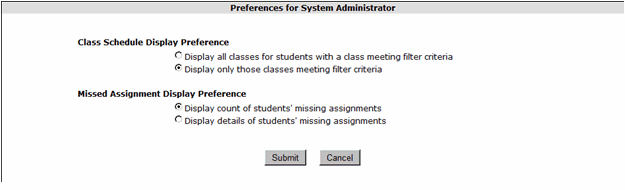
Users have two options available for customization of preferences.
Class Schedule Display Preference:
- Displays all classes for students with a class meeting filter criteria: This option works in conjunction with the Filter Data By fields. When this option is selected, all classes for students meeting the filter data criteria will be displayed.
- Display only those classes meeting filter criteria: Selecting this option will display only those classes which meet the filter criteria selected in the Filter Data By fields.
Missed Assignment Display Preference:
- Display count of students’missing assignments: Selecting to display a count of students' missing assignments will display a number with a magnifying glass next to it in the Missing Assignments field. The number displayed will be the number of missing assignments the student currently has. Clicking on the magnifying glass will open a new window that will display details of the missing assignments.
- Display details of students' missing assignments: This option will display the details of students' missing assignments in the Missing Assignments field.
- Missing Assignments field. Missing assignments with due dates which have occurred in the past will be displayed in red. Completed assignments or assignments with due dates in the future will be displayed in black.
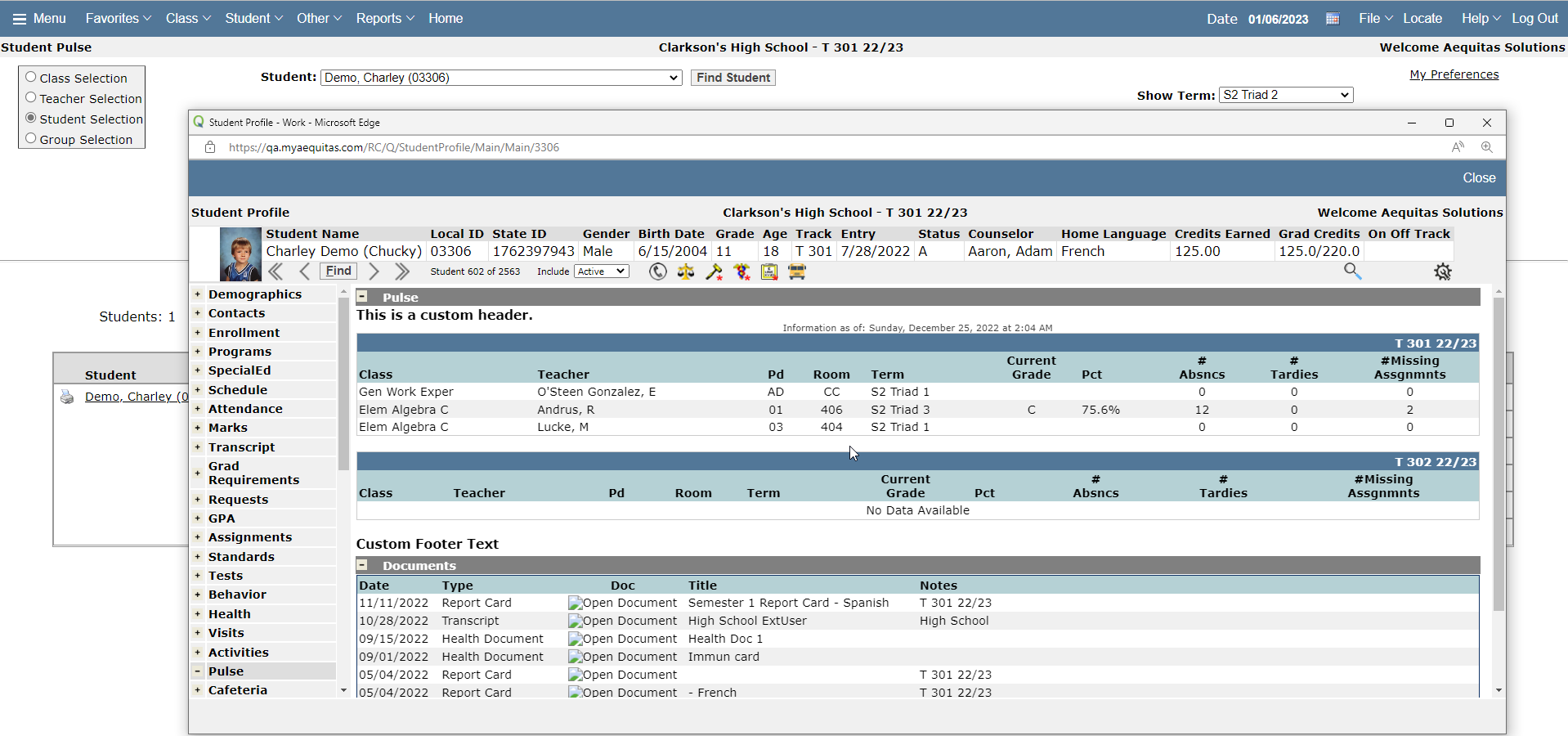
To view student data in the Pulse application click on the student name. The Student Profile application will be opened in a separate pop-up window. Click to view student information such as student attendance, contacts, course history, marks and discipline.
Student Data can be accessed by clicking on the student’s name. 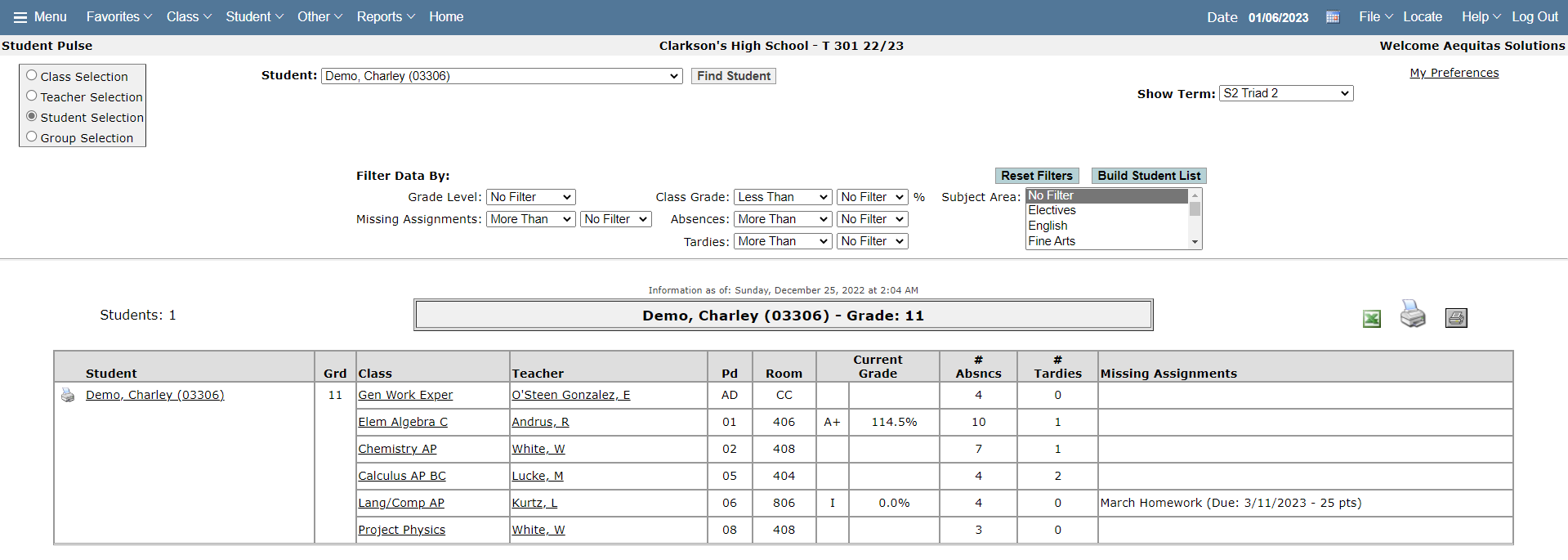
The Pulse application allows teachers to view information for students currently enrolled in their classes. Teachers are able to view and filter student data using class, student, or group selection options. They can view data by grade level, missing assignments, class grade, absences, tardies and subject areas.
Some of the information available for teachers to access includes:
- Schedule Information
- Current Grades
- Number of Class Absences
- Number of Tardies
- Number of Missing Assignments
Viewing Data by Class:
- Select the Class Selection radio button.
- Use the class selection drop down box to select the class for which you would like to view data.
- Click the Build Student List to generate a class list of students.
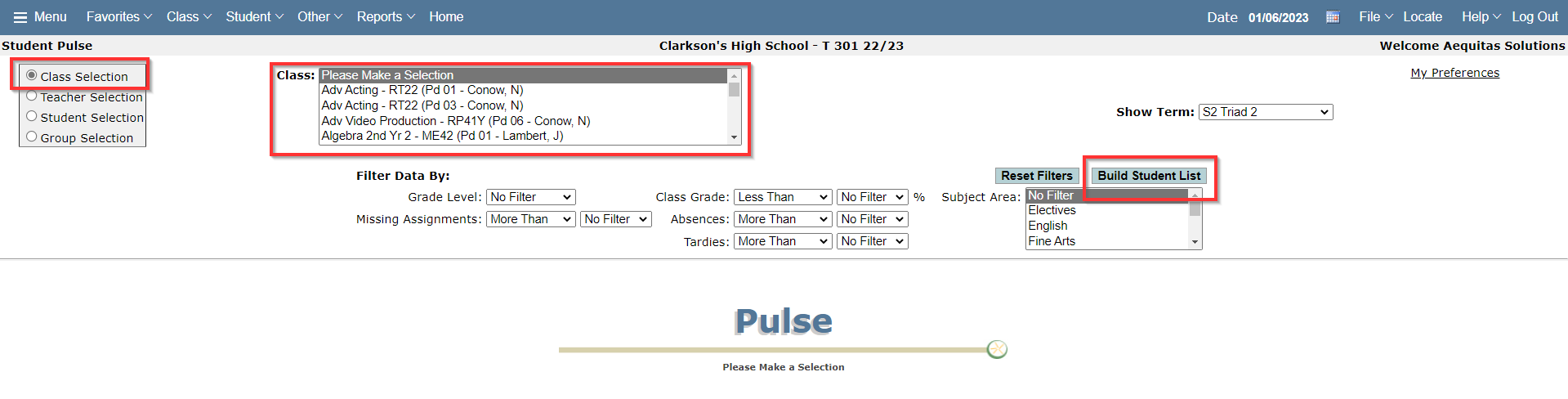
The selected data will be displayed in alphabetical order, sorted by student’s last name. You may select to filter the data in the report by grade level, missing assignments, class grade, absences, tardies or subject area. Once you have selected your filter criteria, click on Build Student List to refresh the data. Click Reset Filters to clear your previous filter selections.
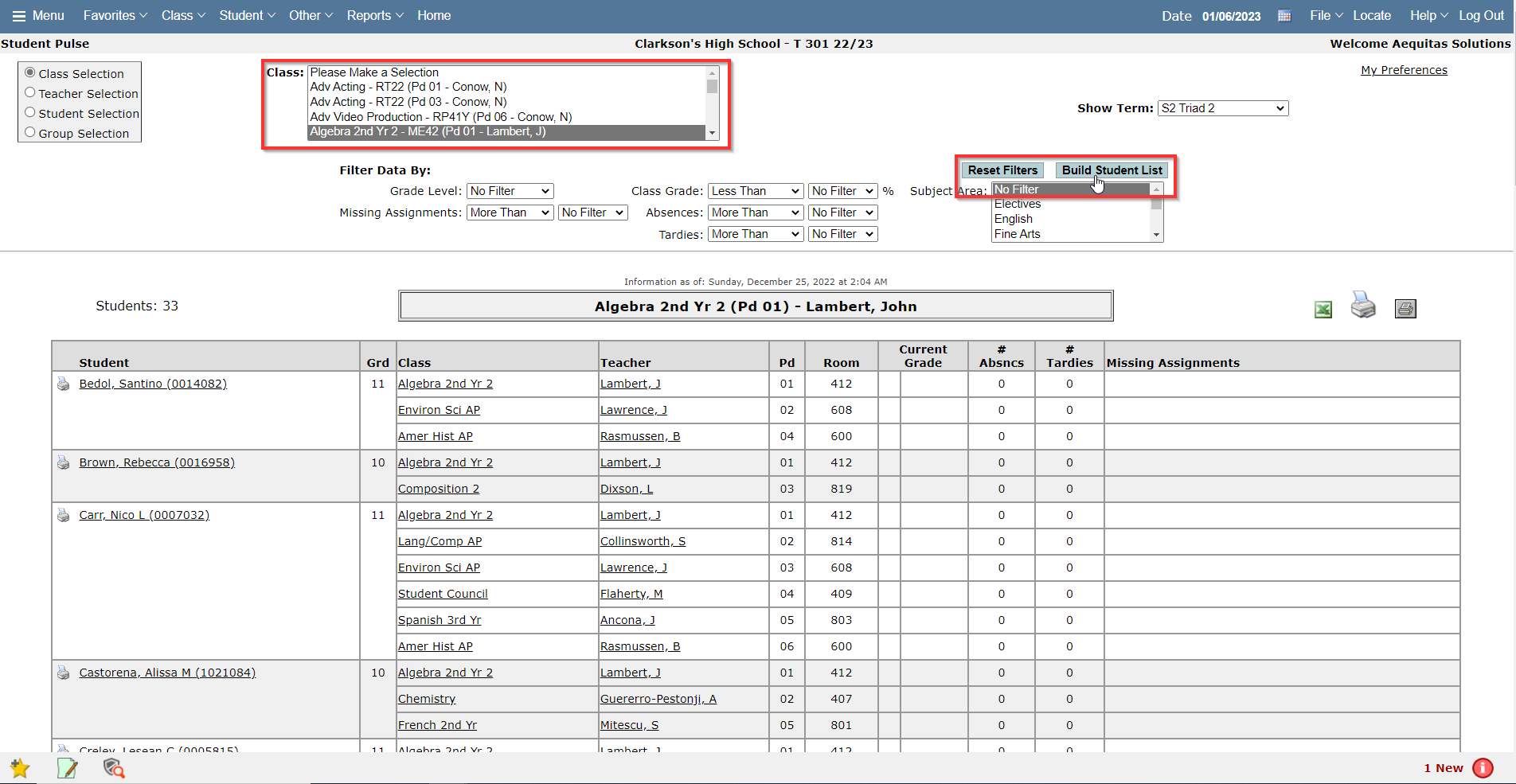
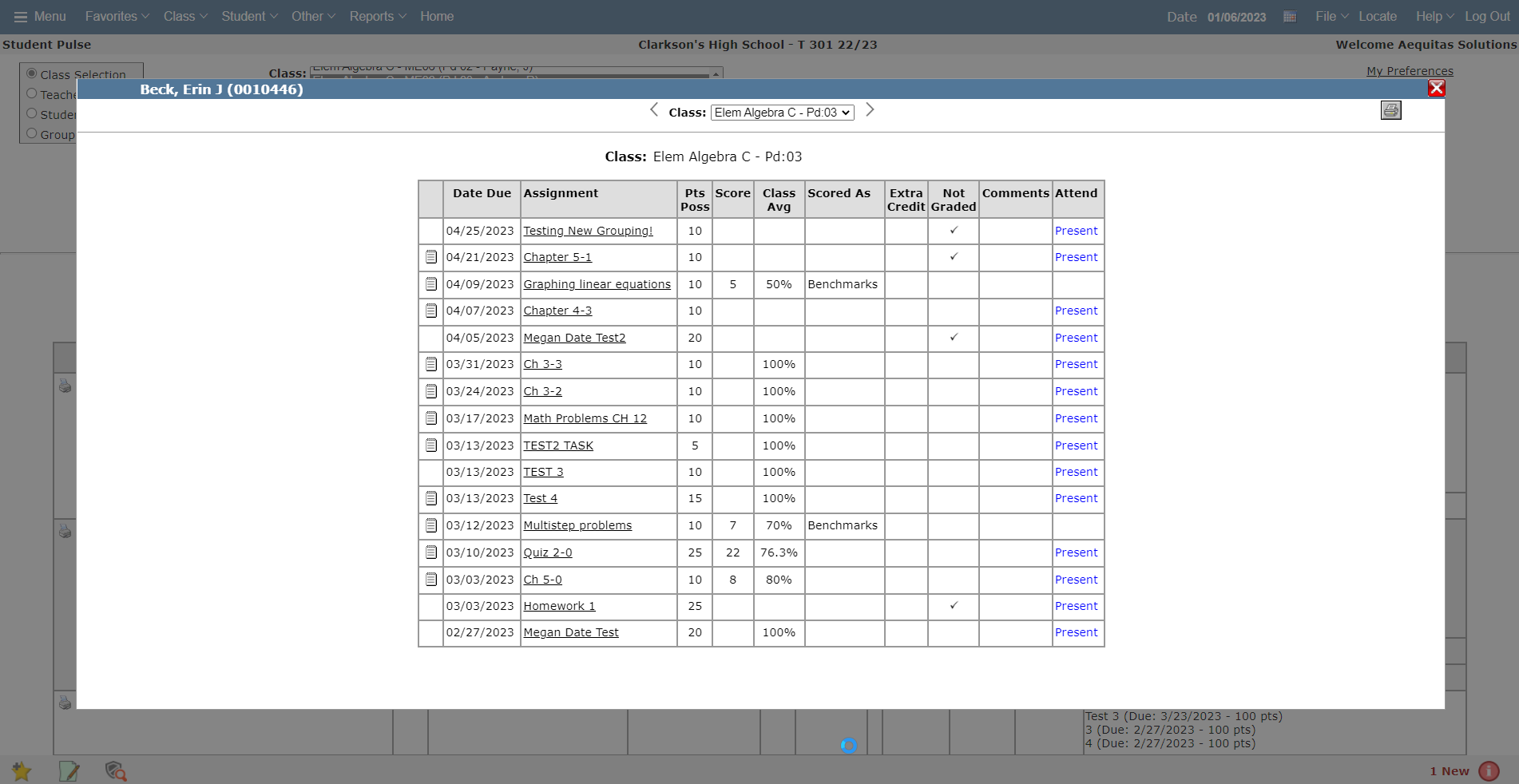
All classes students are currently enrolled in will be listed next to their names. Classes are hyperlinked allowing a user to click on a class and open a display window which will show any assignments linked to the selected class.
Class Assignment lists can be displayed by clicking on the desired class in the class selection list.
Viewing Data by Student
Select to view data for specific students by either browsing through a list of all students assigned to you, or by entering their student ID and / or name.
- Select the Student Selection radio button.
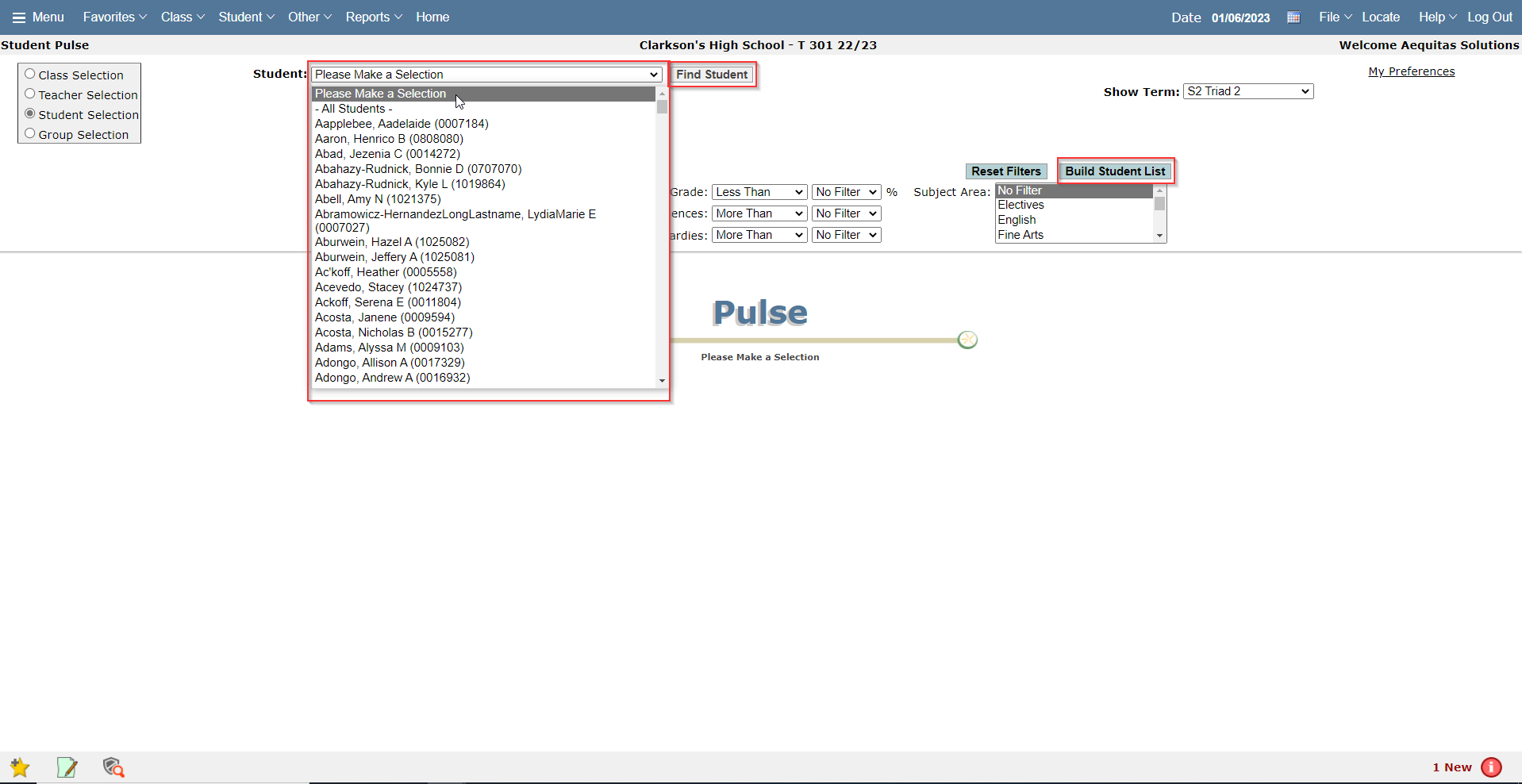
- Select the student for which you would like to view data from the Student List drop down box.
- Click Build List to generate the student list.
- To minimize search time enter the Student ID and / or Student Name.
- Click Find to locate the individual student.
Select a student from the Student Drop Down List, click Build Student List
Search for a student using the Find Student feature. Enter their Student ID and/or Student Name and click Find to retrieve data.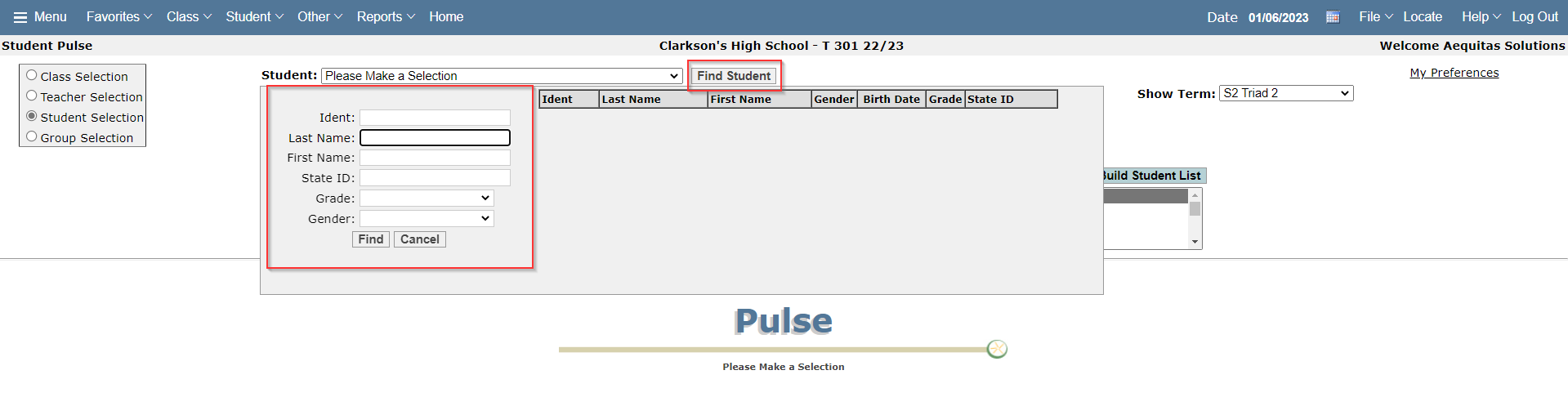
Once the search is completed and student data is retrieved, you have the option to print your report, or export student data to Excel.
Options for Printing of Data:
When selecting to print the student data, you will notice that there are two printer icons; hovering over these icons will enable Tool Tips. One of the icons will allow you to print the screen with the student data and the filters you currently have selected. The second printer icon allows you to print the student data report as a separate print job.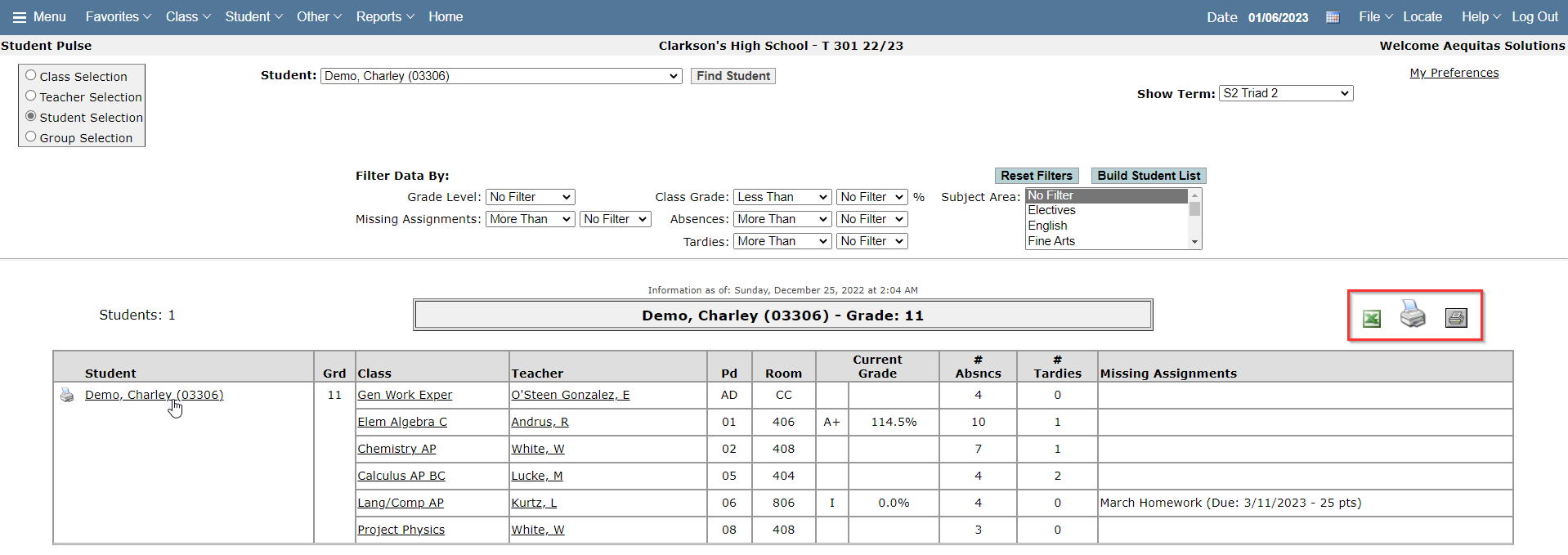
Viewing Data by Group
The Group selection allows users to filter based on any student group which has been created in your current SIS Group Editor.
- Select the Group radio button.
- Select the student group you would like to view data for from the Group selection list.
- Click the Build Student List to generate the class list.
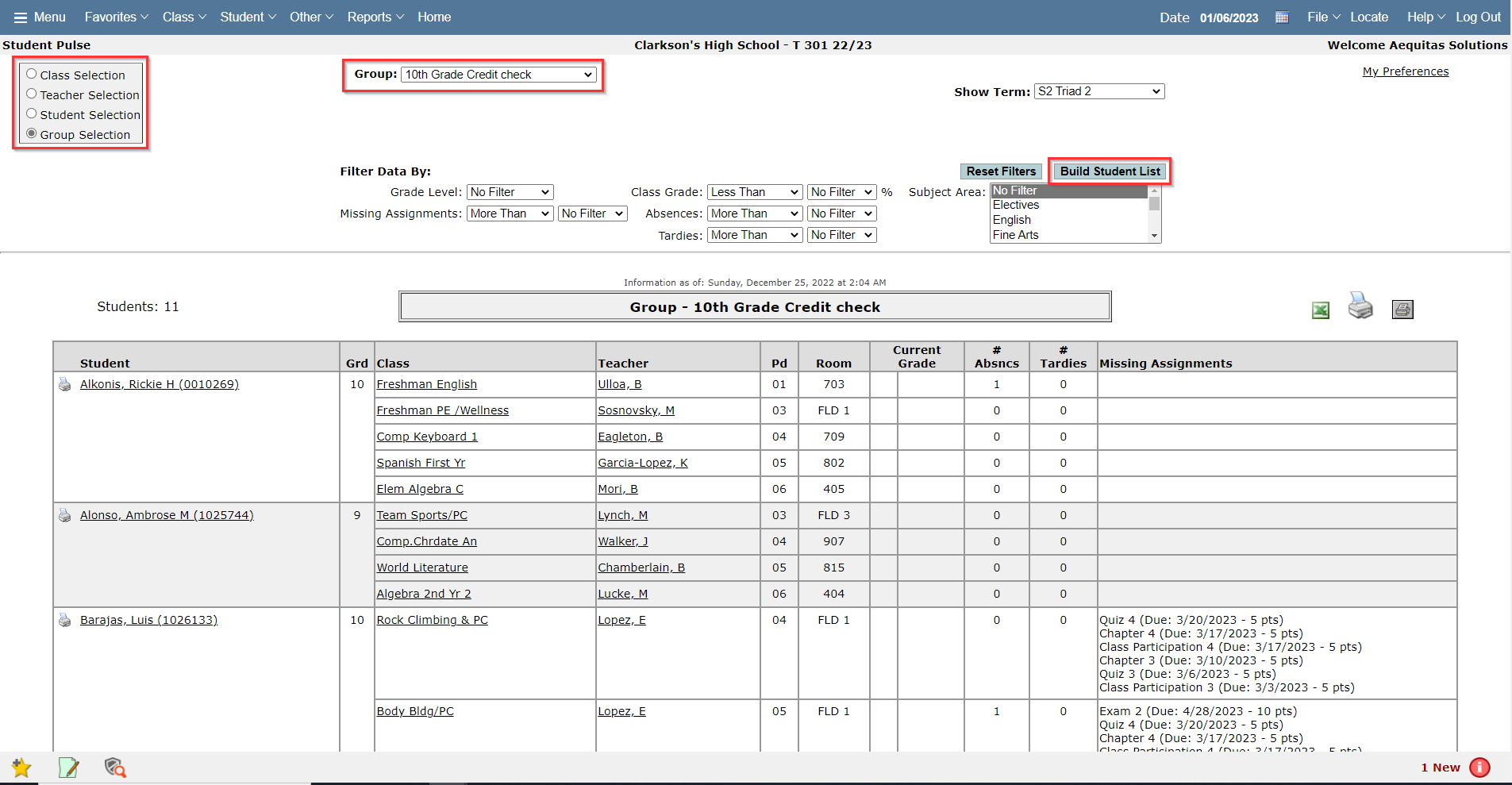
- The total number of students in the selected group will be displayed in the upper left hand corner of the screen. Data is displayed in alphabetical order sorted by students' last names. To print the Group list, click on the printer icon. You may alternately select to export the group list to an excel spreadsheet by clicking on the Excel icon.
The Pulse application allows Administrators to access student data according to their permissions within the district.
- Administrators with site permission will have access to student data for their site only.
- Administrators with permission to multiple sites will have access to student data for the sites for which they have access.
- Administrators with District level permissions will have access to student data throughout the district.
- Administrators can filter data by Class Section, Teacher, Student or Group.
Viewing Data by Teacher
Selecting to View Data by Teacher will create a list of teachers for the selected track.
- Select the Teacher Selection radio button.
- Use the Teacher drop down box to make your selection. Only faculty flagged as teachers with students enrolled in a class will appear in this list.
- Click the Build Student List to generate data.
The total number of students in the selected class will be displayed in the upper left hand corner of the screen. Data is displayed in alphabetical order, sorted by student’s last name. To print the report click on the large printer icon; to simply print the page click the square printer icon. You may alternately select to export the group list to an excel spreadsheet by clicking on the Excel icon.
Filtering Selected Data
You may select to filter the data in the report by Grade Level, Missing Assignments, Class Grade, Absences, Tardies or Subject Area. Once you have selected your filter criteria, click on Build Student List to refresh the data. Click Reset Filters to clear your previous filter selections