
The Q Loader mass-schedules students into course sections in the Master Schedule, attempting to satisfy the maximum number of course requests with the minimum amount of scheduling conflicts. At the same time, it tries to comply with various user-defined scheduling parameters, rules, and options such as demographic distribution, course rules, Teams, class size, etc.
The Q Loader was completely re-written as a web based application that can be launched from the Q menu. The Loader supports the core rules and options used by the FO Loader, but uses a brand new user interface and new scheduling algorithm to try and simplify the scheduling process.
The new Loader algorithm has been designed to include the following enhancements:
- Ability to sequence students so that the hardest to schedule students will be scheduled first, based on the number of requests that are singletons, doubletons, etc.
- Automatically sequence non-prioritized requests by singletons, doubletons, etc. for more efficient loading.
- Efficiently balance section loads as requests are filled, starting with the first request.
- Automatically relax non-mandatory preferences and rules (soft rules) as necessary to schedule students.
- Provide better performance statistics while processing.
The new Loader, when called as the Walk-in-Scheduler (WIS), located within the Student Schedules application, will use all the rules and options that are stored in loader options. The WIS will schedule a student using the same methodology as when loading students for a new school year.
The Loader can be run any number of times up to the point that school starts and attendance is taken for that track the first time. Each time it is run, any students you have selected to ‘Load’ will lose their previously ‘Loaded’ courses and be rescheduled by this run of the Loader, so it is extremely important to make the proper selection on the opening Loader screen.
The Loader is located under the Schedule menu in Q.
When the Loader is launched from the Q Menu the user is presented with the Loader Home screen. The user can view or edit Loader Options for the track selected, and select the students to schedule from the Loader Home Screen.
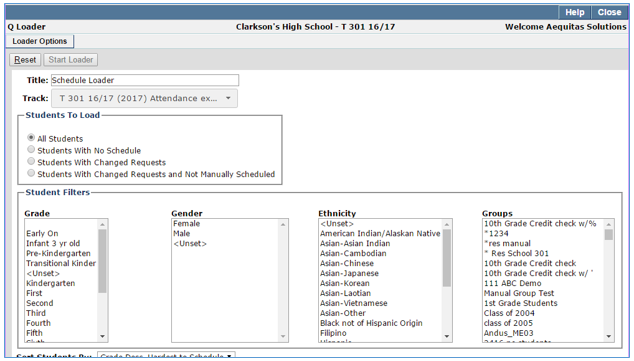
Track Selection
The user can select any track to schedule that has a green light. Tracks that cannot be scheduled display a red light and a note about their status. The Track defaults to the logged in track.
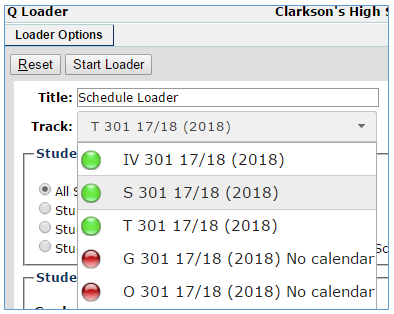
Only tracks with the following characteristics will be eligible:
- The track must have at least one section in its Master Schedule
- The track must have at least one course request
- The track must have a calendar with term begin and end dates
- There can be NO attendance records in the track for classes whose entry code is NOT Pre-Scheduled
- There is a term selected in Track Terms for which the Term Start = 1 AND the Term Duration = 1
Click the Loader Options button in the top left corner of the Loader screen to access the Loader Options.

Options can be maintained for the selected track, even if the track cannot be scheduled. These options tell the Loader which parts of the Loader constraints to use, set priorities for the Loader Constraints, and define general time and scheduling attempt parameters for a Loader run. The Q Loader Options have been simplified compared to the FO options, but they are still stored in the loadopt table.
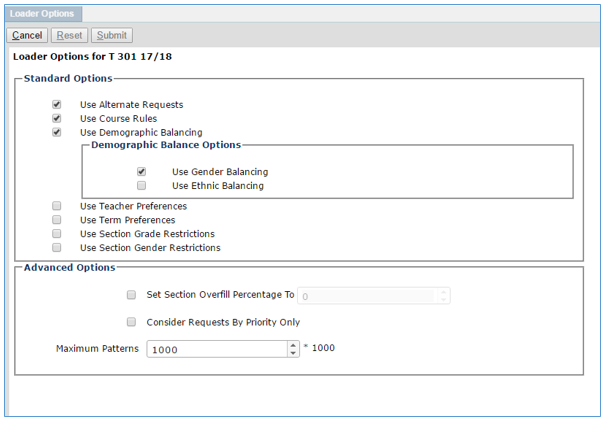
Standard Options:
- Use Alternate Requests—check this field to use students’ alternate course requests
- Use Course Rules—check this on to tell the Loader to use the Class Rules defined in the Loader Setup application
- Use Demographic Balancing—check this on to tell the Loader to balance the students in courses based on the Demographic Balancing Priorities you select:
- Use Gender Balancing
- Use Ethnic Balancing
- Use Teacher Preferences—check this on if you want the Loader to use any Teacher Preferences added to student course requests
- Use Term Preferences—check this on if you want the Loader to use the Term Preferences added for student Course Requests
- Use Section Grade Restrictions—check this on if you want the Loader to use Section Grade Restrictions entered on course sections in the Master Schedule. If this option is not selected, the Loader will honor the default grade restrictions defined for courses in the District Courses application
- Use Section Gender Preferences—check this on if you want the Loader to use Gender Preferences entered on course sections in the Master Schedule. If this option is not selected, the Loader will honor the default gender restrictions defined for courses in the District Courses application
Advanced Options:
- Set Section Overfill Percentage to—select this box to enable the spinner that controls the percentage that sections are allowed to be overfilled. This will allow the Loader to go beyond the maximum section size defined for sections in the Master Schedule
- Consider Requests by Priority Only—select this to have the requests scheduled by priority entered on the request
- Set Maximum Patterns—enter the maximum number of different schedule combinations that should be tried (times 1000) for each student before terminating the attempted scheduling for that student. In an effort to help the Loader run efficiently, it is suggested that the following option values be used: Set Maximum Patterns to 100 (100,000). The default for the FO Loader was 1000 (1,000,000)
It is also advised that the user consider the following before running the Loader:
- Check Course Rules for accuracy. Rules rolled over from year to year can become irrelevant and impact performance.
- DO NOT put in extra Requests for students that cannot be filled. Extra Requests lead to extended processing times with no benefit. Consider using Alternate Requests instead.
- Limit meeting pattern definitions to actual cycle day implementations. Using meeting patterns for other purposes, like Testing Days, makes scheduling harder and increases load times.
Use the NEW Loader Setup application located in the Schedule Menu in Q to maintain Loader Rules and Linked Sections.
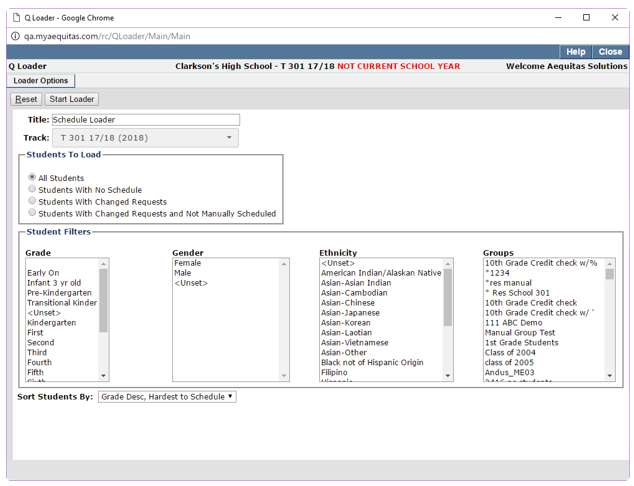
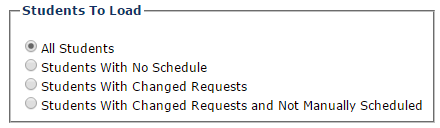
Select students to Load. NOTE – the Loader will DELETE the schedules that currently exist for the track each time it is run, based on the students selected:
- All Students—The loader will attempt to schedule all students with Course Requests. Existing schedules will be deleted unless an Entry Code of Pre-Scheduled was selected.
- Student with No Schedules—The Loader will attempt to schedule only students who have Course Requests, but nothing in their schedule yet. An example might be if you want to run the Loader just before school starts to Load any late-registering students who have not been scheduled yet.
- Students with Changed Requests—The Loader will attempt to schedule only students who have Course Requests that have been modified since the last time the Loader was run. As the Loader schedules or attempts to schedule Requests, it changes their status to Scheduled, Attempted, etc. This option will look for students with requests that have not been attempted yet.
- Students with Changed Requests and not Manually Scheduled—This narrows down the option above to only schedule students with changed requests, but who have not had any classes changed manually when those Requests were changed. If you PRE-SCHEDULED students into courses and their Entry Code into that course was “Pre Scheduled”, those courses WILL NOT be Deleted, no matter which selection you make on this screen. If you scheduled a student with any other Entry Code, that schedule record will be deleted.
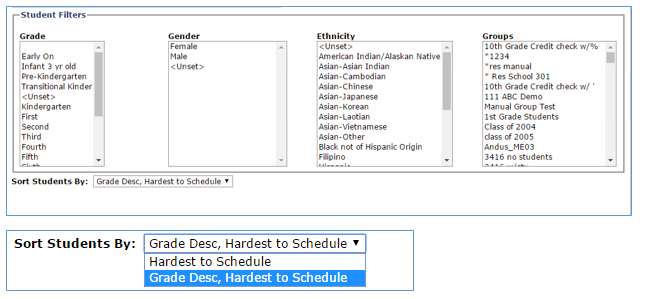
Students to load may be further narrowed down by making selections using the filters below:
- Grade
- Gender
- Ethnicity
- Groups
When the Loader is started, the browser view will display the processing steps on the left side of the screen.
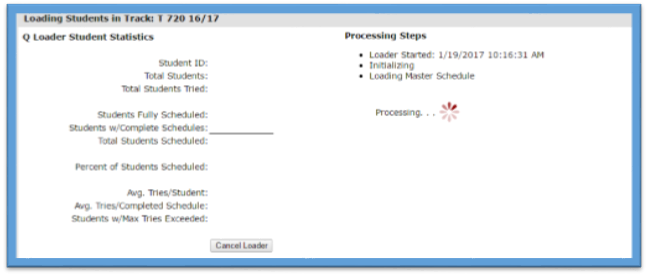
The view is updated in real time as the loader is running.
The Processing Steps include:
- Initializing— During the Initializing step, Loader Setup preferences, rules and course links are loaded into memory.
- Loading Master Schedule—The Loading Master Schedule step reads the master schedule into memory, and builds supporting information so the Loader can quickly find sections for a request and handle preferences and rules.
- Sequencing Students—Sequencing Students will get all students to be scheduled based on the Students to Load option and the Student Filters selected, and order them based on the Sort Students By
- Scheduling Students—Hardest to Schedule—Students with the greatest number of singletons, doubletons and tripletons are the hardest to schedule. This sort option will try and schedule these students first.
- Writing Results—Writing Results indicates that the Loader has finished scheduling and is updating the status of student requests and writing out new schedules.
While the Loader is scheduling students, real time statistics will be displayed to indicate progress.
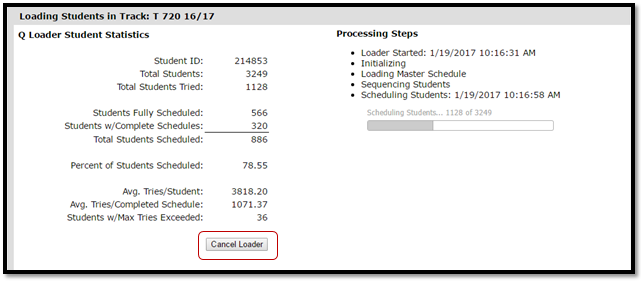
While students are being scheduled, the Cancel Loader button will be visible. Clicking the Cancel Loader button will cancel the Loader after the current student is complete.
- Students Fully Scheduled—The Loader was able to schedule every course request the student had.
- Students w/Complete Schedules—Students who were scheduled into every possible class they could be scheduled into based on their requests. All remaining unscheduled requests conflict with a scheduled class, and would not be able to be scheduled. If students have extra requests, these students in all likelihood have a full schedule.
- Tries/Student—Average number of schedule combinations (attempted patterns) tried by the Loader per student.
- Tries/Completed Schedule—The average number of schedule combinations (attempted patterns) tried by the Loader for each student who had a Complete Schedule.
- Students w/Max Tries Exceeded—Students who had requests that were not attempted when the Loader gave up trying to schedule the student because it exceeded the Max Patterns option limit.
Once the Loader has finished scheduling students, it will update the status of all requests for each of the students attempted.
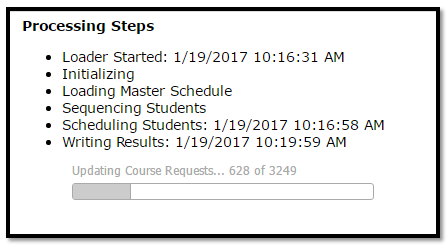
The first pass above updates the request status for each request in memory
The second pass shown below will perform a database update of the requests.
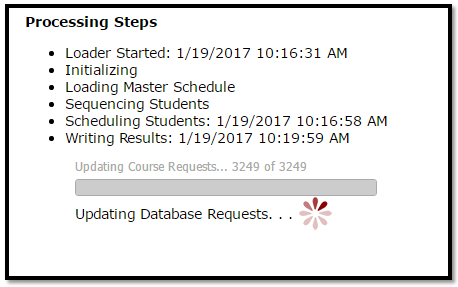
While the Writing Results step is being processed, the Loader may not be cancelled.
The Q Loader supports new Request Status codes, and uses some old codes differently than the FO Loader.
The new codes added to the zreqstat table are:
- O Complete Schedule/Not attempted—Request not attempted, but the student has been scheduled into the maximum number of requests possible.
- G Grade/Gender Conflict—Request was attempted, but, every possible section for the request has a Grade/Gender conflict.
The Q Loader reports the following request status codes as defined below.
- L Request scheduled via link—Request was attempted, however, every possible section for the request is a child section of a Course Link. Child Course Link sections cannot be scheduled by the Loader.
- E Attempted/Team Conflict—Request was attempted, but every possible section for the request has a Team conflict.
- C Attempted/Teacher pref. Conflict—Request attempted, but all possible sections for the request has a Teacher Preference conflict.
- S Attempted/Term pref. Conflict—Request was attempted, but every possible section for the request has a Term Preference conflict.
- T Attempted/Time Conflict—Singleton request was attempted, but the singleton section conflicts with another request section.
- Q Attempted/Multiple Conflicts—Request was attempted, however, every possible section for the request has a conflict.
- Z Attempted/Max patterns exceeded—Request was not attempted because the Loader exhausted the number of patterns allotted to each student.
The next part of the Writing Results step will create new schedule records for each student.
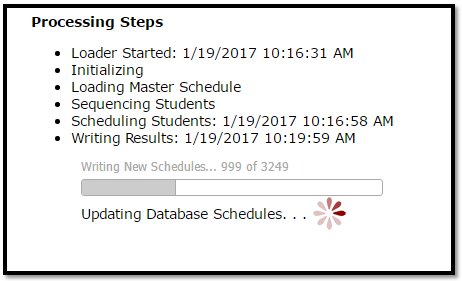
When the schedules are updated, the old schedule for each student will be deleted (if one exists), and the new schedule written.
For efficiency purposes, the Loader will create and then update the database for 1000 students at a time. This pass will incrementally stop for every 1000 students and update the database.
Existing schedule records for a student that have been Pre-Scheduled will be preserved and not altered.
Once all processing is complete, the browser view should resemble the following:
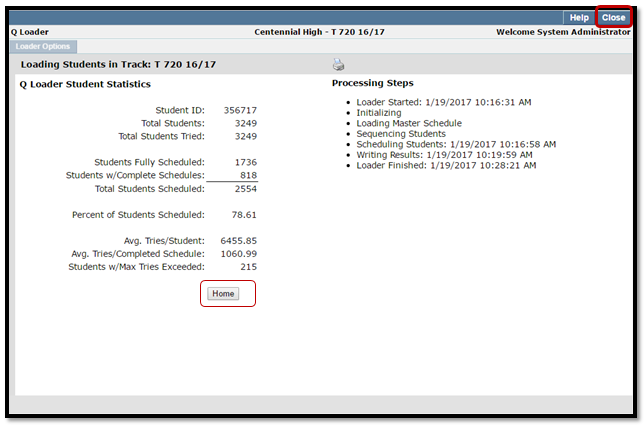
At this time, a printer icon will appear in the header that will enable the user to print a snapshot of the statistics screen.
The Home button will take the user back to the Home screen of the Loader.
If the user wants to exit the Loader, they must click the Close button to properly exit the Loader. The Loader will perform some cleanup and automatically close the window.
If the user clicks the X at the top of the window instead of clicking Close, the window will close but the Loader will not be able to clean up the environment. In this case, the user can continue to work in Q, however, the Loader will not successfully launch from the Q menu until the user exits Q, closes their browser session, and re-launches Q in a new browser window.
Note: The user should delay re-launching a new browser window for a few minutes as web servers do not always release resources and clean up browser sessions immediately.
