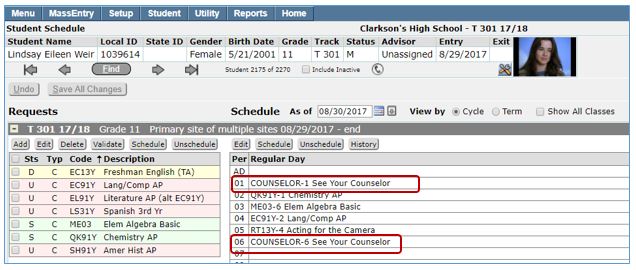
The Q Assign Study Hall application may be used after the final loader run to fill holes in student schedules with a course of your choice. The application schedules sections of the selected course into all unscheduled periods of a student’s schedule (according to parameters defined). For example, when the school year begins and students need to see their counselors so that a full schedule can be completed, a course called, ‘See Your Counselor’, may be used to alert the student a visit to the counselor is needed to schedule a class in the schedule hole.
Assign Study Hall is located under the Schedule menu in Q.
In order for courses to be available in the Assign Study Hall application there are several requirements they must meet.
- Courses must be scheduled in the Master Schedule in the target track. If your intent is to fill all schedule holes there must be a section of the course scheduled for each period of the day.
- Only course sections that have a single meeting in any cycle day/period combination can be scheduled by the Assign Study Hall application.
- Only course sections that are scheduled for a single unit term (the smallest duration term in the Track, with a term duration value of ‘1’). Since this application is used for filling ‘holes’ in a student schedule, course sections that span more than one unit term cannot be used.
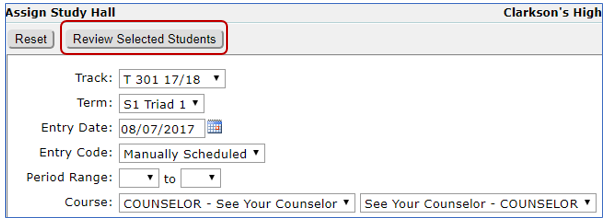
Set the options to for scheduling sections:
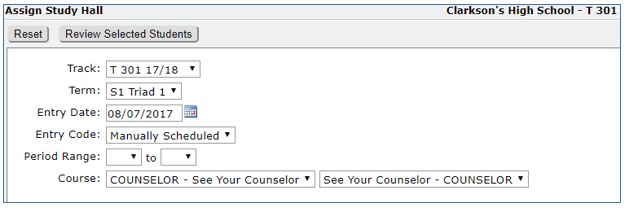
- Track—Select desired track from drop down list
- Term—Select term from the drop down list
- Entry Date—Enter the entry date on which the sections are to be scheduled
- Period Range—Select the Begin and End periods to be considered to schedule study hall:
- Begin Period—if specified, only periods >= this period will be scheduled
- End Period—if specified, only periods <= this period will be scheduled.
- Course Code—Select the course for which sections will be scheduled, you can select from either field, code or description
The Assign Study Hall application may be used to schedule a specific student or a set of students. Students to be scheduled must be actively enrolled on the entry date specified in the Options.
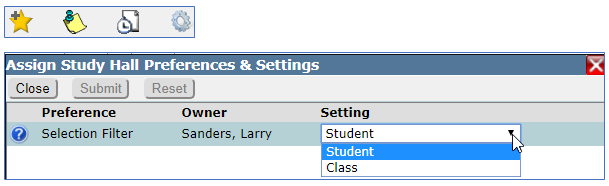
A preference is available for users to select either the Student or Class filter for the selection of students. Click the gear cog at the bottom of the Assign Study Hall page to display the preference choices. Select the desired filter and Submit to save your choice. NOTE: in order to use the Class Selection the school year must be current with students scheduled in classes.
Note: To make multiple selections in any of the fields listed, hold down the CTRL key while clicking on the desired selection. If you have selected an item in error, hold down the CTRL key again while clicking on the selected item.
When filtering using the Student Selection the following filters are available:
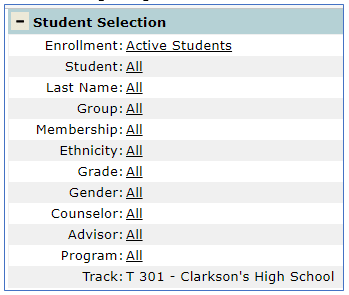
- Enrollment: The application defaults to Active Students, students must be actively enrolled to be assigned a study hall
- Student: Enter Student ID, Last Name or First Name to minimize the number of student records returned
- Last Name: Search for students based on last name. Enter name ranges in the From and To fields
- Group: Select student groups from the Group Selection List. Select a student group from the selection list by clicking on it
- Membership: Select students based on membership. Select a membership set by clicking on it in the Membership Selection List
- Ethnicity: To select students based on ethnicity, select an ethnicity from the selection list
- Grade: Filter students based on grade level; select a single grade, or multiple grade levels by clicking on the desired grade from the selection list
- Gender: Select a gender type from the selection list
- Counselor: To filter students based on counselor, select the counselor to whom the student is currently assigned from the selection list. Note: Only faculty members who have been flagged as Counselor in the system will appear in the Counselor selection
- Advisor: If students have been assigned an advisor, you may filter using this information and the advisor field
- Program: Filter students based on program enrollment, to select a program from the list click on the program name and Done
- Track: Track defaults to the logged in track
When using the Class selection filter the following choices are available:
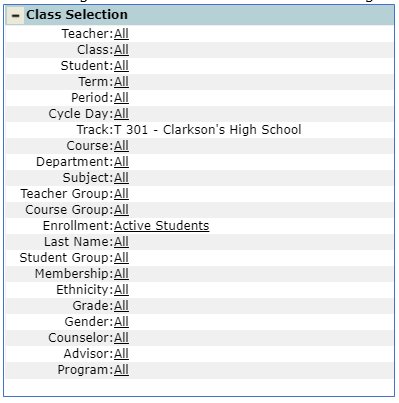
- Teacher: Filter by teacher name
- Class: Filter by specific class. If a teacher was chosen in the teacher filter the classes displayed will only be those classes taught by the selected teacher
- Student: Filter by individual student name
- Term: Filter by specific term
- Period: Filter by specific period
- Cycle Day: Filter by specific cycle day
- Track: Defaults to logged in track
- Course: Filter by specific course
- Department: Filter by specific department
- Subject: Filter by specific subject
- Teacher Group: Filter by static/dynamic teacher group as created in the Group Editor
- Course Group: Filter by static/dynamic course group as created in Group Editor
- Enrollment: The application defaults to Active Students, students must be actively enrolled to be assigned a study hall
- Last Name: Filter by range of Last Name
- Student Group: Filter by static/dynamic student group as created in Group Editor
- Membership: Filter by membership as defined in the Student Editor
- Ethnicity: Filter by ethnicity as defined in the Student Editor
- Grade: Filter by grade level
- Gender: Filter by gender
- Counselor: Filter by counselor. Only those faculty members who have been flagged as Counselor in the system will appear in the Counselor selection list.
- Advisor: Filter by advisor. If students have been assigned an advisor you may filter by advisor
- Program: Filter by program student is currently enrolled in.
- Note: The program list will only display the programs the user has permissions to see
To clear your selections, click the arrow next to an individual selection or click the Filter-Reset All button located in the upper right hand corner of the Student Selection box
Step 5 – Review Selected Students
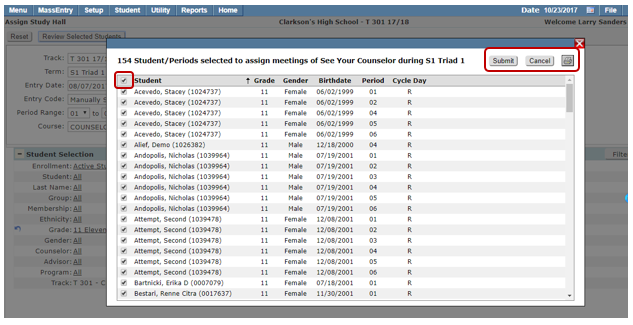
When student selection is complete the selected students are reviewed by clicking the Review Selected Students button before the Study Hall is assigned.
The student list displayed shows the student name followed by the periods and cycle days where there is no class scheduled. All students are selected by default. Clicking the check box on the top of the page next to Student will de-select all students. Individual selections may then be made by clicking next to student names. The list may be printed by clicking the printer icon in the upper right hand corner.
When you are satisfied with your selections, click the Submit button to process the scheduling of the class. Click Cancel to cancel the selections.
After submitting each student's current schedule is examined for any cycle
day/period combinations for which the student has nothing scheduled between the Entry Date and the end of the Term and for which a section of the Course to be scheduled exists. The qualifying unscheduled periods are then scheduled with the Study Hall course selection.
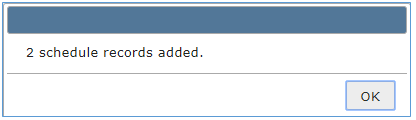
At the end of the processing the number of students for whom schedules were added is displayed.
Review
To verify a student's new schedule, look up her record in Student Schedules.