
The Q Mass Requests application provides the ability to add, delete or modify Primary or Alternate course requests for several students at once. The application is very flexible and allows the user to make changes to every parameter of a request.
NOTE: This application has the potential to impact many student’s request. Care must be taken when using the application so that the work done by counselors on a student-by-student basis is not lost. In many schools, a single individual is given the permission to this application in order to limit the chances of mistaken operation.
Mass Requests is located under the Schedule menu in Q.
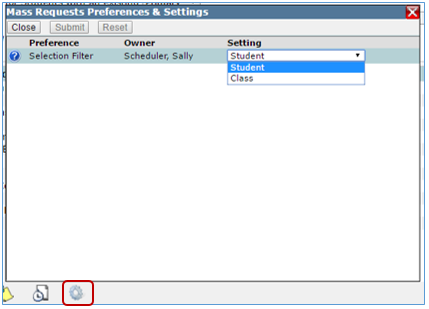
Once the Mass Requests application has been launched, the filter used for selecting recipients of Mass Requests actions can be changed by clicking the Cog located at the bottom left of the page. The selection filter may be set to either Student Selection or Class filter.
The Mass Request application is divided into two resizable windows. Scroll bars are available to view entire window content; the window may also be resized by grabbing the middle bar with the mouse and moving it to desired position.
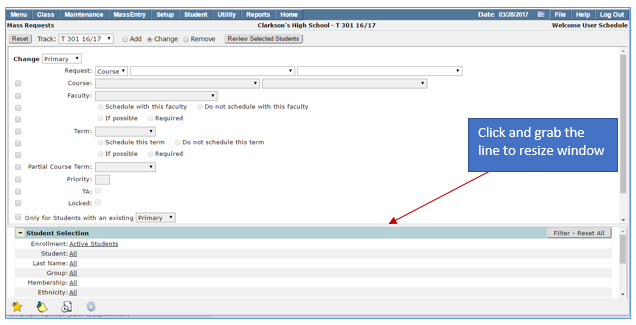
The Mass Requests application can be used to Add, Change and Remove requests.
To Add requests:
- Log in to selected school
- Launch Mass Requests
- Select desired track from drop down list
- Select Add

- Select Add—Primary or Alternate request
- Primary—select this to make request a Primary request
- Alternate—select this field to add the course request as an Alternate request. When Alternate is selected the Only for Students with an existing Primary request field is selected. The Alternate course request being added must be associated with a Primary Course Request in the Request field. This request will then only be added to students who already have a Primary Request that matches what you select here.
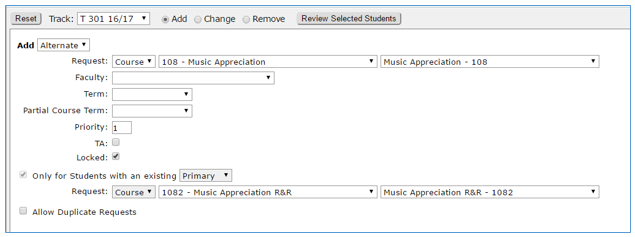
- Select type of request—from the drop down list select;
- Course—if course is selected then all courses assigned to the selected track will be available for selection
- Group—if Group is selected then only the names of Course Groups (as defined in the Group Editor) will be available for selection. All courses within a selected group will be added as Course Requests
- Team—if Team is selected only the names of Teams as defined in the Team Editor will be available for selection
- Select Request from the drop down—by entering the code in the left hand box, or entering the description in the right hand box
- Make any additional selections:
- Faculty—optional, select a faculty preference for the existing requested course by selecting a faculty name from drop down list
- Schedule with this faculty—Select either;
- Required—check this field if the faculty preference or exclusion is required as a condition for scheduling the student in the requested course
- If possible—check this field if you want the loader to try and schedule with faculty but if unable to do so student will still be scheduled
- Do Not Schedule with this faculty—check to set the faculty as an exclusion, i.e. you prefer that the students not to be scheduled with the selected teacher

- Term—(optional), select the desired term for enrollment. Choices available are determined by the terms defined for the current track
- Select one—Schedule this term or Do not Schedule this term
- If possible—check this field if you want loader to try and schedule for selected term, if unable to do so the student will be scheduled in a different term
- Required—check this as a condition for scheduling student, if the condition can’t be met the student will not be scheduled
- Select one—Schedule this term or Do not Schedule this term

- Partial Course Term—a request can be for a term unit less than the full duration of a course. When a value is entered in this field, any value entered in the Term field above will be ignored by the loader.
- Priority—Course requests with highest priority will be scheduled first by the loader. The loader will accept priority values ranging from 1-999 with “1” being the highest priority.
- TA—Put a check in this box if the students are to be Teacher’s Assistants
- Locked—the locked mode prevents the course request from being cleared by the procedure executed in the career Plan application called “Clear Unlocked Requests”. This mode also prevents students from deleting this request in the Student Connection application. Deselect this field to allow the request to be cleared by Career Plan procedures.
- Only for students with an existing—(optional) select either Primary or Alternate request. Set this if you want to narrow down the set of students who will be processed based on the Requests the students already have. Tell the system to only make the addition to students with a Primary or Alternate request for the next Request you select
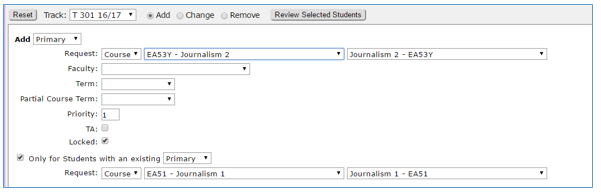
- Allow Duplicate Requests—check this to allow duplicate requests for a student
- Using the Student Selection (or Class Selection) filter, identify the students who should receive the requests
- Click the Review Selected Students button to display list of selected students
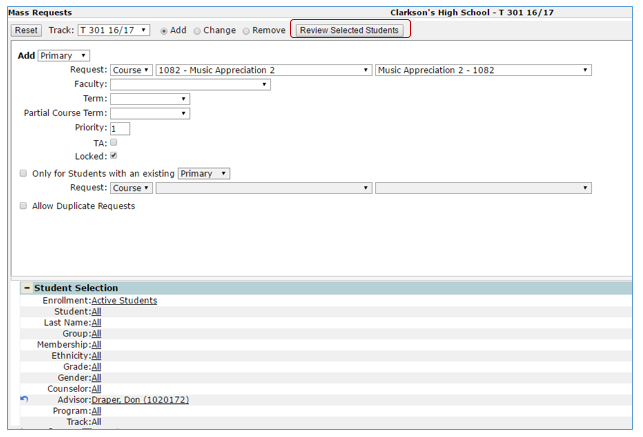
The list displays showing the selected students, this list may be printed by clicking the Printer icon
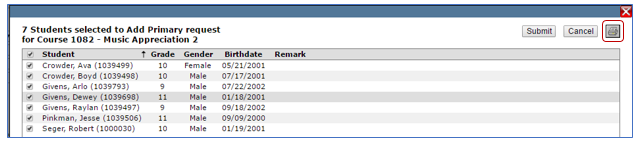
- If all looks good, click Submit to add requests
- Click Cancel if you do not wish to proceed with adding requests to the selected students
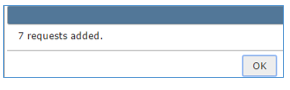
- After submitting a pop up displays results of the action
This action will look for a specified Course Request already existing in the database and change its attributes to the defined conditions.
The Course Request selected will be changed based on the parameters that are activated. You can make changes ranging from changing the entire course that was requested to simply changing the Priority number of existing requests for the selected course.
Make changes by:
- Select Request to change
- Select Primary, Alternate or Any
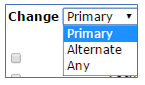
- Select Type and Description of request you’ll be changing
- Place a check mark in each attribute you’ll be changing by clicking the box. As this is done, the corresponding read-only fields to the right of the check box will be enabled. A minimum of one “Change” attribute must be selected in order to save and process this Action.
- Using the Student Selection (or Class Selection) filter, you may further identify the students who should have requests changed
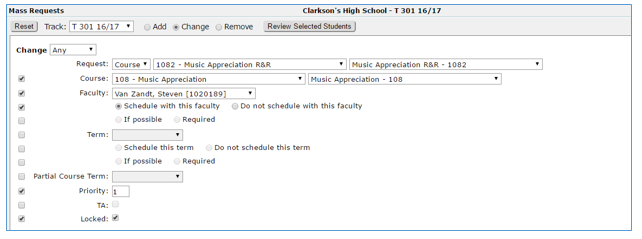
- Click the Review Selected Students button to display list of selected students
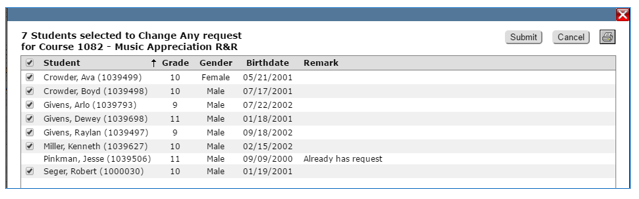
- If all looks good, click Submit to change requests
- Click Cancel if you do not wish to proceed
- After submitting a pop up displays results of the action
Requests can be removed following the same basic steps as those to add requests. This action will remove a specified Course Request from all active students in the selected track who have requested it. By adding a condition, the Course Request can be removed from only those students with a specified existing Course Request. When removing a Course Request that is a Primary request, the action can be configured to either remove all associated Alternate requests along with the Primary request or promote any associated Alternate requests to Primary request status, in place of the request that was removed.
- Log in to selected school
- Launch Mass Requests
- Select desired track from drop down list
- Select Remove
- Select request to remove. Indicate if you want to remove Primary, Alternate or Any Request that matches the type and code you select
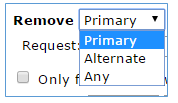
- Select the Type and Description of the Request to be removed
- Only for Students with an existing—(optional), set this if you want to narrow down the set of students who will be processed based on the Requests that the students already have. Tell the system to only remove the Requests from students with a Primary or Alternate request for the next request you select in the second set of Type, Code, Description fields
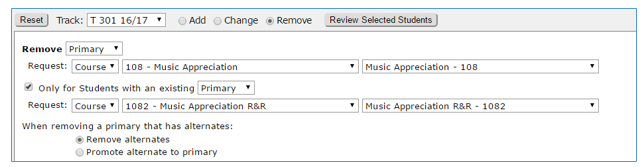
- When removing a Primary that has Alternates:
- Remove Alternates—Remove all associated Alternate requests along with the Primary Request
- Promote Alternate to Primary—promotes any associated Alternate requests to Primary request status, in place of the request that was removed.
- Use Select Students to further filter students if desired
- Click the Review Selected Students button to display list of selected students

- If all looks good, click Submit to change requests
- Click Cancel if you do not wish to proceed
- After submitting a pop up displays results of the action
