Two Drop-In Attendance reports may be used to report attendance recorded through the Drop-In Attendance application
- Drop-In Attendance Class Roster
- Drop-In Attendance by Student
While details specific to this report will follow, users can find general information about reports within the Reports documentation.
The report defaults to sorting by School (if logged into the district), class and date in ascending order. If needed, the sort options may be changed by clicking the Change Sort Items button and adjusting the items in the Selected Sort Items column by dragging the items from one column to the other and clicking Save.
Drop-In Attendance Class Roster Report is located within Reports in the Attendance menu in Q.
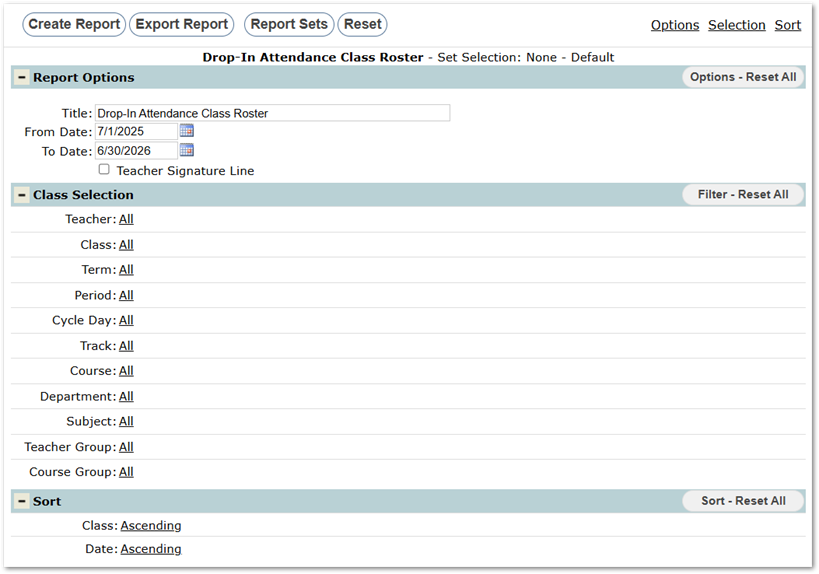
- Title – Default title is provided but may be changed.
- From Date – defaults to 7/1 but may be changed.
- To Date – defaults to 6/30 but may be changed.
- Teacher Signature Line – defaults to be unchecked but may be checked on to produce the report with a signature line for teachers.
- NOTE: The statement in the signature line is set through a Report Certification District Preference.
The example below shows data from the Drop-In Attendance application for an Attendance Recovery class on a specific date:
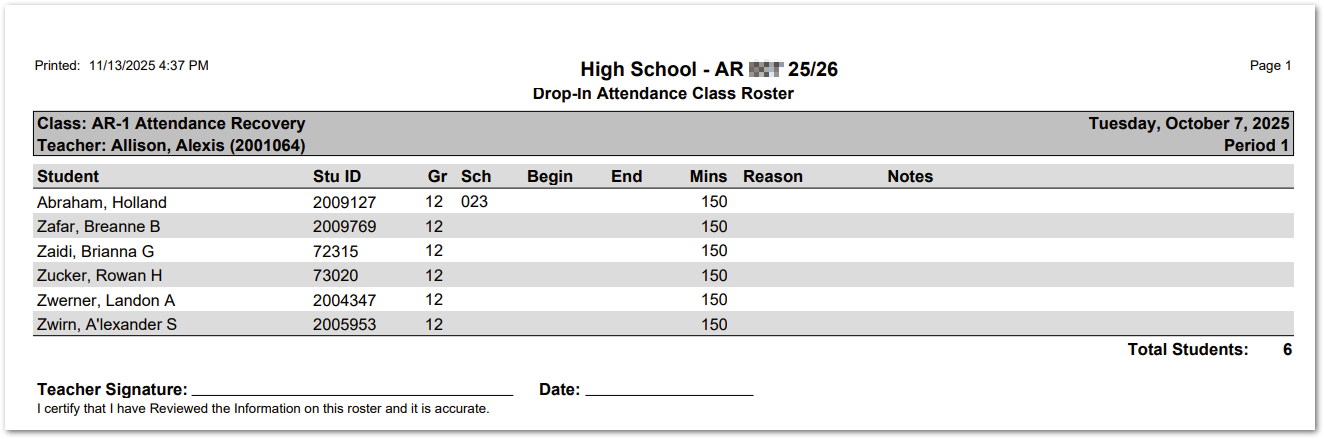
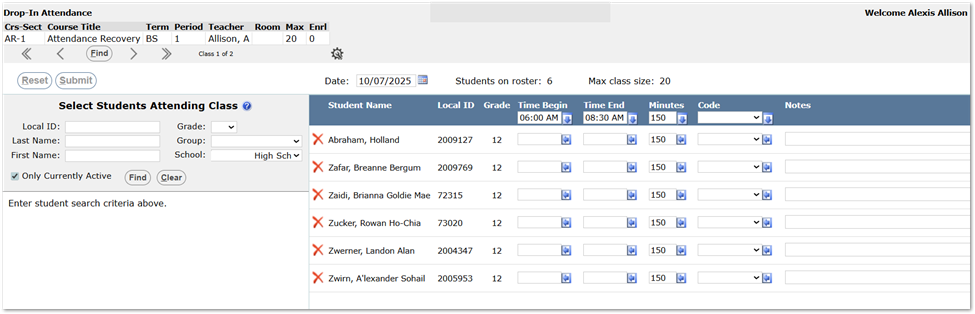 The Drop-In Attendance Class Roster Report may be used to produce a roster report of recorded attendance, by school, by class, by date.
A sample Report, corresponding to the class and date shown above, is shown here with a Teacher Signature line included: