
The Mass Activities application allows users to record activities for multiple students in a single entry. Activities may include sports, assemblies, awards, community service, diploma types, and more.
There are many times when it is necessary to record activities for a group of students. Examples may include documenting which students participated in extracurricular activities such as sports or which students received an award during a school-sponsored activity.
Mass Activities is located under the Enrollment menu in Q.
The Activity Information section allows users to enter detailed information for students: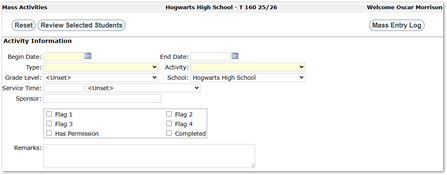
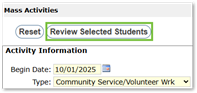
- Activity Begin Date: Defaults to blank. Enter a date using MM/DD/YYYY format or select a date via the calendar icon.
- Activity End Date: Defaults to blank. Enter a date using MM/DD/YYYY format or select via the calendar icon.
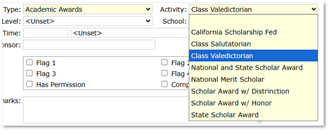
- Type: Determines the activities available in the activity field. For example, an activity type of Award could include Student of the Month, Merit Award Recipient, etc. The district defines types and activities and should include those frequently used throughout the school year.
- Activity: The specific activity being documented.
- Grade Level: The grade of the students for which the activity is being recorded.
- School: The school the students attend at the time the activity is entered.
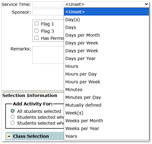
- Service Time (Optional): The time spent performing the activity, such as hours accumulated to earn a certificate or award.
- Sponsor (Optional): The name of the person or organization sponsoring the activity.
- User Flags (Optional): District-defined labels used to track items when recording activities. Examples include, but are not limited to, Insurance on File, Student Physical Completed, Has Permission, etc. User flags may be used for custom reporting.
- Remarks (Optional): Field available for any additional details useful for reviewing the activity later.
The Selection Information section allows users to determine which students will receive the selected activity type.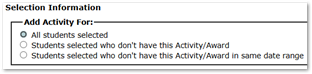
- By default, All Students Selected is used, recording the activity for all students regardless of history.
- Options for applying activities:
- All Students Selected
- Students who don’t have this Activity/Award
- Students who don’t have this Activity/Award in the same date range
Users may choose to filter by student or class: click Preferences, gear icon, at the bottom of the Mass Activities screen, select the desired filter, and click Submit to save the choice.
Choose desired students through the determined Selection Filters, if needed. Users can learn more about Selection Filters in the Selection Filters Documentation.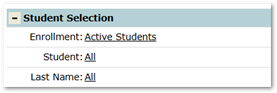
- To process the activity, click the Review Selected Students button at the top of the application.
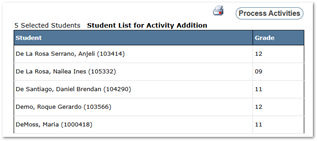
- A list of all selected students will be displayed.
- Once the students receiving the activity have been reviewed, click the Process button at the top of the application. Depending on the number of students selected, a message saying “Processing Activity…” may appear at the top of the application.
- A copy of this list can be printed using the Print icon.
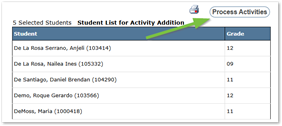
- A copy of this list can be printed using the Print icon.
- When processing completes, a message “Processing Complete” will appear, confirming successful recording of the activity.

Users with permission can click the Mass Entry Log to review Mass Activity postings and allow users to roll back entries.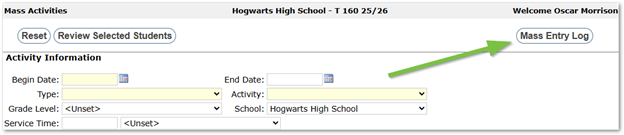
Reviewing Mass Activity Entries

After clicking the Mass Entry Log button, the Mass Activities Posting Log will display posted Mass Activities.
Clicking the View List Icon under the Student Count column, will display a list of affected students.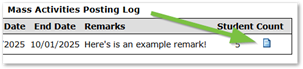
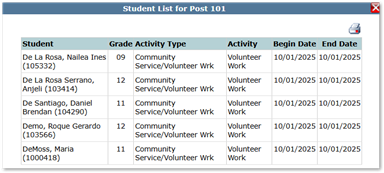
This list can be printed by clicking the Print icon in the top right corner.
Rolling Back Mass Activity Entries
From the Mass Activity Posting Log, users can Roll Back their submitted Mass Activity entries.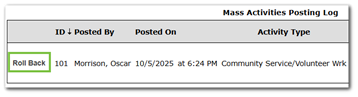
Clicking Roll Back for an entry will display a warning message that the action will permanently roll back activity records entered by this mass entry process. Users can click OK to continue or Cancel to exit the screen without making changes.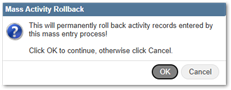
Clicking Ok will delete the entry and remove the activity from the affected students. A processing Complete Message will display on the Mass Activity Posting Log screen.
Clicking Return in the top left corner will return users to the Mass Activity screen.
