
Mass Attendance has had the ability for a few years now to roll back any attendance that was posted in mass that was maybe posted for too many students or a wrong set of students.
In Q version 4.0.1, we have added this same ability to a few additional applications! This has now also been added to Mass Visits, Mass Programs, and Mass Activities.
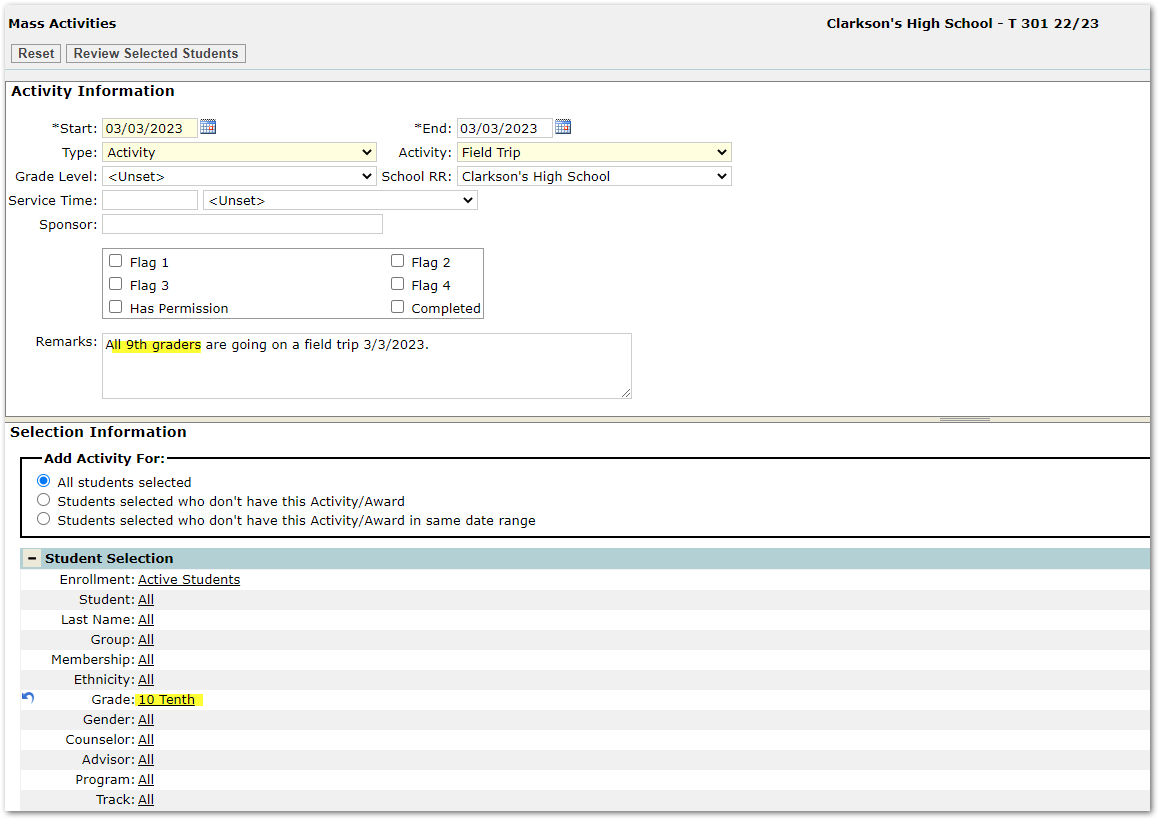
Let’s take a look at Mass Activities. I want to add a mass activity for all 9th graders at Clarkson High School to go on a field trip 3/3/2023. In my filter, I accidentally select grade 10 in the grade filter but meant to select 9th graders. I continue and process the activity for all 600+ of these students!
In version 4.0.1, you will now see a “Mass Entry Log” button in the top right corner of the application within Mass Activities, Mass Visits, and Mass Programs (also still in place in Mass Attendance).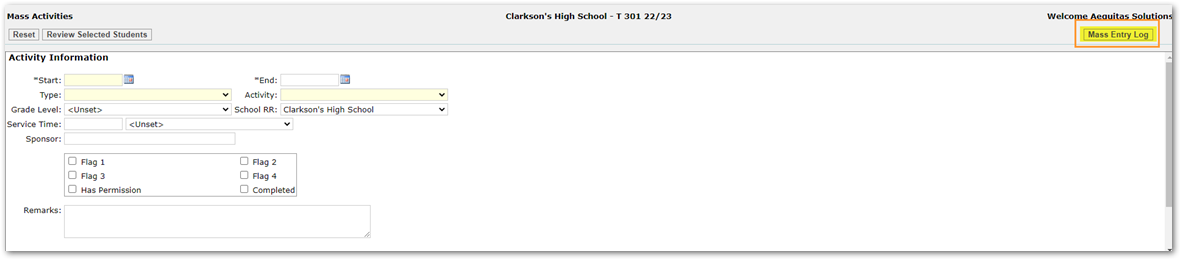
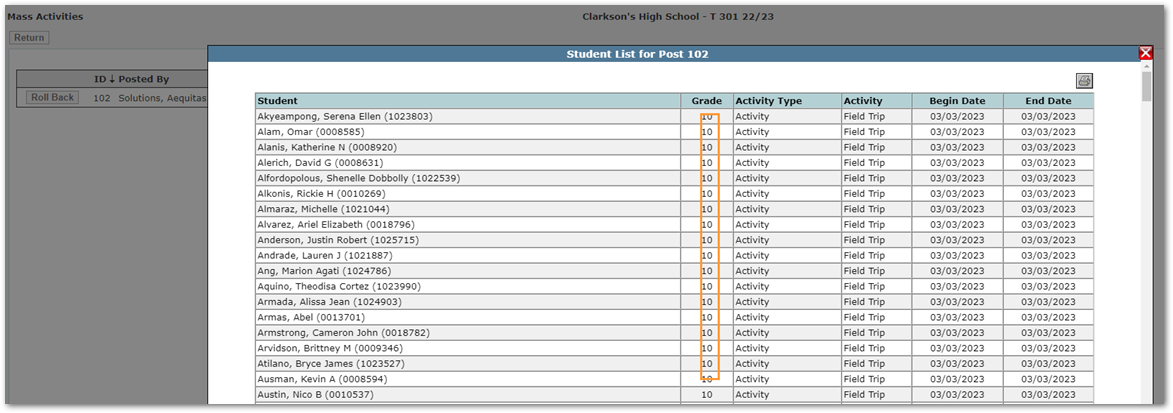
When you select this Mass Entry Log button, you will get an overview list of all items that have been run for Mass Activities. In this sample, there has only been one run of Mass Activities which is my entry where I accidentally created Activity records for 10th graders instead of 9th graders. In this view, you can also select the notepad icon to view all students that were processed in this run.

(Displayed is my list of 10th graders accidentally processed.)
To undo this process, you can select the Roll Back button to the left of the record displayed. This will bring up a pop-up warning the user this will permanently roll back any activity record that was created during this mass entry process. Here users can either click OK to continue, or Cancel to go back to the prior screen.
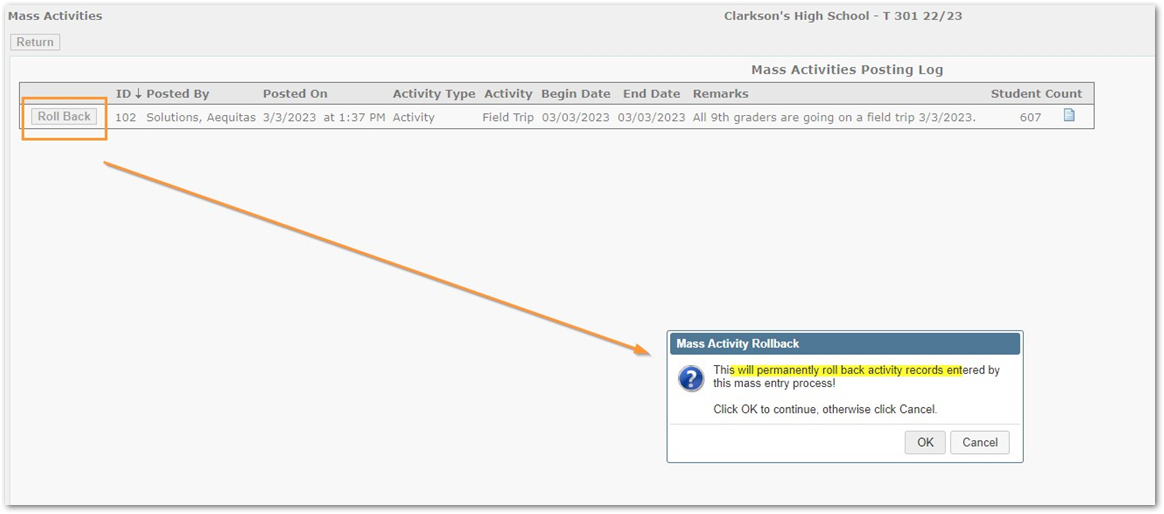
Once you continue, the records created in this process will no longer be associated to these students.
Users can then go re-run the mass process for 9th graders as initially desired.
This behavior is the same for all applications that now have this Mass Entry logging (Mass Programs and Mass Visits in addition to Mass Activities shown above).