The Class Testing application is a class banner application used by teachers to enter test data on a per class basis. For detailed information on working with the Class Banner and how to search for courses, see Class Banner documentation.
The Class Testing application is located under the Testing menu.
Use the Find dialog to select a class. The roster of students in the selected class will appear.
Test - Select a Test from the Test drop down.
Date - Set the date to the date the test was take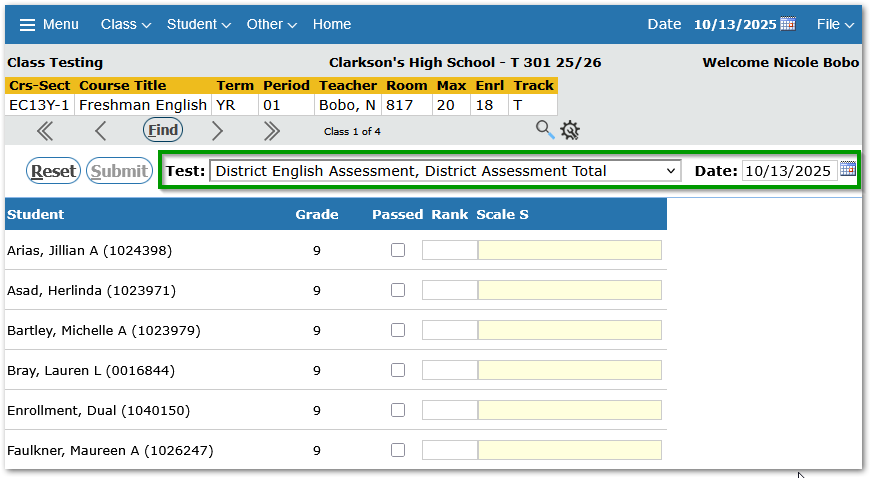
Once the Test is selected, scoring fields will be displayed. The options displayed are determined by the configuration of the selected test.
- Grade - The default grade in this field will be the student’s current grade level. Select the Grade Level of the student at the time the test was administered.
- Passed- If applicable, enter a check mark in this box if the student received a passing score. This flag is used for tests that are an eligibility item in Graduation Requirements.
- Rank - Enter the ranking of the student according to his/her Standardized Test score and other factors if this qualification is applicable.
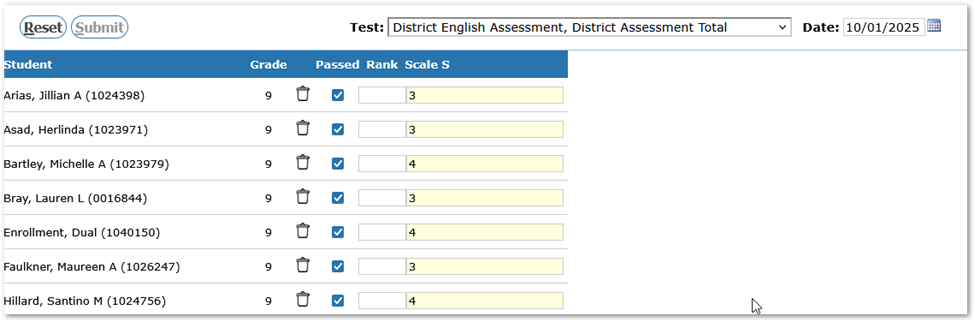
- Scoring field(s) will appear based on the types specified in the definition of the specific test, i.e. Scale S, or Proficiency, etc. New scores can be entered, and existing test scores can be viewed or edited.
After all the correct information has been entered, click submit to save the changes that have just been made or reset to start over.
If the selected class has test scores for any test, a History button will appear.

Clicking the History button will open a pop-up dialog showing a list of historical records.
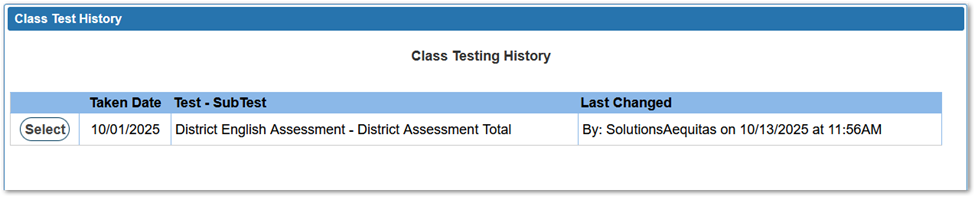
When a row is selected, the Test and Date fields at the top will be set and the scores recorded for the students in the class will display. The results may be edited and re-saved.