
The Locate feature allows users to do a District-wide search to find the school in which a student is located.
To access, click the Locate tab on the Q Home Page.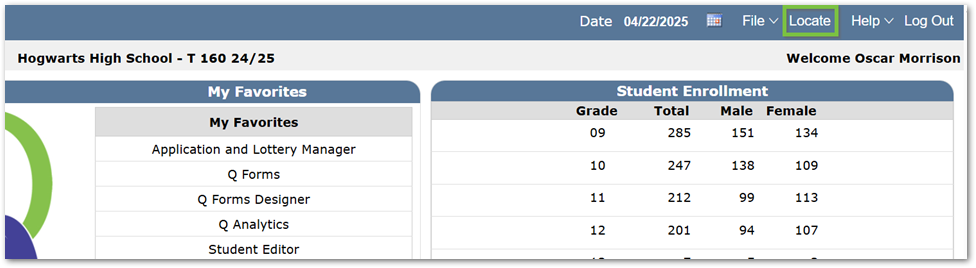
Once you click on ‘Locate’ from the Q Home Page, use the provided filters to search for the student.
Note
Utilizing vague search filters, such as only filtering by Gender, may generate an error message that says, “Too many students to display. Please narrow your selection criteria.” If this occurs, narrow your search and try again.
Once the search is complete, the results will return all students who fit the search criteria. It will also display the student’s Ident, StateID, gender, birthdate, school they are enrolled in, their grade, and their status.
- Ident and StateID may not be visible to users, if they have not been permitted to view this information.
- Grade will display current grade for active students or last known grade level for inactive students.
- StatusCodes: I-Inactive; A: Active; N: Non-Student
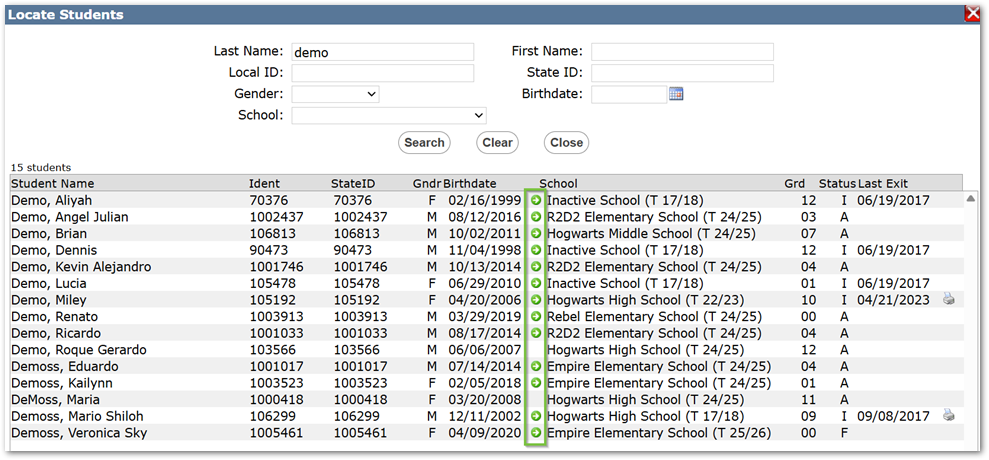
If their status is inactive, it will display the date they were last exited. For inactive students who became inactive in a prior year, with permissions, the user can click the green arrow to go directly to the student in the track they last exited.
Lastly, a printer icon in Locate Students appears based on permission and, when clicked, will print the student’s transcript.
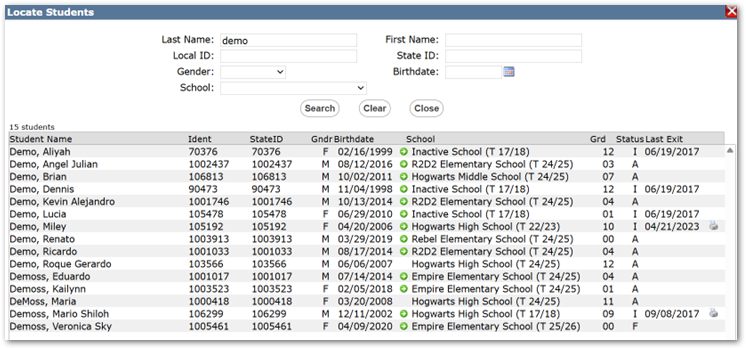
If a user is either flagged as SA or is in a role that is assigned the Permission Item ‘Q [SwitchAllPastTracks]’, they will see a green circle located next to the school name if the school listed is not the logged-in school.
Note
When a user is in a role with access to this permission item, they will inherit their current year permissions when switching to a prior track.
Note
Users may only switch tracks for students at a school the user has a status record.
