
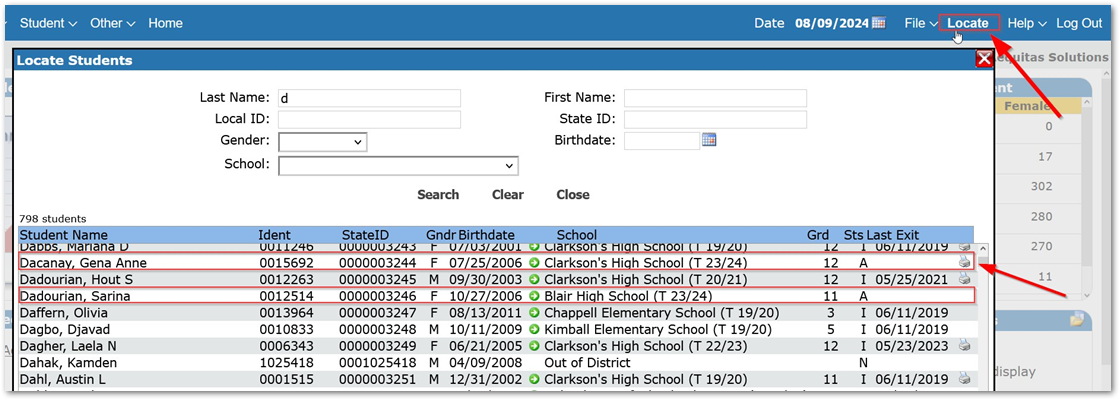
Today’s Q-Tip involves using the Locate feature within Q to print Transcripts. This is a simple concept but can be useful when you need to quickly print a transcript for a student. In the image below we can see two students highlighted using the Locate feature in Q. One student is showing a printer icon on the right-hand side of their record and one is not. By clicking the printer icon we can quickly print a student’s transcript.
Note
In order for the printer icon to be available, Marks Processing must have been run for the student with the ‘Post to History’ option turned on.
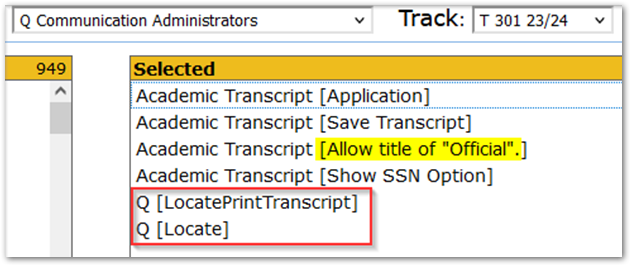
The use of Locate to print a transcript requires a Permission. Found in the Permissions Editor application > Role App Rights tab, you can grant the Q [LocatePrintTranscript] permission to the appropriate roles.
Note
[Image below] There are other permissions that exist around Transcripts, most notably the permission to print Official Transcripts. Furthermore, a Role must also be given the Q [Locate] Permission to use the Locate feature in Q.
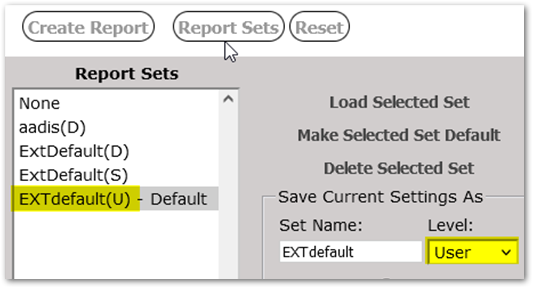
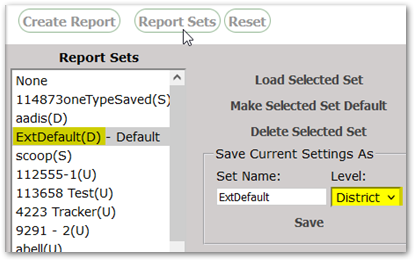
The format of the Transcript printed when using Locate can be controlled at the District or at the User level. Using the Report Sets in the Academic Transcript report, the District can save a set named ‘EXTdefault’ and set it as the default format to be printed. However, if a User has a format that they prefer and have also saved as their ‘EXTdefault’ this will be the format that prints from Locate instead.