The Banner Widget Editor allows those with the appropriate permission to create customizable widgets (blocks of content) that users may access via Student, Class, and Staff Banners.
Access to Widgets may be restricted to specific roles (e.g. counselor, administrator, etc.). Additionally, the content within a widget may be further restricted by other factors such as the roster of students in a teacher’s class or the discipline referrals made by a user.
Banner Widget Editor is located under the System menu in Q.
The application opens to the list of existing banner widgets on the left and the configuration details of the selected widget in the larger right-hand pane. 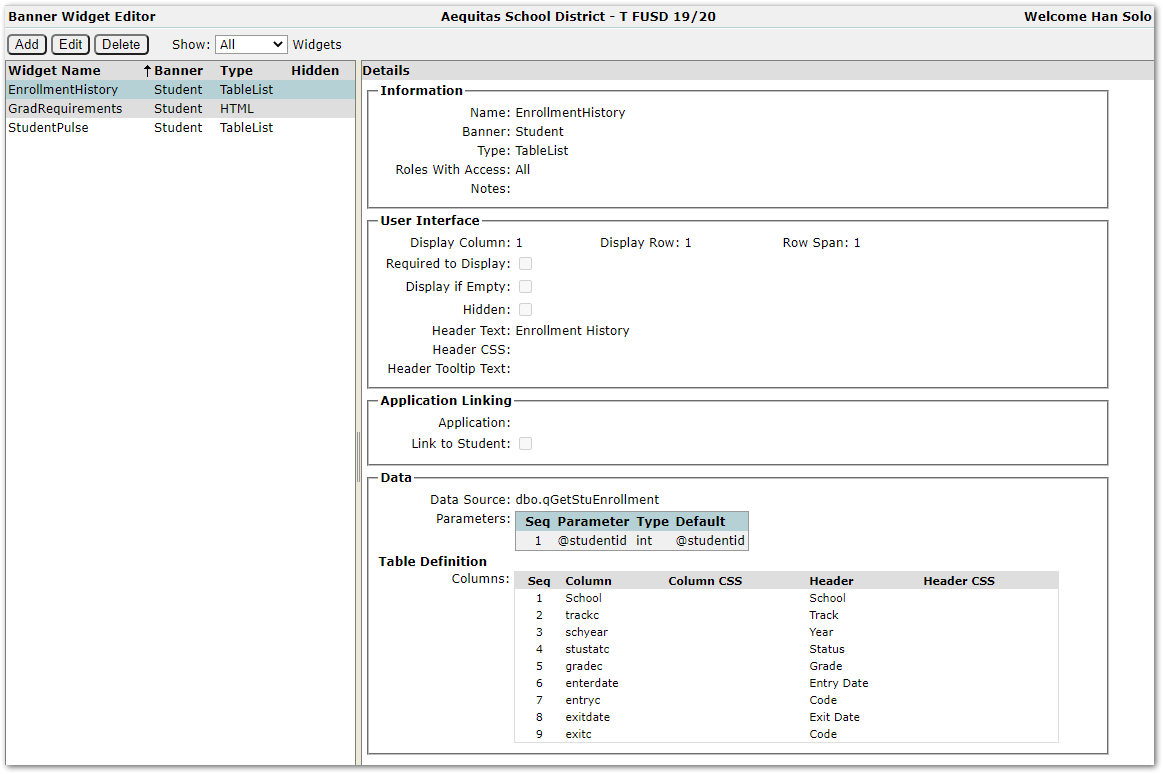
Included Widgets
Q ships with the following banner widgets:
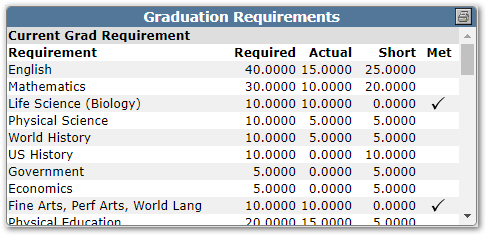
- GradRequirements – Displays the student’s progress toward meeting all graduation requirements.
- StudentPulse – Displays information such as class, absences, tardies, and current mark.
There are four types of widgets. The External Feed option is used to embed content from a source such as Twitter or Facebook. The other three types all require the use of a stored procedure.
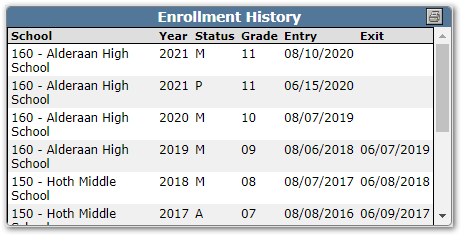
Table List Format – Content outputs in a customizable tabular format
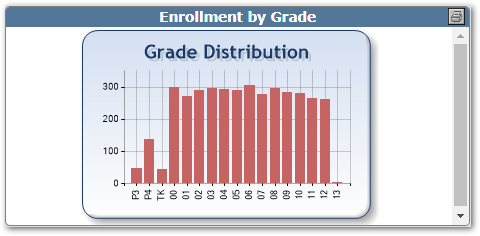
Chart/Graph – Includes area, column, bar, and pie charts
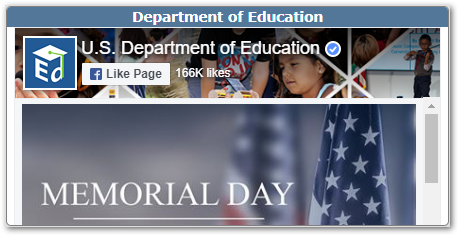
External Feed – Twitter or Facebook
HTML – Output formatted as HTML
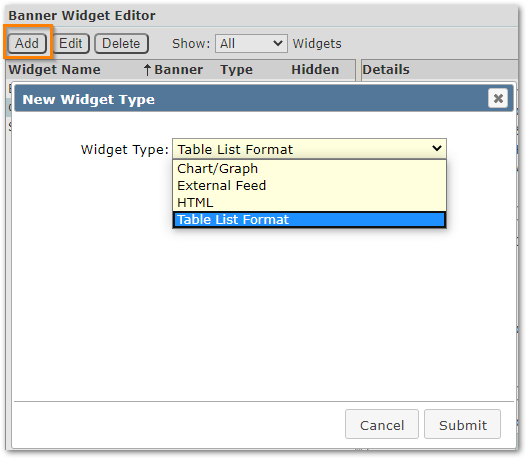
To create a new widget, click the Add button near the top right of the screen, then choose type of widget from the pop-up menu.
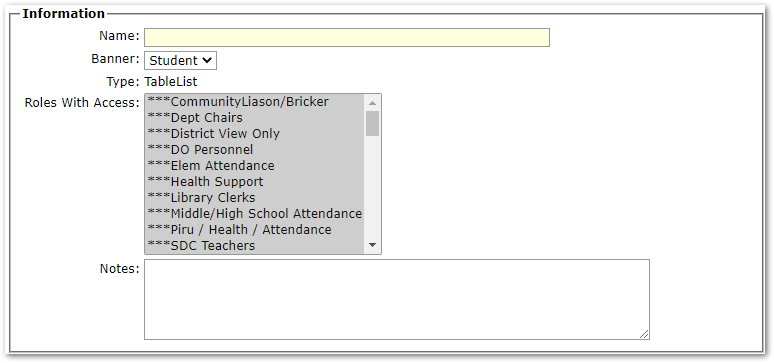
The configuration screen for each type of widget varies slightly but is always divided into 3 or 4 sections. The first two sections of the Add Widget configuration screen are same for all types of widgets.
Information – All Widget Types
- Name – The name of the widget.
- Banner – Choose from Student, Staff, and Class.
- Type – The type of widget selected in the previous step.
- Roles With Access – All the roles for created by the district are listed. Click to select a role. Select multiple roles by holding down the Control or Command (Mac) key while clicking with the mouse. Deselect all roles to allow access to all roles.
- Notes – Record notes about the widget. This information is only displayed in the Widget Editor.
User Interface – All Widget Types
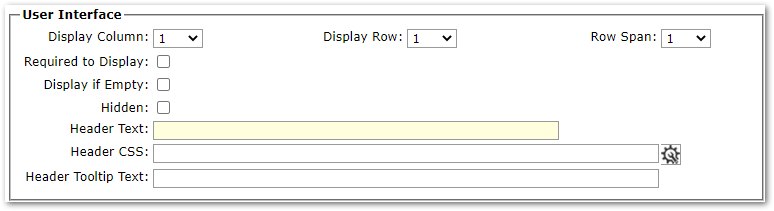
- Display Column / Display Row –The default column and row where the widget is displayed. There are three columns in the area where widgets are displayed. In the sample below, the widget in the third column spans 2 rows.
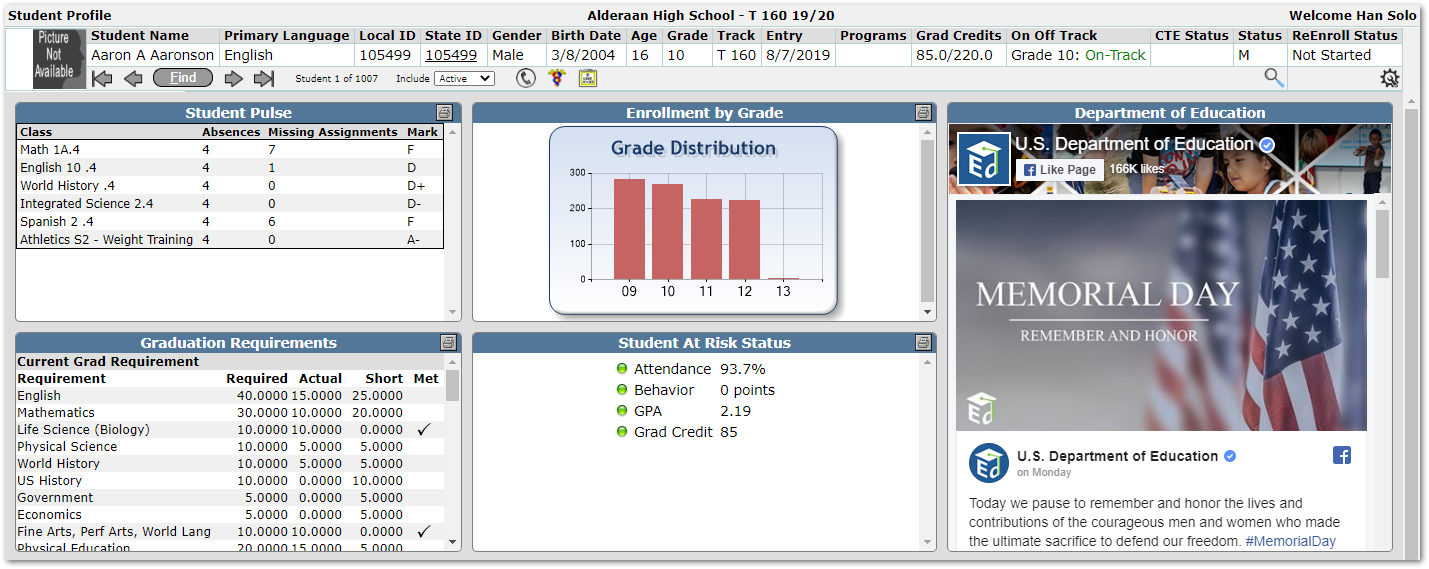
- Row Span – Height of the widget in terms of the number of rows.
- Required to Display – Users are subscribed and may not un-subscribe.
- Display if Empty – Show widget even if there is no data.
- Hidden – Hides the widget from all roles.
- Header Text – Text for the header bar of the widget.
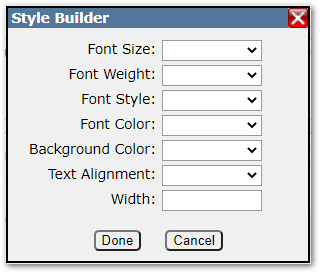
- Header CSS – Click the gear icon to the right to configure the styles as pictured below.
- Header Tooltip Text – Text displayed to a user in a tooltip when hovering over the header bar.
Application Linking – Table List Widget Only

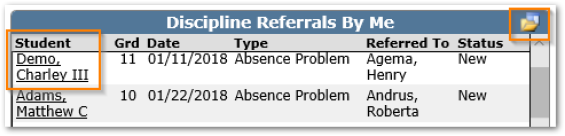
- Application – Optionally link to a Q Application by selecting from the drop menu. When enabled, an icon will be displayed in the right-hand side of the widget title header.
- Link to Student – When student names are included in a widget, the student’s name is a link that opens to that student in the application selected in the setting above.
Data – All Widget Types
All widget types have a Data configuration section, but the details vary as outlined below.
Data – Table List Widget
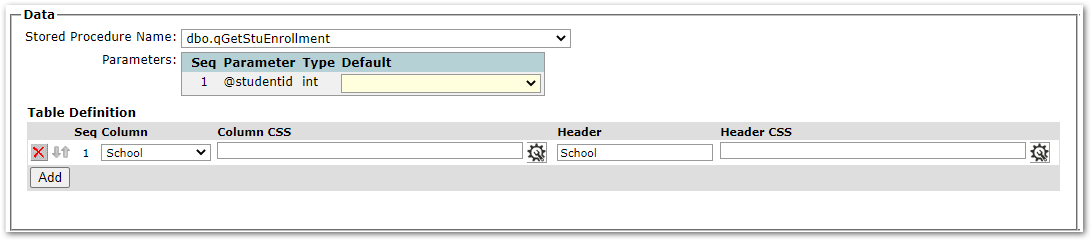
- Stored Procedure Name – Select the desired stored procedure
- Parameters – Select the corresponding database value for the parameter(s) listed
- Table Definition– Click the “Add” button to insert columns of data. The red X icon removes a column. Use the arrow icons on the left to click, hold, and drag columns into the desired order.
- Column: Choose a database value for the column
- Header: Specify the text for the column headers
- Column CSS / Header CSS: Click the gear icon to set the styles for column and/or header values.
Data – External Feed Widget
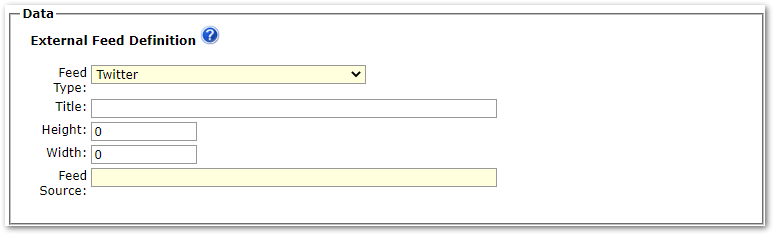
- Feed Type – Twitter and Facebook feeds are supported
- Title – Not used with external feed widgets
- Height / Width – Leave default values at 0 to automatically fill the widget area
- Feed Source– Twitter and Facebook examples:
- Twitter feed: @eschoolnews or twitter.com/eschoolnews
- Twitter list: usedgov/lists/ed-twitter-accounts-2
- Facebook timeline: ed.gov or www.facebook.com/ED.gov
Data – HTML Widget
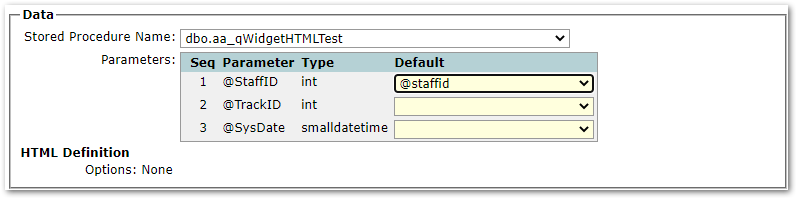
- Stored Procedure Name – Select the desired stored procedure
- Parameters— Select the corresponding database value for the parameter(s) listed
- HTML Definition – Currently, no options are available for the HTML Type
Data – Chart/Graph Widget
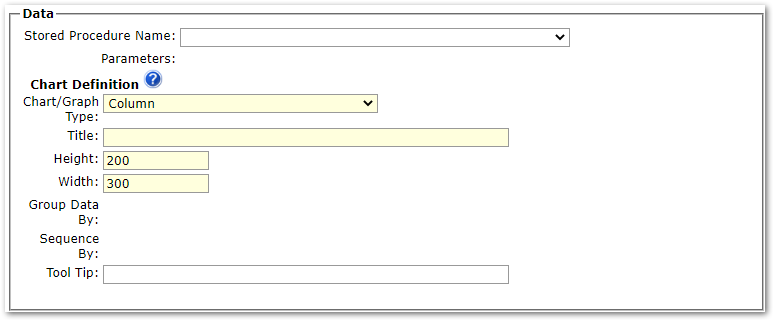
- Stored Procedure Name – Select the desired stored procedure
- Parameters – Select the corresponding database value for the parameter(s) listed
- Chart Definition– Choose and configure a type of chart/graph
- Chart/Graph Type: Choose from area, column, bar, and pie charts
- Title: The Title is displayed in the Chart header.
- Height/Width: Set the Height and Width of the chart. (Widgets are 500px wide. Height varies by row span.)
- Group Data By: Select the data column used to ‘Group by’ (x-axis values).
- Sequence By: Select the column used to sequence the values.
(‘Group Data By’ and ‘Sequence By’ data columns must be different.) - Tool Tip: The Tool Tip text will be preceded by the Group record count (i.e. 16) and followed by the Grouped By item (i.e. Grade 10). (Example: 16 Students in Grade 10.)
Save Widget
Be sure to click the Submit button at the top right of the Banner Widget Editor before leaving the application.
To edit or delete, first select an existing widget from the left pane, then click the Edit or Delete buttons just above the list of widgets.
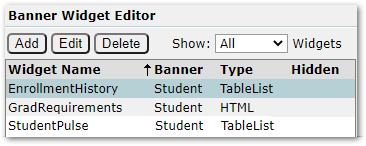
Note: Use the “Hidden” setting when editing a widget to temporarily hide it from all users. This setting is in the “User Interface” section for all widgets.
If choosing to create a stored procedure for use with a widget, do this first before creating the widget. Stored procedures for use with HTML widgets must return values for the following two fields:
- WidgetHTML – HTML formatted content to be displayed by the widget.
- WidgetJavascript – JavaScript to be placed in a script tag place just before the closing HTML tag for the page. This value may be empty if JavaScript is not required for the widget.
Note: It is important to thoroughly test widgets before putting them into production.
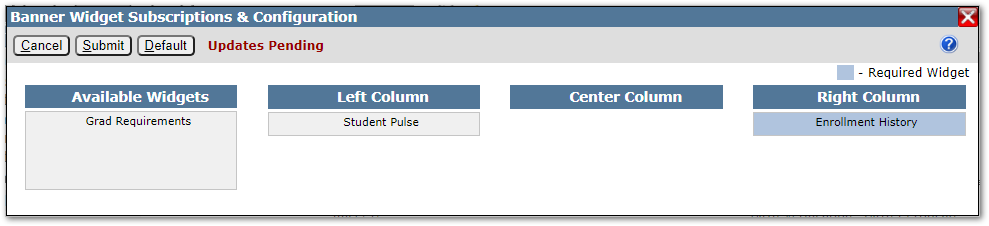
Users may subscribe to any widget available to them based on their role. From any Banner Application, click the Widget Subscriptions icon located at the bottom left of the browser window.

In the popup window that opens, users may organize their widgets by dragging and dropping to the desired column and ordering widgets within a column. Widgets in the “Available Widgets” section are unsubscribed and will not display for the user.