Student Medical History is a chronological record of a student’s health concerns and /or health incidents. It is used to add, edit, and delete student medical event records for a student.
Student Medical History is located under the Health menu in Q.
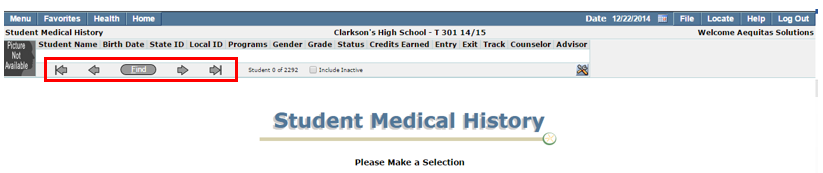
The Student Medical History application is a Q banner application. You may search for students in the application by using the arrow keys or the find function. Placing a check in the Include Inactive checkbox will include inactive students in the search.
Note:
For more detailed information regarding the configuration and search functions for Student Banner applications, please refer to the Student Banner documentation.
- Locate the desired student using the arrow keys or the Find feature.
2. Click Add to begin adding a new condition.
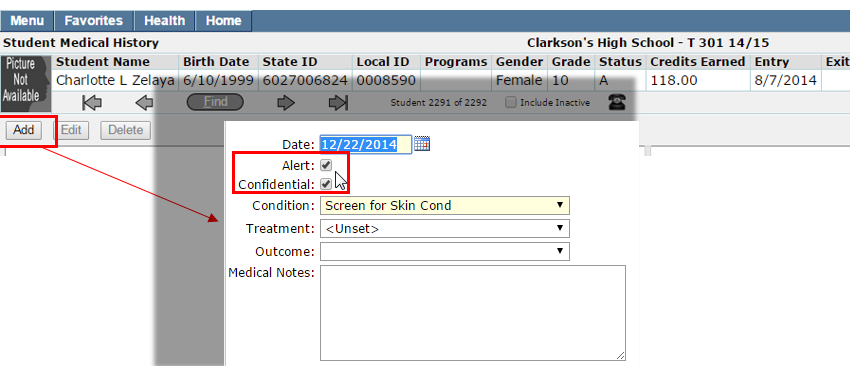
- Marking a condition as Confidential will hide the condition from appearing in the Student Profile.
Note:
Users who have access to the Student Medical History application will be able to see confidential entries entered by others as well as themselves.
- Checking the Alert box on will put an alert icon in the banner of the student profile.
Note:
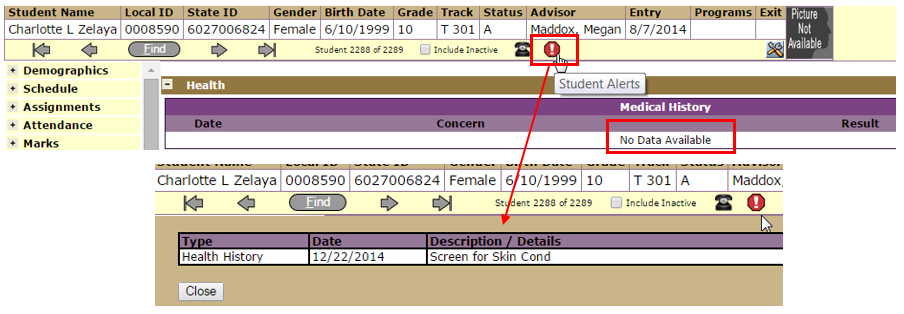
If a condition is marked as confidential as well as an alert, the alert will still appear.
In the example shown below, the logged in Teacher does NOT have access to Student Medical History but does have access to Student Profile. The user can see the alert for a health condition that was flagged as both confidential and given a health alert. The user cannot however, see the condition in the student medical history application.
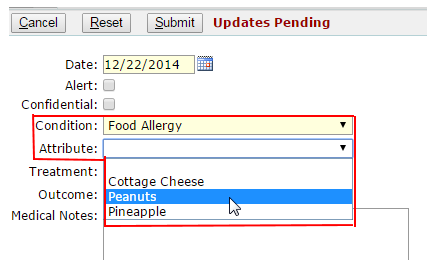
- When adding a condition that could contain an attribute, an Attribute drop down field appears with a list of possible attributes.
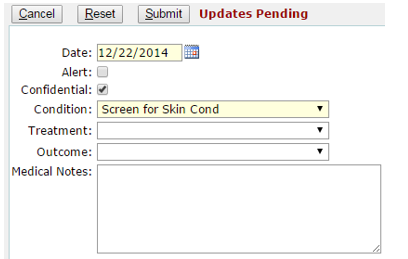
- If a condition does not contain possible attributes, the Attribute drop down field does not appear.
3. Input all relevant information regarding the medical condition. Click Submit to save your entry.
To edit a current medical condition for a student, select the desired condition by clicking on it in the Student Medical History list, then click Edit.
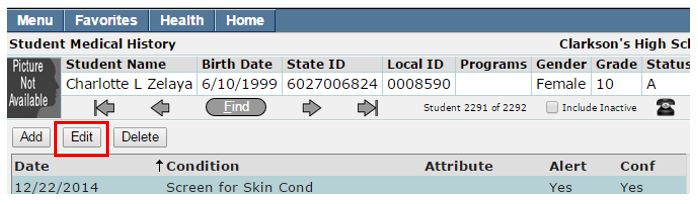
Make the desired changes and click Submit.
To delete a record in the Student Medical History:
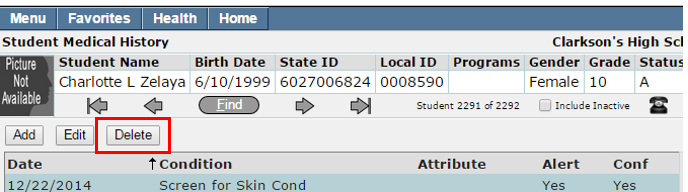
- Highlight the record you would like to delete from the Student Medical History list.
- Click Delete
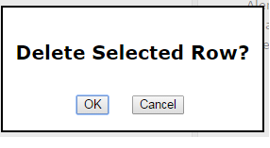
3. A confirmation window will appear. Select 'OK' to confirm the deletion or 'Cancel' to return to the previous screen.