
Online Application Setup is used to set up and maintain various components of the Food Service Online Eligibility portal.
Online Eligibility Setup is located under the Food Service menu in Q.
Household income surveys can be used to determine school or district-wide eligibility for Community Eligibility Provision (CEP) or Provision 2. They can also be used to determine a school or district’s eligibility for other state or local programs.
The Income Survey setup is located under the Online Eligibility Setup | Online Income Surveys tab.
By default, each school is set up with an “Application” Submission Method and a Submission Period that covers the current fiscal year.
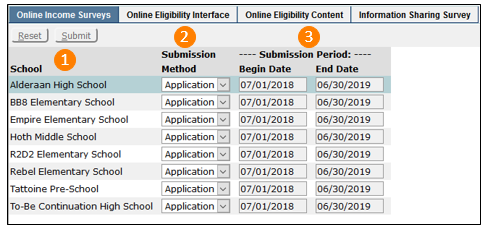
- Schools are listed in alphabetical order
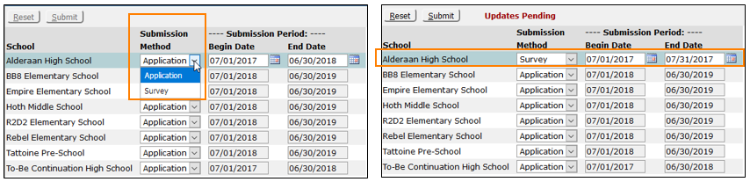
- Select a Submission Method: Application or Survey.
- When Survey is chosen, the Submission Period date ranges become editable. Set the desired range for the survey and click Submit.
How it looks online - The Online Survey
Once the survey and dates have been configured, the survey taker will use FSOnline to log in using their ParentConnect credentials.
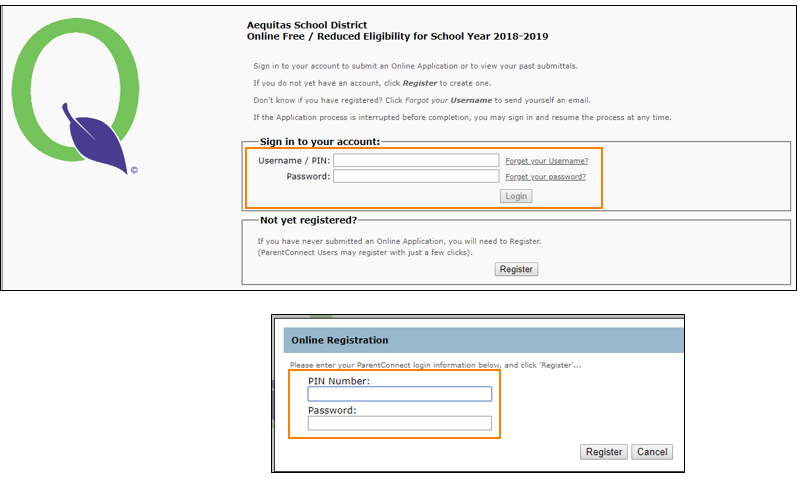
If they have never submitted an online application, they will click the Register button and create a Food Service Online Account.
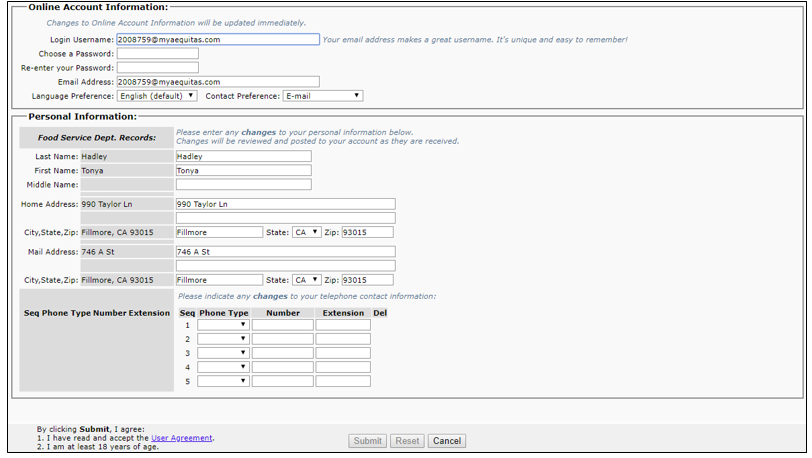
If the survey taker has never applied for Free/Reduced meals, they will see only a Survey
Link.
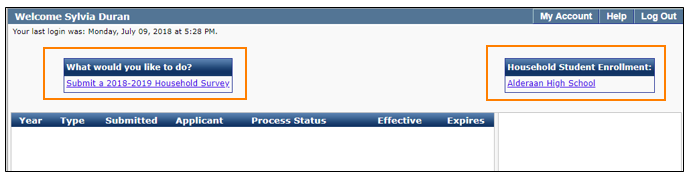
Those who have previously applied for Free/Reduced meals, or have students enrolled in a school collecting Applications, will show a link for submitting a new application for the following year and a link for filling out the household survey.

Household Student Enrollment is a listing of where students in this household are enrolled.
Filling out the Household Survey
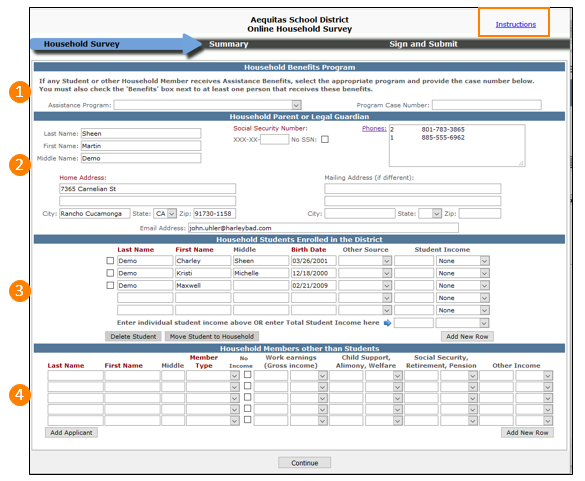
- If applicable, select the appropriate benefit program and provide the case number. Check the 'Benefit Program' box next to at least one Household Student or the applicant that receives these benefits.
- Household Applicant / Legal Guardian (survey taker) contact information
- A Survey will be pre-populated with the enrolled students included in ParentConnect. If there are additional students living in the household, enter the enrolled Student's last name, first name, birth date, and any income received. If the child is homeless, migrant, or a runaway, select the appropriate program.
- Enter the last and first name of ALL household members (other than students) living in the household.
- Household means a group of related, or non-related, individuals who are living as one economic unit and sharing living expenses
- Enter the income before deductions and select the appropriate pay frequency.
- If the individual has no income, check the box next to the individual's name.
Note:
For detailed instructions click the Instructions link at the top right corner of the page.
When complete click Continue to review a summary page.
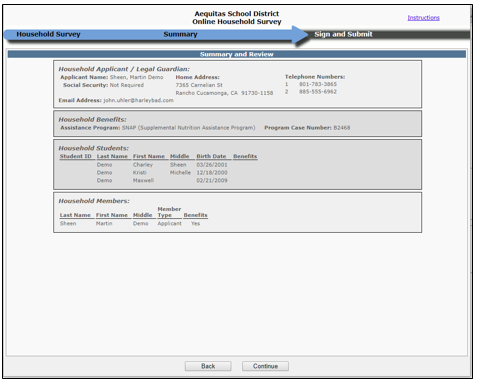
After reviewing the summary, click Continue.
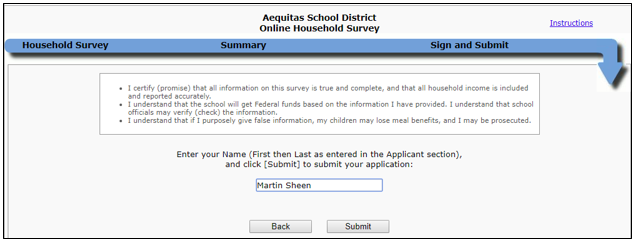
To finish, the survey taker must enter their First and Last Name as entered in the survey section and click Submit.
A prompt will appear to either print or email the survey.
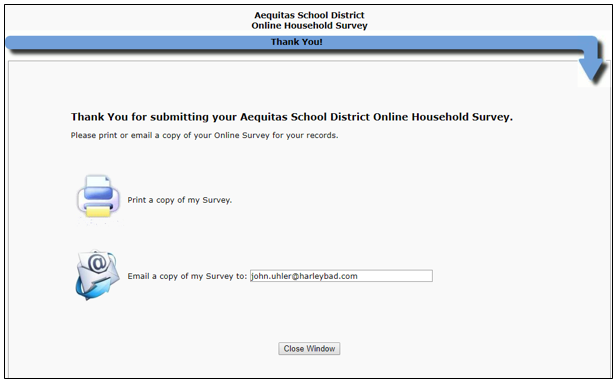
After making a choice, click Close Window to end the online session.
For information about processing Online Surveys, see the Process Applications documentation.
The Online Eligibility Interface (FSOnline show above) can be customized. Label Titles, Application Content and the Information Sharing Survey can be changed to be specific to district policies and procedures, and can be translated into different languages.
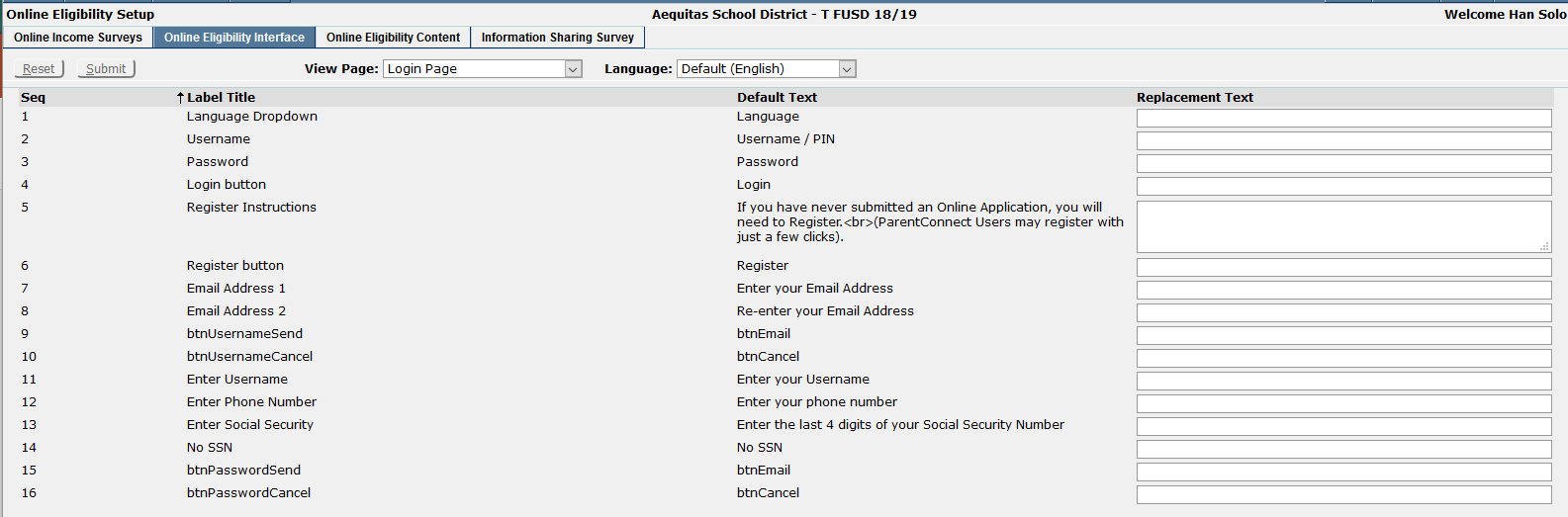
- Select the page to customize content from the View Page drop down selection list.
Note:
The Label Titles will vary based on the selection made in this field.
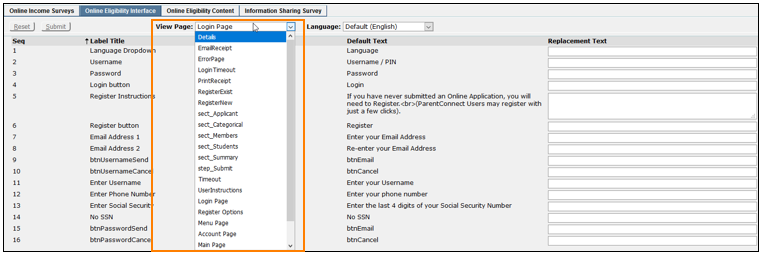
- Text can be translated into multiple languages by selecting the desired language from the Language drop down selection list.
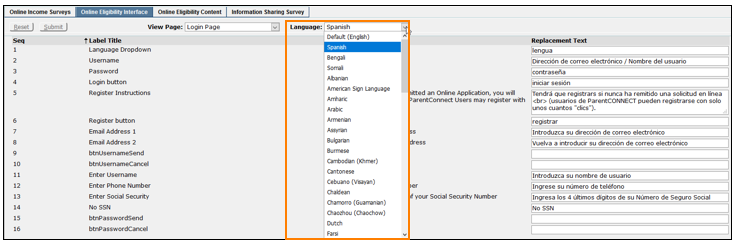
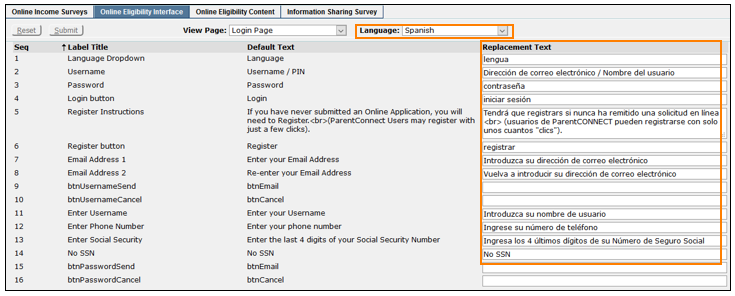
- Label Title: Name of the field label, button label, or other page elements.
- Default Text: The text that is currently displayed for the element.
- Replacement Text: Customize Label Title fields by entering text into the Replacement Text fields. To save any changes, click Submitor Reset to undo any changes and return to the previous screen.
Shown below, the Login Page label titles have been translated into Spanish.
- Click the Online Eligibility Content tab
- Select the page to customize content from the Online Application Content drop down selection list. You can enter unique data for each screen that appears in the Online Eligibility interface.

3. Choose the Language for the Online Application Content.
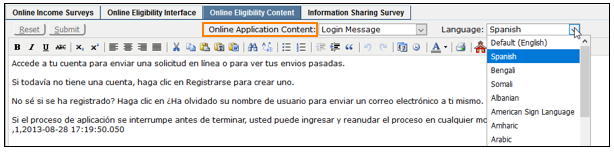
4. Move from page to page by changing the selection in the Online Application Content drop down selection list.
5. To save any changes, click Submitor Reset to undo any changes and return to the previous screen.
Parents can choose whether or not to share their free/reduced information with Medicaid, SCHIP or other programs which may collect food service eligibility information. The Information Sharing Survey tab allows districts to create customized survey questions and translate them into various languages.
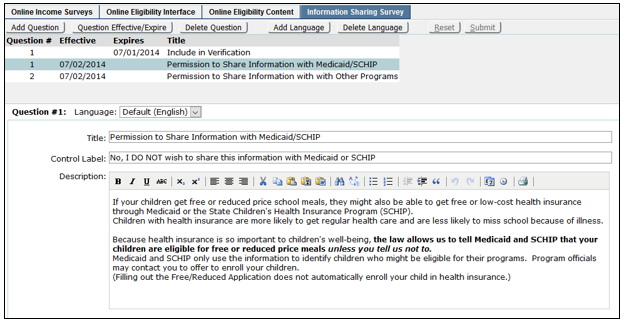
Adding a New Information Sharing Survey Question
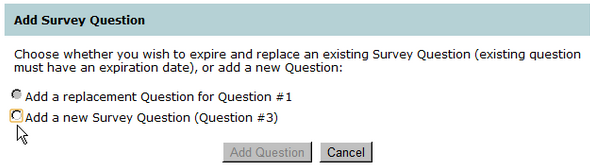
- Click Add Question. If there are existing Information Sharing Survey questions, a prompt will appear to add a replacement for the currently selected question or add a new survey question.
- Make a selection and click Add Questionto add a new question or Cancel to exit and return to the Information Sharing Survey.
- Select the language for the question to appear from the Language drop down list.
- Enter the Title for the new Information Sharing Survey.
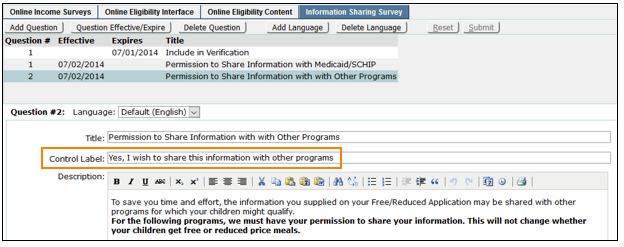
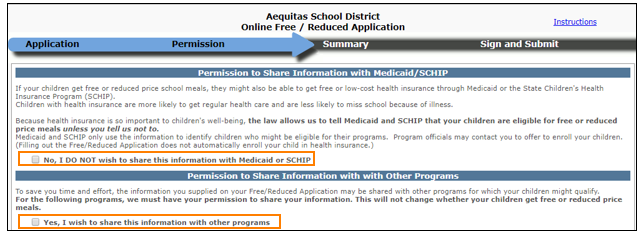
- The Control Label is the text displayed next to a checkbox on all Food Service Applications.
This is how it appears online.
Edit/Expire Questions
If a survey questions should no longer appear on Applications, click Question Effective/Expire, enter an expire date indicating the last day the questions will appear.
To change the meaning of a question, or replace an existing question with a new question, expire the existing question, then add a new question using the same question number.
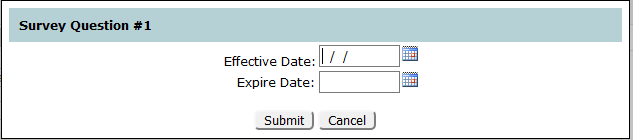
- Enter dates using a MM/DD/YYYY format or click on the calendar icon to select a date.
- Effective Date: The date the question can first be viewed by online applicants.
- Expire Date: Last day that question will be visible to online applicants.
Note:
The Expire Date is not required and may be left blank.
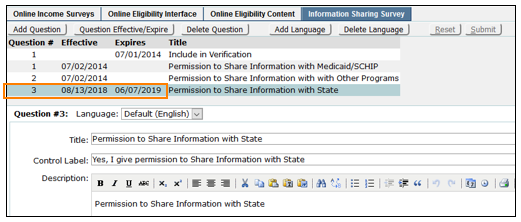
4. To save any changes, click Submitor Reset to undo any changes and return to the previous screen.
Note:
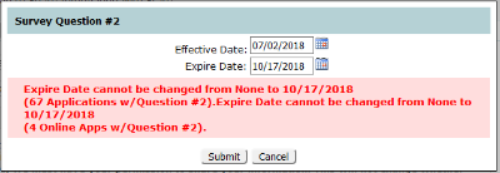
Attempting to change the effective or expire date for a question that is present on an existing application is not allowed.
Delete Question
To delete Information Sharing Survey Questions which are no longer being used in Food Service Online Eligibility:
- Highlight the question to be deleted.
- Click Delete Question.
- Confirm the selection. Click Yesto delete the selected question, or No to cancel and return to the previous screen.

Note:
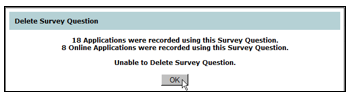
Survey questions that are present on Applications cannot be deleted. To disable the question from being displayed in Food Service Online Eligibility, enter an expire date.
Add Language
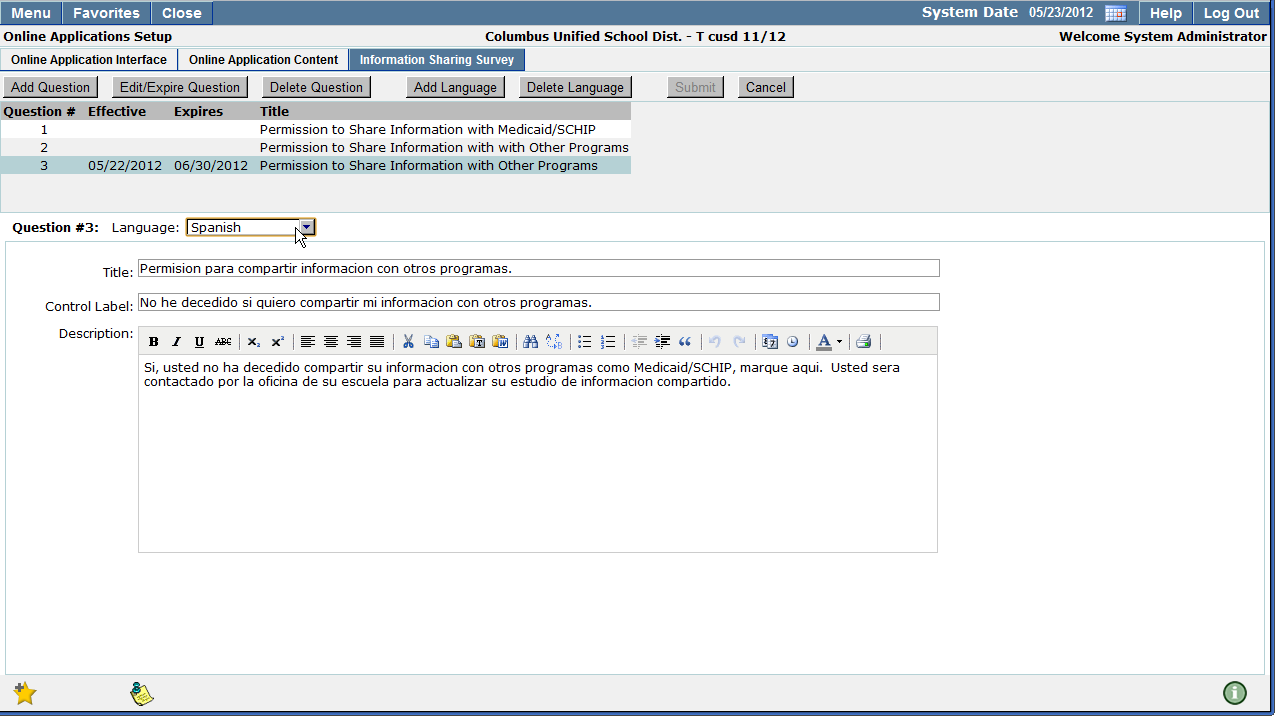
- To display Information Sharing Survey questions in multiple languages, select the question to be displayed in another language, and click Add Language.
- Select the desired language from the Language drop down selection list.
- Enter the Title, Control Label, and Description for the highlighted question in the language selected.
- Click Submit to save the changes, or Cancel to return to the previous screen.
Delete Language
To delete language text you have entered for Information Sharing Survey questions:
- Click Delete Language.
- Confirm your selection. To delete the text click Yes. To cancel and return to the previous screen click No.
