The Q Locker Assign application allows school site office personnel to assign, unassign, and set locker combinations for student lockers.
Locker Assign is located under the Enrollment menu in Q.
The Locker Assign application can be used to assign and unassign student lockers. It may also be used to set locker combinations for student lockers at school sites.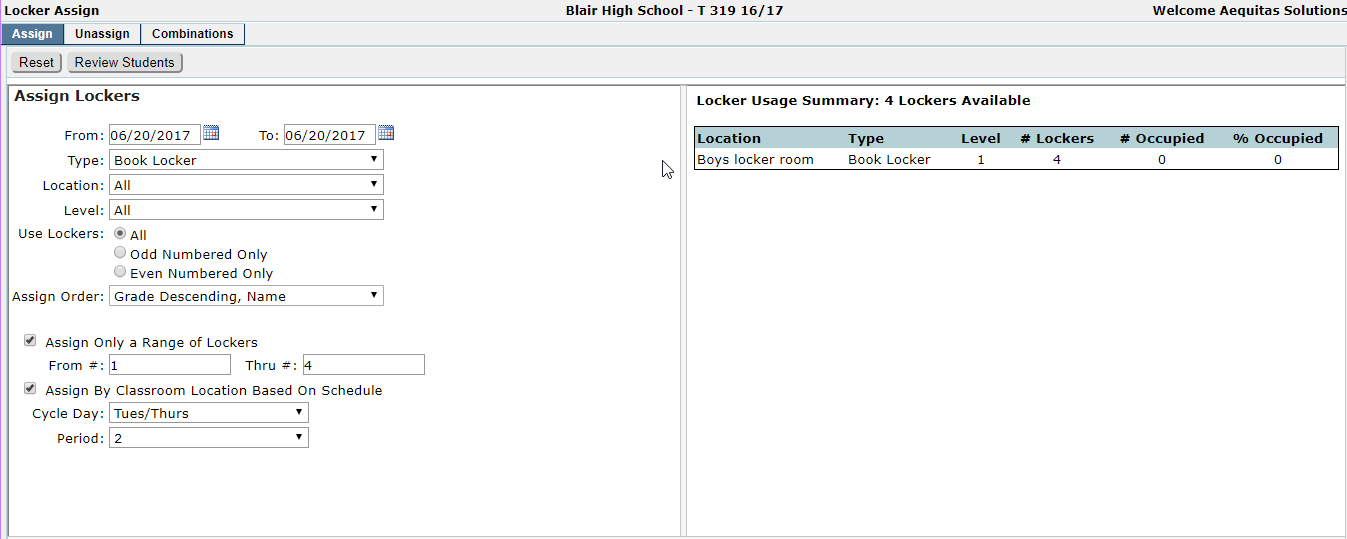
The Locker Assign application will display a locker usage summary based on the type selected in the Assign Lockers drop down list.
- From – To Dates: Enter the dates of the locker assignment using the calendar icons or in a MM/DD/YYYY format.
- Type: Locker types are predefined and can vary by school site. There may be several locker types with the same locker id in varying school locations. The locker type field filters lockers based on the type of locker for which you are searching. For example, the type field may be comprised of book lockers, gym lockers, team lockers, etc. Select the locker type that you would like to assign from the drop down list in the Assign Locker section. The locker usage summary will update to display locker statistics for the locker type you have selected.
- Location: Lockers may be located throughout several campus locations. Narrow your search by entering the specific campus location of the locker you are searching for in the location drop down list.
- Level (Optional): Select the locker level you would like to assign.
- Use Lockers: All, Odd Numbered Only, Even Numbered Only
- Assign Order (Optional):
a. Grade Descending, Name: Assign lockers to students based on their grade in descending order followed by their name.
b. Grade Ascending, Name: Assign lockers to students based on their grade ascending order followed by their name.
c. Name: Assign student lockers ascending by last name.
d. Random: Assign student lockers in a random order.
7. Assign Only a Range of Lockers: User may select a range of locker numbers by entering From and Thru locker number
8. Assign by Classroom Location Based on Schedule (Optional): Enable this feature to assign lockers based on classroom locations for students. A period drop down list will be displayed displaying all periods in which classes may be scheduled. Select the period by which you would like to assign lockers from the drop down list. For example, if you would like to assign lockers by first period homeroom classes you would select period 1 from the drop down list. Tracks that have more than one cycle day will also have an option to select the period and cycle day. The Assign by Schedule function honors the classroom association when it exists. Classrooms may be associated with lockers in the Classroom Editor (Locker tab).
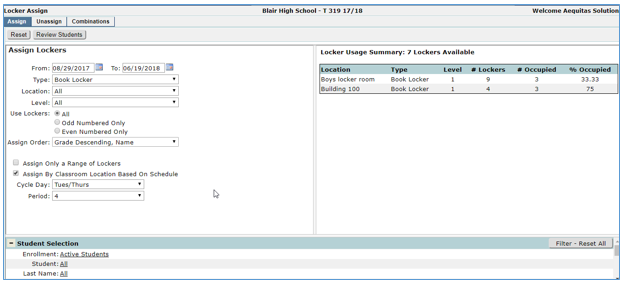
Once lockers have been selected using the locker assign filters, select the student(s) for which you would like to add the locker assignment(s) by using the Student Selection filters. To reset selections, click Filter – Reset All.
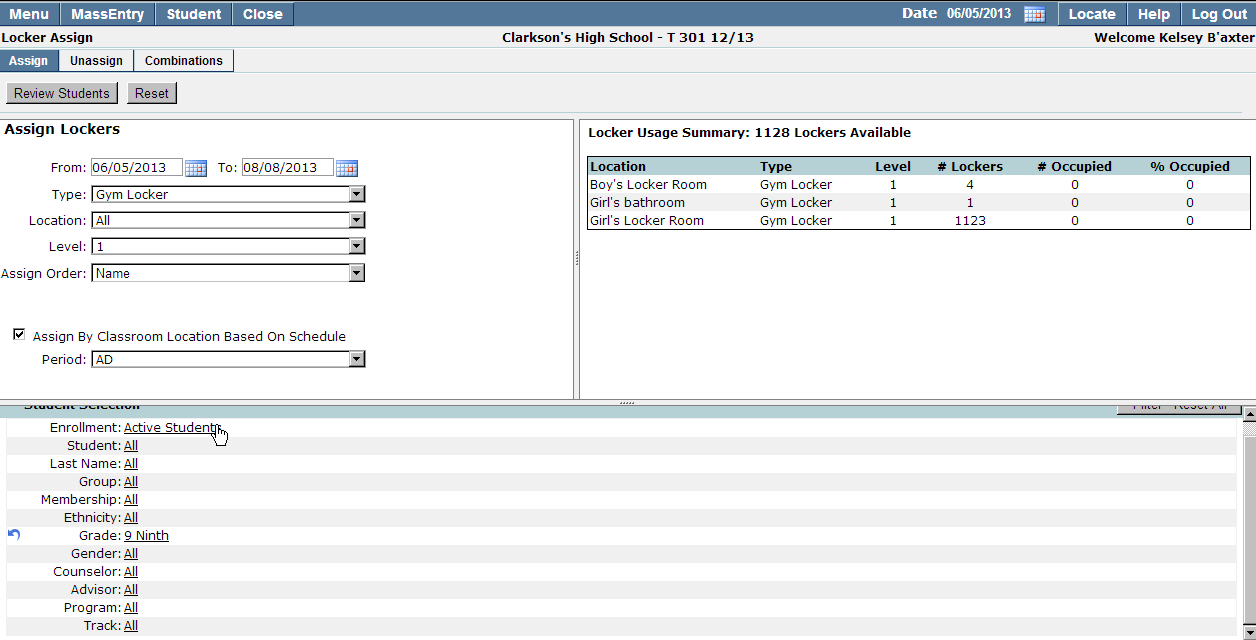
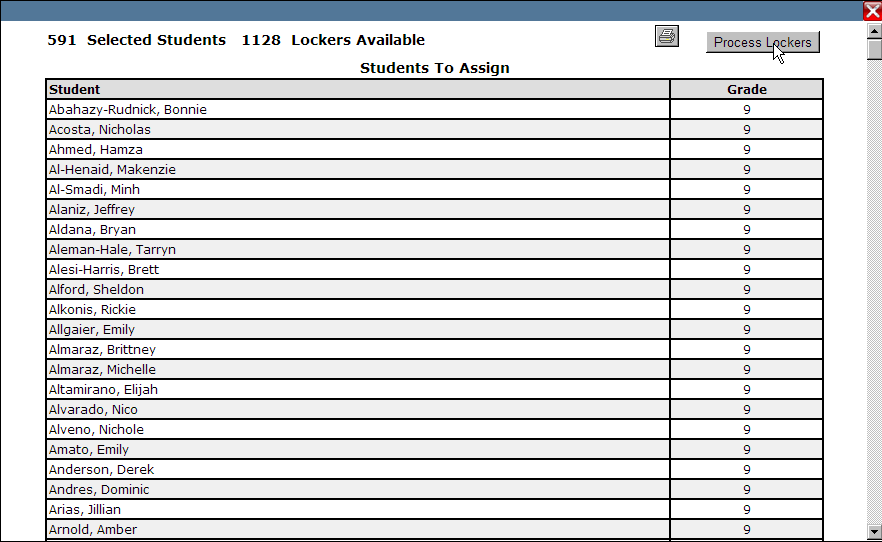
To continue assigning student lockers, click Review Students. A student list containing student names, number of students selected, and lockers available will be displayed. To complete the processing of student lockers, click Process Lockers. If there are more students to process than lockers available the students will be processed based on the selection in the Assign Order drop down list.
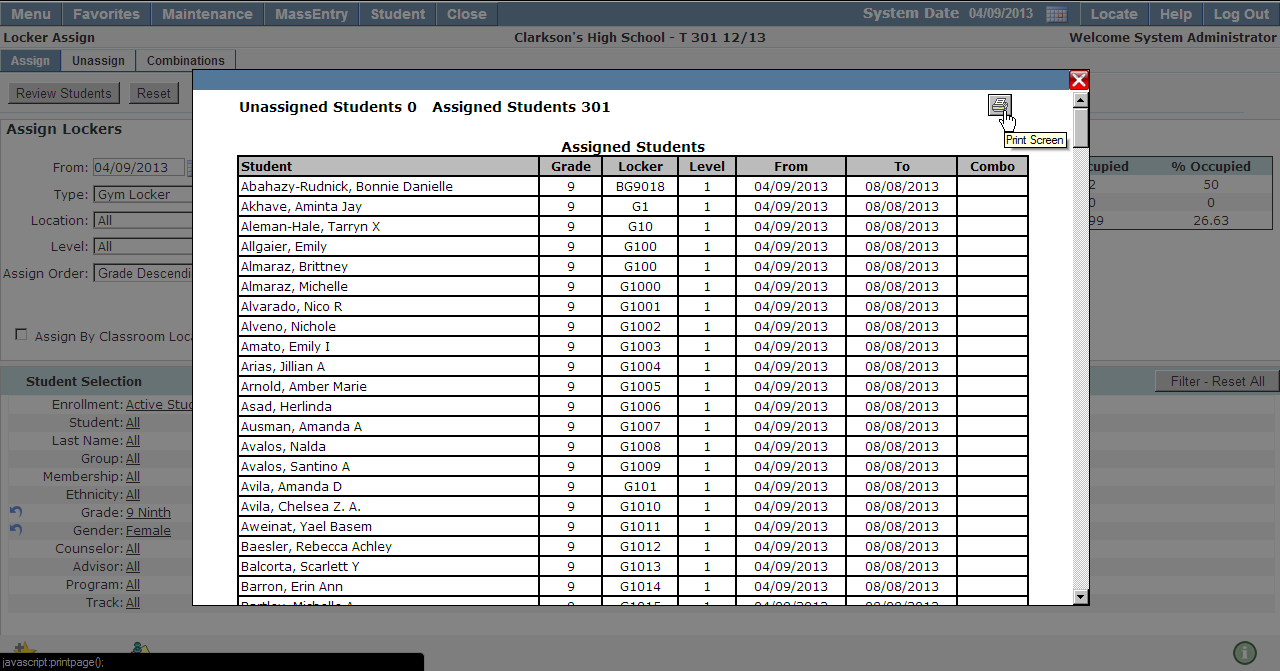
Once the locker assignment has been completed a list of students and their assigned lockers will be displayed.
Note: Click the printer icon to for a printable student list of locker assignments.
The Unassign locker tab will display a locker usage summary based on the selection in the type drop down list. The Locker Usage Summary will be refreshed based on the selections made in the drop downs.
1. Unassign As Of: Select the date of unassignment by entering it in the Unassign As Of field using a MM/DD/YYYY format or selecting the date by clicking on the calendar icon.
2. Type (Optional): Select the locker type you would like to unassign. The locker usage summary will update to display locker statistics for the locker type you have selected.
Note: If ‘All’ is selected all locker types will be unassigned.
3. Location (Optional): Select the locker location you would like to unassign by selecting it from the drop down list.
4. Level (Optional): If multiple locker levels exist, select the locker level that you would like to unassign.
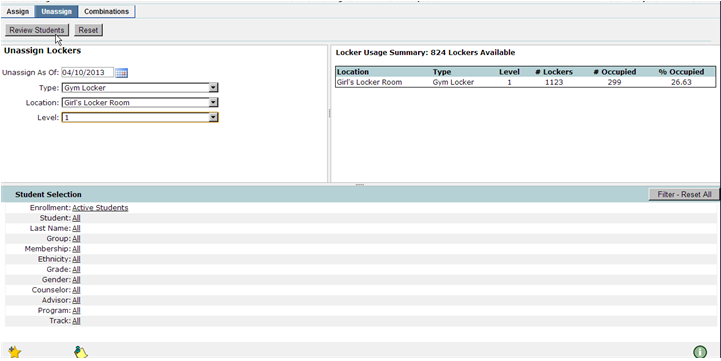
5. Student Selection (Optional): To unassign lockers for specific students use the filters in the Student Selection section.
Once student selections have been completed, click Review Students to view a list of students whose lockers will be unassigned. To reset your selections, click Reset.
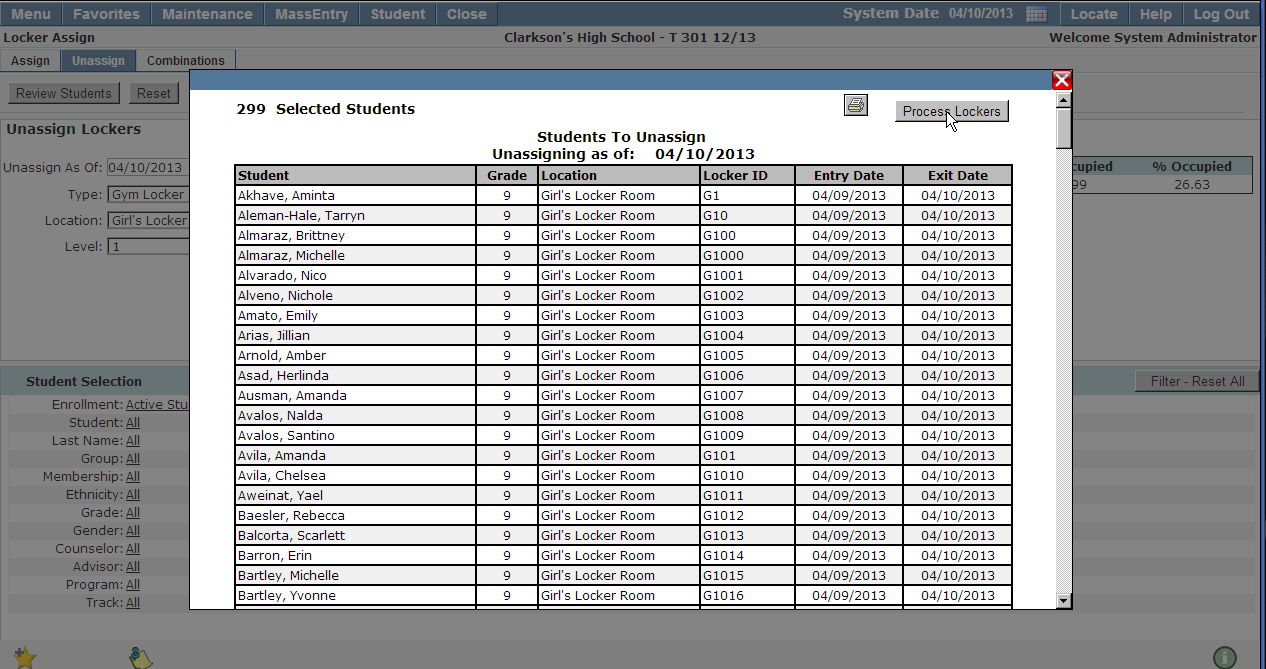
6. Process Lockers: To complete the unassignment of student lockers, click Process Lockers.
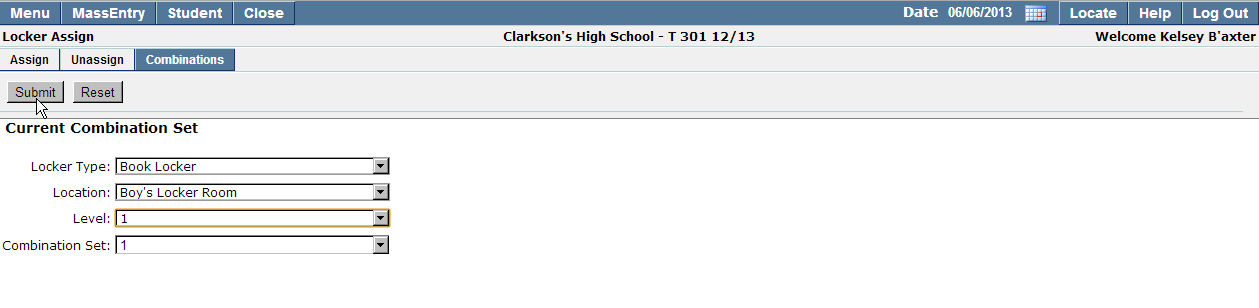
The Combinations tab allows the mass assignment of locker combinations for student locker. Filter lockers to make mass assignment easier using the following drop down items.
- Locker Type (Optional): Select the locker type from the drop down list.
- Location (Optional): Choose the locker location from the drop down list.
- Level (Optional):If choosing to mass assign locker combinations for lockers with multiple levels, you may optionally filter to one single level at a time.
- Combination Set: Select the Combination Set you would like to assign to the selected lockers. Combination Sets are defined in the Locker Setup application. For more information on Combination Sets refer to the Locker Setup help documentation.