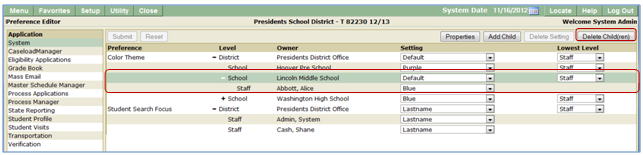
Q Preference Editor is used to set preferences for various Q applications.
Preference Editor is located under the System menu in Q.
Viewing Preferences
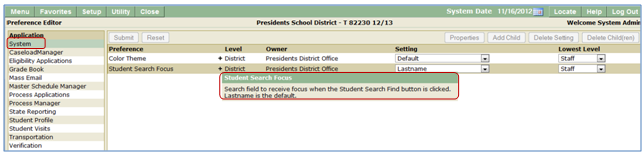
Select the desired Application to view existing or add additional preference levels.
- When you hover your mouse over the preference, a tool tip displays explaining the preference purpose.
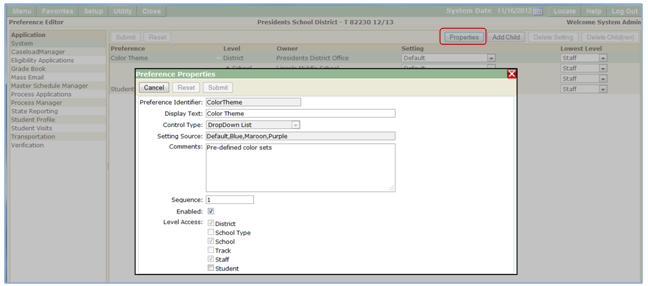
- Preference Properties may be viewed by highlighting the preference and clicking the properties button.
Setting/Editing Preferences
Additional levels may be set for preferences.
- Add a child.
- Highlight Preference and click Add Child.

- Select Level.
- Select Owner.
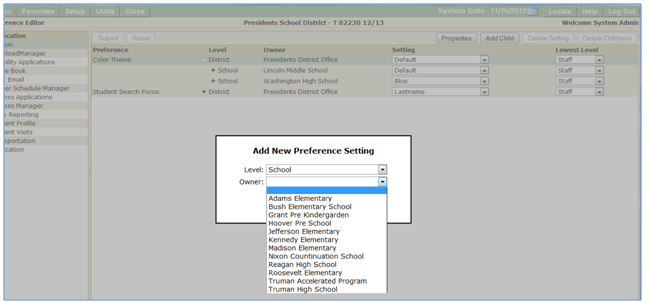
- Click Save.
- Different color themes may be defined for selected child levels.
- Child level.
- Staff.
- School.
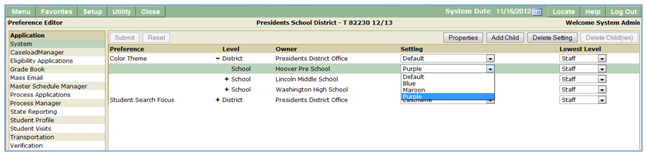
- Make selections.
- Click Submit.
- Preference settings may be deleted by selecting the desired setting and clicking delete setting.
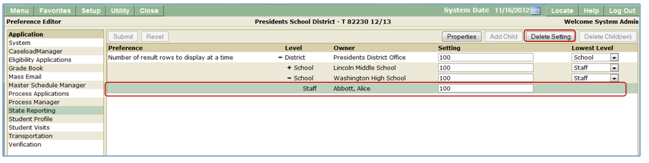
- Child Preferences may be deleted by selecting the desired setting and clicking delete Child(ren).