The Q Notification Editor is used to define notification types and to set the recipients for each notification. Recipients can be composed from faculty groups and/or individual users. The triggering criteria and message content of an automated Notification Alert are defined in a ‘stored procedure’ in the database. Notifications may also be manually created and sent by users if the Notification Type is defined in the Notification Editor with the Allow Manual box checked.
Notification Editor is located under the System menu in Q.
When the application is launched, a list of all available notifications displays. The default sort for the notifications is by description. However, the sort may be switched to Code by clicking on the column header. A check mark appears in the In Use column next to notifications that are currently in use. 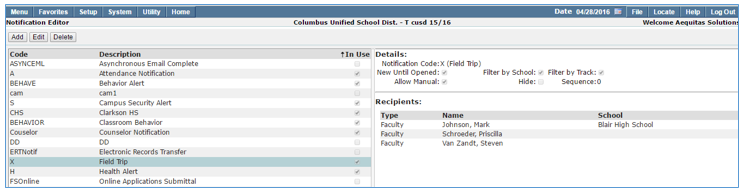
To add a new notification type:
- Launch the notification editor application.
- Click the Add
- Complete the following information:
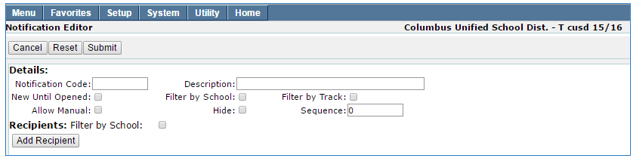
- Notification Code: Enter the notification code.
- Description: Enter the notification description. The description will appear in drop down lists as notification type.
- New Until Opened: When this box is checked the notification will remain as a new notification until the recipient of the notification opens the details on the notification.
- NOTE: There is an option for users to manually turn on a check box that says Force As New which will keep the notification as New until the flag is turned OFF.
- Filter by School: Check this if you want users to only receive the notification when the user logs into the school that generated the notification, most likely regarding a student at that school.
- Filter by Track: Check this if you only want users to receive a notification that occurred for a specific track the user is logged into.
- Allow Manual: Districts can create Notification Types that can be manually sent by users through the notification application. If this is OFF, all notifications of this type will be generated automatically using the notification within the QLIP to automatically send out notifications based on specific data that happens within the system. If it is checked ON, users will be able to create manual notifications of this type.
- Hide: Check this to hide a notification type.
- Two examples of when the hide feature might be used:
- When creating a new notification type that you don’t want users to use yet.
- If you have a notification type that you don’t want users to use anymore.
- Sequence: This is used to sort the Notification Types when users can create a manual notification. The drop down choice will reflect how the sequencing has been set up. If all records have sequence equal 0 than they will be in alpha order.
- Recipients: Filter by School: This is intended to allow someone to select a school and have the list of faculty be filtered to only the selected school.
- Two examples of when the hide feature might be used:
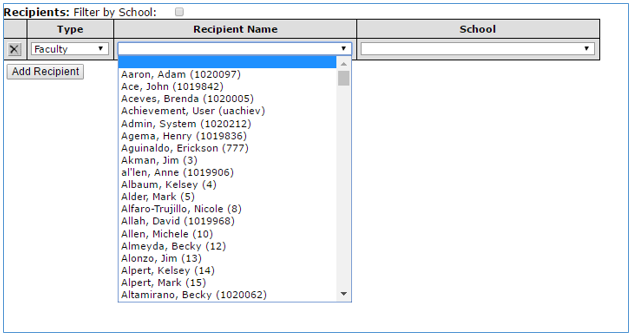
- Click the add recipient button
- Choose recipient type from drop down list. Recipients may be from a group or faculty members.
- When choosing faculty members, only one name may be selected at a time. To choose additional names, you must click the Add Recipient button for each name.
Users may view and respond to notifications from the Q Home screen. The notification indicator  on the bottom right hand corner of the screen turns red when new notifications are received.
New Notifications may also display in the Notification widget on the bottom left corner of the users Home screen.
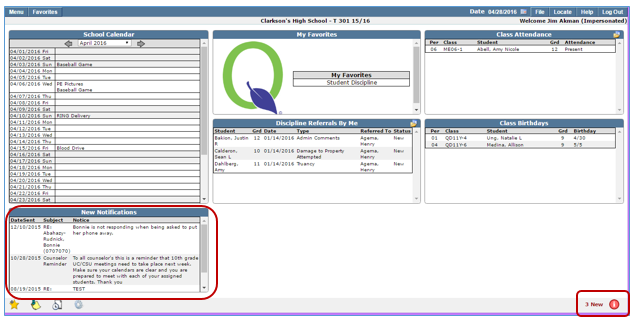
Notifications received by a user may be accessed by clicking on the notification indicator.

When the notification listing displays, clicking on the icons allow you to review, respond and delete received notifications. You may also add a new notification.

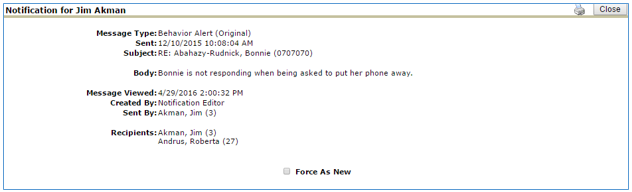
To Review the notification, click on the magnifying glass icon.  The review screen displays more detailed information than is contained in the summary. The user may choose to keep this notification as New by checking the Force As New box. The message will be kept “as new” until the user unchecks the box. The notification may also be printed by clicking the printer icon.
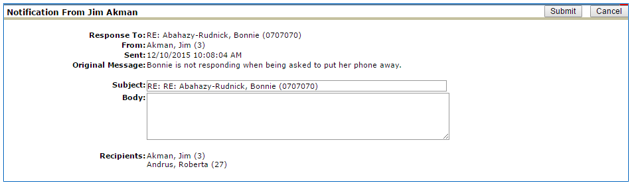
To respond to a notification click the Respond button.  Enter your response in the Body portion. Your response will be sent to all recipients of the original notification.
To delete a notification click the X. 
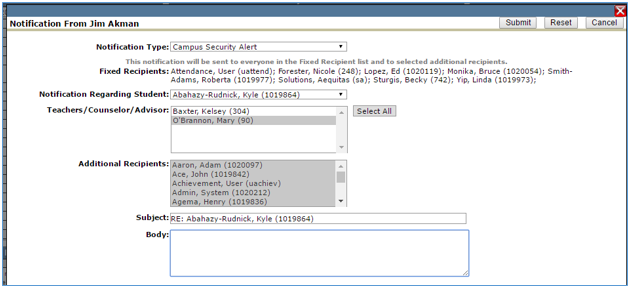
If the notification type has been designated, Allow Manual, in the notification editor, users may create a manual notification.
To create a manual notification:
- Click the Notifications icon on the Home screen.
- Click the Add New

- Select a Notification Type from the drop down list. If the selected notification type has fixed recipients defined in the notification editor, they will display and may not be edited.
- Select a Student.
- Select a Teacher/Counselor/Advisor if appropriate.
- Teachers, Counselors and Advisors attached to that student will display in the box, select the ones you want to send the notification to. Multiple selections may be made using Ctrl + click to pick and choose individuals, or clicking the Select All
- Select additional Recipients, if desired, from the drop down list.
- Enter your message in the Body.
- Click Submit to send.