
The Q Locker Editor application allows school site office personnel to add, edit, and delete lockers for school sites.
Locker Editor is located under the School menu in Q.
The Locker Editor application can be used to view, add, edit, and delete lockers at school sites. Locker ID numbers, locker types, locker locations, maximum number of occupants per locker, lock combinations, etc., can be viewed and modified in the Locker Editor application. 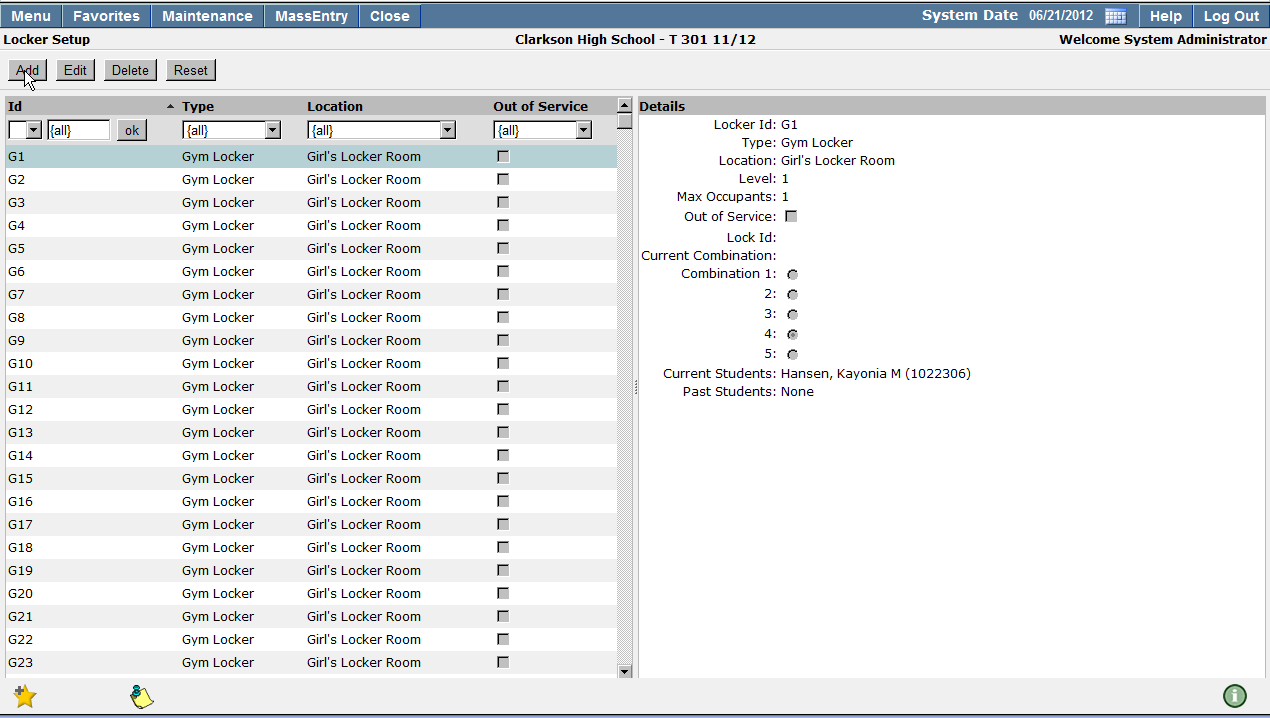
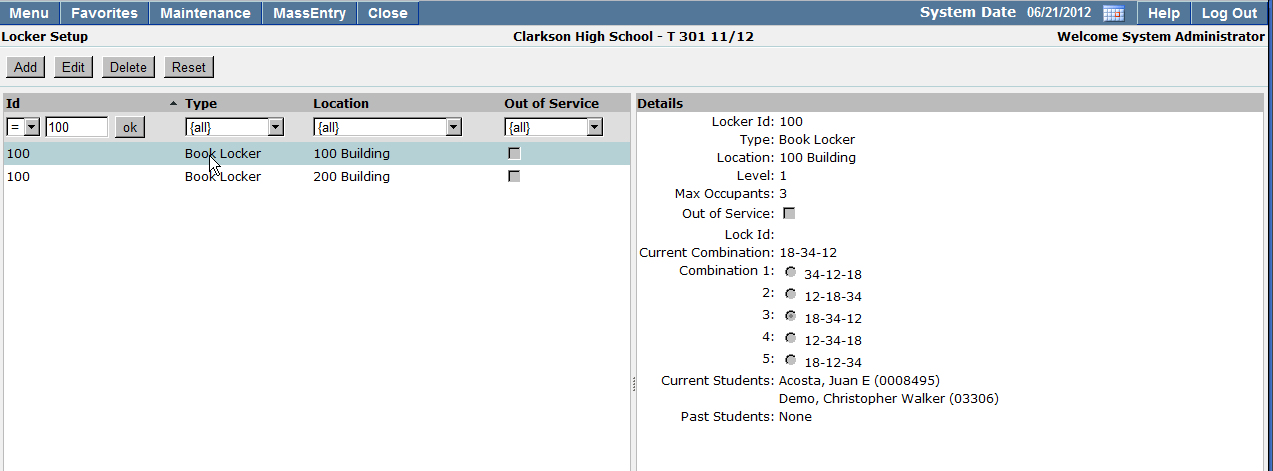
The default view for the Locker Editor application will display all lockers at the selected school site. To search for specific lockers, enter information in the search criteria fields. Enter as much, or as little information as you have, the locker selection list will be refreshed in real time as search criteria is entered.
- Id filters: The Id filters allow users to search for locker numbers that are equal to (=), greater than (>), or less than (<) the locker number entered in the locker number field. The locker number field will default to search for {all} lockers.
- Type: Locker types are predefined and can vary by school site. There may be several locker types with the same locker id in varying school locations. The locker type field filters lockers based on the type of locker for which you are searching. For example, the type field may be comprised of book lockers, gym lockers, team lockers, etc.
- Location: Lockers may be located throughout several campus locations. Narrow your search by entering the specific campus location of the locker you are searching for in the location drop down list.
- Out of Service: The Out of Service field allows you to filter through lockers which are no longer actively in use.
To add a new locker at a school site:
1. Open the Locker Editor application.
2. Click Add.
3. Enter locker information.
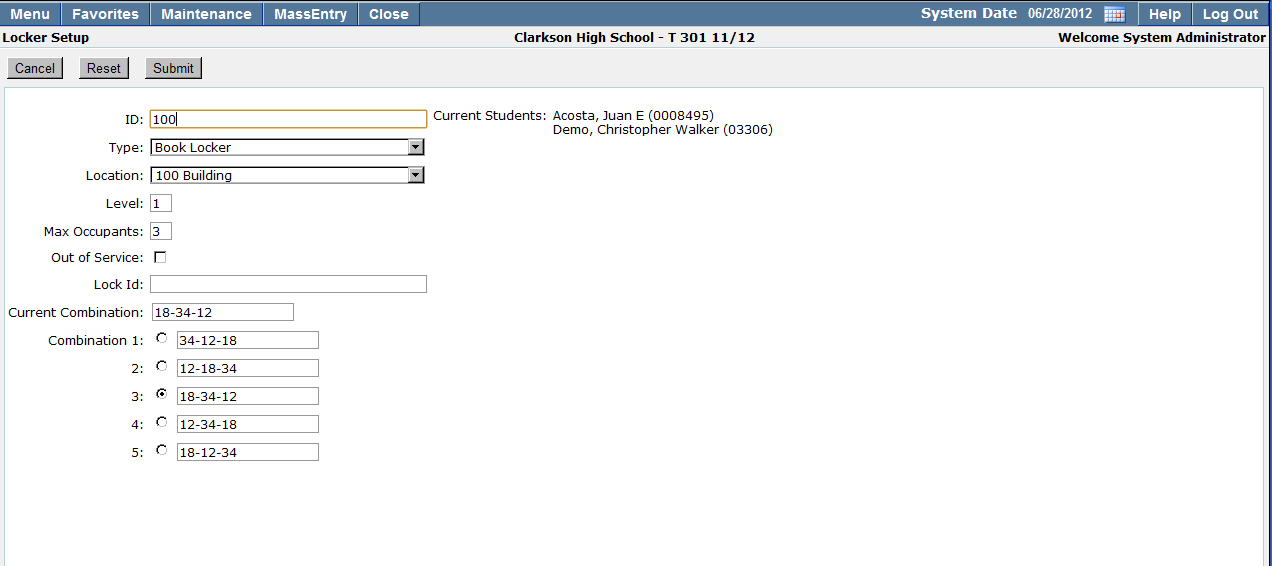
ID: Locker ID number, this number should correspond to the number which is displayed on the locker itself.
Type: Type of Locker you would like to define. Locker types are pre-defined by your school site and may include locker types such as Book, Gym, Student, and Music.
Location: Select the campus location where the locker is located. This field may include campus location types such as Locker Room, Book, Classroom Building Numbers, Gym, etc.
Level: Locker levels may be used to designate locker categories. Levels may be used to identify grade levels, upper and lower levels, reserved status, etc.
Max Occupants: Indicates the maximum number of students which can be assigned to the locker.
Note: When the maximum number of students is reached, the locker will no longer be available for assignment in the Student Locker application.
Out of Service: Used to indicate when a locker is out of service for any reason.
Lock Id: If the locker uses an external lock, identify the serial number or lock Id number which will be assigned with the selected locker number.
Current Combination: Enter the current locker combination which is being used to open the locker.
Combination Numbers 1-5: Lockers may have more than one possible combination. Locker combinations may be switched from year to year and may be tracked by selecting the radio button which corresponds to the locker combination in use. The selected combination will be populated in the Current Combination field.
4. Once all required locker information has been added, click Submit to save your changes, Reset to clear out any data entries made since the previous save, or Cancel to exit and return to the previous screen.
Note: Id, Type, and Location fields are required and must be entered in order to save a new record.
Existing lockers may need to be edited when information such as combination numbers are changed.
To edit existing lockers:
1. Highlight the locker you would like to edit from the current locker selection list and click Edit. Or, highlight the locker and double click to open the edit form.
2. Edit the existing locker information.
3. Click Submit to save your changes, Reset to clear out any data entries made since the previous save, or Cancel to exit and return to the previous screen.
To delete an existing locker:
- Highlight the locker you would like to delete from the current locker selection list and click Delete.
- You will receive a pop up message confirming that you would like to delete the selected row. Click Ok to continue, or Cancel to return to the locker selection list.
