
The Q Class Count Items is an application used to enter and maintain items that are available to record counts of in Class Attendance.
Class Count Items is located under the School menu in Q.
Add Class Item
Items may be defined for class counts in the Class Count Application in the School Menu.
To add an item:
- Launch Class Count Items from the School Menu
- When logged in to the district track:
- The School default drop down list is All Schools. Count Items for all schools will display here. Items added with the School filter set to All Schools will be available at all district schools
- When logged in to the district track you may also select an individual school from the drop down list to add items for only the selected school
- When logged in to a school track items may only be added to the logged in school
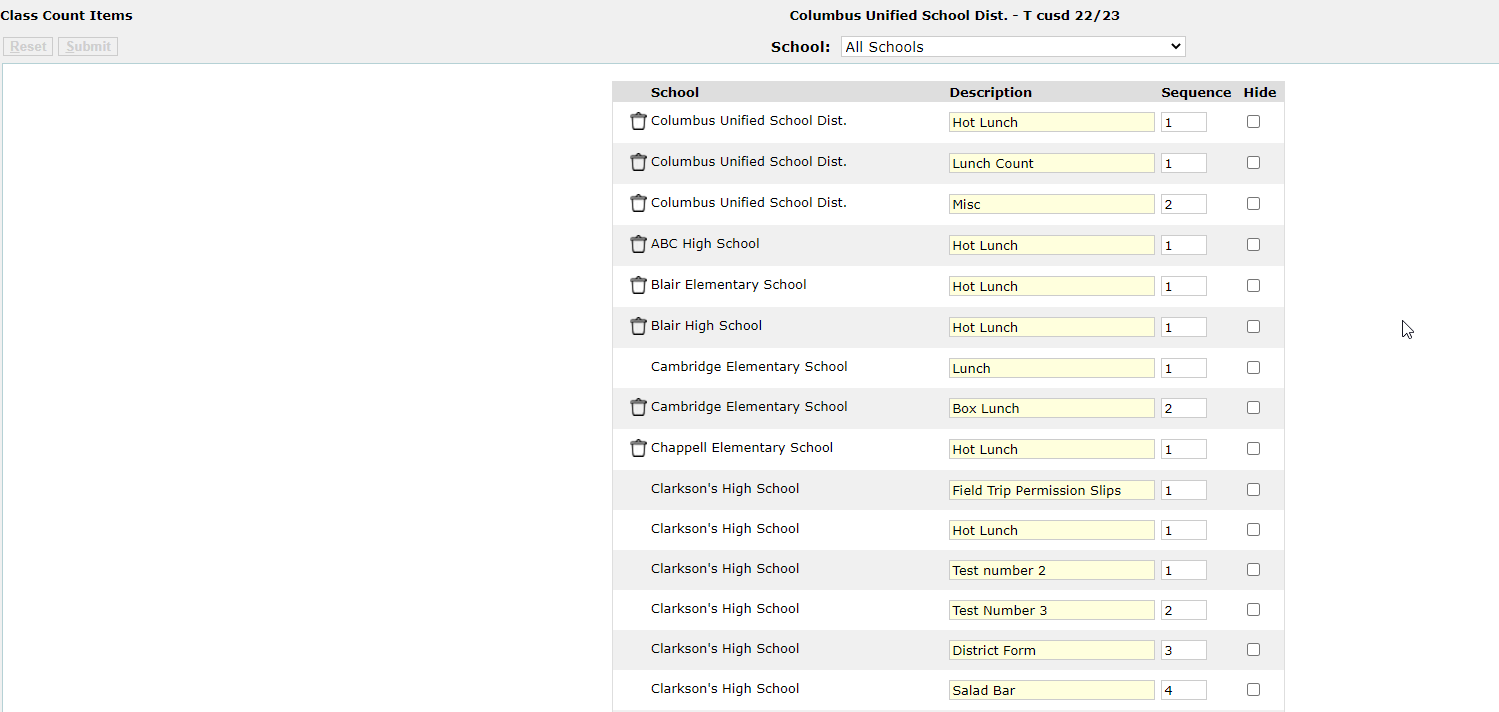
- Click Add Class Count Item

- Add Description of item
- Submit
Use Class Count Item
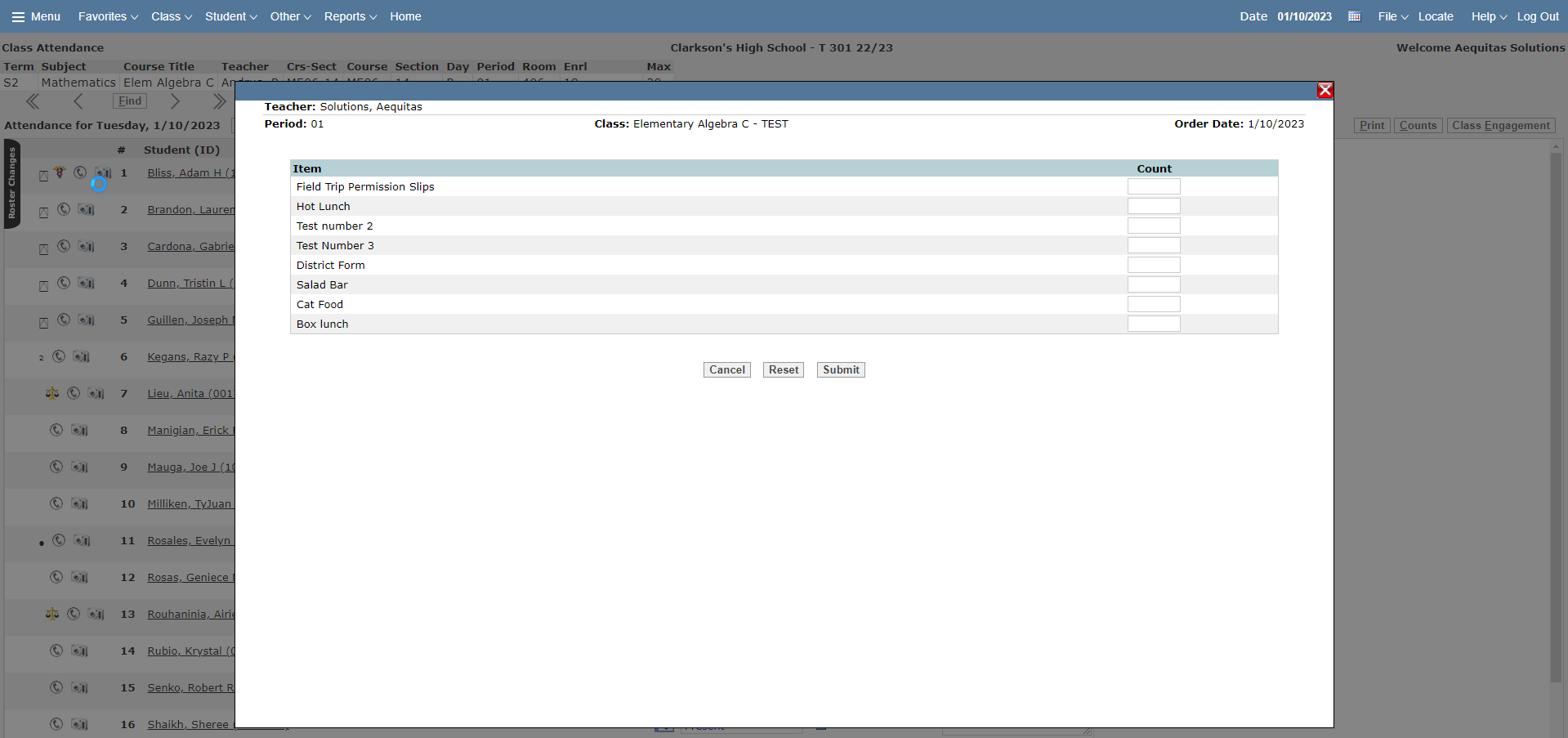
Once items are added to either All Schools or to an individual school the option to enter a count for the item will appear in the upper right hand corner of the Q Class Attendance Application. 
Clicking Count will open a pop up screen with all items defined for the school and a box to enter the count.
Videos
