
Students participating in Career Technical Education (CTE) Pathways may be enrolled in one or more CTE Pathways using the Student CTE Pathways application.
The Student Course Plans application may also be used to set a student’s CTE Pathway and courses.
Student CTE Pathways is located under the Schedule menu in Q.
The Student CTE Pathways Report is available under Schedule Reports and may be used to produce reports of students with their CTE Pathway data.
Student CTE Pathways opens to the Student CTE Pathways tab. From this tab, the application is a student banner application where the banner shows students already enrolled in a pathway and applies additional filters such as logged in school, an Include filter (‘Active’, ‘Inactive’, ‘Both’) etc. For more information, see QWiki Help on Q - Student Banners. 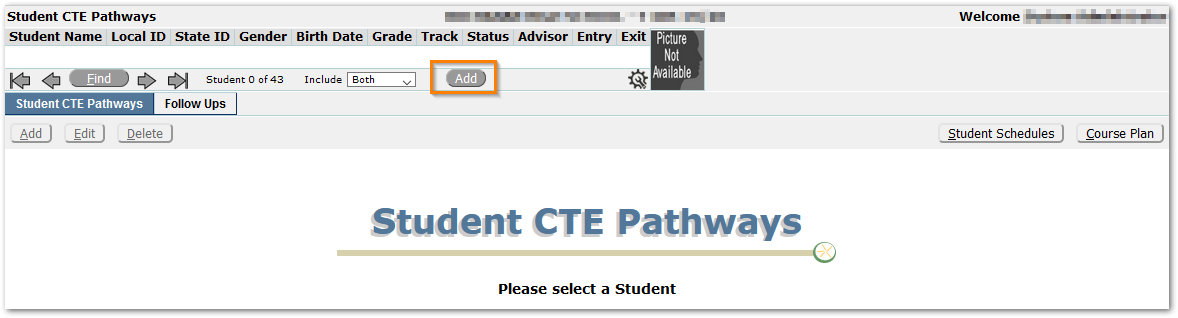
In the example shown, 43 students are currently enrolled in a CTE Pathway in a school with a much larger enrollment.
To find a student already assigned to a CTE Pathway, use the standard Find dialog filter fields, or scroll using the arrow keys in the banner.
To add a student to a CTE Pathway:
- Click the banner Add.
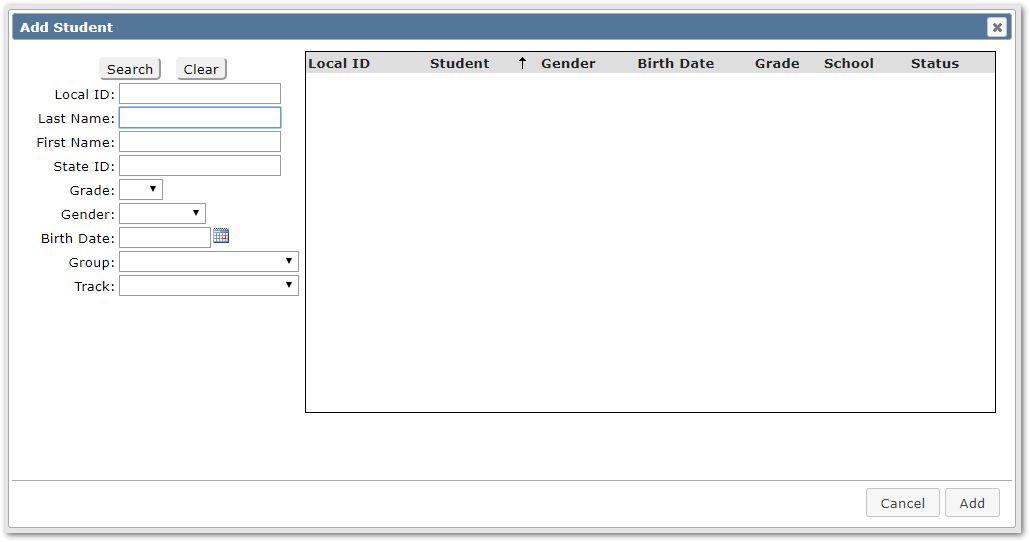
- Search for the student by entering search criteria and select the desired student.
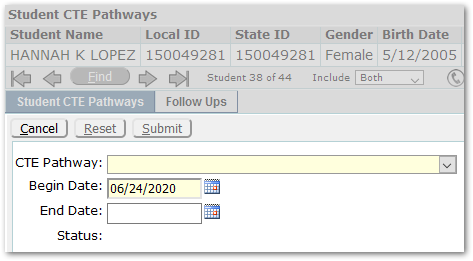
- Select the CTE Pathway.
Once the CTE Pathway is selected, courses assigned to the CTE Pathway will appear:
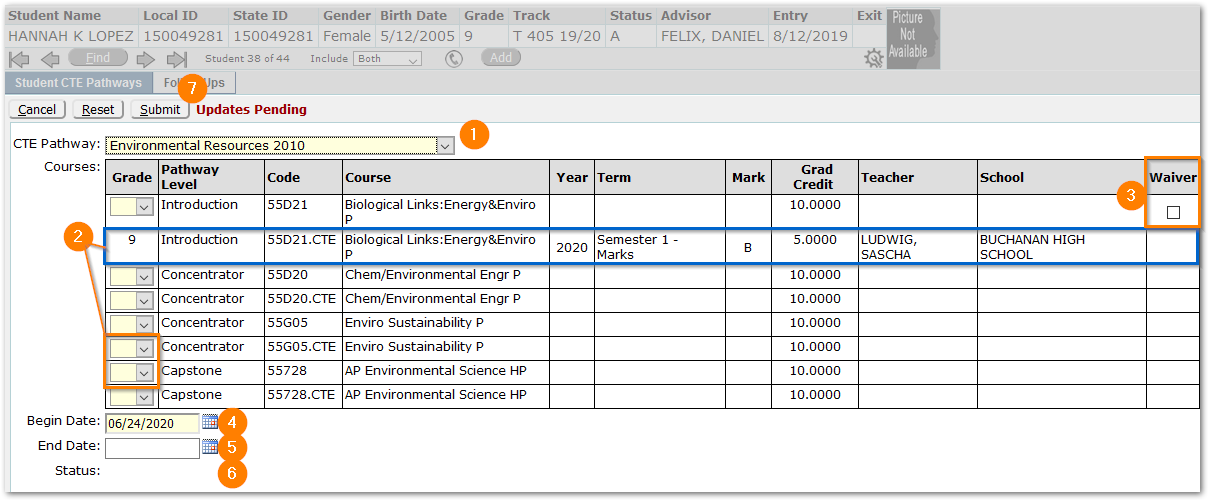
Any courses for which the student already has transcript records, such as the ‘Grade 9 - Biological Links’ shown above, will appear with the details from academic history. In our example, the student has completed Semester 1 of the Introductory course in the CTE Pathway. The term, semester mark, graduation credit, teacher and school are shown. Note the Grade in the first column is set, based on the transcript record.
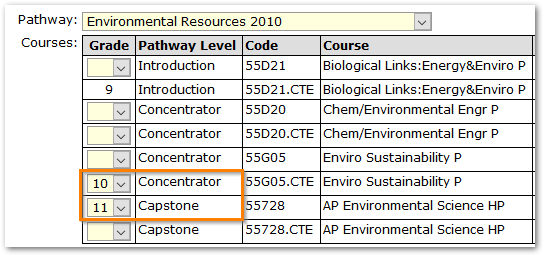
- Select and set the Grade the student will take their courses.
Each student will need one course selected for each Pathway Level unless a waiver is granted for an introductory level course. See step #3.
In our example, there are more than one possible Concentrator and Capstone course. Only one of each needs to be selected and set with a grade.
- To set a waiver for an Introductory level course, click the Waiver
- Accept the Begin Date, or if desired, set to the date the student entered the program.
- End date is optional and may be left unset, particularly if the student is currently in the pathway.
- Status will be calculated as part of Marks Processing or when the student’s academic history is updated. Status may be recalculated for an individual student once their record is saved, shown below.
- Click Submit to save the student’s CTE Pathway record.
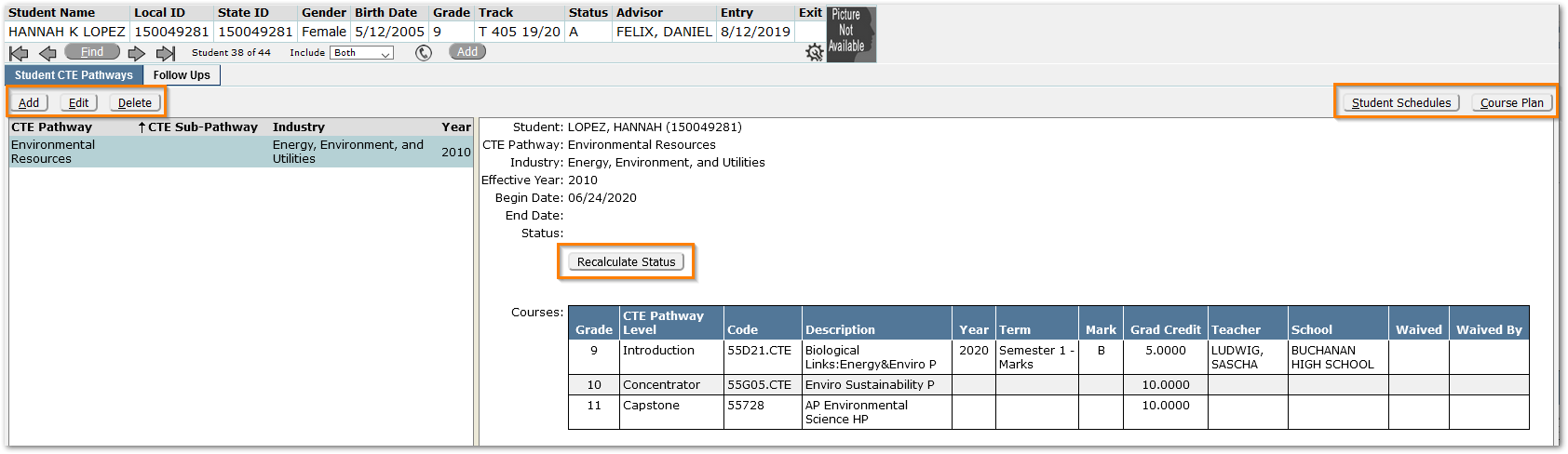
Once the record has been saved, it will appear in the student’s CTE Pathway list on the left, with details on the right, including selected classes. The student will now appear in the Student CTE Pathways banner.
A student may have more than one CTE Pathway. If needed, use the Add button, and add another CTE Pathway for the student following the same steps.
Recalculate Status
When a student has been earning credit for courses in their pathway, their status will be calculated as part of Marks Processing, or whenever their Academic History is changed, and GPA’s are recalculated. However, a student’s CTE Pathway Status may be recalculated by clicking the Recalculate Status button in their CTE Pathway record.
To Edit a Student’s CTE Pathway:
- Find the Student.
- Select the CTE Pathway.
- Click the Edit
- Make adjustments.
- Submit the changes to save the record.
To Delete a Student CTE Pathway:
- Find the Student.
- Select the CTE Pathway.
- Click the Delete.
Access Related Applications
To access the selected student’s record in Student Schedules or Student Course Plan applications, use the buttons at far right.
To record follow-up survey or contact information with students after they have graduated, use the Follow-Ups Tab.

Filter the students as needed using Graduation Year, CTE Pathway, CTE Pathway Status, clicking Refresh to get the list of students.
- Select the student.
- Click Edit.
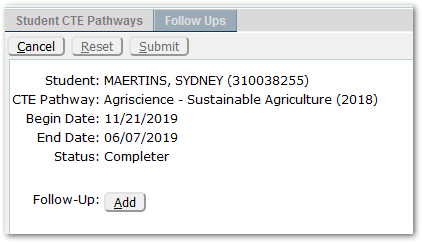
- Click Add to add a Follow-Up.
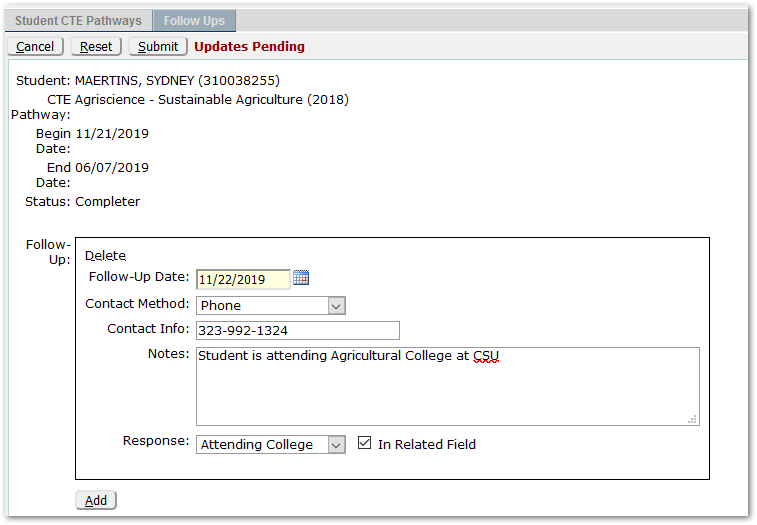
- Enter Follow-up Date,Contact Method, Contact Info, Notes, Response, and use the checkbox to indicate if the student is ‘In a Related Field’.
- Submit the changes.
- Additional Follow-Ups may be added by selecting the student, clicking Edit and using the Add
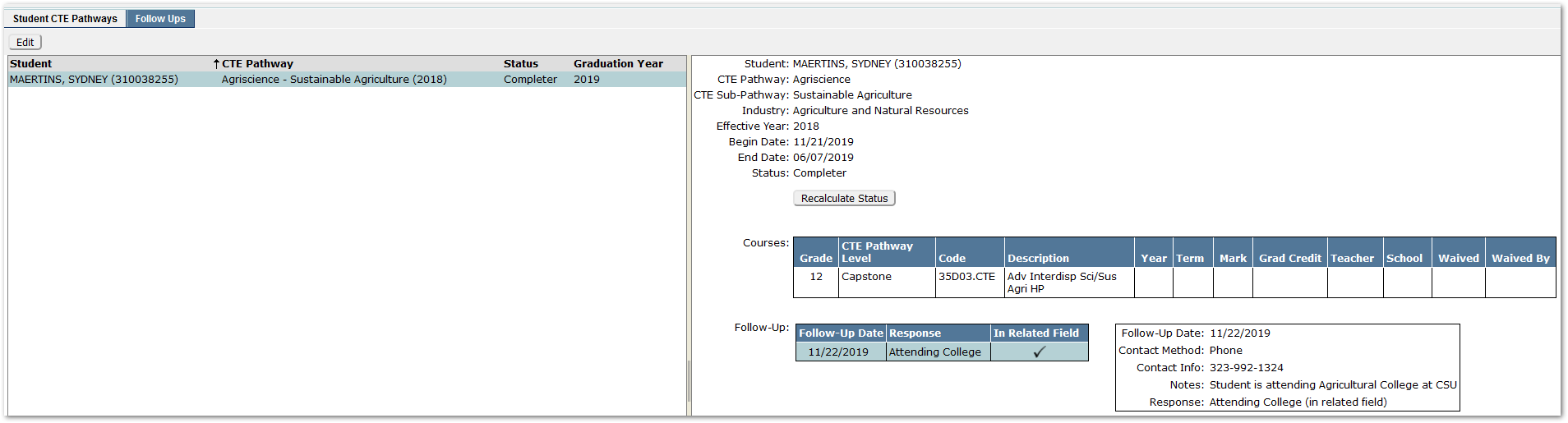
The student’s record will be displayed with details at right.
Student Course Plans may be used as an alternative to assign a student to a CTE Pathway. See Student Course Plans for more information.
