The Q Mass Immunizations application allows a user to Apply Immunization Rules, Apply Immunization Status, and Calculate Compliance for a defined set of students.
There are 3 tabs within the Mass Immunizations app that allow you to perform separate functions for a defined set of students. They are: Apply Rules, Apply Status, and Compliance. These can be used to save time when you have a large volume of immunization maintenance to do.

Mass Immunizations is located under the Health menu in Q.
The Apply Rules tab allows you to apply an Immunization Rule to a defined set of students. This tab contains a drop down list of the available Immunization Rules, and a Student Selection filter. 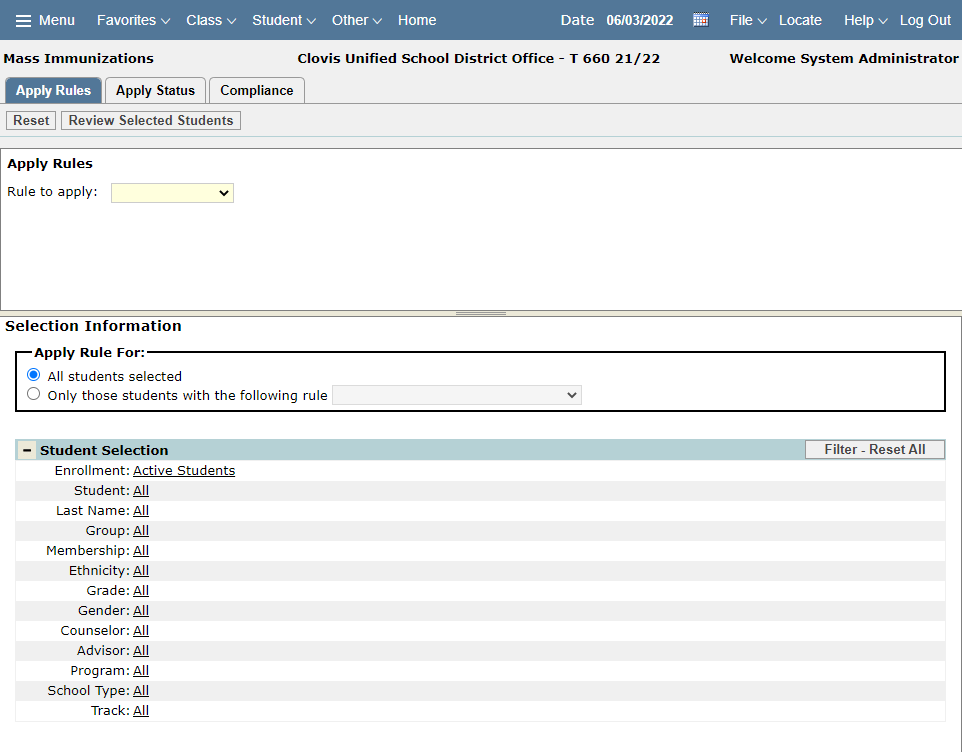
To assign a set of students an Immunization Rule:
- Select which Immunization Rule to apply from the drop down list.
- Build a list of students using the Student Selection Filters. The exemption filter can be used to select only students with a certain rule already set (useful to capture just those students who have an UNSET or placeholder rule in place).
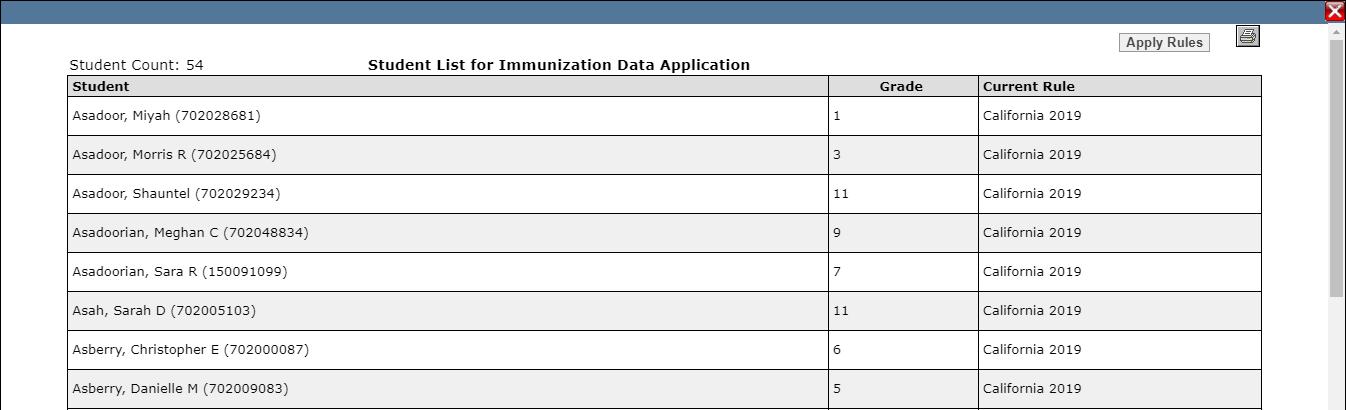
- Click Review Selected Students to view your list of selected students with their name, grade and current Rule (you may print your list from here by clicking the printer icon in the top right corner).
- Click Apply Rule to assign this group of students the selected rule.
Once you’ve clicked Apply Rules, the app will run and will display a green PROCESSING COMPLETE notification at the top of the screen to let you know that the new rules have been applied.
The Apply Status tab allows you to apply an Immunization Status to a defined set of students. This tab also contains a drop down list, but now of the available Immunization Statuses, and also a Student Selection filter.
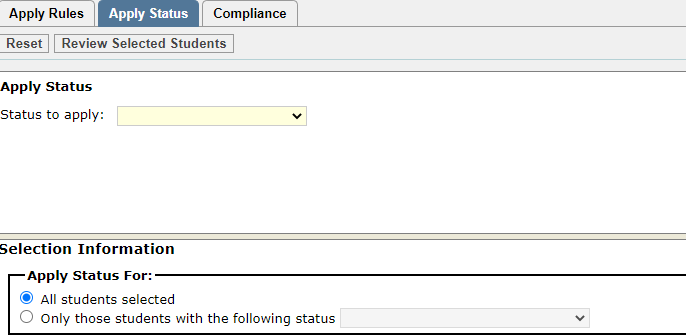
There is also a Student Selection filter below this, to further filter what students will be selected for immunization status change.
To assign a set of students an Immunization Status:
- Select which Immunization Status to apply from the drop down list.
- Build a list of students using the Student Selection Filters. The exemption filter can be used to select only students with a certain status already set (useful to capture just those students who have an UNSET or non-non-compliant).
- Click Review Selected Students to view your list of selected students with their name, grade and current status (you may print your list from here by clicking the printer icon in the top right corner).
- Click Apply Status to assign this group of students the selected status..
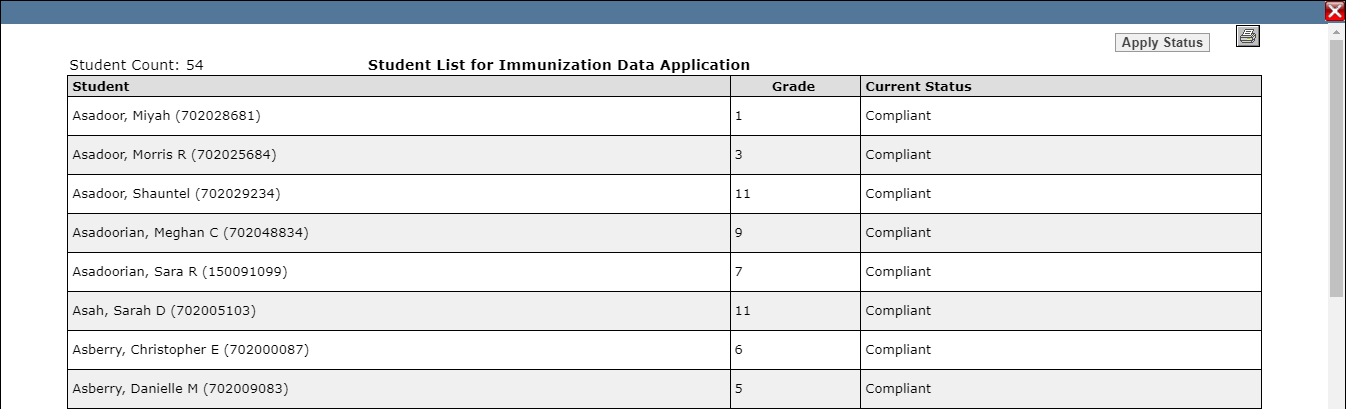
Once you’ve clicked Apply Status, the app will display a green PROCESSING COMPLETE notification at the top of the screen to let you know that the new statuses have been applied.
The Compliance Tab allows you to Calculate Immunization Compliance for a set of students. This tab contains a Calculation Result button, and a Student Selection Filter.
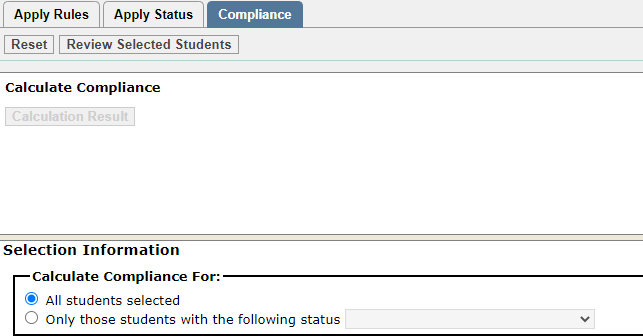
The Calculator Result button may only be used after you have Calculated Compliance.
To Calculate Immunization Compliance for a set of students:
- Build a list of students using the Student Selection Filters. The exemption filter can be used to select only students with a certain compliance status (useful to calculate just those students who are currently non-compliant).
- Click Review Selected Students to view your list of students. From here you may print your list of students that will have their compliance calculated by clicking the printer icon in the top right corner.
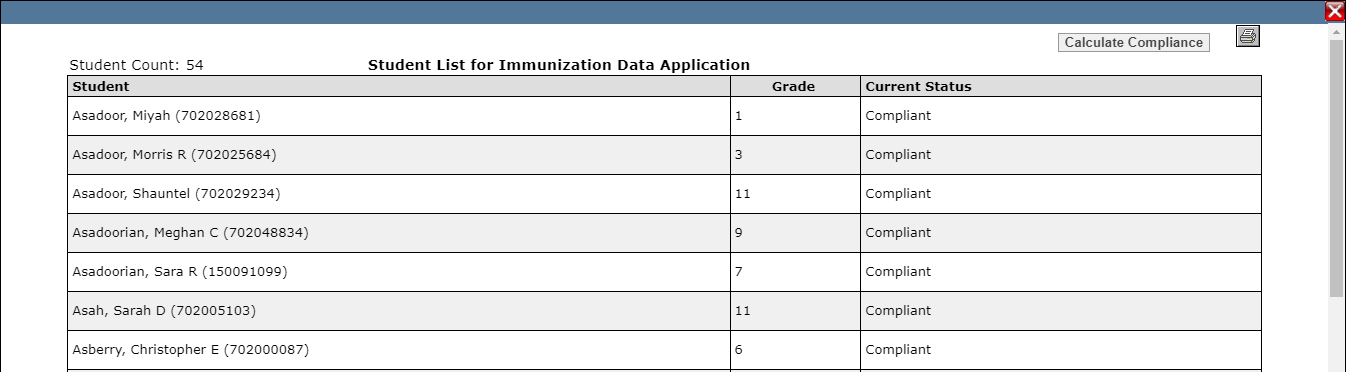
- Click Calculate Compliance to calculate immunization compliance for your selected students.
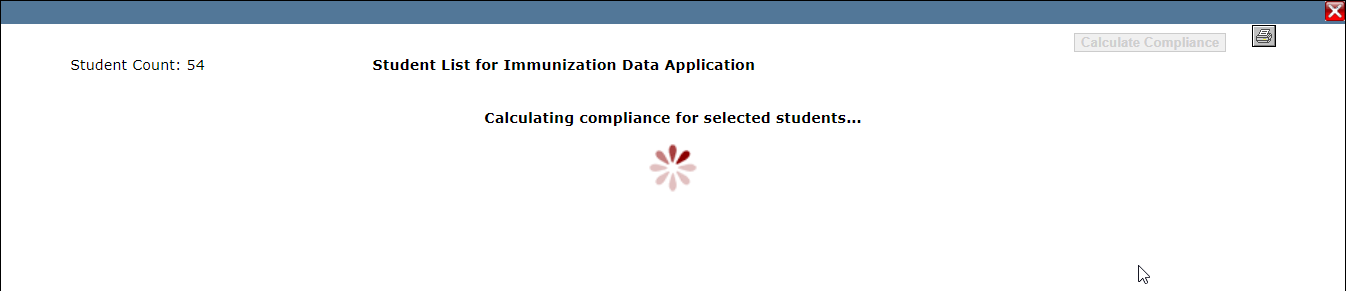
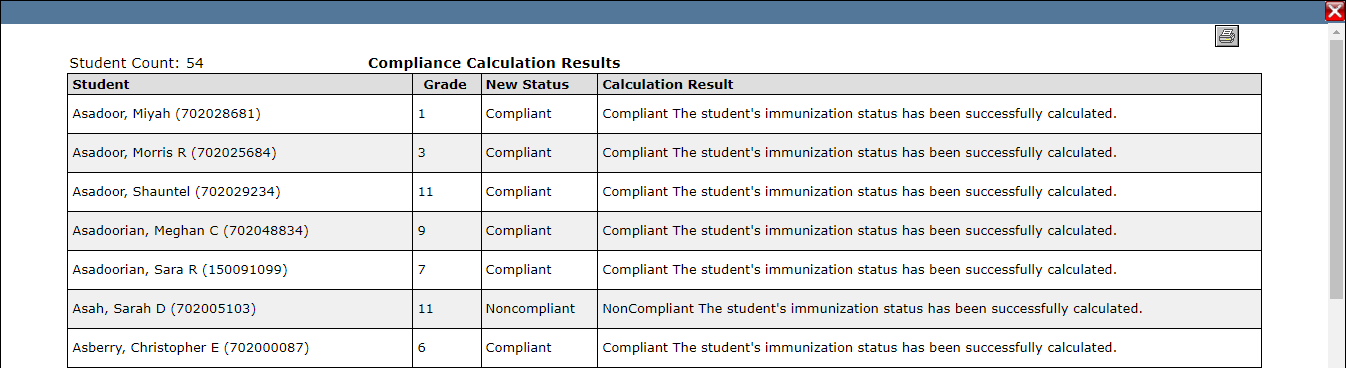
- Calculation results will display, and allow you to print the results if needed.