
The Q Food Service Data Entry Application provides a way to record summary data for food service sites. Typical uses for the Data Entry application include:
- Record data from sites not connected to the network.
- Record site volume sales (milk, vending, banquet, etc.)
Records that are created using the Data Entry application are in addition to records created by the Payments, Cafeteria, Class Entry and Accounts applications. Daily Detail reports show this data as transaction type ‘Journal’.
Data Entry is located under the Food Service PoS menu in Q.
From time to time food service items may need to be recorded for sites that provide food services for sites that may not be connected to the network, or that need to record volume sales.  To add Journal entries:
- Select the Food Service Site from the Site drop down list and the Meal period for which you will be adding the Journal entry.
- Click Add
- The New Journal Entry window will open.
- Site: Food Service sites that have been configured will be displayed in the Site drop down list.
- Drawer: Only cash drawers that have been configured for the selected site will be displayed in the drop down list.
- Food Type: Lunch, Breakfast, SMP Milk, Snack
- Consumer: Student, Faculty, Adult, Child
- Pay Type: Free, Reduced, Paid (available choices are driven by the Consumer selection).
- Item: Cafeteria Food Items that have been defined will be available for selection in the drop down list (available choices are driven by the Meal selected).
- Date: The date will default to the system date.
- Meal: Meals that have been defined during POS configuration will be available for selection.
- Qty: Enter the quantity of meals that are being purchased.
- Each: The price per item.
- Total: Total price for all items.
- Payment: The amount collected for the meals.
- Meal Rates: Rate for a Reimbursable meal, Non-reimbursable meal, and a Worker meal for this consumer type.
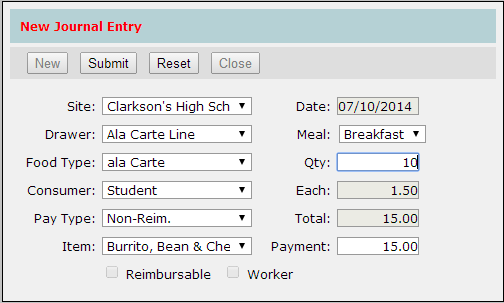
4. Click Submit to save the Journal Entry. Or, click Reset to clear any changes made since the previous save.
5. Entries which have been added can be viewed in the Journal Log by date.

Journal entries can be edited so that necessary changes can be made. To edit an existing journal entry:
- If the journal entry was created on the logged in date it will appear in the journal log. Highlight the desired date and double click on it or click Edit. The Journal Entry will open, make the necessary changes and click Submit to save your changes or Reset to undo any changes made since the previous save.
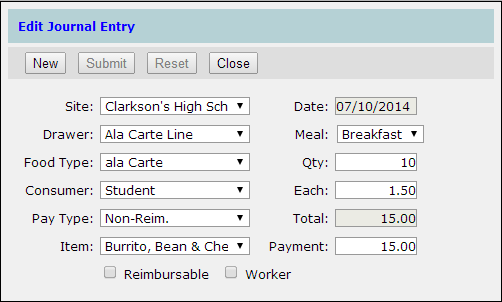
2. If the journal entry was created on a date other than the logged in date, change the system date using the calendar function in the upper right hand corner of the screen. Click on the calendar icon to edit the date.

Journal entries that have been added in error can be deleted. To delete journal entries:
- Navigate to the date which the entry was created.
- Highlight the desired entry from the list of journal entries displayed in the log.
- Click Delete.
- A confirmation message will be displayed. To continue with the process, click Yes and the entry will be deleted. To cancel the process, click No and you will be returned to the journal log.

