
As Q Food Service Applications are processed by districts, eligibility notices must be generated and sent out to applicants informing them of their application status. The Eligibility Notices application allows Districts to create customized food service eligibility letters, and process emails and / or letters based on application status and communication preferences.
Eligibility Notices is located under the Food Service menu in Q.
When changes are made to a Food Service contact, either through the Eligibility Applications or Process Applications interface the changes are confined to Food Service contact tables. When changes are made to a student contact, and the student contact is linked to a Food Service contact, one of three actions may affect the Food Service contact and Food Service Contact Phone tables depending on the preference that has been selected.
- No Action: If a student contact is changed and the Eligibility Notices preference is set to No Action, then no action will be taken to sync the data.
- Change Request: A change request is generated for the corresponding applicant. Change requests can be processed through any Food Service application that has access to the Food Service Mail subsystem, such as Eligibility Notices.
- Silent Update: Corresponding elements (name, address, phone, etc.) in the Food Service Contact and Food Service Contact Phone tables are automatically updated with changes made to the student contact.
Eligibility Notice preferences can be managed in the Preference Editor application. To access the application, hover over the System menu and single click Preference Editor.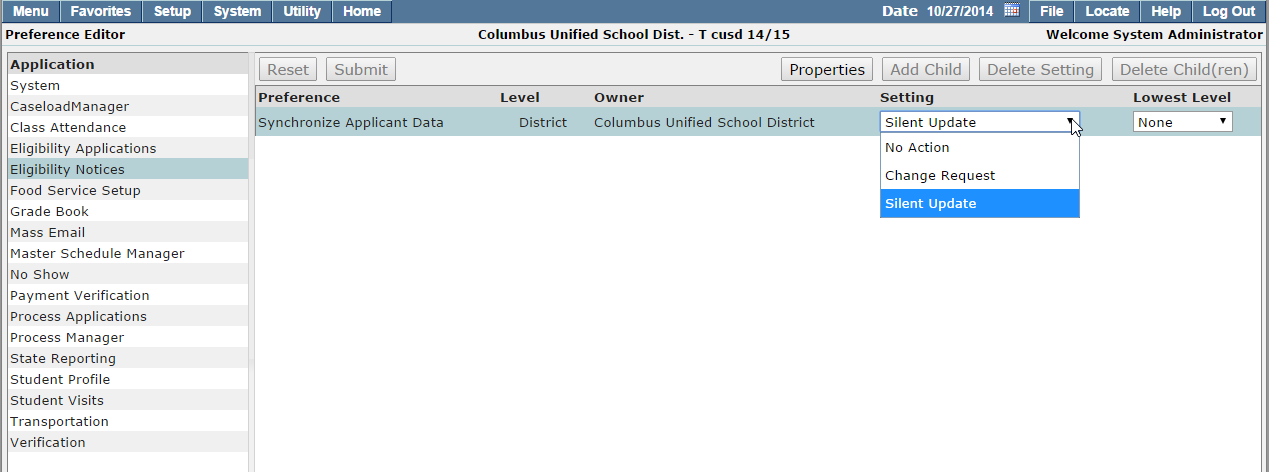
Student Contacts
A student contact is linked to a Food Service Applicant only when the Applicant was originally derived from the Student Contact. For Districts that have used the Front Office Food Service applications and have transitioned to Q Food Service, all existing Applicants were derived from existing Student Contacts.
Applicants are also linked to Student Contacts as follows:
- Online Applications: If the applicant chooses one of the first two registration methods, the Applicant will be linked to an existing Student Contact.
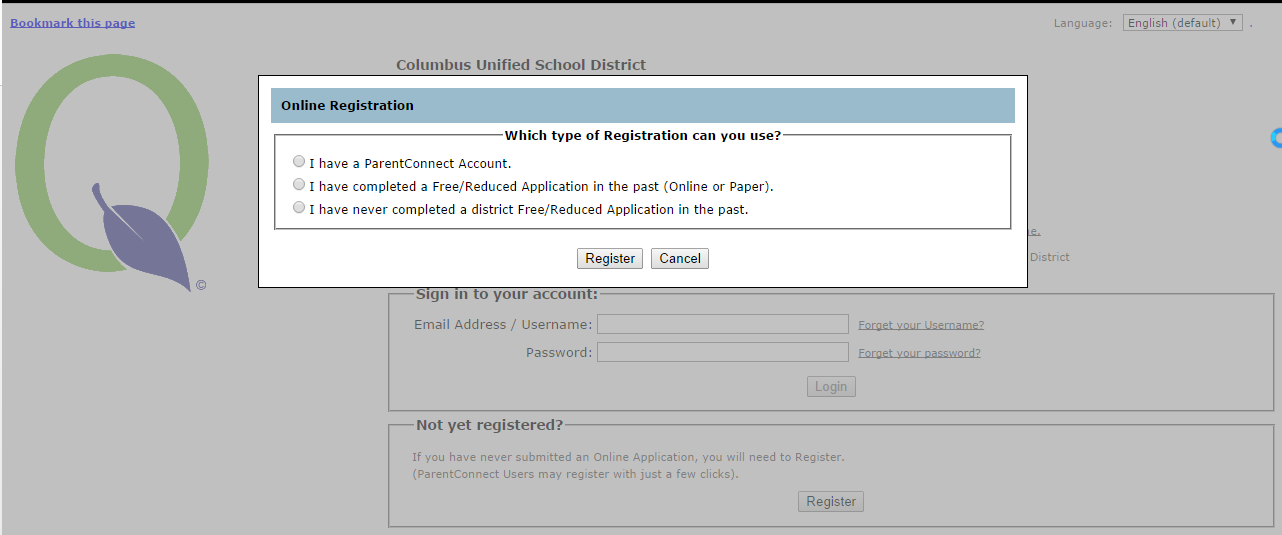
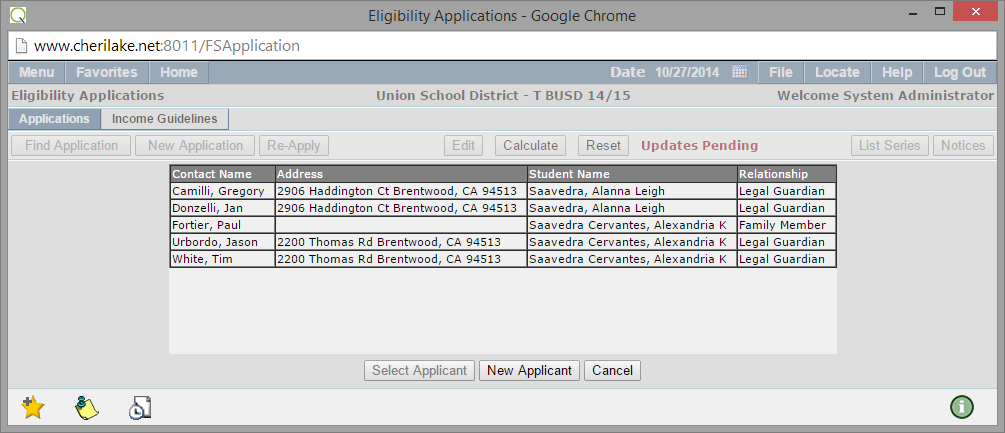
2. Eligibility Applications: If the user selects an existing contact and clicks “Select Applicant”, the Applicant will be linked to an existing Student Contact. A ‘New Applicant’ will be added to the FSContact table with no link to the Student Contacts.
Process Mail, Email, and create customized Eligibility Notices in the Process Mail tab of the application.
Process Mail
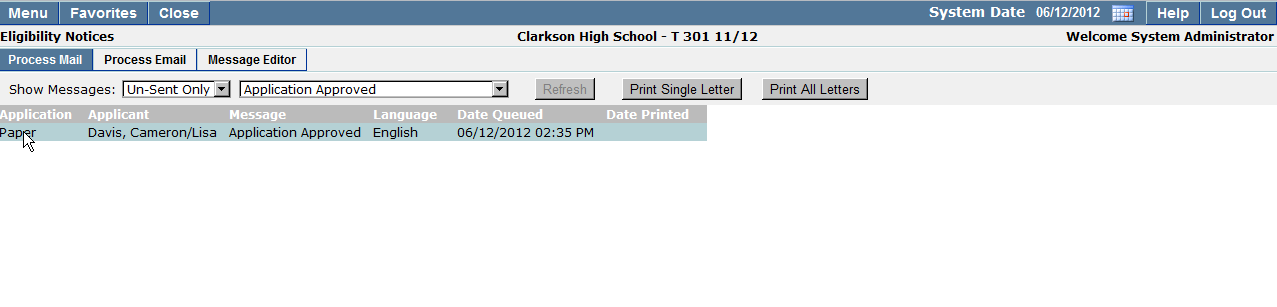
1. Filter which messages you would like to display in the Process Mail & Email listing screen.
2. The Show Messages drop down list will allow you to filter Eligibility Notices based on messages which have been Sent, remain Un-Sent, or All messages. You can further filter eligibility notices by using the second drop down list to filter based on Eligibility Notice type such as Application Approved, Application Denied – Income over limit, etc.
3. Select the desired filters from the list, and click Refresh. Only Eligibility Applications meeting the filter criteria will be displayed.
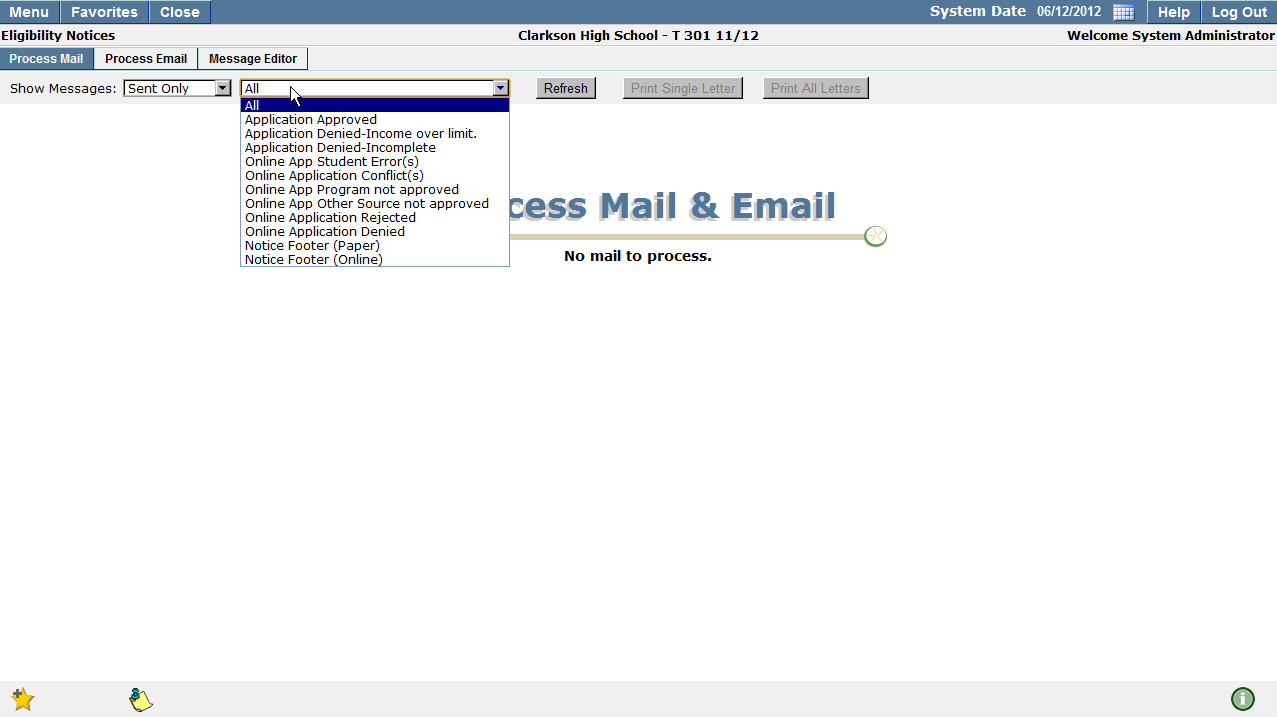
4. If there are multiple Eligibility Notices returned in your list, you may ‘Print All Letters’ in the queue, or select an individual notice from the list, and select ‘Print Single Letter’.
Process Email
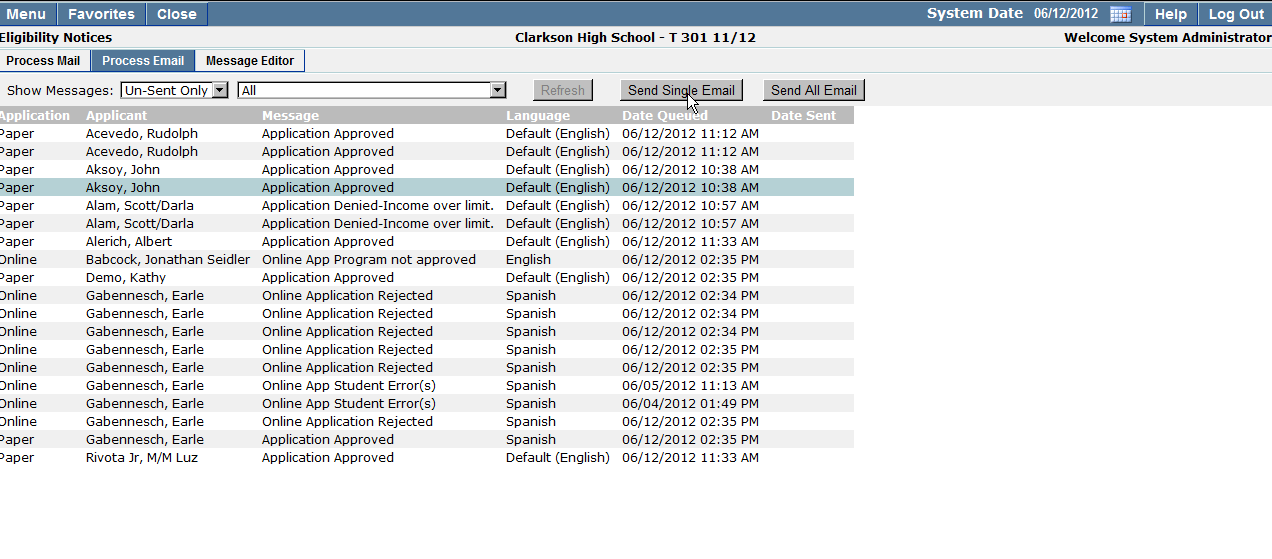
Applicants who have selected email as their communication preference will appear in the Process Email tab once their application has been processed.
- Filter email messages by selecting desired options from the Show Messages drop down lists.
- Click Refresh
- Only emails which match filter criteria will be shown in the Eligibility Notice list.
- To send a single email, select the desired notice and click Send Single Email, or send all emails in the queue by clicking Send All Email.
Message Editor
The Message Editor allows users to manage the various Eligibility Notices that are generated during the creation of Online and Paper Eligibility Applications. Separate templates are maintained for each notice (for email and printed mail) allowing users to format printed notices differently from email notices. The Message Editor is used to create a Mail Merge template, allowing users to insert data elements from the applications into the notices.
1. Click Message Editor
2. The Message dropdown control contains a list of the various messages generated by the system during online applications processing, posting, and creation of paper applications. Content must be present for each of these notices (both mail and email) before queued messages can be created.
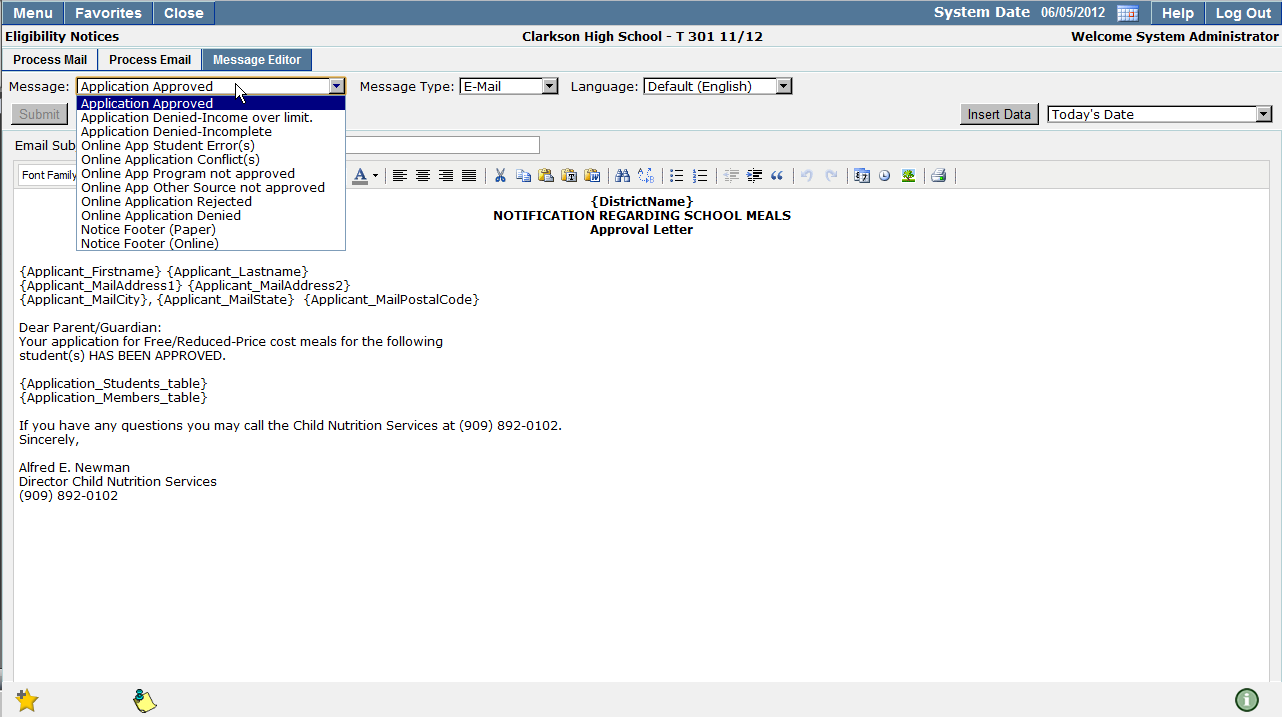
3. Choose the Message, Message Type, and Language for which you would like to create Eligibility Notices.
4. Insert Data: Enables you to insert mail merge fields into Eligibility Notices. This enables users to create one Food Service Eligibility Notice per district which could then be populated based on information contained in food service applications.
5. You can continue to move from page to page by changing your selection in the Online Application Content drop down selection list.
6. To save changes, click Submit, or Reset to undo any changes and return to the previous screen.
