The Assign Students application is used for all basic elementary scheduling functions. Students may be scheduled in all courses a teacher teaches, or to individual classes taught by the teacher. Assign Students may also be used to unschedule students from an individual faculty member’s course in the master schedule.
Assign Students is located under the Schedule menu in Q.
Assign Students is a Staff banner application. There are two ways to search for staff in the Assign Students application; using the find function or the arrow keys.
When the application is first launched the user must search for the desired teacher. Staff may be searched for using any combination of Last Name, First Name, Local ID, State ID, Gender, Group or Track. Click on the Staff member name to select.
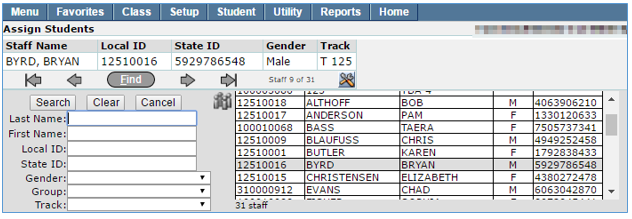
Once the Faculty member has been selected the user may assign individual or multiple students to the faculty member’s courses in the master schedule.
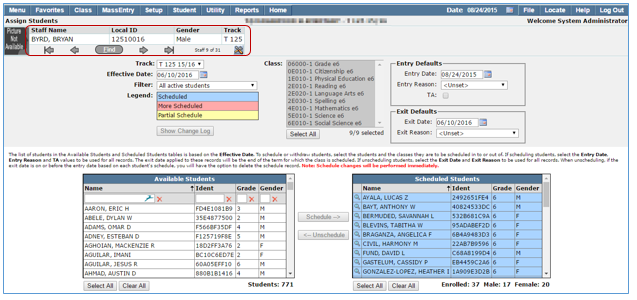

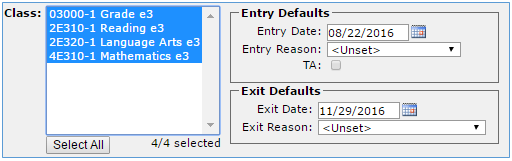
- Class—All classes taught by the selected teacher display in the Class box with all classes selected by default. Individual classes may be selected by clicking on the class name. To select more than one class, hold the Ctrl key as you click.
- Entry Defaults may be set
- Entry Date—defaults to the system date but may be changed by manually entering the desired date or clicking on the popup calendar to select a date. The date selected will be the student’s schedule entry date for the selected courses.
- Entry Reason—select Manual or Pre-scheduled
- Manual schedule—if the loader is run these students may be rescheduled
- Preschedule—students will stay put if loader is run
- Exit Defaults
- Exit Date—defaults to the system date but may be changed by manually entering the desired date or clicking on the popup calendar to select a date. The date selected will be the student’s schedule exit date for the selected courses. Remember that Exit dates are inclusive, the exit Date should be set to the last day the student will attend the selected class.
- Exit Reason—select from the drop down list
To Assign Students to a teacher’s class or classes:
When scheduling students the date selected will become the Entry Date of the schedule records created for the students.
- Select Faculty Member
- Select Course or courses
- Select Entry Defaults
- Check the effective date
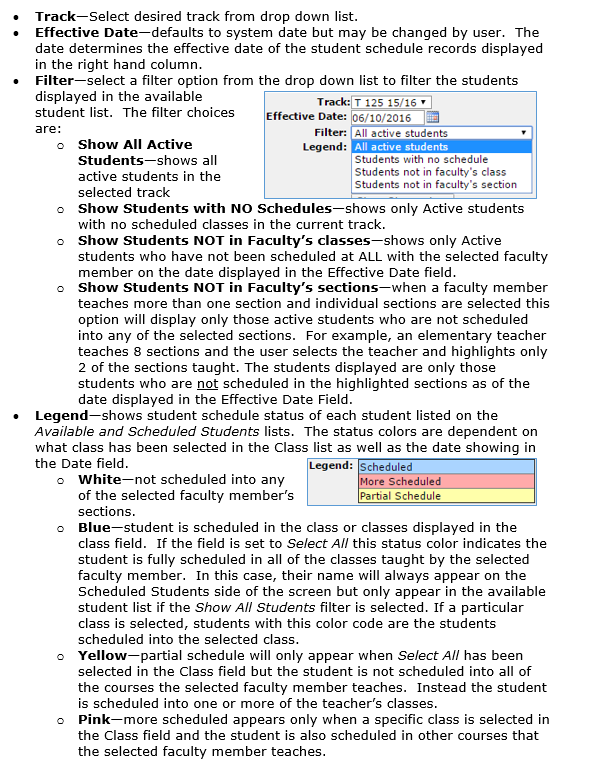
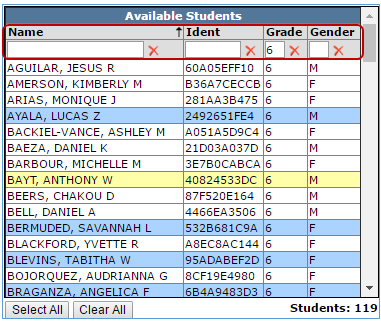
- Select Students using the Grade and schedule Record Status filters to filter the list of Available Students
- Use filters to narrow choices
- Click to highlight in green the student names from the Available Students list that you wish to schedule into the faculty member’s selected classes. Select All and Clear All buttons are also available.
- If student is to be scheduled as a TA, click the TA box
- Select the appropriate schedule entry code
- Click the Schedule> arrow button to schedule the students into the selected class or classes. Schedule changes are performed immediately after clicking Schedule
- Students cannot be assigned into a section or class if they are already scheduled for a class during the same period (unless one of those classes is defined as Conflict OK in the master schedule). A message will display if you encounter a conflict

- Once students are scheduled, their names will appear on the right-hand grid, Scheduled Students.
- The color codes legend at the left top of the screen provides information on the schedule status of students for the selected classes and date
After students are scheduled into a class, they will appear on the Scheduled Students list on the right. Scheduled Student totals are listed below the roster.
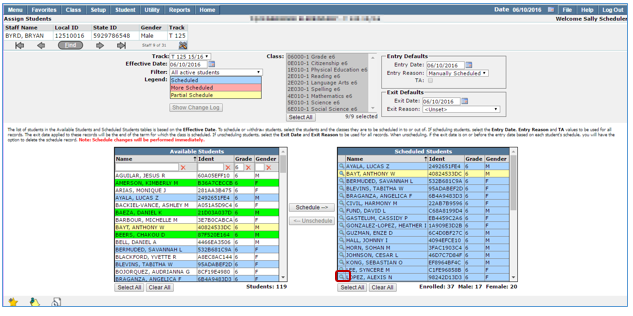
The student’s schedule may be displayed by clicking the magnifying glass next to the student name. The Entry and Exit Dates and several other attributes of a schedule record may be viewed. The Entry and Exit Codes and the TA (Teacher’s Assistant) setting may be edited from this screen. Clicking the printer icon will print the schedule displayed.
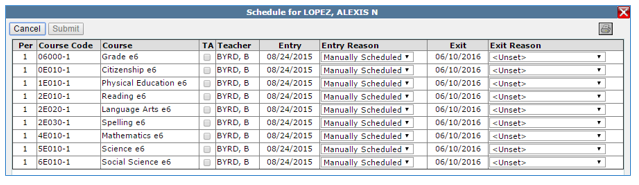
If you have assigned students to a course and section and you decide that you want to unschedule them, you can do so for either the students selected from a class, or for all the students in a class.
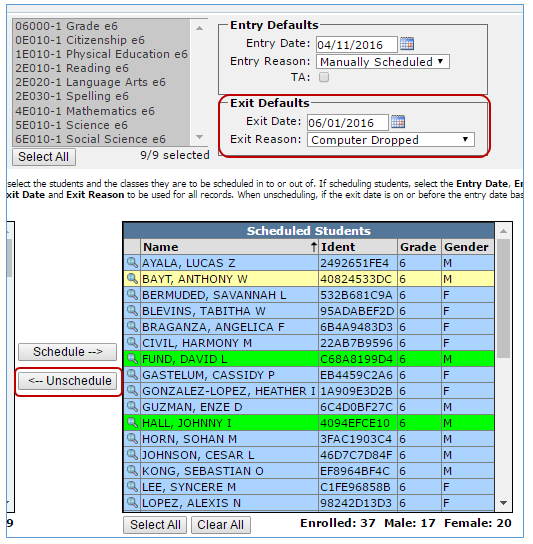
When unassigning students from a teacher’s class or classes remember the classes selected and date chosen will affect all students selected.
To unschedule a student:
- Find your teacher
- Select the class or classes you wish to unschedule
- Select the Exit date
- Select the Exit Reason
- Click to highlight in green the student names from the Scheduled Students list that you wish to unschedule from the selected faculty member’s selected classes. Select All and Clear All buttons are also available.
- Click the Unschedule> arrow button to remove the student(s) from the selected classes
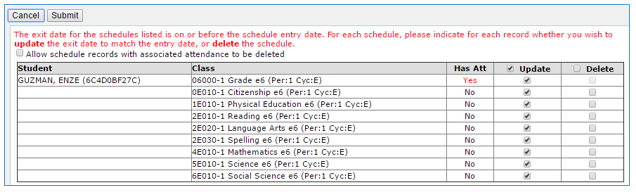
When unscheduling students if the exit date is on or before the entry date based on each student’s schedule, a popup box displaying the student’s schedule with options to update or delete the classes displays. If there is attendance associated with any of the classes an option is available to delete the associated attendance.
- Update—if you choose update the schedule records will remain in the system with the exit date matching the entry date. It will indicate the student was in class for one day. You will not be able to schedule the student into another class until the next day.
- Delete—if this option is selected the schedule record will be completely removed from the system.
- Attendance—if there is attendance associated with the class the Has Att column will display Yes. If you want to delete the class and the attendance you must check the Allow schedule records with associated attendance to be deleted box.
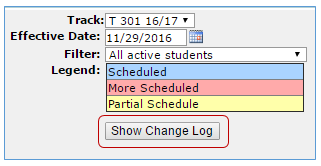
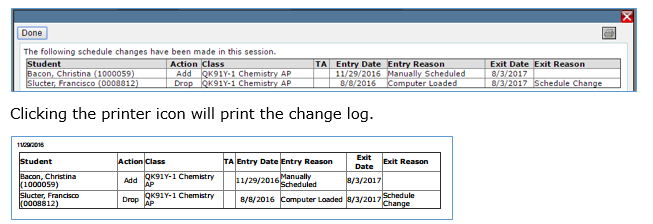
All changes that have been made in the current session are available to view by clicking the Show Change Log button.