
The Student Activities & Awards application allows school sites to record activities and awards for individual students. This enables staff to track how much time students spend outside the classroom participating in activities, fulfilling time requirements for certificates, receiving awards at school-sponsored events, and similar activities. Once the application has been launched, users must retrieve and select a student through the Student Banner.
Student Activities & Awards is located under the Enrollment menu in Q.
To document an activity or award for a student, click the Add Activity/Award button.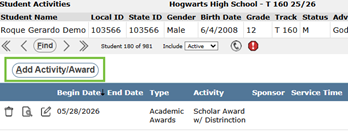
This will open the Add Activity/Award screen.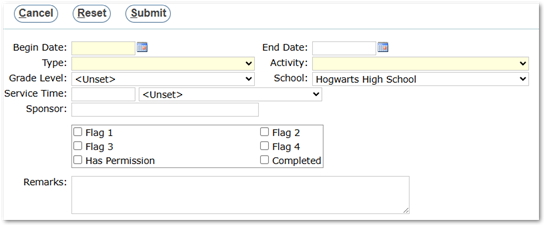
- Fields:
- Activity Begin Date – Enter the date in MM/DD/YYYY format or select the date using the calendar icon.
- Activity End Date (Optional)– Enter the date in MM/DD/YYYY format or select the date using the calendar icon.
- Type – Determines the activities available for selection in the Activity field. For example, if the type is set to Award, the associated activities may include Student of the Month, Merit Award Recipient, etc.
- Activity types and activities are defined by the school or district office and should include those used most frequently throughout the school year.
- Grade Level (Optional)– The student’s grade level.
- School (Optional)– The school the student is attending at the time the activity is entered.
- Service Time (Optional)– The amount of time the student spent on the activity, if applicable. For example, if the activity requires a specific number of hours to earn a certificate or award, the time may be documented here.
- Sponsor (Optional)– The name of the person or organization sponsoring the activity, if applicable.
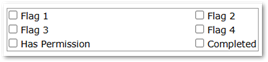
- Customizable Fields – Customizable flags are available, which may be configured by the district to display labels that are useful when entering student activity information. For example, checkboxes may be configured as Insurance on File or Physical Completed.
- Remarks (Optional)– Any additional details that may be useful for recalling specifics about the activity in the future.
- Save the activity and award information by clicking Submit at the top of the application. To cancel, click Cancel. To clear all entered data, click Reset.
- Once submitted, the record will display in the Student Activity and Awards screen.
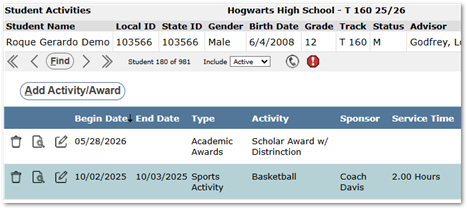
Single-clicking an activity or the View button, displays its details in the right-hand panel. This detail screen can be printed.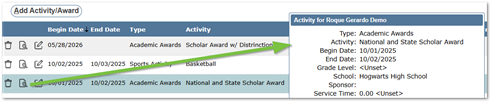

- To edit a record, click the Edit icon.
- To delete a record, click the Delete icon.
