
The Mass Visits application allows users to record when a session or visit occurs between school personnel and a student. Visits can include almost any type of meeting, interaction, or intervention. Tracking visits helps users understand how much time is spent working with students on various needs.
There are many situations where it is necessary to record visits for a group of students at once. Examples include documenting which students attended parent/teacher conferences or noting that a counselor met with a specific sixth-grade class to discuss next year’s scheduling process.
Mass Visits is located under the Enrollment menu in Q.
The Visit Information section allows users to record details about a visit.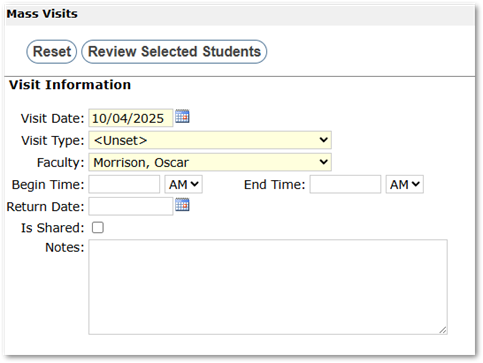
- Visit Date: Defaults to the current date. If the visit occurred on a different date, select and enter the correct date.
- Visit Type: Available visit types depend on the user’s permissions.
- Faculty of Record: Defaults to the logged-in user.
- Begin Time and End Time: Not required, but can be documented when beneficial. Enter in HH:MM 12-hour format (e.g., 02:15 PM).
- Return Date: Allows scheduling a follow-up visit. Reports and filters can be run based on this field, such as viewing all scheduled visits for the upcoming week.
- Is Shared: Defaults to off, meaning other users cannot see visit details. If checked, other users will see that the visit occurred, but the notes remain private.
- Notes: Enter any details that may be helpful when reviewing the visit later.
Additional district-defined extension data may appear below the notes field.
Choose desired students through the determined Selection filters, if needed. Users can learn more about Selection Filters in the Selection Filters documentation.
- Mass Visits Selection Filter Notes:
- By default, the system uses “Students selected who don’t have this visit type with the same person on the same date.” This option records the visit only for students who do not already have this visit documented, helping to prevent duplicate entries.
- If the visit should be recorded for all selected students regardless of prior visit history, users can choose “All students selected.”
After documenting the visit and selecting students, the visit is ready to be processed.
- To process the Visit, click the Review Selected Students button at the top of the application.
- A list of all selected students will be displayed. This window must be closed before performing any other operations.
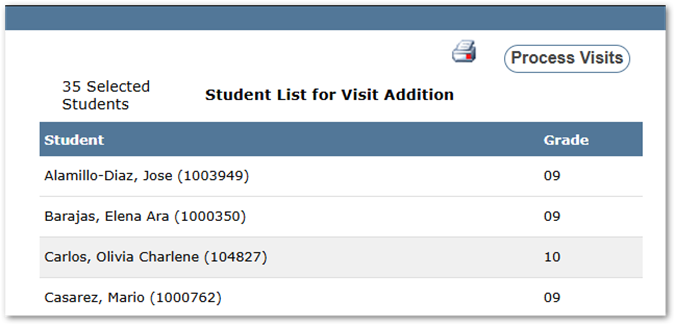
- Click the Process button at the top of the application. Depending on the number of students selected, a message saying “Processing Visits…” may appear at the top of the application.
- Users can also click the Print icon to save or print a copy of the generate list.
- When the visit has been successfully saved, a message reading “Processing Complete” will appear at the top of the application, confirming the task is complete.
Users with permission can click the Mass Entry Log to review Mass Visit postings and allow users to roll back entries.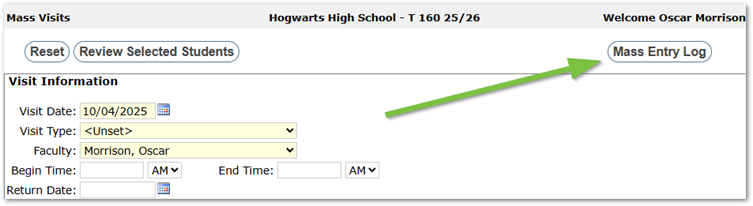
Reviewing Mass Visit Entries
After clicking the Mass Entry Log button, the Mass Visits Posting Log will display posted Mass Visits.
Clicking the View List Icon under the Student Count column, will display a list of affected students.
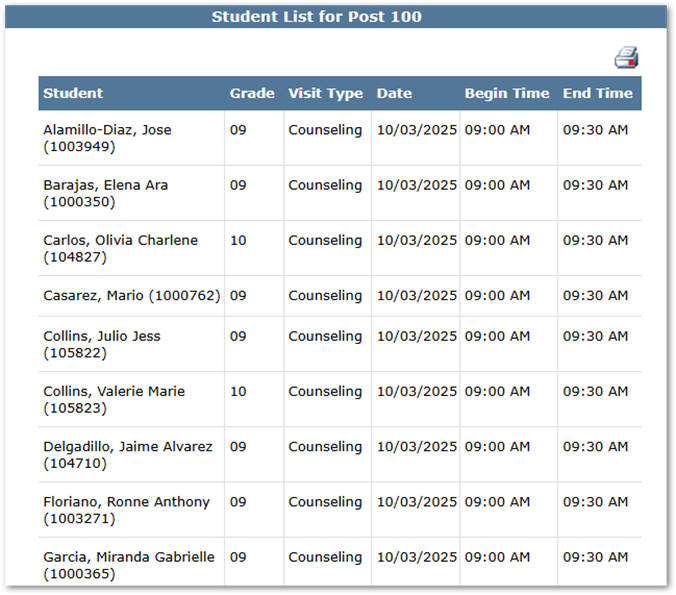
This list can be printed by clicking the Print icon in the top right corner.
Rolling Back Mass Visit Entries
From the Mass Visits Posting Log, users can Roll Back their submitted Mass Visit entries.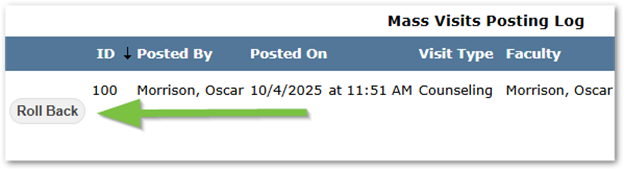
Clicking Roll Back for an entry will display a warning message that the action will permanently roll back visit records entered by this mass entry process. Users can click OK to continue or Cancel to exit the screen without making changes.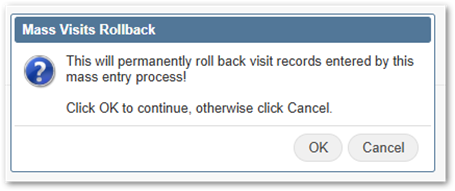
Clicking Ok will delete the entry, and remove the visit from the affected students. A processing Complete Message will display on the Mass Visits Posting Log screen.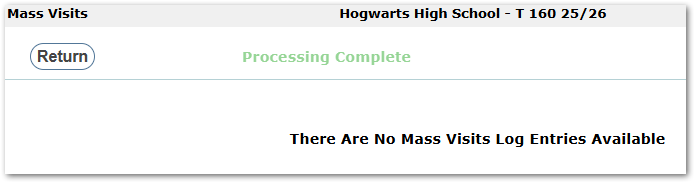
Clicking Return in the top left corner will return users to the Mass Visits screen.
