Student Attendance is a banner application used by office clerks and other staff with permission to record attendance.
- Clerks can typically take attendance for any student in the school.
- Teachers and alternates may only record attendance for students scheduled in their classes.
Student Attendance is located within the Attendance menu in Q.
A student must be selected before attendance can be submitted. For more detailed information regarding Student Banner and how to search for students, refer to the Student Banner documentation.
After selecting a student, the Attendance Grid is displayed. The grid provides an at-a-glance view of the student’s attendance record by date and period.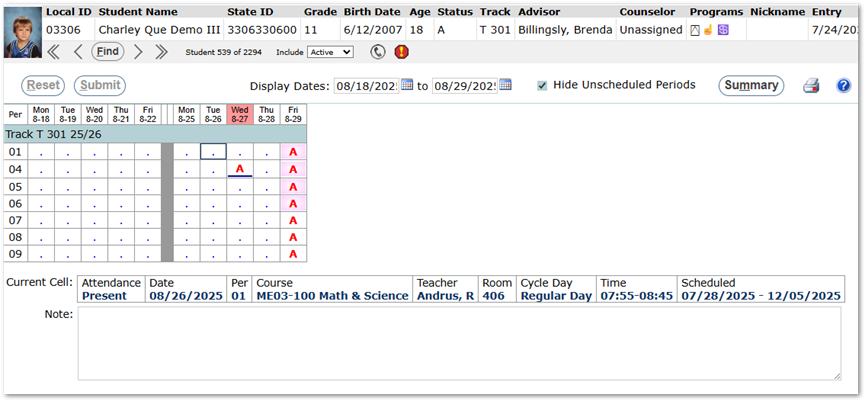
Note
Parent-reported absences will also display in the Student Attendance Grid.
Display Options
- Display Dates – A desired date range to view attendance. May be entered manually using the MM/DD/YYYY format or by choosing the date using the pop-up calendar.
- Hide Unscheduled Periods – Filters out periods in which the student has no scheduled classes.
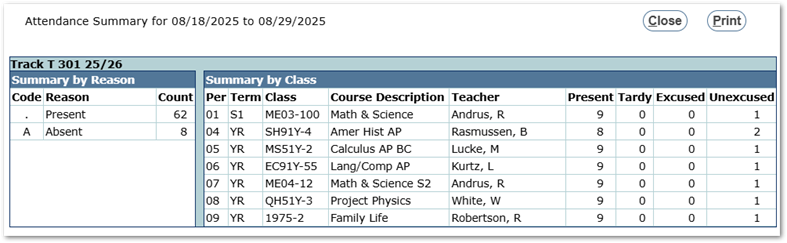
- Summary Button – Opens a pop-up with a summary of the student’s attendance for the selected date range. A “Print” option is included.
- Printer Icon– Produces the ‘Student Attendance History’ report for the selected student and date range. This report is also available on the Attendance Reports menu, based on permissions.
- There are three formats for this report: ‘By Class’ (shown), ‘By Period’, and ‘By Period with Today’s Schedule’. Your report format may look different depending on district settings specifying the default format.
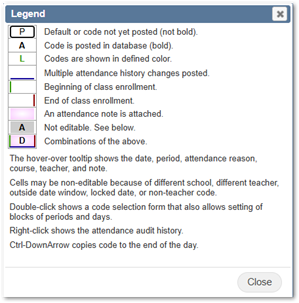
- Question Mark Icon – Opens a pop-up legend with explanations of grid symbols and usage tips.
The Grid
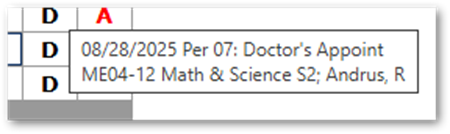
Hovering over a tooltip displays the date, period, attendance reason, course, school, and note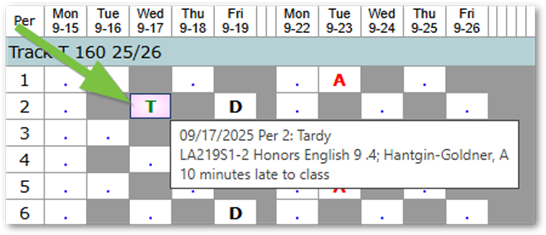
Cells may be non-editable because of different school, different teacher, outside date window, locked date, or non-teacher codes. A common example: Saturday and Sundays may be greyed out to signify the weekend.
Double clicking allows users to set the attendance for that class period or for a period of time.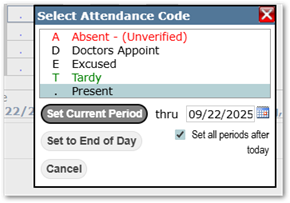
Right clicking in the attendance grid will display the Attendance Audit History.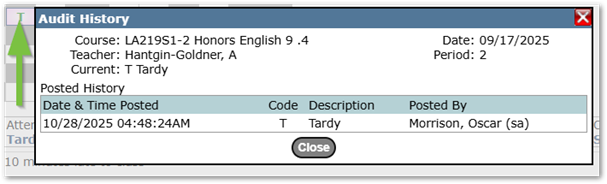
Ctrl+Down Arrow copies the displayed code to the end of the day.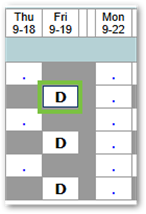
The Student Attendance application is primarily used by office staff with broader rights than teachers. The following permissions may be applied through the Permissions Editor:
- Date Override – Allows entry of attendance outside the standard range defined in Track Editor.
- Post Across Schools – Allows entry of attendance for any school in which a student is enrolled (does not expand access to additional students).
Restrictions
Depending on configuration, the following limits may apply:
- Period – Clerks may take attendance for any period, while teachers may only enter attendance for their own classes.
- Date – Without Date Override, entry may be restricted to the current day or a limited range.
- Track – Users may only post for the track they are logged into.
- Codes – Not all attendance codes are available to all users. Codes are defined in Track Attendance Settings.
Note
For students enrolled in multiple tracks, available codes may vary by track.
Cells for the system date are highlighted in red, with the first period pre-selected. Cells not editable due to permissions display a gray background.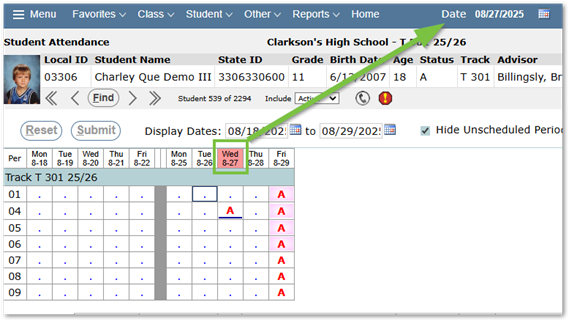
Users familiar with attendance codes and comfortable with manual entry can enter attendance by selecting the desired cell for a period and date, then typing the attendance code directly using the keyboard.
Tips:
- Lowercase letters may be used for uppercase codes.
- Tab moves across days.
- Arrow keys move up, down, left, or right.
- Ctrl + Down Arrow copies the selected code into all cells below.
The application allows users to record attendance for one or more periods across consecutive dates. The following instructions provide scenarios that demonstrate how to use this functionality.
Pop-Up Code Selection
- Double-click an editable cell. The Select Attendance Code window opens.
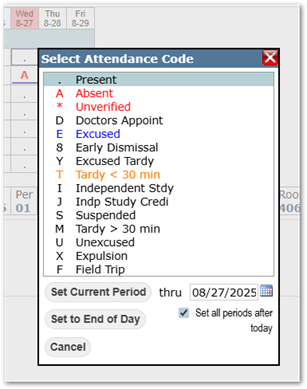
- Choose an attendance code
- Thru Date: In the dialog, set an end date for the attendance code.
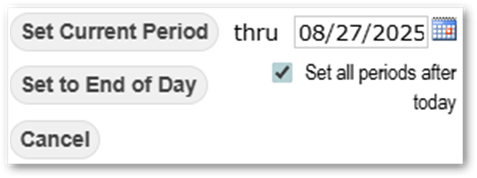
- If Set Current Period is selected, the code applies to the chosen period through the specified date.
- If Set to End of Day is selected, the code applies from the starting period through the end of day on the specified ‘thru’ date. Once the attendance grid is populated, click Submit to save entries. If needed, click Reset to clear pending changes.
- Once posted, the saved attendance codes are displayed with bold text. The color of the codes is configured by the district.
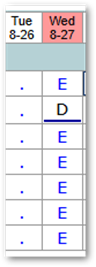
Attendance Notes
Attendance notes can be entered or edited one period at a time. When a cell in the attendance grid is selected, the details for that period, including any attendance code and notes, appear below the grid. The ‘Note’ field is located beneath the Current Cell details.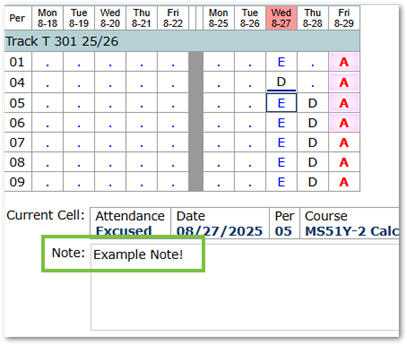
Click Submit to save.
Notes are reported when running the Student Attendance with Notes report.
Note
Notes cannot be copied across periods in this application. For multi-period notes, use Mass Attendance.
There are several ways to review the details for posted attendance.
Summary Button – Generates an attendance summary based on the date range.
Audit History – Right-click a cell to view course details and posting history for that period.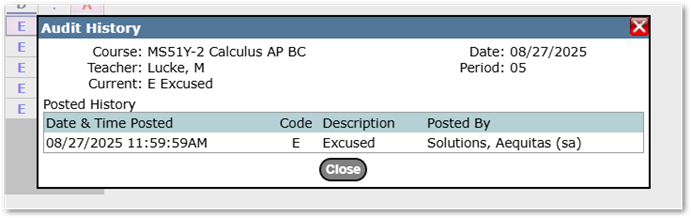
Cell Details Tooltip – Hover over a cell to see course information, code, and notes, if any exist.