
Mass Attendance enables users to record attendance for a specified date and period range for individual students or groups of students, based on filter criteria such as teacher, class, grade, and more. If configured by the district, parent-reported absences may also be processed. Attendance codes designated as ‘Teacher Entry’ codes will always be overwritten by users of Mass Attendance.
Mass Attendance is located within the Attendance menu in Q.
There are three modes of attendance entry in Mass Attendance:
- Rapid Entry – Single Student
- Mass Entry – Multiple Students
- Parent Reported– Attendance Reported by Parents via Parent Connection.
- The Parent Reported tab will appear if Parent Connection is being used and the feature allowing parents to report attendance is enabled. See the Parent Reported section for further detail.
The Rapid Entry portion of the Mass Attendance application allows users to enter attendance information for a single student.
To take attendance using Rapid Entry, a student must be selected using search criteria. Multiple search options are available to find the desired student.
Select a Student for Rapid Entry
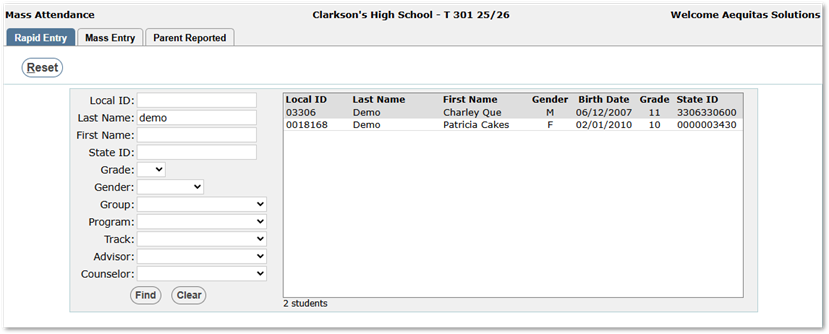
- Use the Find dialog search criteria to search for and select the student.
- After entering the search criteria, click the Find button to display a list of matching students.
- Click the Clear button to reset the form if needed.
- Select the desired student by clicking on the student’s name. This populates the student’s name and schedule into the form below the list.
- All periods for each track in which the student is enrolled will be listed. For example, a student enrolled in two tracks (T 301 and T 302) will display both.
- The date range defaults to the system date but may be changed. When the date range is updated, the Schedule section to the right refreshes accordingly.
Post Attendance Using Rapid Entry
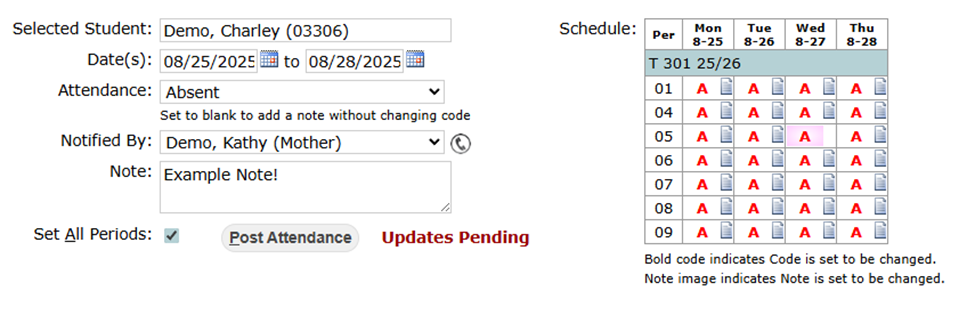
To post attendance for the selected student:
- Select Date(s) by typing in the date or by clicking the calendar icon to use the pop-up calendar.
- Select an attendance code from the drop-down list.
Note
The attendance codes displayed are those defined in Track Attendance Settings. For students enrolled in multiple tracks, certain codes may not apply to each track.
Tip
Leave the attendance code blank to add a note without changing the existing code.
- If attendance information is reported by a contact, select the contact from the student’s contact list. “Other” is always available as an option.
- Clicking the phone icon next to the contact will display Contact Information.
- Clicking the phone icon next to the contact will display Contact Information.
- Add a note if desired. When a note is added or modified, a note icon will appear to the right of the attendance code. Notes are attached to each selected period and are visible in the Student Attendance and Class Attendance applications. Notes may also appear on the Phone Log report.
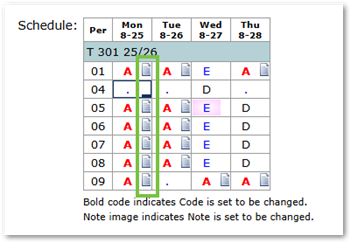
After selecting attendance selections: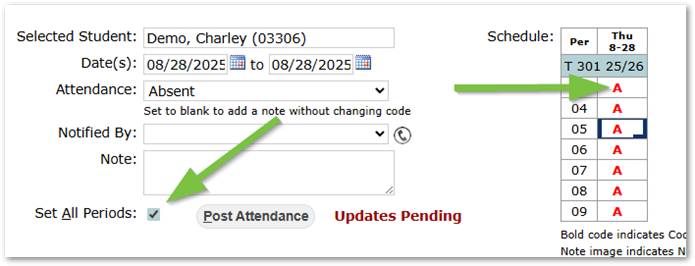
- Click inside the cells for the periods to apply the settings, or
- To apply settings to all periods for the selected dates, check the Set All Periods box.
Clicking attendance cells works like a toggle: the first click applies the selected settings, and clicking again resets the cell to the default or previously posted code. Notes can also be toggled by clicking the note icon.
In the example below, all periods were set, and then the first two periods were clicked to return those cells to the default present code.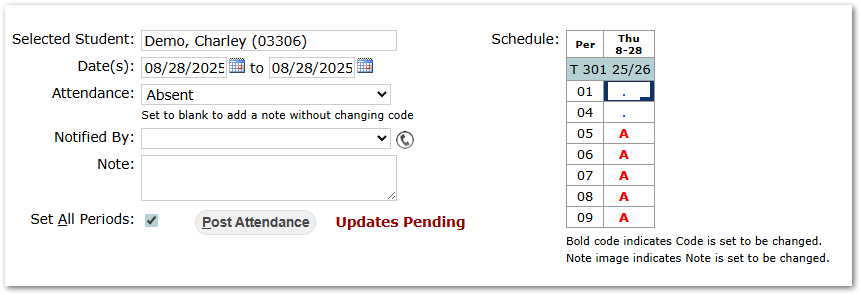
Tips for Using the Schedule Grid
- Change Indicators – A bold attendance code indicates a pending change. A note icon indicates a note is set to be added or changed.
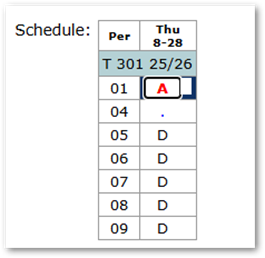
- Pink Background – Indicates an existing saved note for that period.
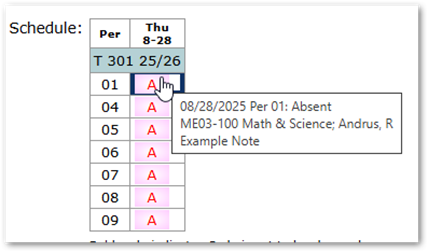
- Hover for Details – Hovering over a cell displays a tooltip with the date, period, and note details.
- Keyboard Shortcuts – After entering an attendance code for one cell, use Ctrl + Down Arrow to fill cells below in the same track. Use Ctrl + Right Arrow to fill cells to the right. These shortcuts also apply to notes, but do not work across tracks.
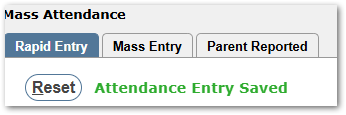
- When all attendance codes and notes are set for the selected student and date range, click the Post Attendance button. A confirmation message, “Attendance Entry Saved”, will appear at the top of the page.
The Mass Entry feature allows users to enter attendance for multiple students at once. Any user of Mass Attendance will always overwrite attendance codes designated as Teacher Entry codes.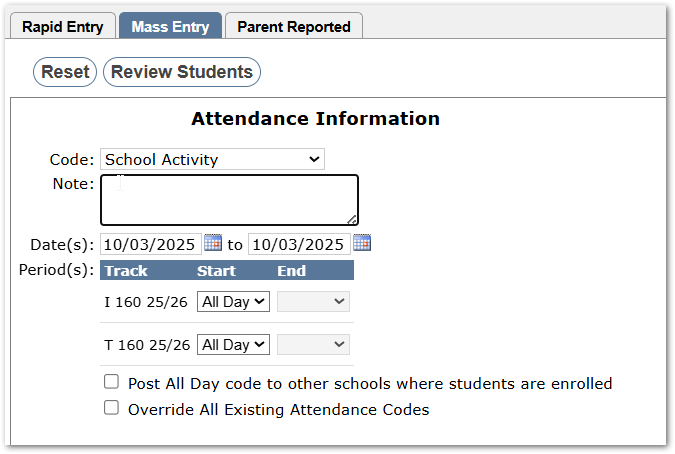
Set Attendance Information
The top portion of the screen is used to set the attendance that will be posted. The following fields are available: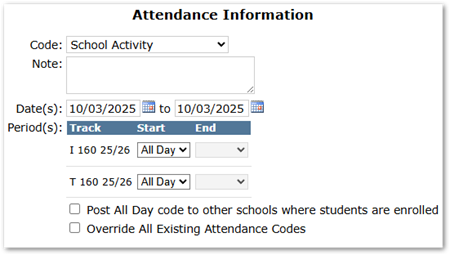
- Code – A drop-down list of available attendance codes
- Note – An optional note field.
- Date(s) – A custom date range may also be entered using MM/DD/YYYY format. Defaults to the logged-in date.
- Period(s)– The start and end periods. Depending on the track, values may be non-numeric (e.g., AM or PM).
- Selecting the All Day option for the Start period disables the End period and applies the attendance code to every period in the student’s schedule for the selected dates.
- Post All Day Code to Other Schools Where Students Are Enrolled – A permission-controlled feature available only when “All Day” is applied to all listed tracks.
- Override All Existing Attendance Codes – A permission-controlled feature that allows users to replace existing attendance records for the selected periods and dates. Users without this permission may override teacher-entered codes but not codes previously entered by Mass Attendance.
Class Selection
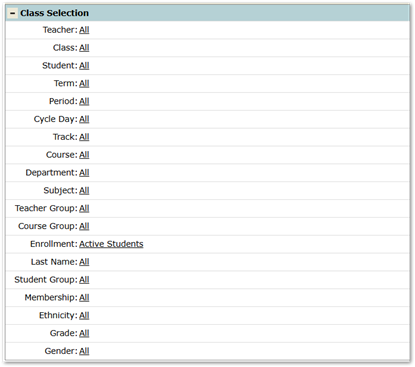
The application includes the standard Class Selection filters to determine the group of students for attendance entry.
An additional permission-driven feature allows users to display student groups owned by other faculty members.
When the Use Other Faculty Groups permission is enabled, a checkbox appears that allows filtering by groups not owned by the logged-in user.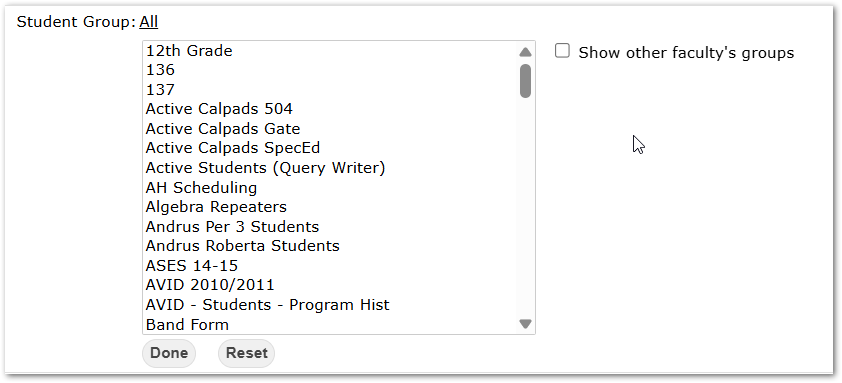
Review Students and Post Attendance
After setting attendance information and applying filters, click the Review Students button.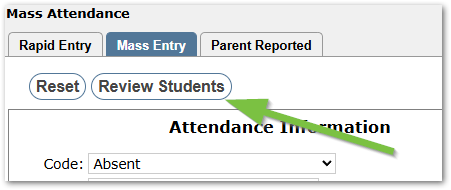
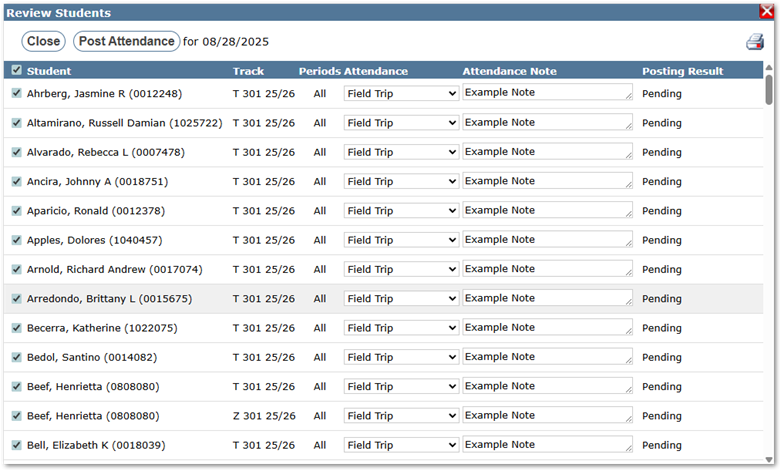
A pop-up window will display the list of students matching the selection criteria.
Note
A student may appear multiple times in the list if enrolled in more than one track.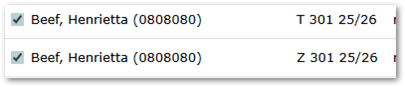
On this screen, users may verify attendance before posting. The following adjustments are available: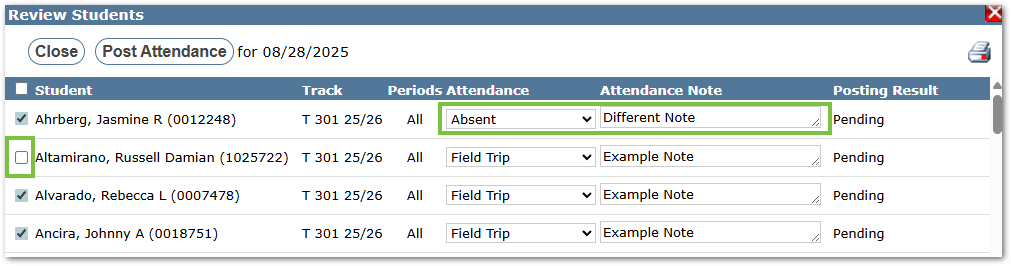
- Remove students by unchecking the box to the left of their name.
- Adjust attendance codes for individual students.
- Add, edit, or remove notes as needed.
When all changes are complete, click the Post Attendance button. After posting, a confirmation message “Attendance Entries Saved” will appear at the top of the pop-up window. The Posting Results column will display scheduled and posted sections (e.g., “6 scheduled, 6 posted” indicates all six classes were updated). Use the printer icon at the top right to print a hard copy if needed. Close the pop-up window by clicking Close or the red X icon.
Attendance posted via Mass Attendance may also be viewed and verified using the Student Attendance application.
Mass Entry Log
The Mass Entry Log button, located at the top right of the screen, allows users to review past Mass Attendance submissions and roll back entries when necessary. This is a permission-controlled feature.
The Mass Attendance Posting Log is a sortable summary displaying attendance code, date range, posted date, and the name of the person who posted the attendance.
Within the Posting log:
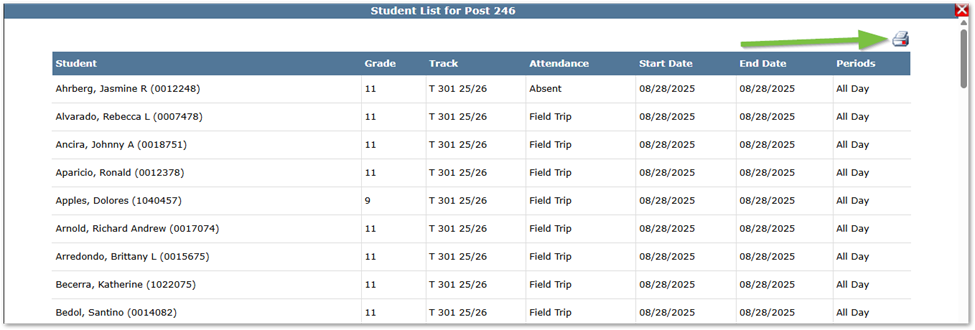
- Click the page icon at the far right of a row to view a pop-up list of students included in that submission.

- Use the printer icon at the top right to print the list.
Roll Back Attendance

- The Roll Back button permanently undoes a submission. A warning message will appear before the rollback is processed.
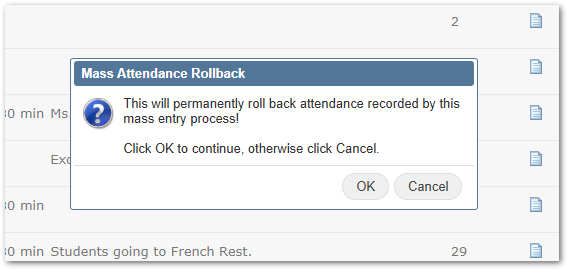
- Click OK to confirm the rollback.
- Click Cancel to stop the action.
When a school district enables attendance reporting through Parent Connection, absences submitted by parents appear in the Parent Reported section of the Mass Attendance application. 
Note
By default, the Parent Reported tab only appears when parent-reported absences exist to process. To display the tab at all times, allowing previously reported absences to be reviewed, set the Mass Attendance preference Always Show Parent Reported Tab to Yes in the Preference Editor.
Process Parent Reported Absences
- To process a parent-submitted absence, select a row in the table of reported absences. The lower pane displays details of the selected absence, including the student’s schedule for all enrolled tracks.
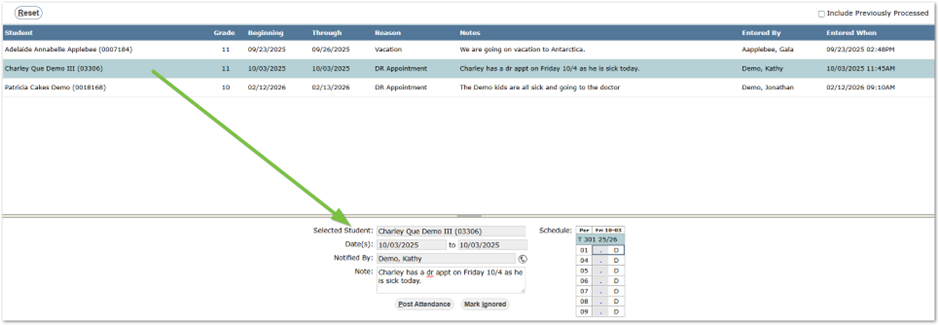
- The left side shows the current attendance code for the reported date(s).
- The right side shows the parent-reported absence code.
- The Note field is editable, allowing users to add, remove, or modify attendance notes.
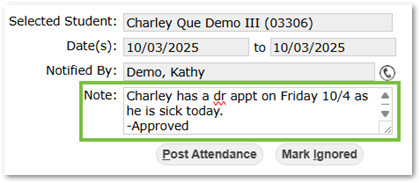
- The Reset button clears the form in the lower pane.
- To replace the parent-reported code:
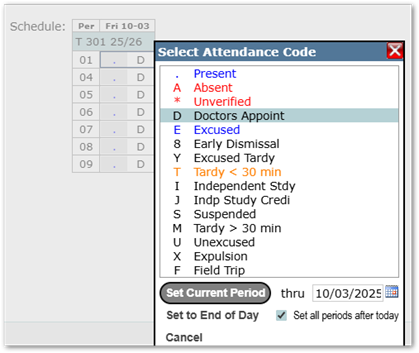
- Double-click the attendance code cell. A pop-up menu of attendance codes will appear.
- Select the desired code.
- Use the buttons and date field at the bottom of the pop-up to quickly apply the code to multiple periods. These options apply to one track at a time.
- If more information about the absence is required, click the phone icon to open a pop-up displaying the parent contact’s details, such as primary language, email address, and phone numbers.

- At the bottom of the form, two options are available:
- Post Attendance – Posts the absence to the student’s record.
- Ignore Reported Absence– Marks the report as ignored.
- In both cases, the selected absence report will no longer be displayed.
View Previously Processed Absence Reports
To view past reports, check the box Include Previously Processed at the top right of the page. When selected, the table displays both processed and unprocessed absences.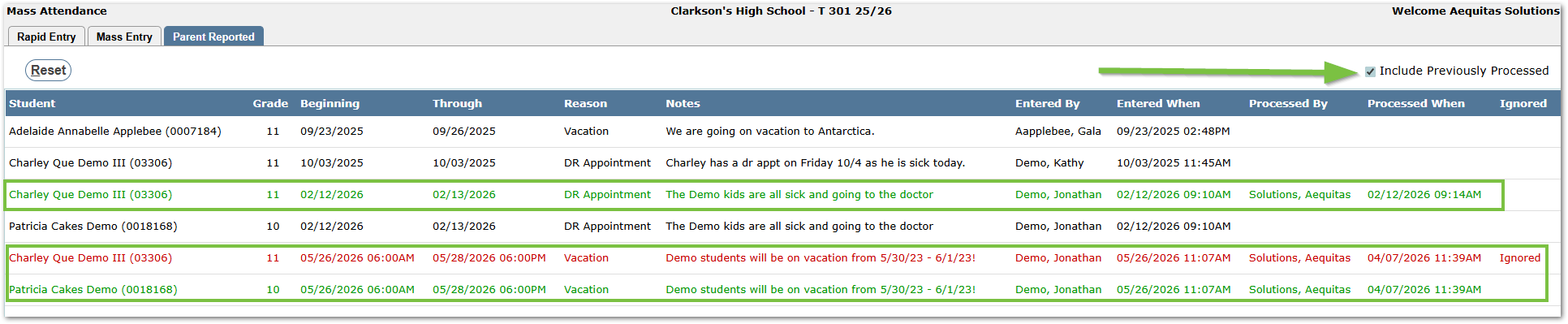
Additional columns appear, showing:
- The staff member who processed the absence
- The date and time of processing
- Whether the report was posted or ignored
Processed absences are displayed in green text.
Ignored absences are displayed in red text.
Permissions
Mass Attendance is typically used by school office attendance staff who require more rights than teachers. To perform required tasks, the following application permissions should be considered:
- Date Override – Allows users to enter attendance outside of the number of days allowed in Track Editor.
- Use Other Faculty Groups – When enabled, a checkbox appears in the Student Groups selection that adds groups owned by other faculty to the list. Without this feature, users can only see groups they own.
- Mass Entry Log – Provides a Mass Entry Log button to view a log of all mass attendance posted and the ability to roll this data back.
- Override All Existing Codes – Provides an “Override All Existing Attendance Codes” checkbox option, allowing users to override all previously existing attendance codes. Users without this permission can override teacher-entered codes but not codes previously entered by Mass Attendance.
- Post All Day Code to Other Schools Where Student is Enrolled – Provides a checkbox option (Post All Day) allowing users to post attendance to other schools where the student is enrolled.
