
Hello all! I hope the beginning of the school year is going well. Around this time of the new academic year, schools need to determine if any of their students have failed to attend. That’s where the No Show application comes in handy!
A No Show student is one who was enrolled but never attended class. The No Show application allows schools to process these students in bulk. When run, the process will exit the selected students in bulk, and either close their schedule and attendance records as of the ‘End Date’ or delete them based on a district preference.
Note: The No Show application should only be utilized after schedules have been reviewed and corrected, so no students have any unscheduled periods. Attendance should also be reviewed to ensure it accurately reflects the status of all students. Not verifying this information risks the deletion or inaccuracy of current student information.
- While this Q Tip is a brief refresher, the full documentation for this process can be found at this link.
- For additional information on tools that can assist in verifying attendance data for the No Show process, see the linked Quick Reference Guide.
Processing No Shows
From the Enrollment menu, select No Show. The following options and functions will be available.
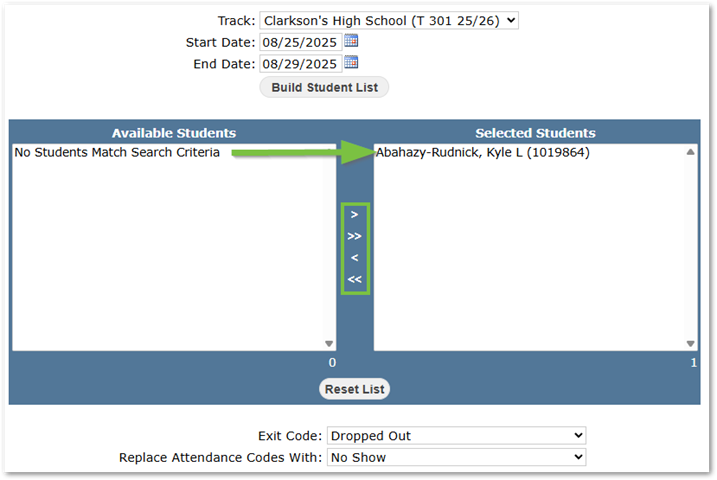
- Track: The track to process.
- Start/End Date: Defaults to the first two weeks of school; adjust as needed.
- Note: These must be school days
- Build Student List: Generate a list of students with absences across the selected dates.
- Available Student/Selected Student Lists: Move No Show students from Available to Selected.
- Note: Sometimes, students with excused absences appear as No Shows. These should be managed individually rather than bulk-processed.
- Exit & Attendance Codes: The Exit and Attendance Codes to be used.
- Process No Shows: Run the process!
Preferences
A preference determines whether student records are updated or deleted when No Show is completed:
- Set to No: Students are exited with a code, and their attendance is marked Not in Attendance.
- Set to Yes: Attendance and schedules are deleted, with entry/exit dates adjusted to the day before the track start.