
Many schools find themselves using a course during the year that should not have been used and there is a need to move students into a new section with the correct course title. Wait, are you saying I can do this without creating a new section…Yes, That is right. Below are some steps to follow to show how to switch a course, but still keep all students enrolled with attendance and grade books having no impact.
Step 1. Identify the course that is being used with student scheduled in the section. Go to Master Schedule Manager and find the course that should be replaced.
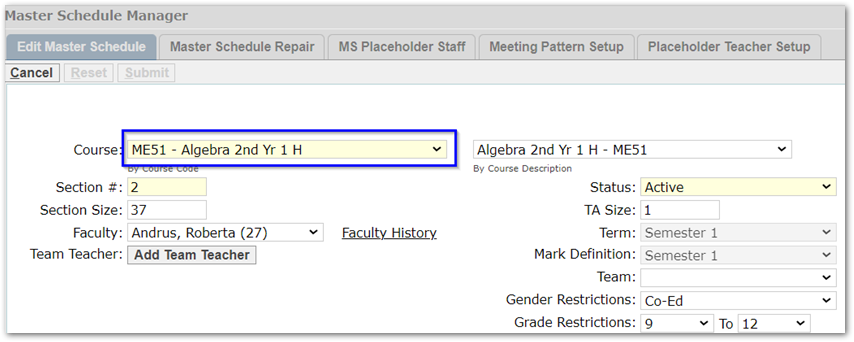
Above is a course (ME51-1) Algebra 2nd Yr 1 H and in this example this course should no longer be used, but the school has accidentally built sections and has student’s schedule.
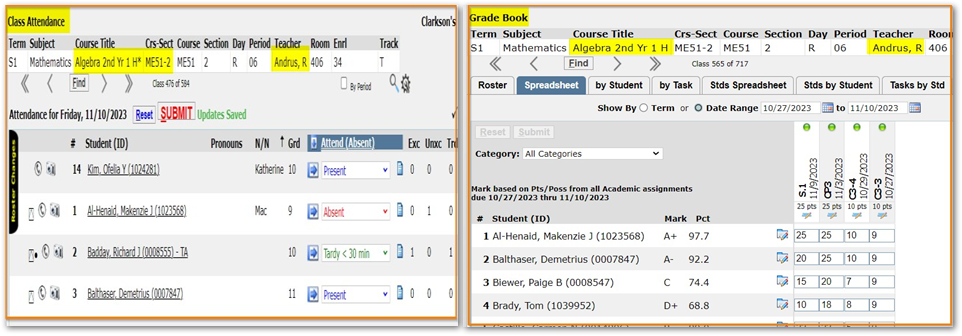
View of students Class Attendance and Gradebook for the above section of Algebra 2nd Yr.
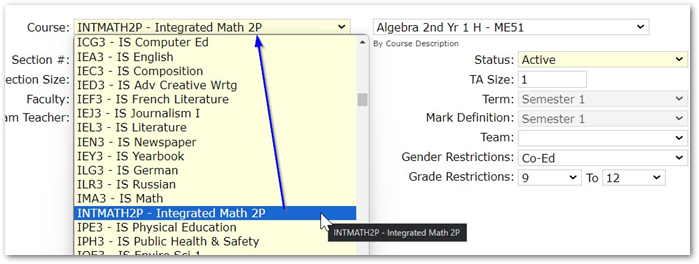
Step 2. In Master Schedule Manager to replace a class, find the course that will be replaced, and in edit mode select the new course from the dropdown and click submit.
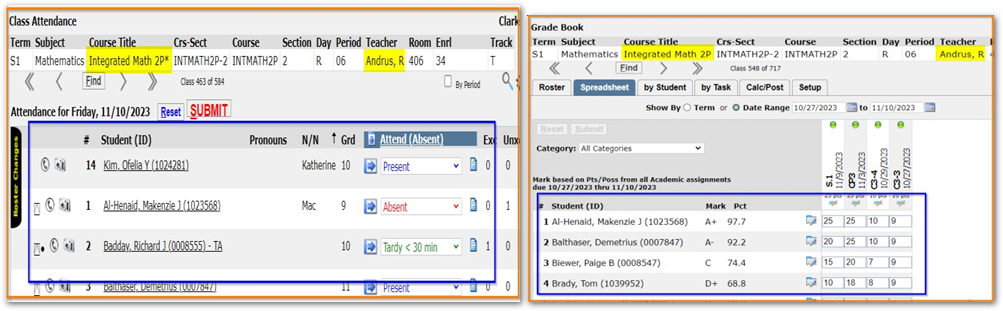
Once the new course has been saved, see below what the results look like in Class Attendance & Grade Book.
Note
Something to aware of if the above is needed at any of your schools. The replacement course should be offered for the term that will award the same credits if the marks have already been given. What we don’t want is the original section is worth 5.0 credits per semester being replaced by a course that awards 10.0 for the semester.