When scheduling students in the Student Schedules app, in the Section Scheduler, you’re able to see how many students a teacher has over all their classes. Notice that each teacher’s name is underlined:
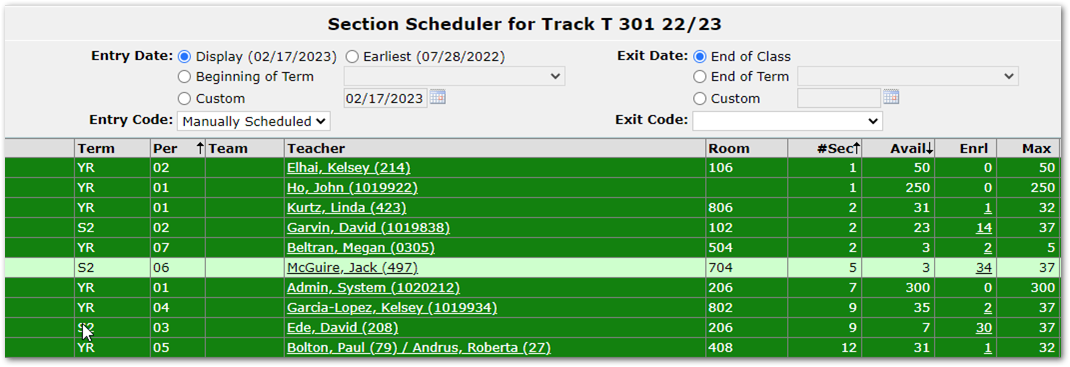
Click on their name to open a pop-up window with that teacher’s Student Load over this school year:
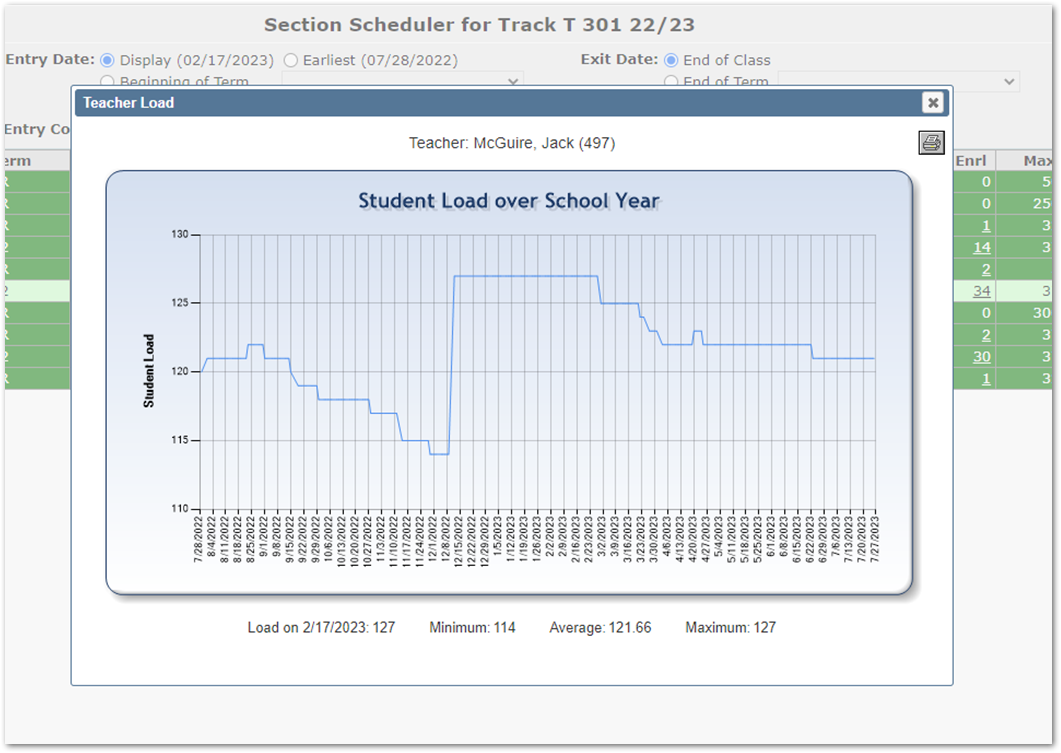
In this chart, you can see that the student counts for this teacher change per day as students add and drop their classes. This chart can be particularly useful in situations where you know teachers are getting close to their maximum number of students for the year, and adding this one more student could overload them.
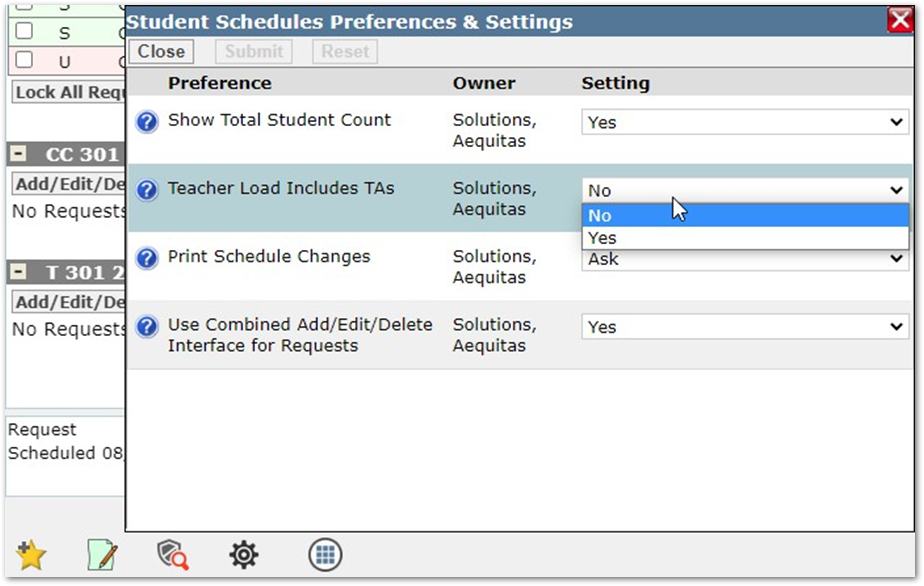
There is also a preference in Student Schedules to include TAs in this student count. Open the App Preference icon to make this change: