
For this week’s Q-Tip I am repeating the Q-Tip #9 & Q-Tip #55 regarding New Year Process from the past couple years. We have added a couple new features that we want to share If your district has not run the New Year Process already, I am sure they are about ready to run it. Hopefully some of this information can be useful.
Some of the enhanced functionality of the Q New Year Init process includes the following extension fields for the Track Editor including two New additional items:
- Track Promotion within a School - allows students to be promoted to a different track at the same school. NOTE: Extremely helpful for schools like K-8 where the school has two tracks. The Elementary Track students will promote to the Middle School Track within the same school.
- Do Not Roll Track Forward - excludes a track from being copied to next year's database. NOTE: This could be used more than the past as so many schools have added Virtual or Distant Learning Tracks they may not need for next year.
- New Year Init Complete After Step One - excludes a school from Step 2 of the New Year Init process. This is setup for the School Editor in Extension Editor
- New Do Not Roll Advisor – this option if checked on for a track will not roll over current Advisory to the next year enrollment record for students in this track.
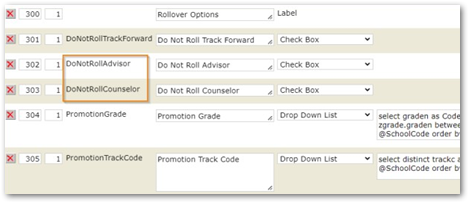
New Do Not Roll Counselor - this option if checked on for a track will not roll over current Advisory to the next year enrollment record for students in this track.
NOTE: Above is the example of Extension Editor setup for Track Editor
Setup Tab
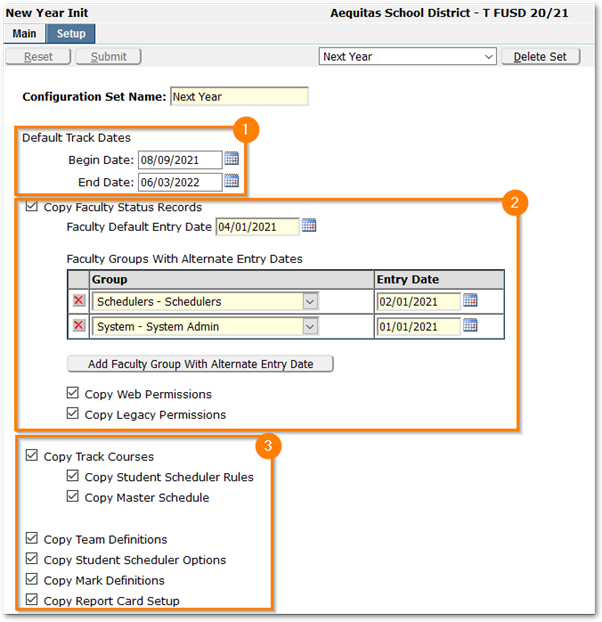
This is optional; however, this can be a great tool as the setup carry’s forward to the next year so the items you setup this year will be there for the next year. NOTE: This is really helpful when staff who run this process retire or leave the district, as the setup can show the new staff what has been run in the past.
- If the Dates for the next school year have not been finalized by the time the New Year process needs to be run, use placeholder dates, and change them later in the Track Editor
- Copy Faculty Status records and set the ‘Default Entry Date’ to the latest date staff, such as teachers, will need. Use Faculty Groups to set staggered access prior to that date. Be aware that if a staff member falls in multiple groups, the process will set the faculty entry dates in the order they appear in the application, so make sure to add the groups in order descending by date.
- We recommend copying all aspects of the current track forward, including the master schedule. Once copied, the information can be removed for selective schools if needed.
NOTE: In Q 4.0.0 we added a new feature that many may not know or remember reading in the release notes. If the option to copy Master Schedule is selected and any school/track had Section Linking setup, this will now get copied as part of the Master Schedule copy process. There is not an option to select to copy or not, the app will just do this so sites don’t have to recreate section linking.
Step 1
Although you can select different sets of schools to run Step 1 against, the suggestion would be to run for ALL schools at once so every school that should get a Track for the next year and based on the Setup selections faculty, permissions and scheduling data will get copied as well.
NOTE: If the Master Schedule was not copied during the initial process of Step 1, you may go back and turn this option on as long as no entry of Master Schedule data has begun.
Step 2
Step 2 of New Year Init creates student status records in next year's tracks for all currently active students. Optionally, part-time status records will also be created (if possible). By default, students will be enrolled into the corresponding track for next year unless you have configured the current year's track to promote students to another track. Please verify that geocode mappings are accurate for students being promoted.
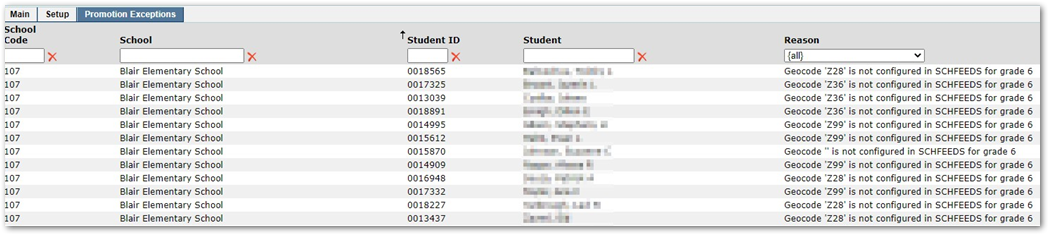
Promotion Exceptions
The Promotions Exceptions tab will appear after all schools have completed both Steps 1 and 2 of the New Year process. This tab displays a list of students that were not promoted into a future track. 12th graders who are not retained will always appear in this list of unprocessed students because there should be no future track available for them in the district. Other reasons for students appearing on this list include students that have blank or invalid geocode, students who are coming from another district with a geocode that does not apply to the new district, etc. These exceptions will be cleaned up when the Year End process is run. NOTE: Out of District students should receive a future enrollment provided they have not reached the school’s promotion grade level. Once they hit the promotion grade level, they should show up in this Promotions Exceptions like the 12th graders do.
 Special Considerations
- If you have a school or schools that do NOT want their Master Schedule copied as they like to rebuild from scratch, we suggest to still copy the master schedule and there are options within Q to remove the master schedule. Please submit a helpdesk ticket and we can assist you on how you can do this.
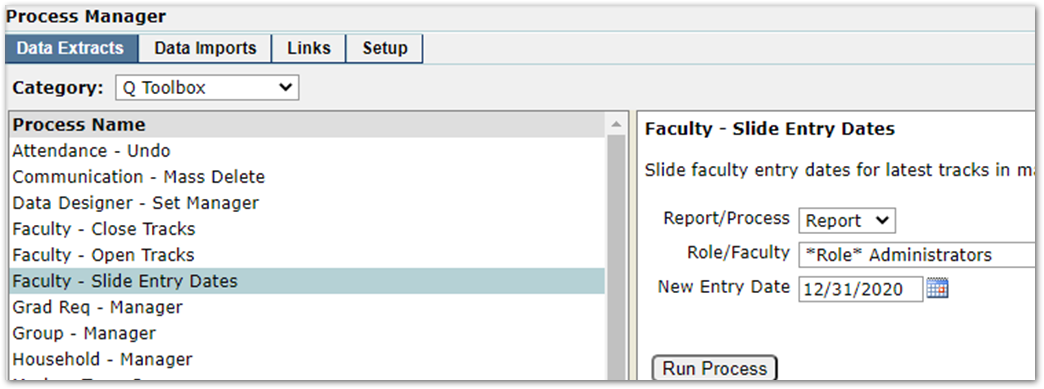
- If you have Faculty that require a different entry date for next year, we have in Process Manager under Q Toolbox that can allow for sliding the entry date by permission role
- If the Dates you setup when running Step 1 need to change, go to Track Editor and adjust the Begin Year and/or End Year dates. If Begin Year date changes, the system will update the student’s entry date in (stustat) to whatever the new Begin Year date is changed to.
- When running the New Year Process and you have any issues and would like to start over, please contact Aequitas helpdesk as we have scripts to roll back what New Year Process does so you can start over.