Today’s Q-tip is a quick and easy look at one of the most useful icons located in Student banner applications. Most Q users will have access to a Student Banner application as part of their permission set.

Using the ‘Find’ button in a Student Banner application to search for a student is a daily occurrence for most Q users. Often, there are times when our search may not involve a singular student, but a group of students that we want to work with. In these instances, the Grouping icon is your best friend and can make your life easier.
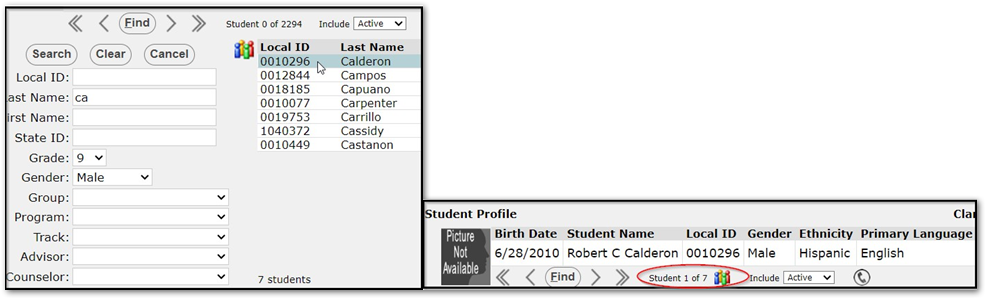
When we click ‘Find’, enter one or more search criteria to filter the set of students, the count of students in the set appears in the banner and at the bottom of the list. When you hit the ‘Search’ button the count at the bottom of the list will then reflect the number in the filtered results.
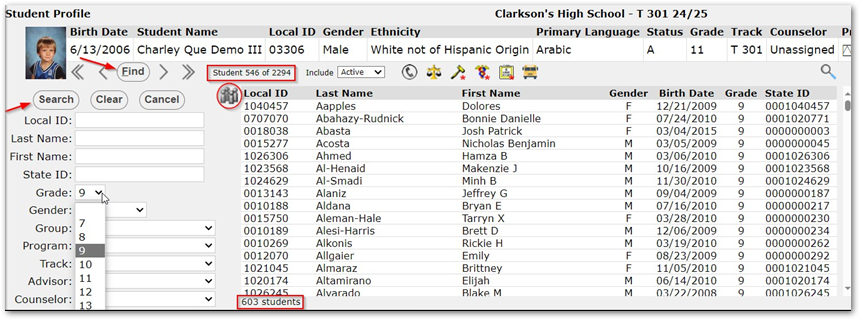
In order to keep the filtered set, click the Grouping icon, which will now turn from gray to multi-colored when activated. Now, select one of the students in the set. The count of students in the banner will subsequently reflect those in the filtered set. The arrow keys will also scroll through the filtered set of students making it easy to cycle through the desired list of students. By Clicking the Grouping icon again, you can release the set and the counts will return to the default.