Q provides a convenient and easy method for entering and saving notes that can be used in different scenarios. For example, users may take their own notes for a training session, a student visit, a class visit, etc., and these notes are only viewable by the user who entered them (but it is important to note that, for admin users that have impersonation rights, these notes will be able to be viewed by them when impersonating, so be cautious!!).
The Notes area can be found in the bottom left corner of Q:
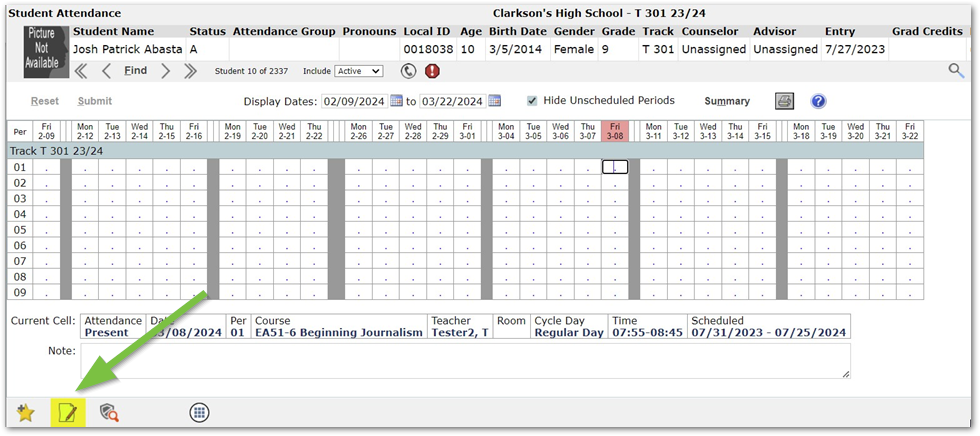 If there is no note entered for the selected student or application, the notepad will appear white. If there is a note entered, it will appear light green in color.
No note: Note:
Note:
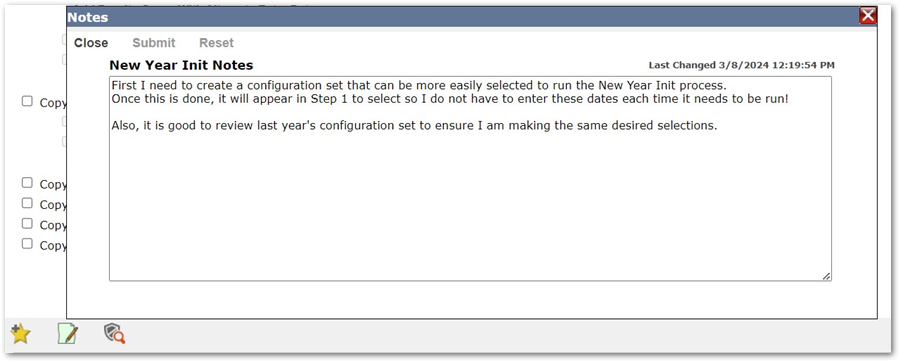
For any application that is not a banner application, such as New Year Init, there is a notes area that is specific to just that application.
This is a great time to utilize this functionality within Q! When working in applications that are rarely used (New Year Init, Year End, etc), it is a great idea to enter notes here that can be referenced next year when this process is due to be run again!
If you are currently working in a student banner application, when the notes area is selected, a user can either enter notes for the student that is selected in the banner, or for the application that is currently being worked in.
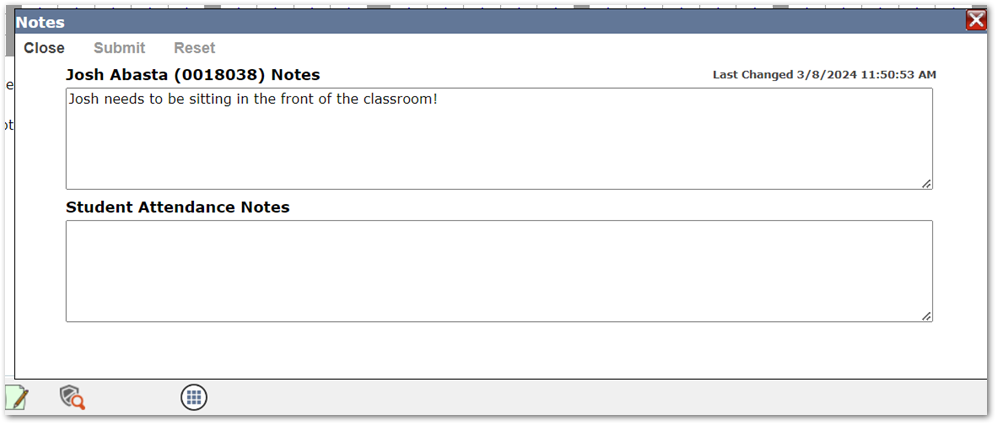
If the note being entered is for the student, the note will only show for the user who entered the note for this student and will appear in all student banner applications this user has access to.
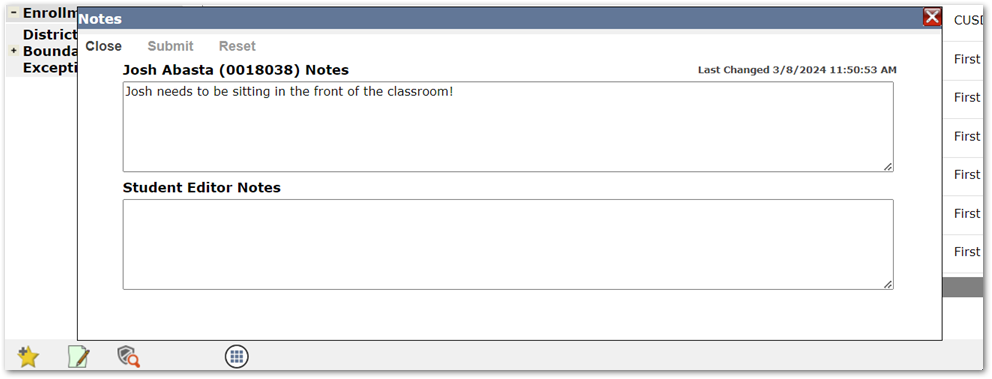
(ex: notice this note entered for Josh Abasta. The screenshot above displays the application being Student Editor. The screenshot below is the display within Student Attendance).
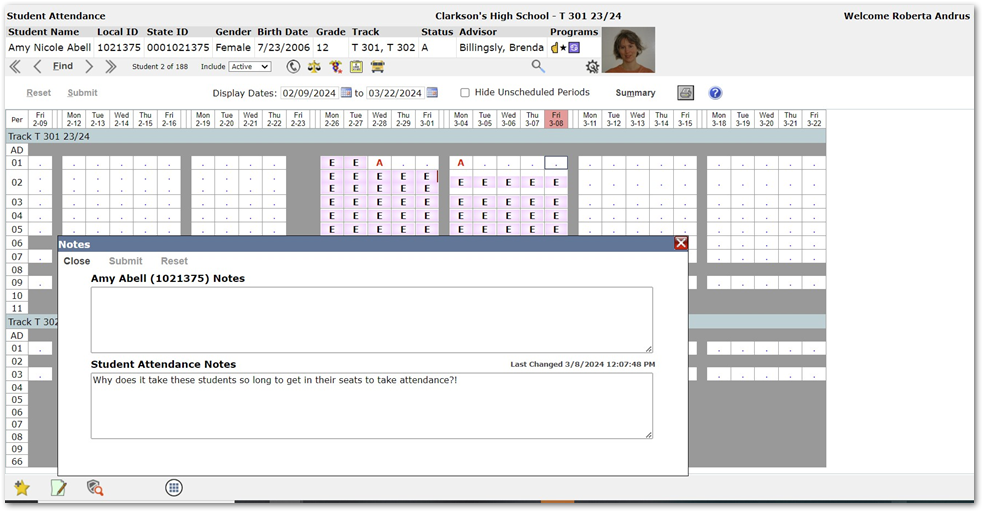
If the note being entered is for the selected application, this note will show for all students the user has access to within this application.
For example, this Student Attendance note below entered by Roberta Andrus will show for all her students within Student Attendance:
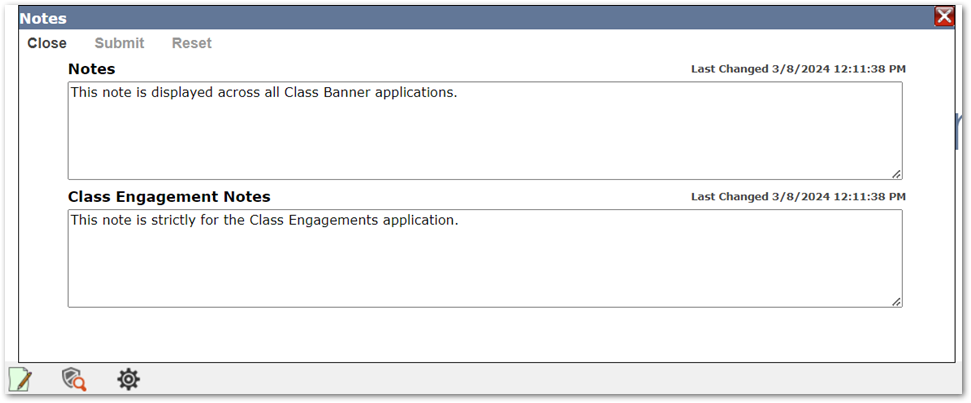
The same is true for Class Banner applications. Any note entered in the ‘Notes’ area will be
displayed across all Class Banner applications. There is an application specific notes area that will only display for the selected application: