
The Test Import application is used to import testing data from a source file (such as a CSV, Tab-Delimited, fixed file, etc. provided by a testing agency).
First, an Import Definition is created. This definition contains the mapping configuration so that the import process can parse the data in the source file and match it to the associated fields in Q. Second, the source file is uploaded. Prior to the data being saved the user will be presented an interface to review the potential changes and either abort the process or commit the import into the student testing records.
The application also provides for error checking, inline student resolution, and import history tracking through a web interface.
Test Import is located under the Testing menu in Q.
The Test Import application is divided into two areas: Import and Configuration. The app opens on the Import screen. In order to import a file we will need an Import Definition that is configured for the file format we are uploading. Import Definitions are created/edited in the Configuration area. Click Configure to access the Configuration area.
 Notes: If there are no current Import Definitions, the application will open to the Configure screen and will require the user to create a new Import Definition. Some standard tests may already have Import Definitions available for download in the Aequitas File Manager.
The Configuration screen is where Import Definitions are created/edited. To edit an existing Import Definition, select a definition from the Import Definition drop-down. Click the New button to create a new Import Definition from scratch. Click the Copy button to create a new Import Definition using the configuration from the currently selected Import Definition as a starting point. The Copy feature is especially useful when a test format has changed slightly from a previous version as you do not have to remake the entire definition nor do you have to edit the original. Click Save to save your changes. Click Exit Configuration to return to the Import screen.
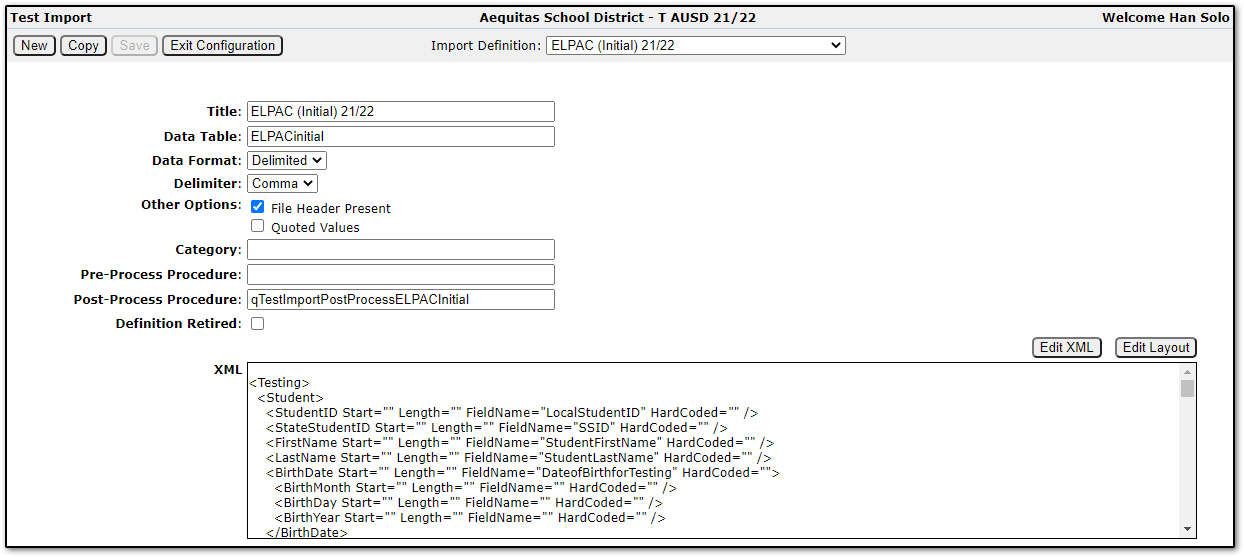 Title - Name of the Import Definition (typically a test and the year. Ex: ELPAC (Initial) 21/22)
Data Table - Name of the SQL table used to stage import data (system will automatically append “Imported” to the front to prevent trashing system related tables)
Note: During the beginning steps of a new test import, users will load the source file. The data is not immediately stored in the student's test records, but rather in the table specified above (ex: select * from ImportedELPACinitial). Storing the testing data in this table allows the user to reviewe/validate the data before committing the import to the student test records. It also allows for data manipulation by the Pre-Process Procedure prior to commiting the import (see Pre-Process Procedure below).
Data Format - Select whether the source file is in a delimited or fixed format
Delimiter - If the Data Format is set to Delimited, specify which character in the source file is the delimeter
File Header Present - Check if the source file contains a header row
Quoted Values - Check if the source file contains quoted values
Category - This field is not currently used
Pre-Process Procedure - Name of a SQL stored procedure that will run immediately after the source file is loaded into the staging table
Note: If a Pre-Process Procedure is specified, it will fire one time immediately after the data is loaded into the staging table (see Data Table above). When performing a test import, the user has a chance to review the data through the Test Import app prior to committing the import. During this validation stage, the user is seeing the data after it has been manipulated by the Pre-Process Procedure.
The Pre-Process Procedure will be passed a single parameter: @ImportSetID int. This matches a corresponding ImportSetID value in the ImportSet table.
An example use of a Pre-Process Procedure would be a procedure that reformats 5-digit Julian date values to MM/DD/YYYY format.
Post-Process Procedure - Name of a SQL stored procedure that will run after each record is written to the database.
Note: This procedure will be fired after each record is saved to the database during the final step of the import process.
The Post-Process Procedure will be passed a single parameter: @ststuniq int. This matches the corresponding ststuniq value in the stutests table of the test that was saved just prior to the procedure firing.
An example use of a Post-Process Procedure would be a procedure that updates a student's English Learner Proficiency Level based off the results of the test score just saved.
Definition Retired - Check this box to prevent this definition from being shown when performing an import. This is useful for hiding definitions from previous years that are no longer used.
Edit XML - Click to edit the the Import File Definition and Import File Mapping Table through an XML interface
Edit Layout - Click to edit the the Import File Definition and Import File Mapping Table through a web interface
XML - A view of the XML containing the Import File Definition and Import File Mapping Table
Edit Layout
Clicking the Edit Layout button allows you to edit the Import File Definition and Import File Mapping Table through the Edit Layout screen.
The Import File Definition consists of two parts:
- Student Data Section
- Define which fields will be used to match students from the source file to the students in Q
- Specify location of fields in the source file
- Specify a default test date in case some records don't have a test date (dates are required for tests to be imported)
- Tests Section
- Define which fields should be parsed from the source file into Q
- Specify location of fields in the source file
The Import File Mapping Table allows you to map values in the source file that don't match the database setup to alternate values.
Import File Definition - Student Data Section
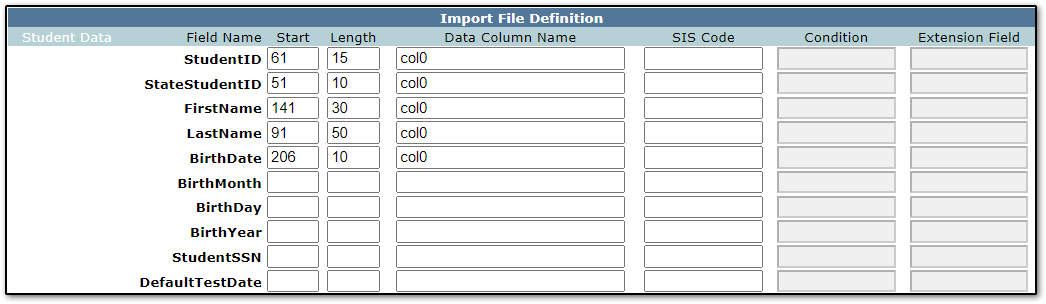 Example of the Student Data Section for a fixed file.
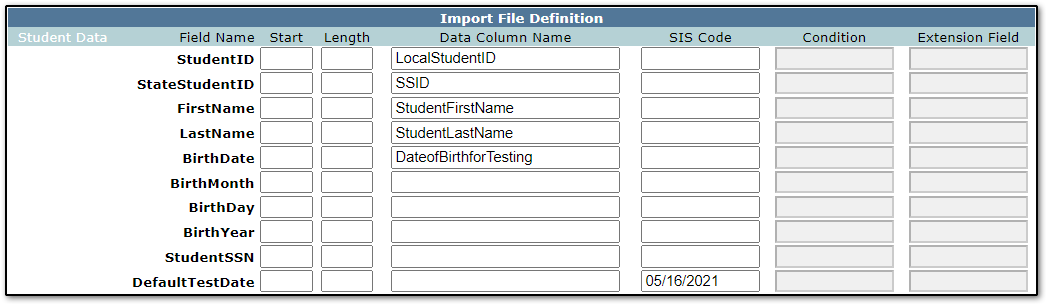 Example of the Student Data Section for a delimited file.
Start - The starting character position of the field (when using a source file with a fixed format)
Length - The length of the field (when using a source file with a fixed format)
Data Column Name - The name from the column in a delimited file. In the above example, the source file contains a column named LocalStudentID. The values from this column will get compared to the StudentID (ident) in Q
Note: for fixed files, put col0 in the Data Column Name for any columns being used
SIS Code - If populated, the value here will be hard-coded for each record (see Note below)
When a file is imported the process will attempt to match 4 fields from the file to students in Q:
- StudentID (Ident)
- StateStudentID (SSID)
- FirstName + Last Name + BirthDate or (BirthMonth, BirthDay, BirthYear)
- StudentSSN
If one or more of the four fields is not populated in the Student Data section, then that field will not be used. For example- in the above screenshots there is nothing populated for StudentSSN. So, when this configuration is used during a test import, only StudentID, StateStudentID, Name + DOB will be looked at to try and match students from the source file to students in Q.
Note: The import process requires each test record to have a date. If some records are missing a date (and you are okay with that, as it may indicate bad data in the source file) the value from the SIS Code column of DefaultTestDate will be used as the date for these records. In the above example, any test record with a blank date will be loaded with the date 05/16/2021.
If you populate the Start, Length, and Data Column Name values the process will import a partial value for that column matching the Start/Length. For example, if the source file contains a date column named Date Of Birth with values in MMDDYYYY format, you can enter Start = 3, Length = 2, and Date Of Birth for the BirthDay row of the Student section.
Import File Definition - Tests Section
A Test section should be defined for each unique Test/Subtest/ScoreType present in the source file.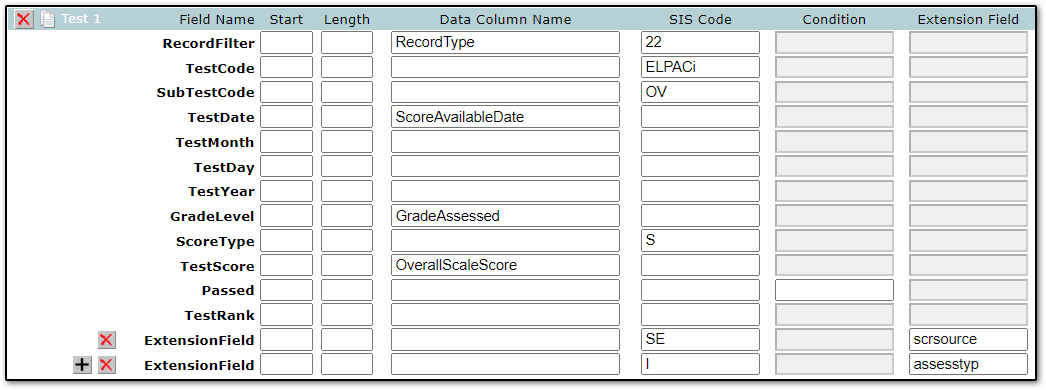
The import process will run each Test section against each row in the source file.
RecordFilter (optional) - The SIS Code will act as a comparison value. If the value is true this Test section will be processed against the row. In the above example, this Test will only be saved if the source row contains the value "22" in the RecordType column.
TestCode and SubTestCode - values should match existing values defined in the Test Definition app.
TestScore - if this value is blank for a row the import process will not save this Test section for that row.
Extension Field - should contain the name of a column in xstutests.
Import File Mapping Table

The Import File Mapping Table allows for conversion of source values into mapped values that will get saved. In the above example, if the GradeLevel value from the source file is KN, the import process will convert the KN to 0.
Edit XML
The Edit XML screen allows you to edit the Import File Definition and Import File Mapping Table through an XML interface. This is useful for copying pieces of existing definitions.
- Select Test Definition to import and click Load Data.
- Select file and Submit
- File is loaded to “imported<name from config>”
- Pre-Process Procedure is executed
- XML parsing is performed on new table

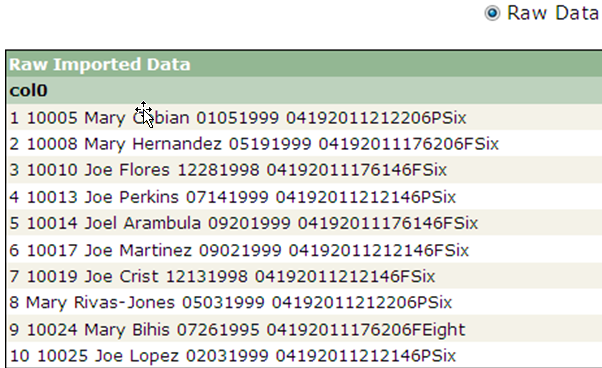
3. Review Raw Imported Data
-
- Selected out of “imported<name from config>”
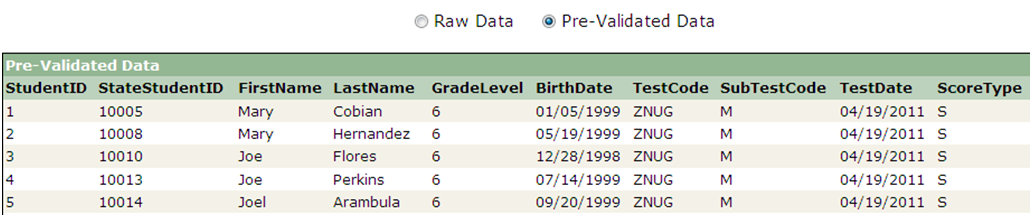
4. Review Pre-Validated Data
-
- Data processed through the XML parser
5. Validate the data set
-
- Code checking is performed
- Each student is looked up in student tables

6. Review and fix non matches
-
- 33% for Student ID
- 33% for Student State ID
- 33% for First Name, Last Name and Birth Date

7. Commit Import
-
- Validated data is written to the database

8. Review Imported Data

10. Maintain Test Import History
-
- Revisit Import Set to fix non loaded data
- Complete Import Set once data is fully loaded
- Abort Import Set or Delete Set to clean up import tables (ImportSet, ImportData)

- Pre-Process Procedure: SAT test file does not contain required field elements (StudentID, StateStudentID) so a procedure must add and populate these fields in the “Imported…”table.
- Student Name Function: A SQL Function called ImportStudentName is available to customize any standard student name manipulation for specific tests.
- Example: A testing PreID that does not accept dashes (-) as part of the student name will not make matches when results are sent back unless the same logic is applied to the validation process in the function.
- Duplicate Records: Records matching Test, Sub Test, Student, Score Type and Test Taken Date are updated unless Additional Element scrsource is provided in which it is added to the comparison.
- ImportSet Table: Troubleshooting information for the File Load, XML Parse, Validation and Import.
- ImportData Table: Troubleshooting information for each student along with a direct link to loaded student test record.
- Maximum file size can be changed in web.config.
- Files should use ANSI encoding.
- For tests that have been configured to be imported click on the Copy button feature to take the existing configuration of a test (eg. 2010/11) use it as a starting point for the next year 2011/12. Any changes can be made against the new copy making it easier to maintain the configuration of the prior year’s test and having a new configuration with new changes.
